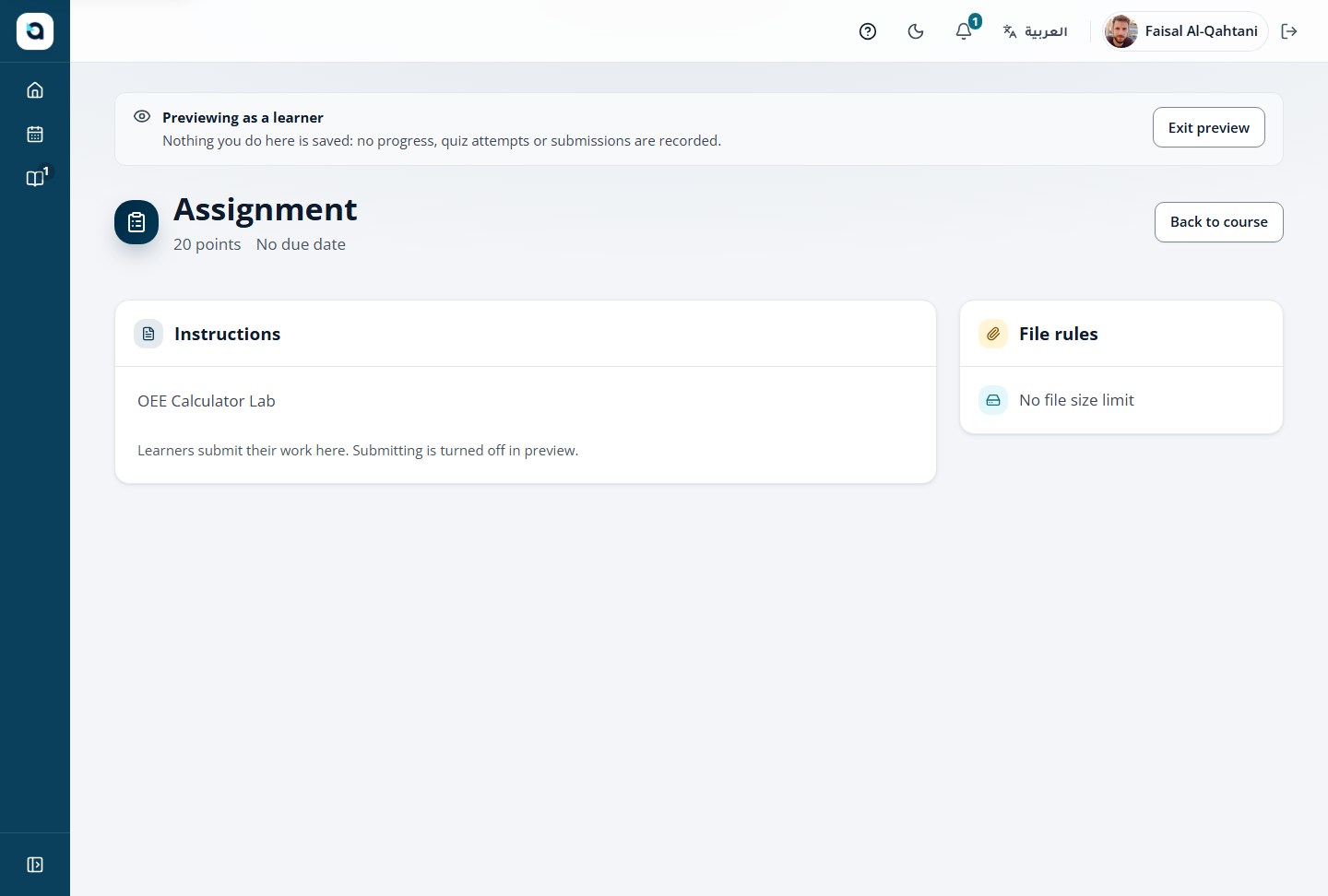
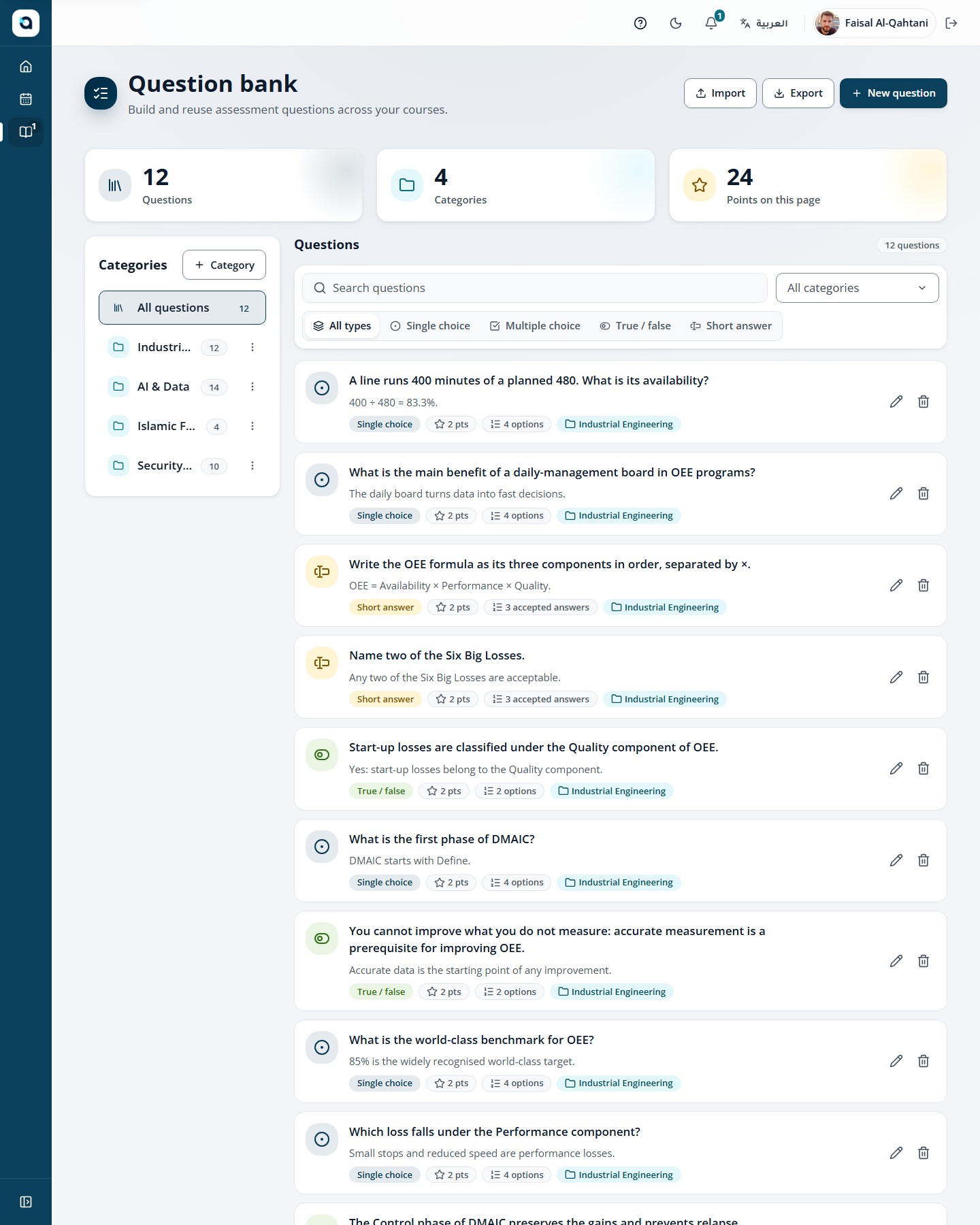
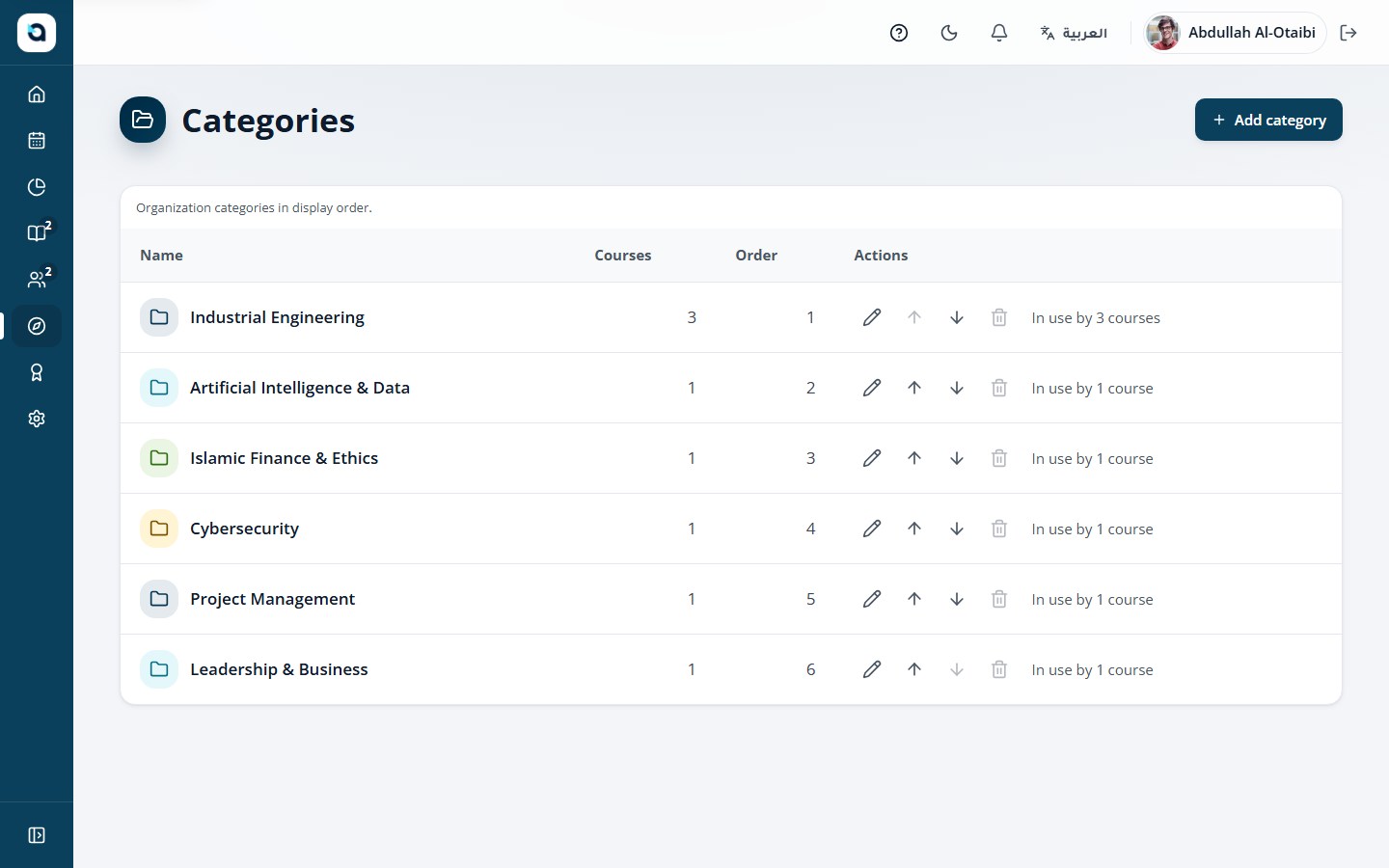
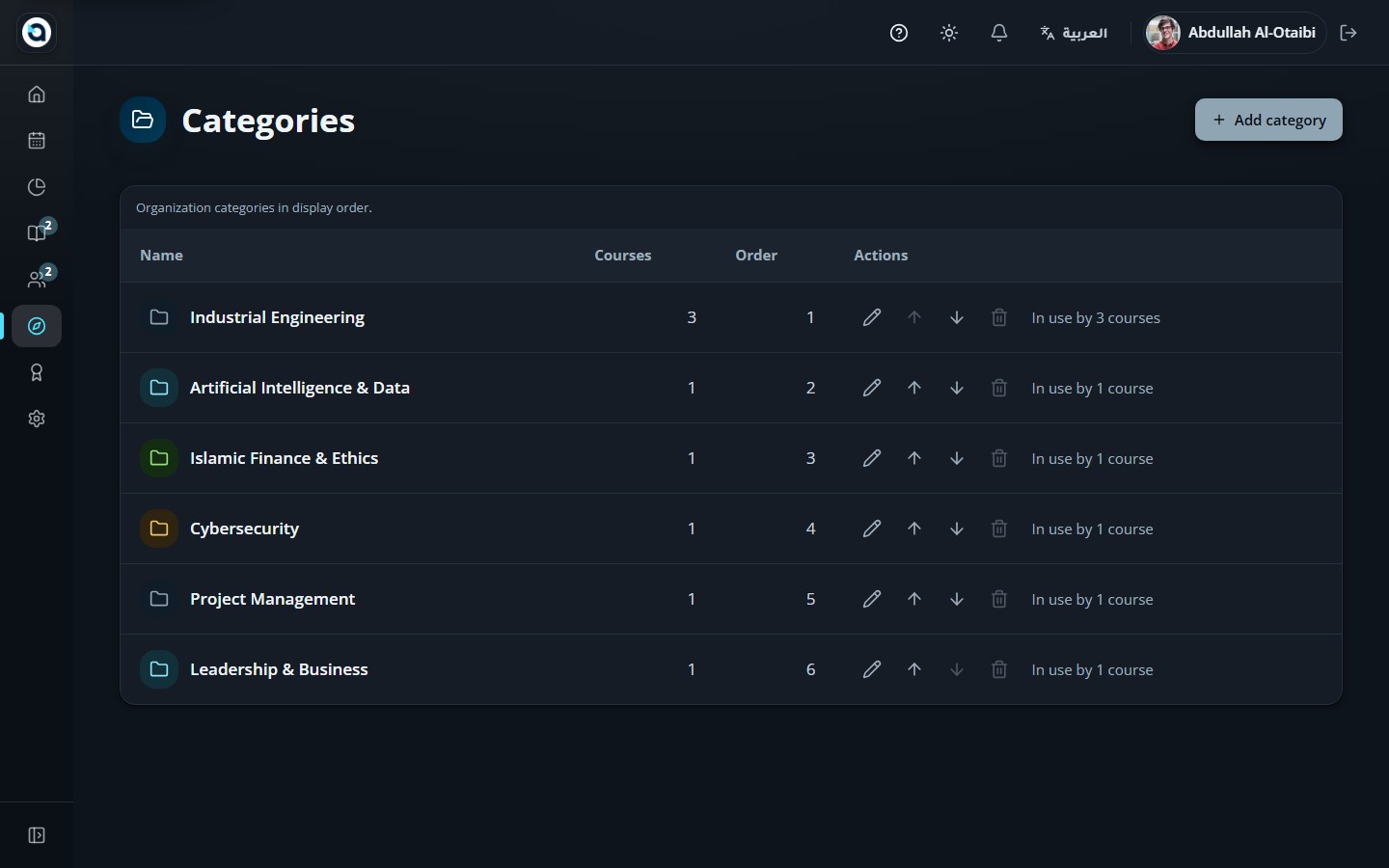
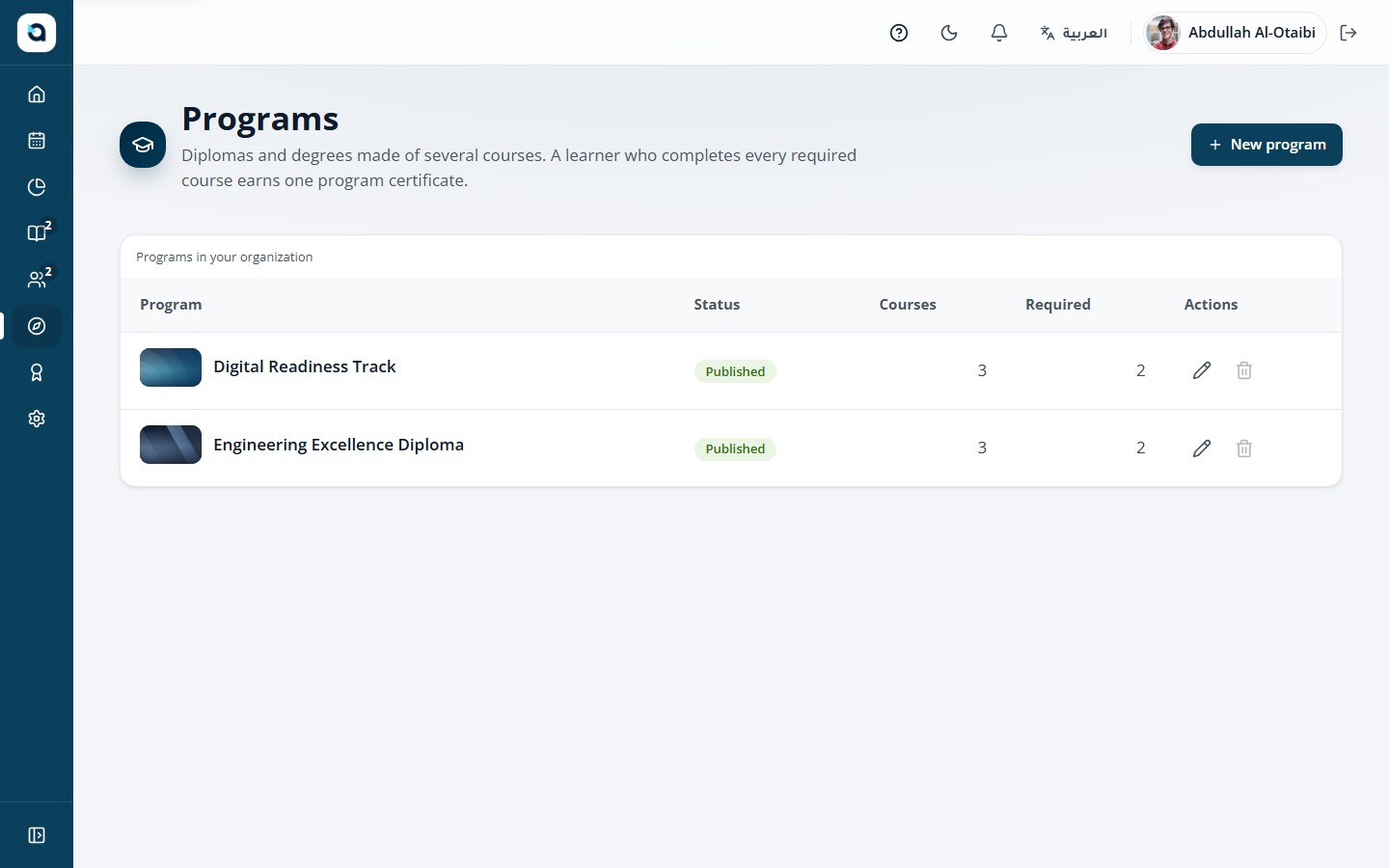
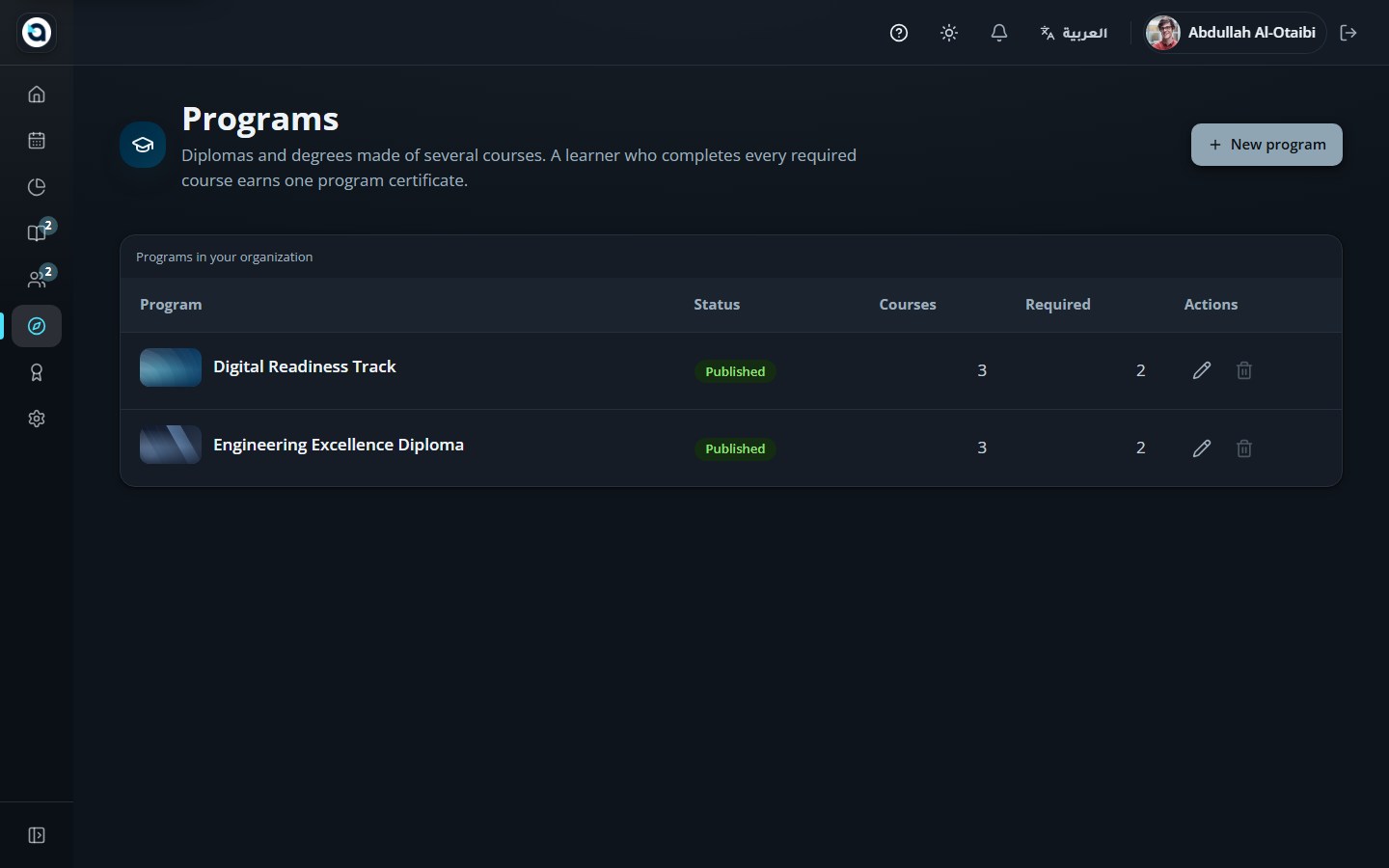
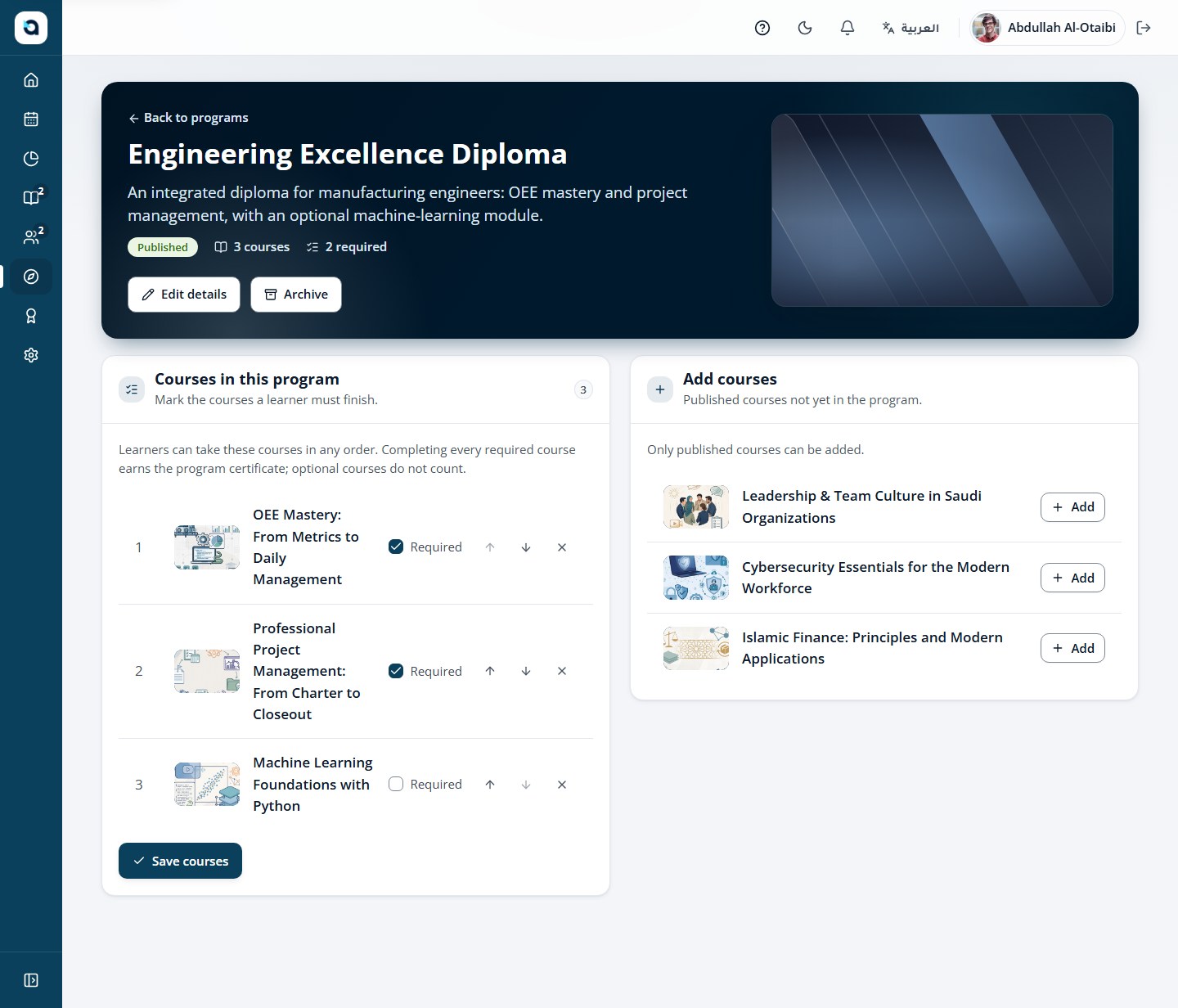
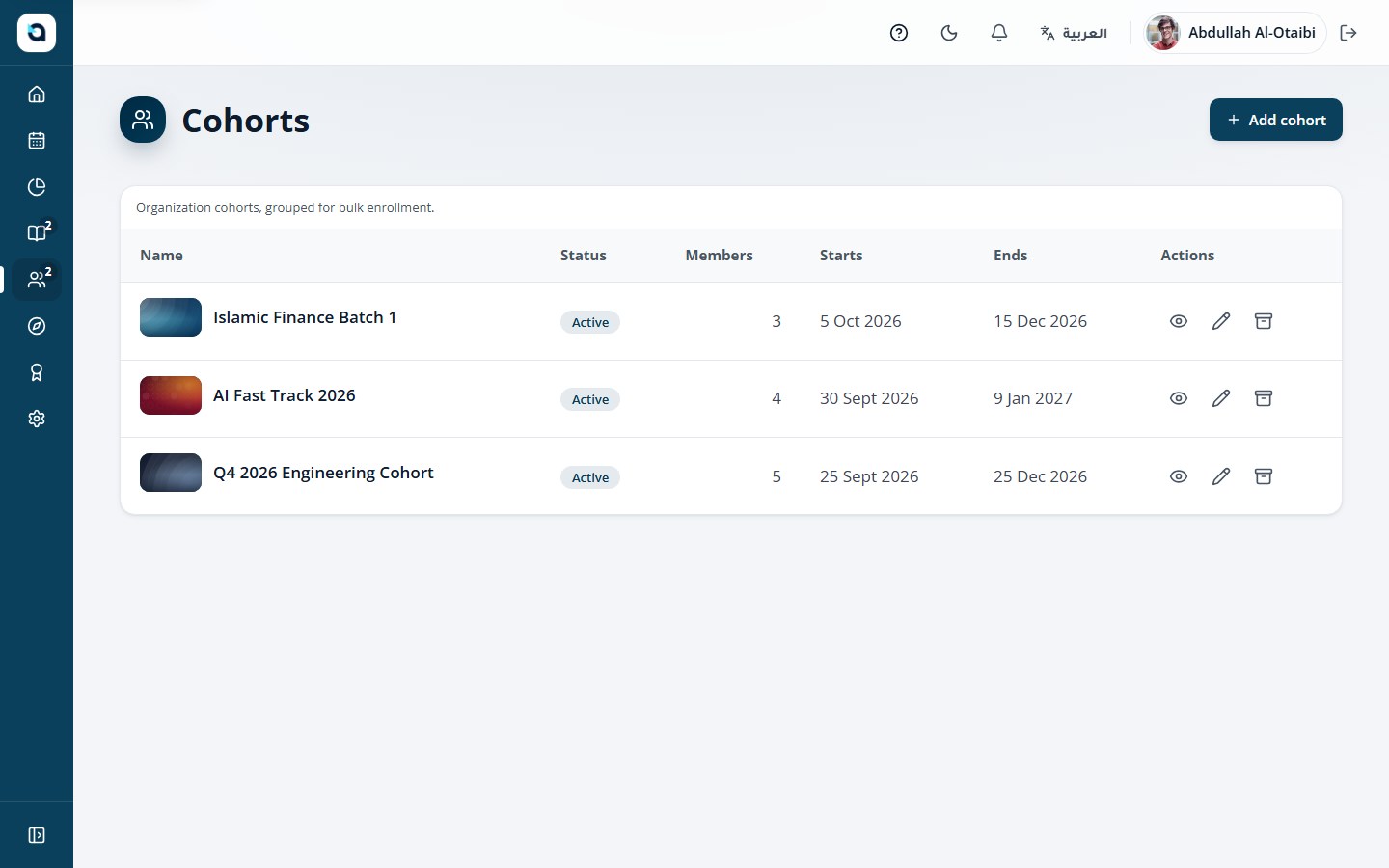
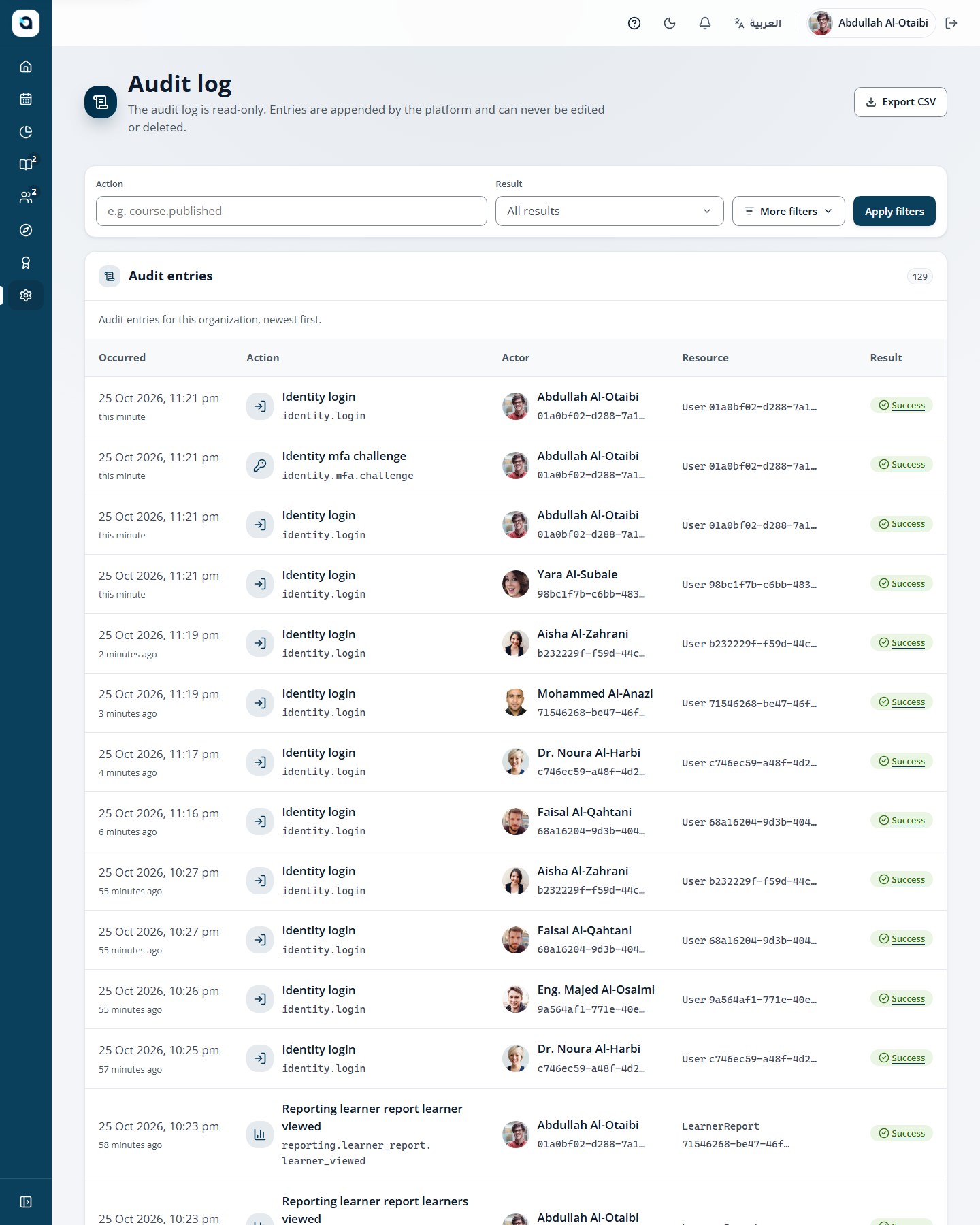
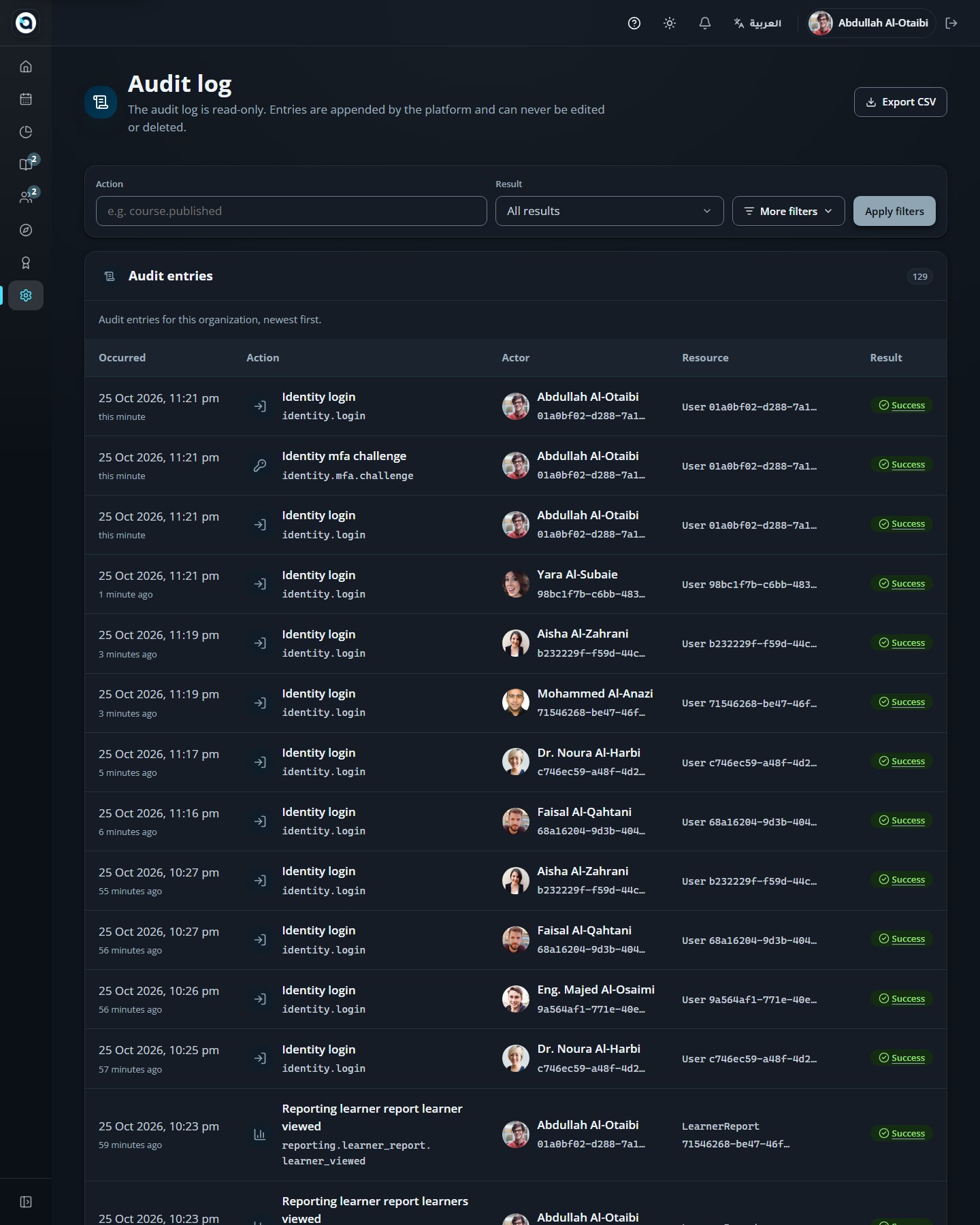
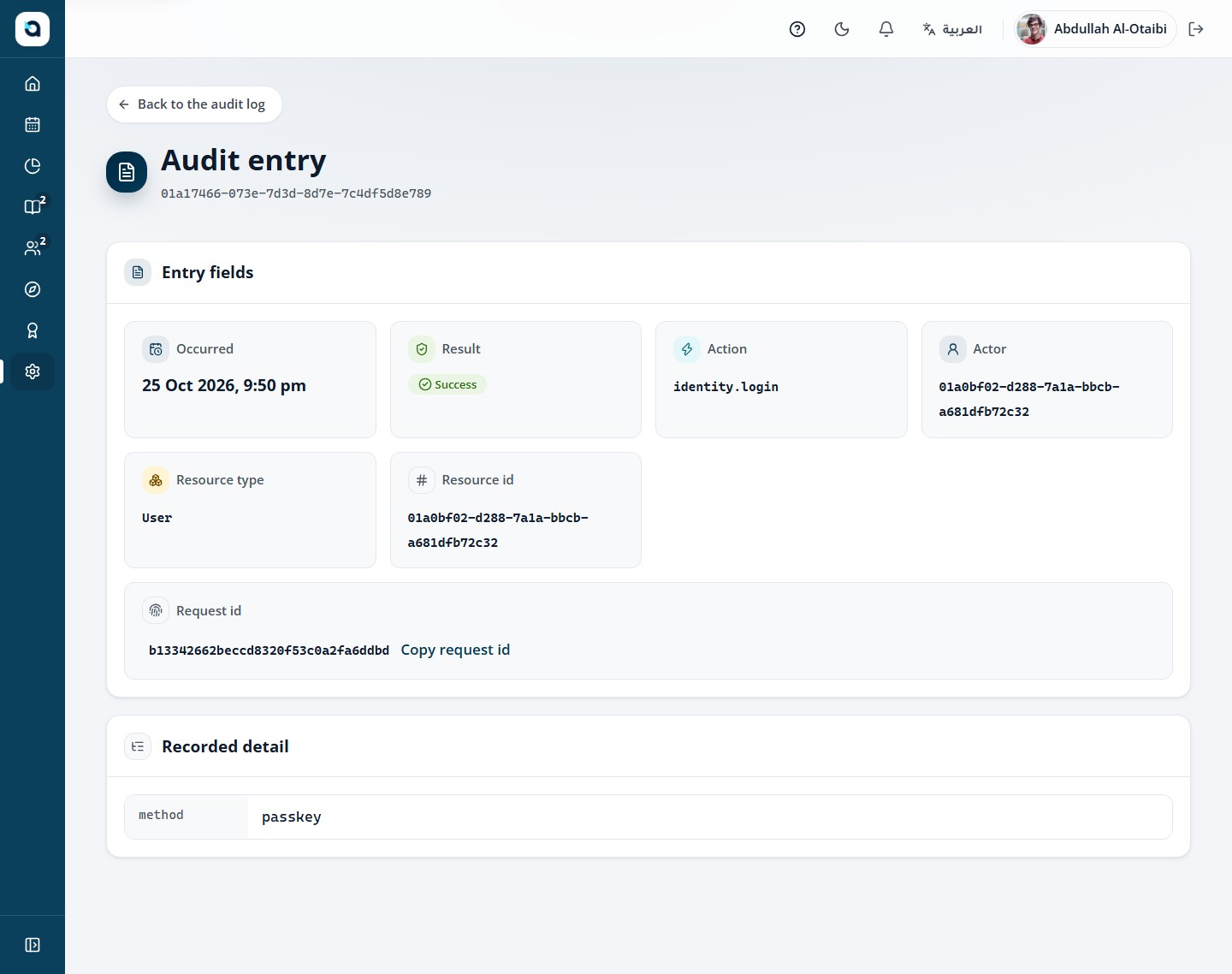
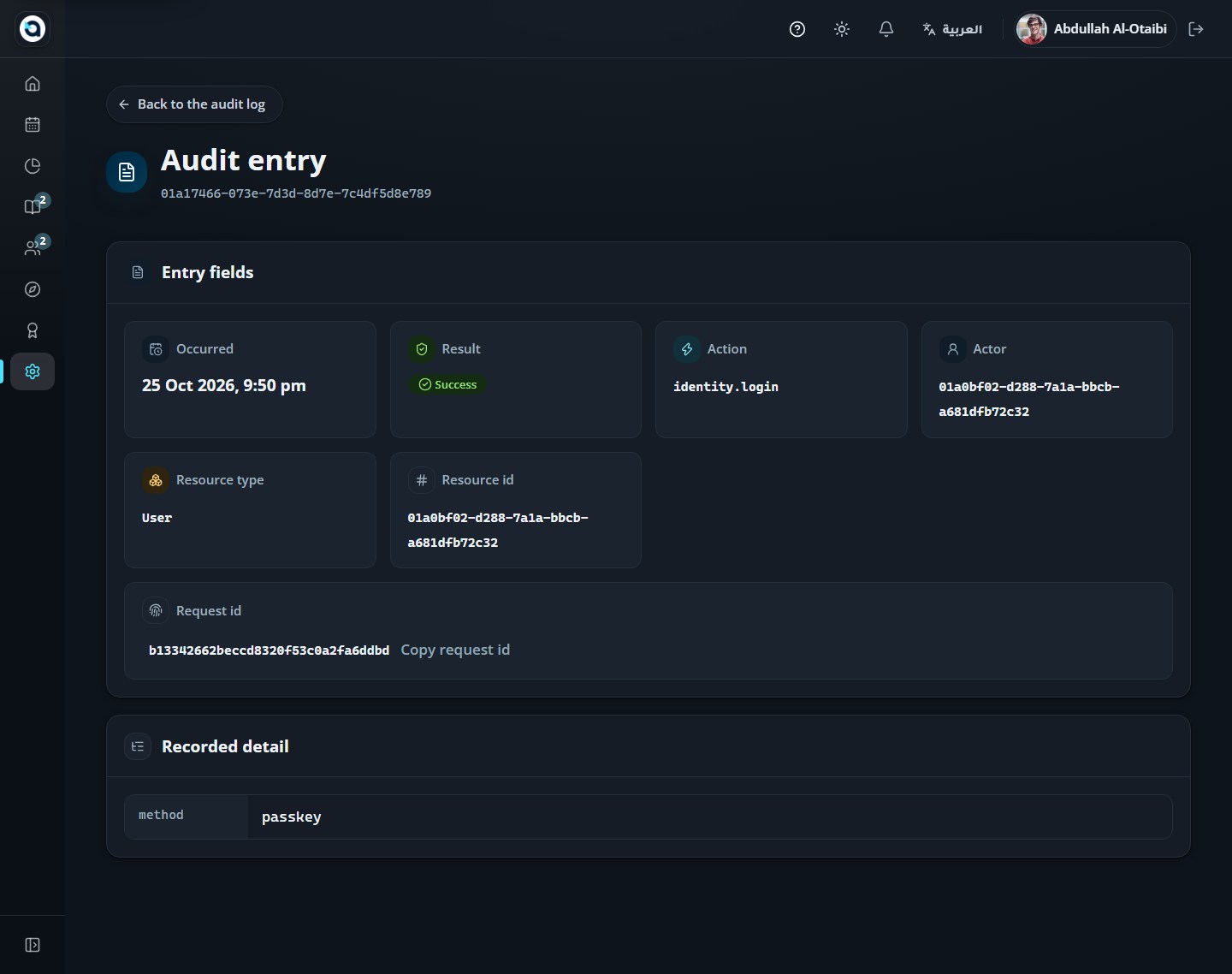
Every workflow, step by step — for learners, instructors, and organization administrators.
No matching guides found
Try a different keyword or switch the role filter back to All Guides.
1 · Getting started and account security
Sign in with email, password, or a passkey, protect your account with two-factor authentication, accept organization invitations, and verify issued certificates.
Sign-In & Security · 6
01
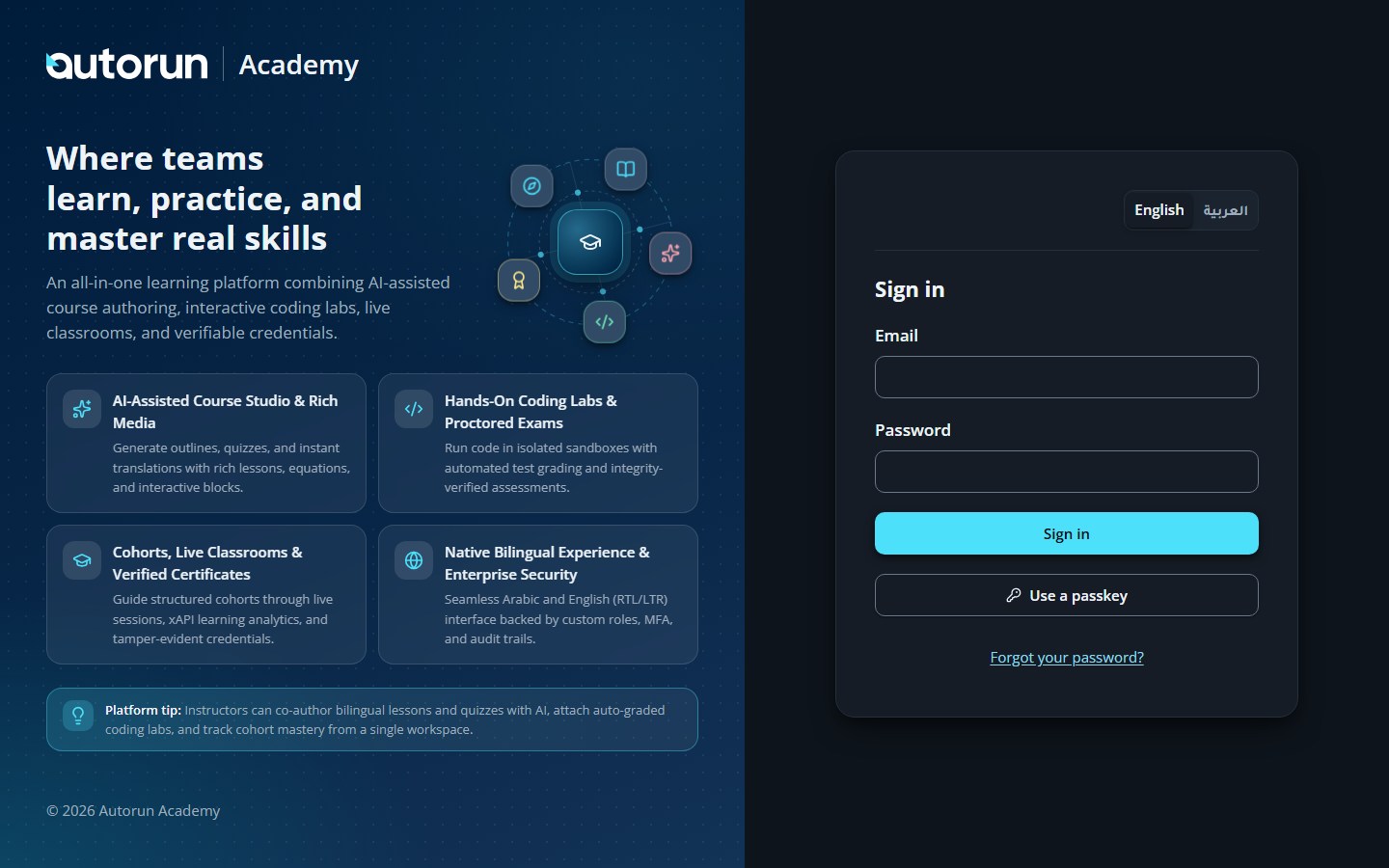
Sign in with your email and password
Sign-In & SecurityPublic → /login
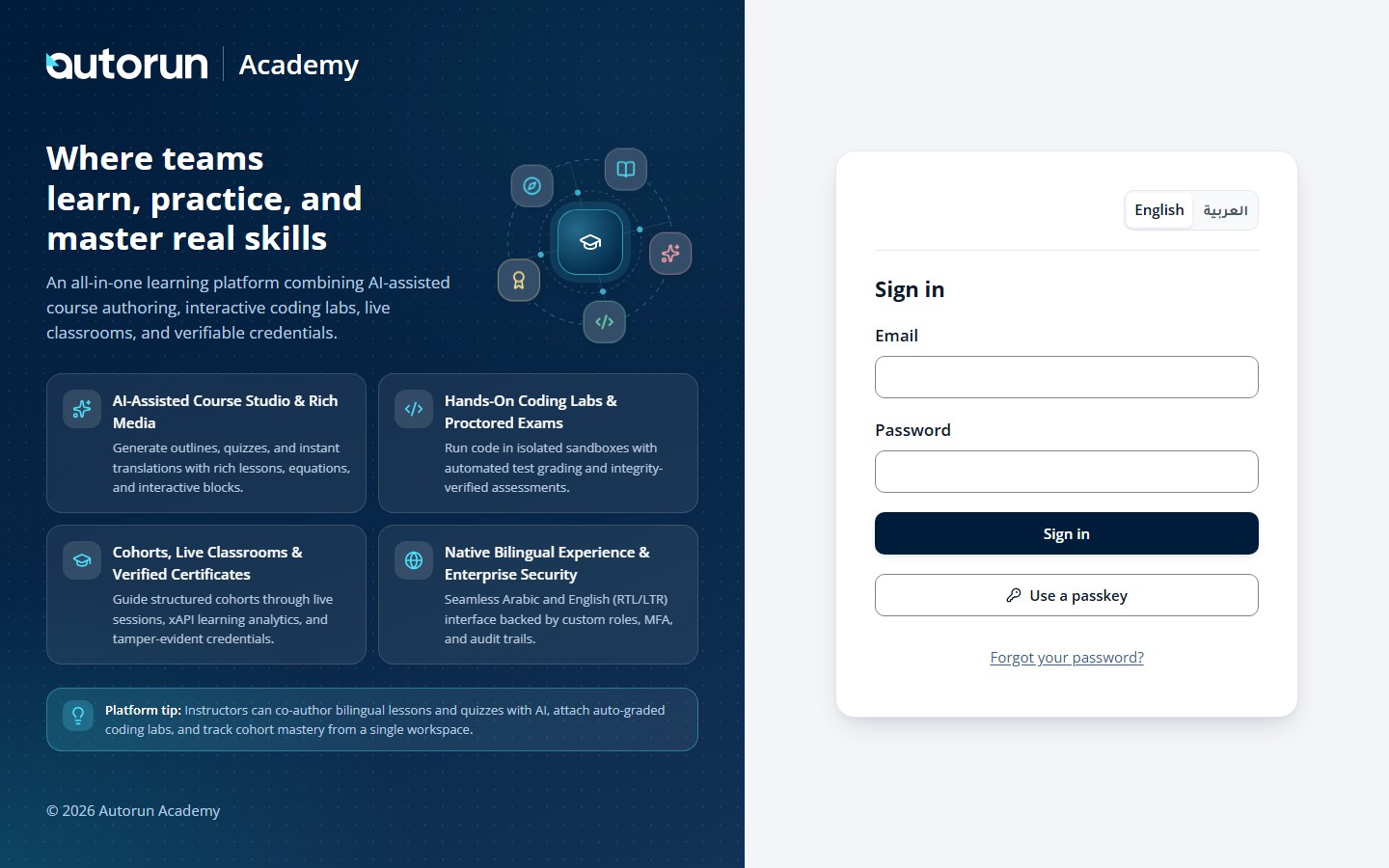
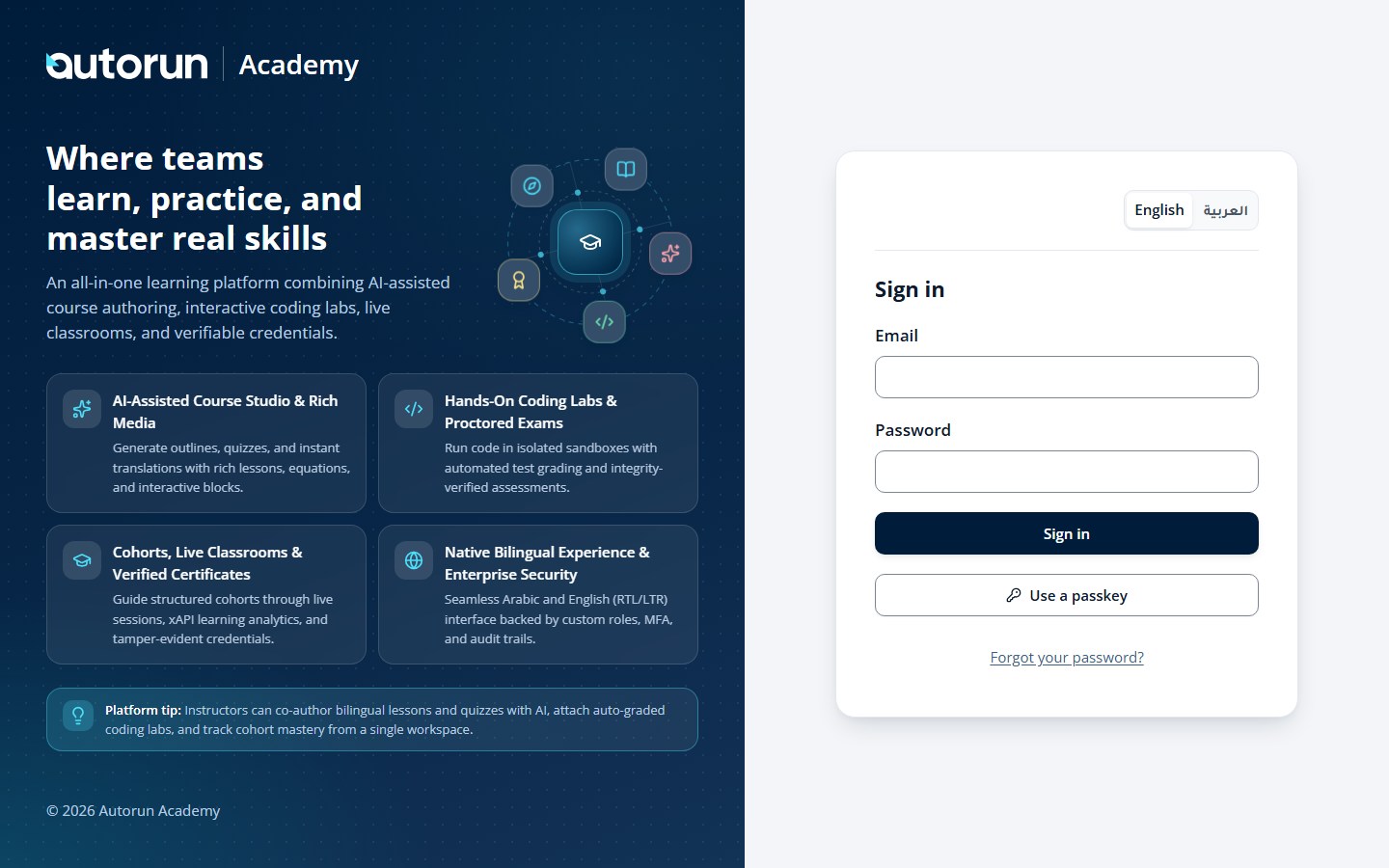
Everything in the Academy starts with a sign-in. Use the email and password your organization gave you.
1
Choose your language with the English / العربية buttons in the top-right corner of the screen.
2
Enter your email address and password.
3
Choose Sign in. If two-factor authentication is on, the verification screen appears next.
4
On supported devices you can also choose Use a passkey to sign in with Windows Hello, Touch ID, Face ID or a security key.
5
Forgot your password? Use the link under the form to reset it (see the next page).
Tip: If you already registered a Passkey on your device, click "Use a passkey" to sign in immediately with Windows Hello, Touch ID, Face ID, or a hardware security key—no password or TOTP code required.
The sign-in screen
02
Reset a forgotten password
Sign-In & SecuritySign in → Forgot your password?
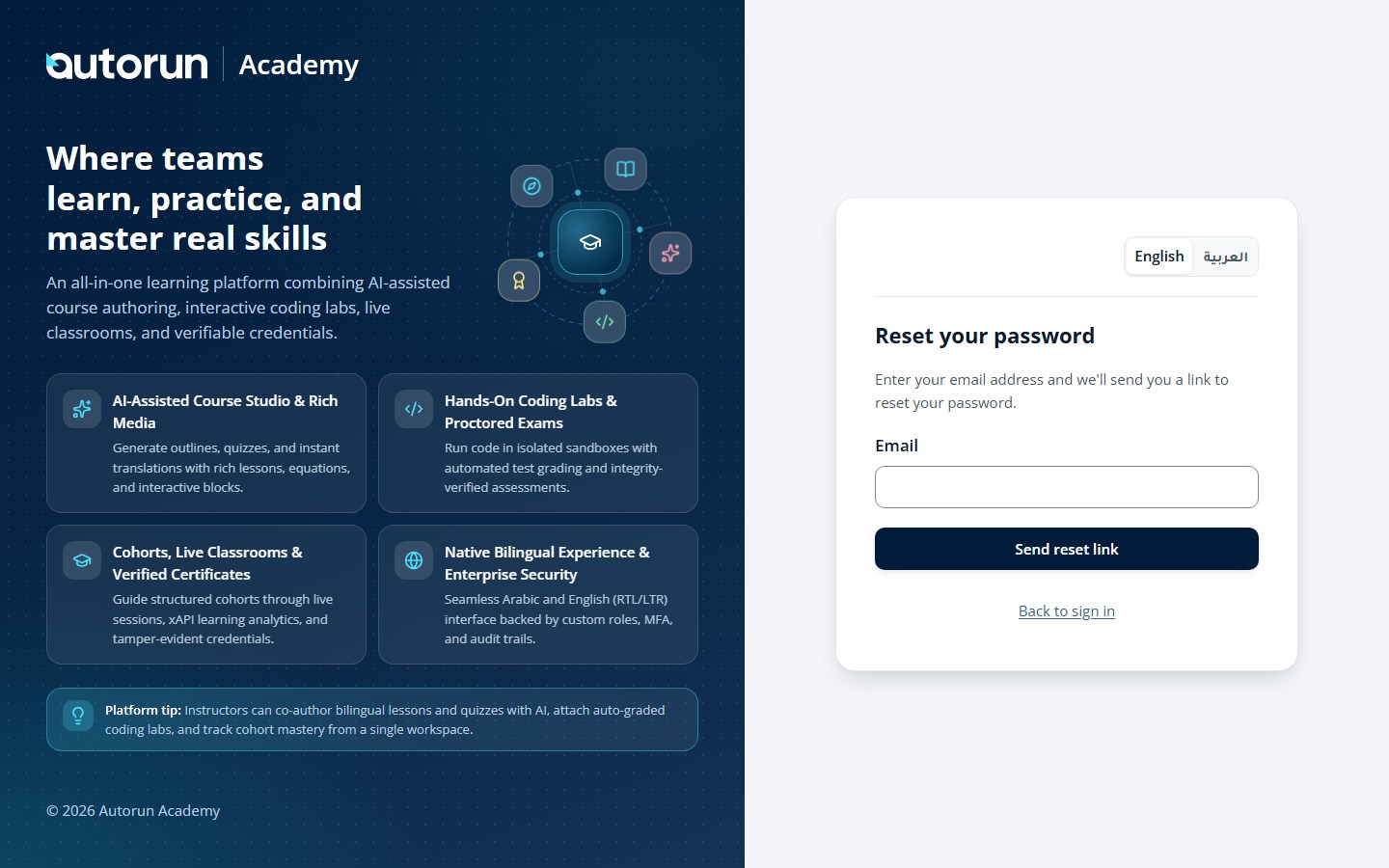
The Academy sends a reset link to your inbox. The link is personal and expires — use it promptly.
1
On the sign-in screen choose Forgot your password?.
2
Enter your email address and choose Send reset link.
3
Open the email from the Academy and follow the reset link.
4
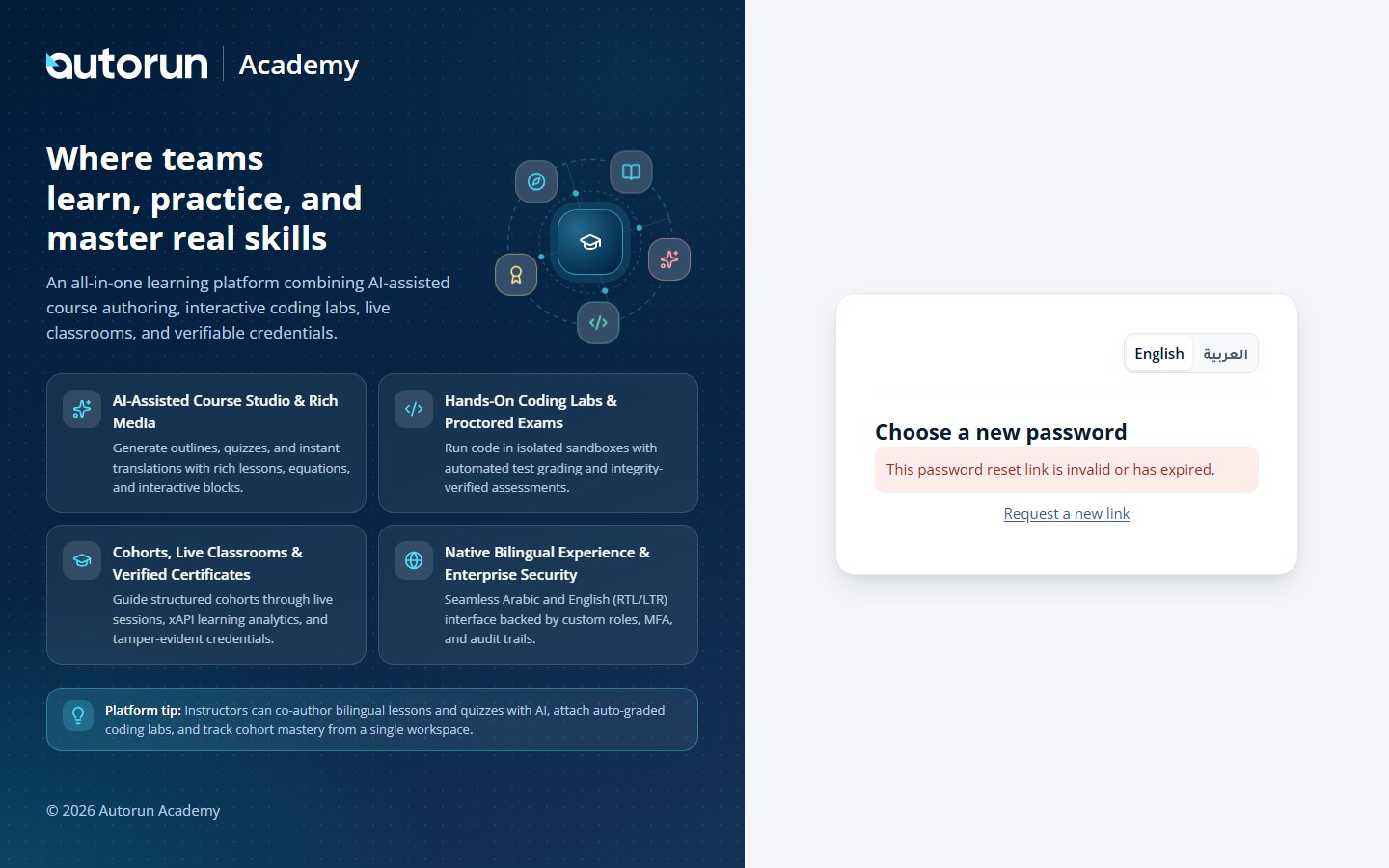
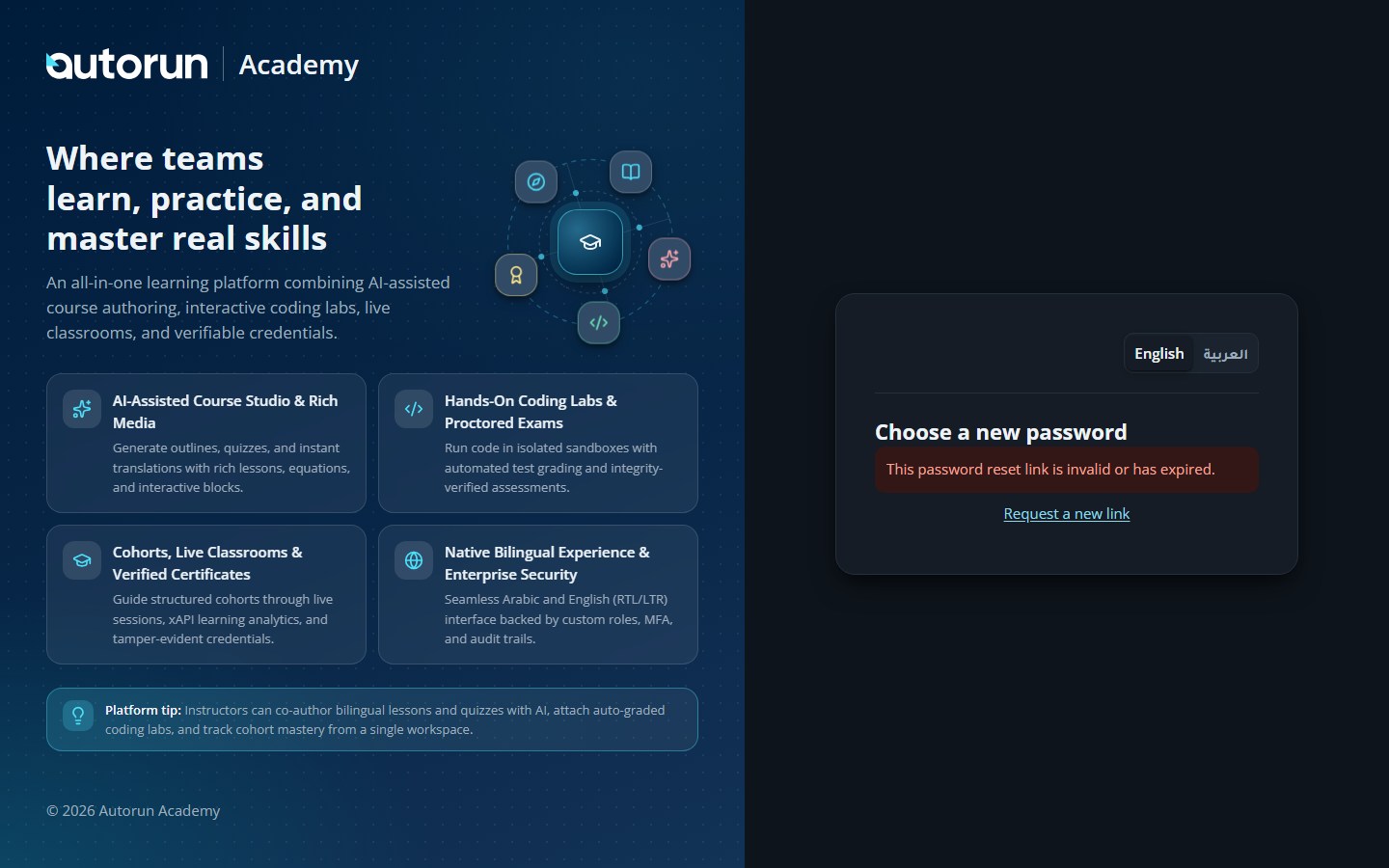
On the Choose a new password screen, enter the new password twice and choose Reset password.
5
Sign in with the new password.
Tip: Password reset links are single-use and expire automatically. Choosing a new password signs out any other active browser sessions to keep your account safe.
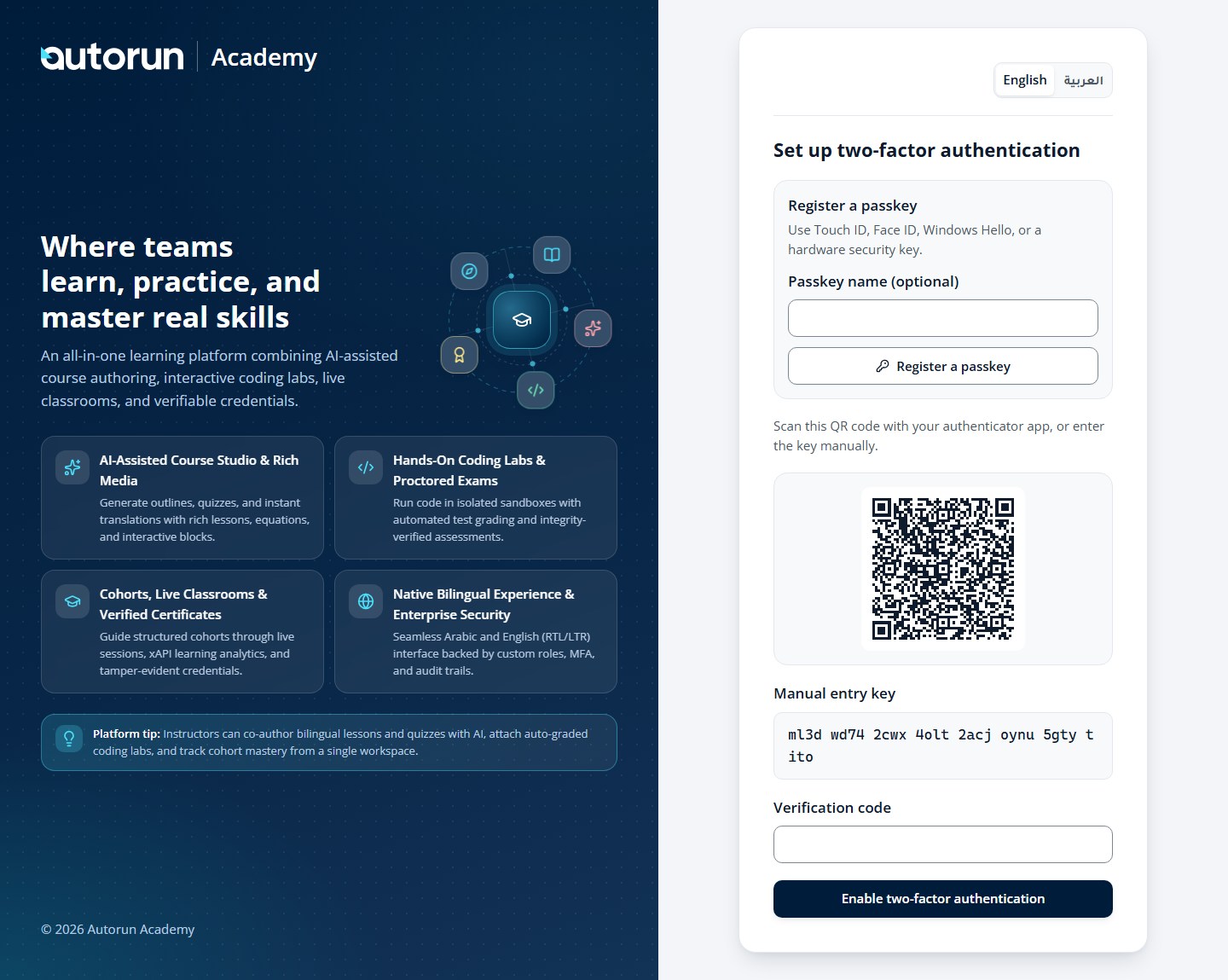
Organization administrators and instructors are required to enable two-factor authentication (MFA), and any learner can enable it from Profile → Security using either an authenticator app or a WebAuthn Passkey.
1
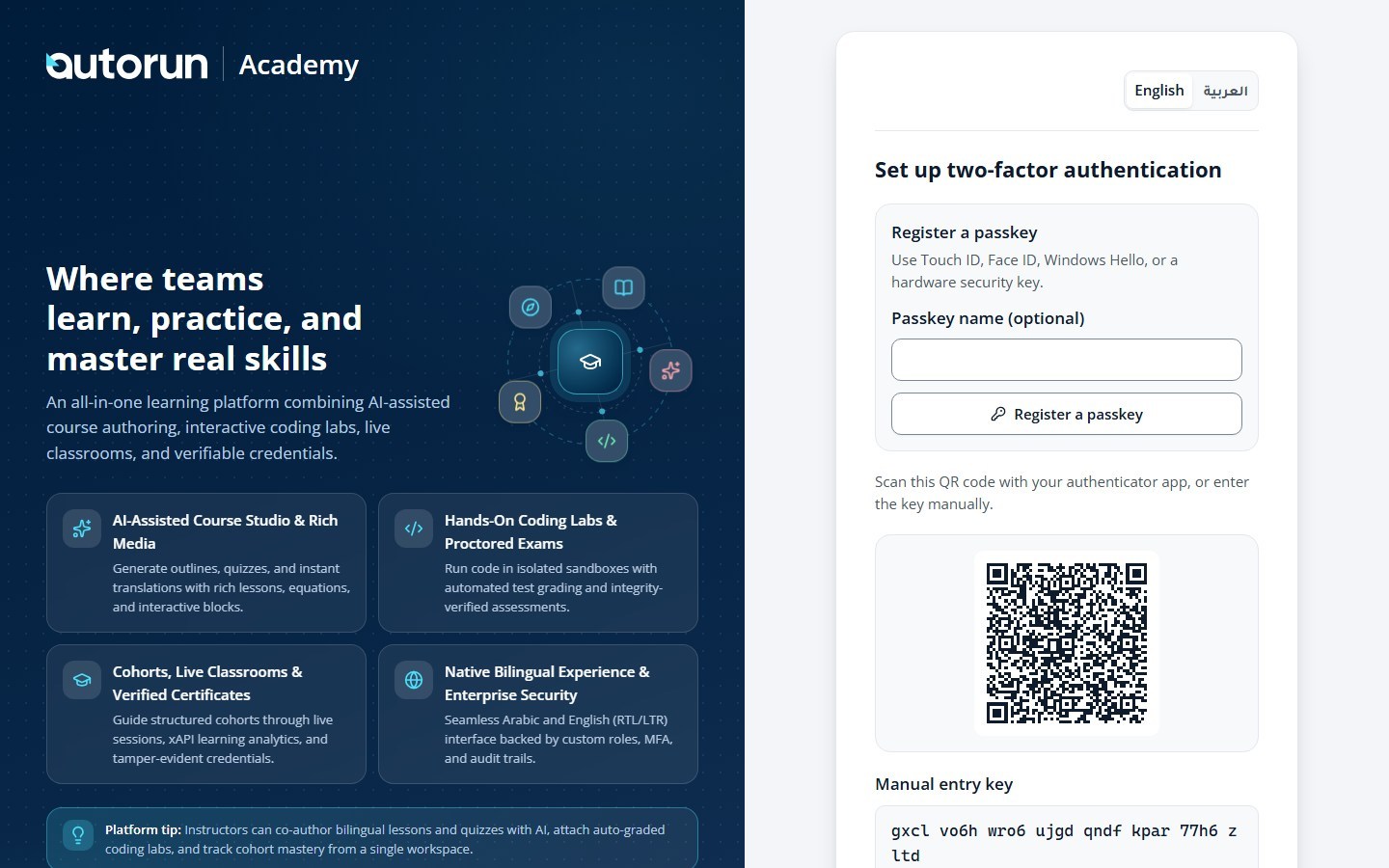
Open Google Authenticator, Microsoft Authenticator, 1Password, or any TOTP app on your phone and scan the QR code shown on screen (or copy the manual setup key).
2
Alternatively, register a Passkey (Windows Hello, Touch ID, Face ID, or a hardware security key) from Profile → Security for one-tap biometric verification.
3
Enter the 6-digit verification code from your authenticator app into Verification code and choose Enable MFA.
4
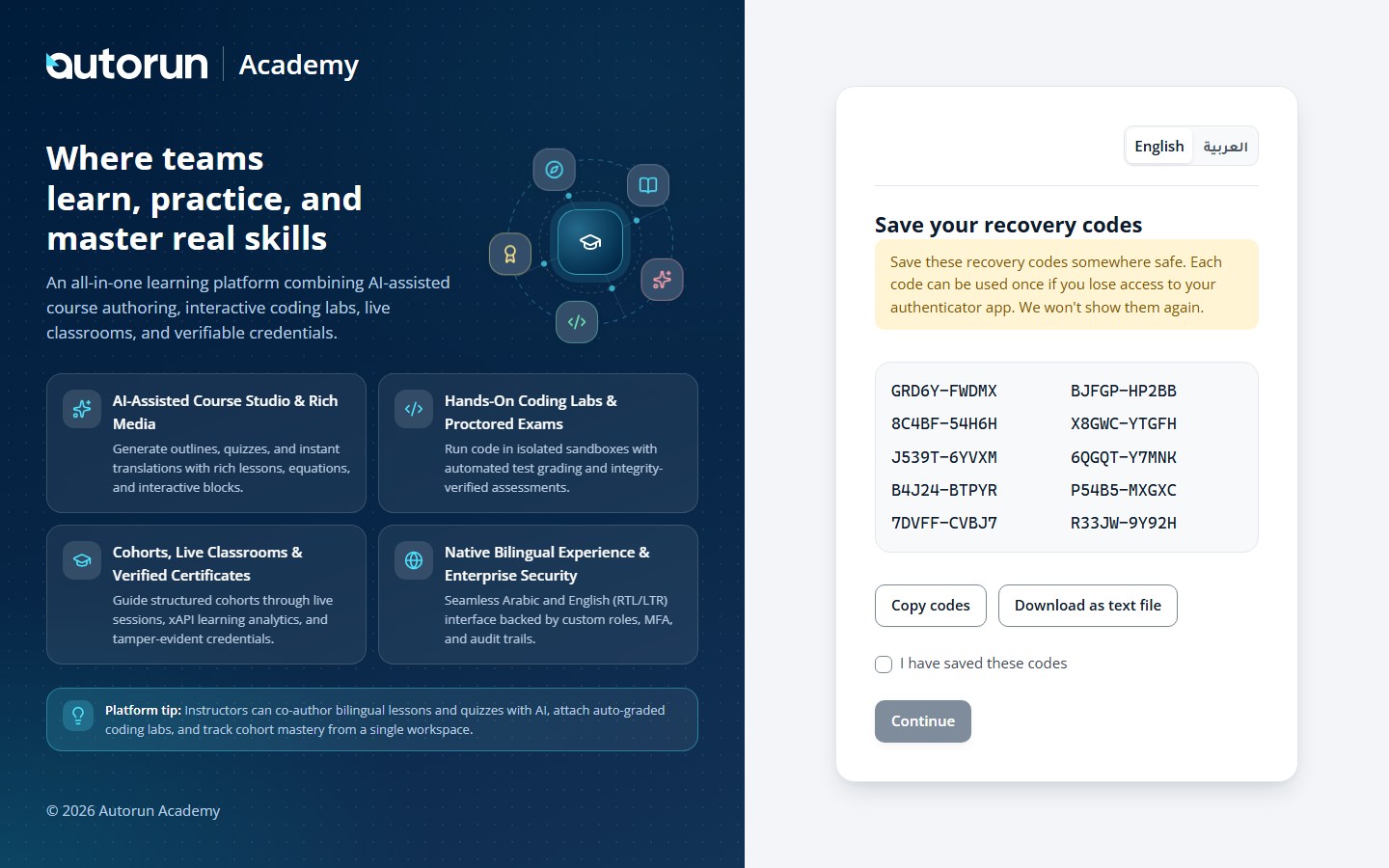
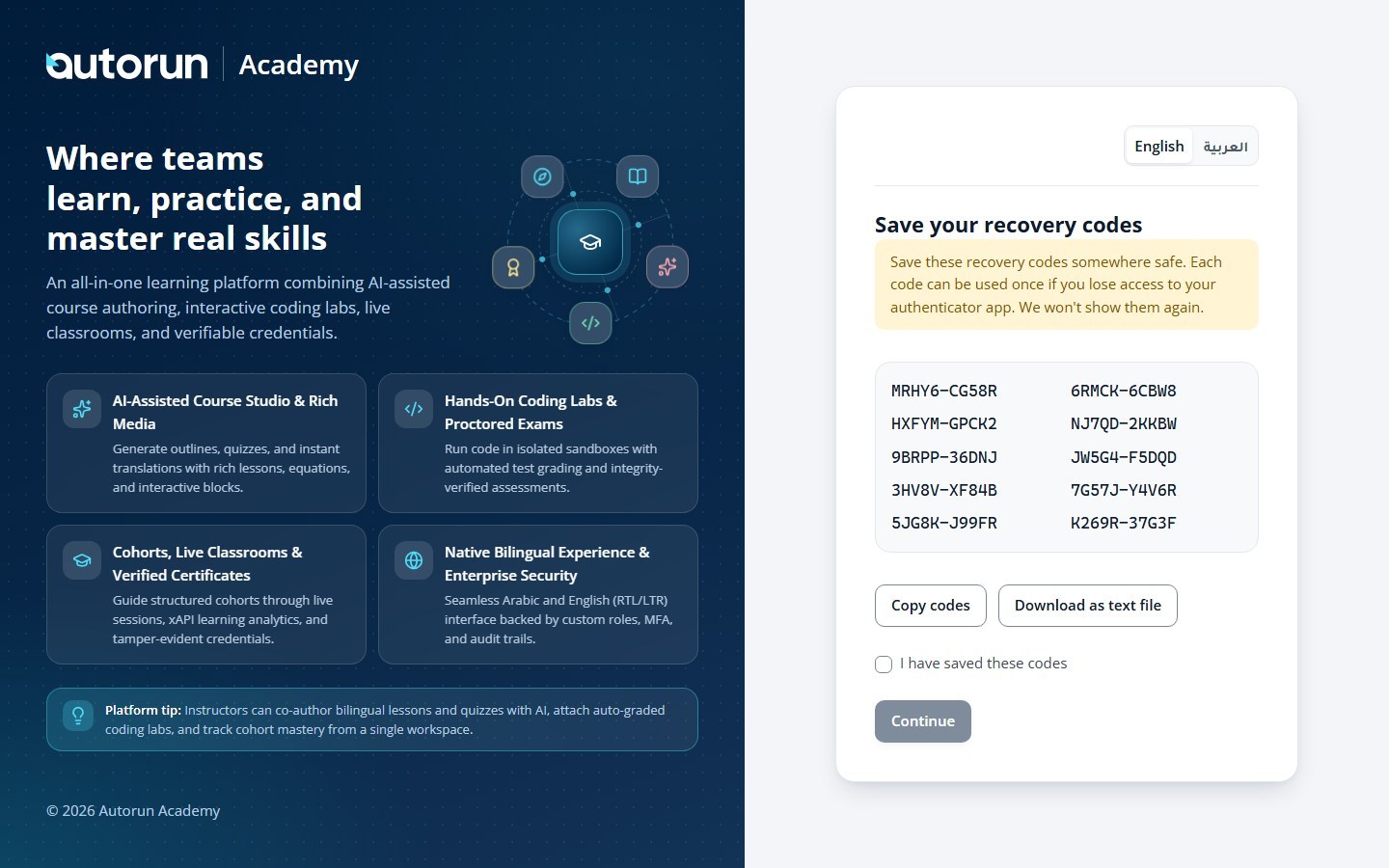
Copy or download the 10 single-use recovery codes displayed on the next screen and store them in a safe place before choosing Continue.
Tip: Store your 10 single-use recovery codes in a password manager before continuing. You can also enroll a WebAuthn Passkey as a phishing-resistant second factor.
QR code and manual key
Saving the recovery codes
04
Sign in with a verification code
Sign-In & SecuritySign in → Two-factor verification (/mfa)
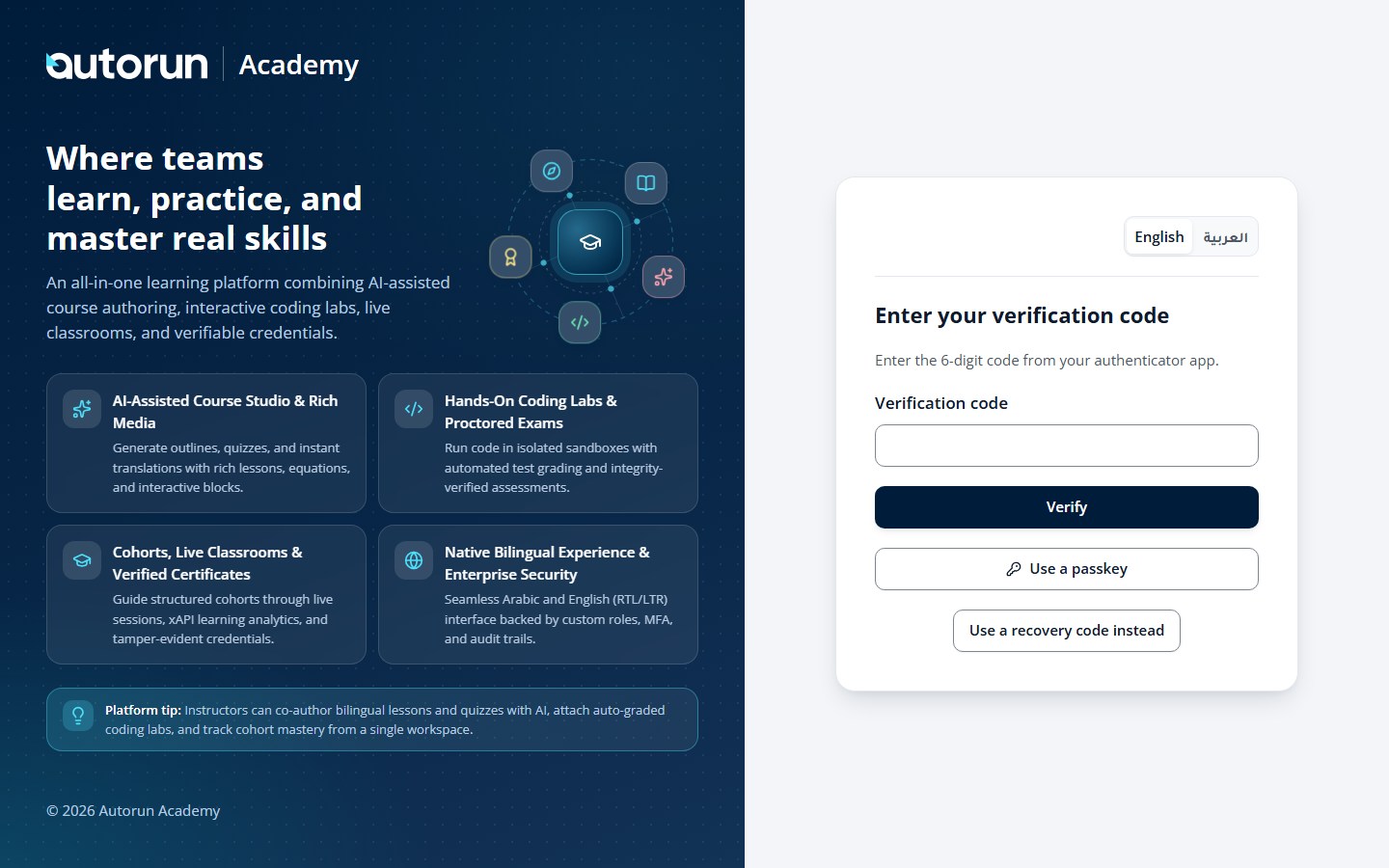
When two-factor authentication is active, sign-in continues with a short verification step.
1
After entering your email and password, the verification screen appears.
2
Open your authenticator app and enter the 6-digit code, then choose Verify.
3
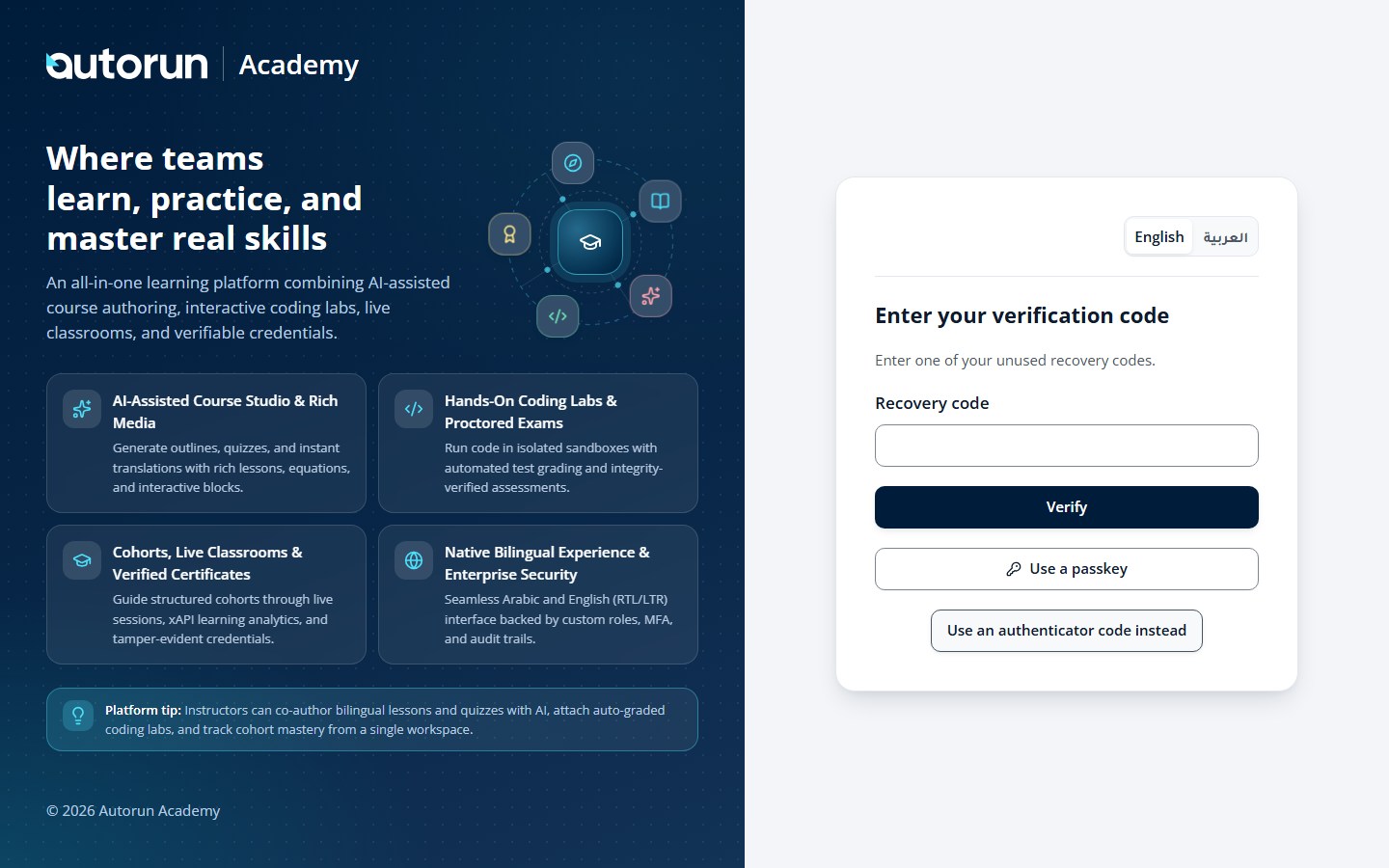
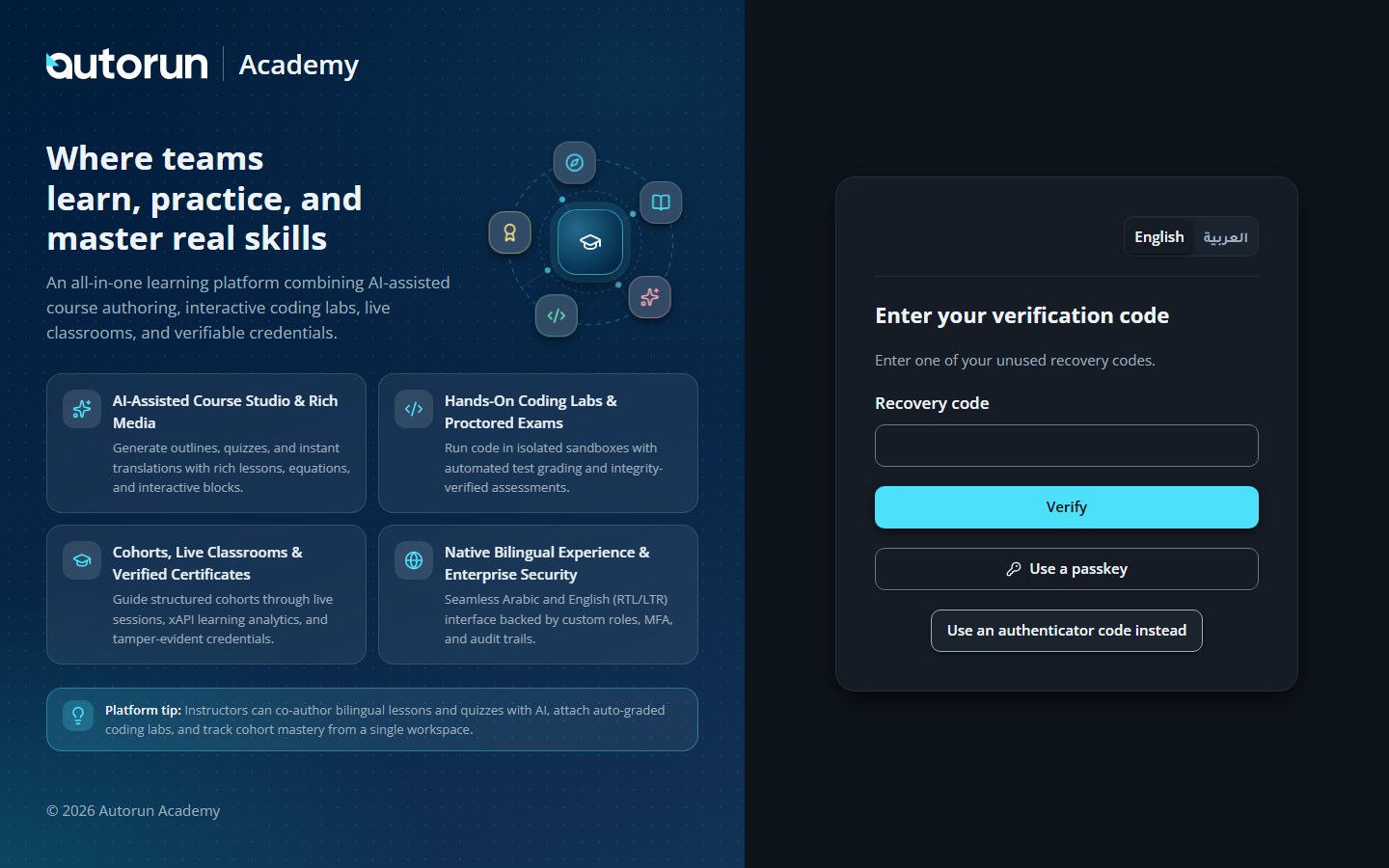
Lost your authenticator? Choose Use a recovery code instead and enter one of your saved codes.
4
If a passkey is registered on this device, you can use it instead.
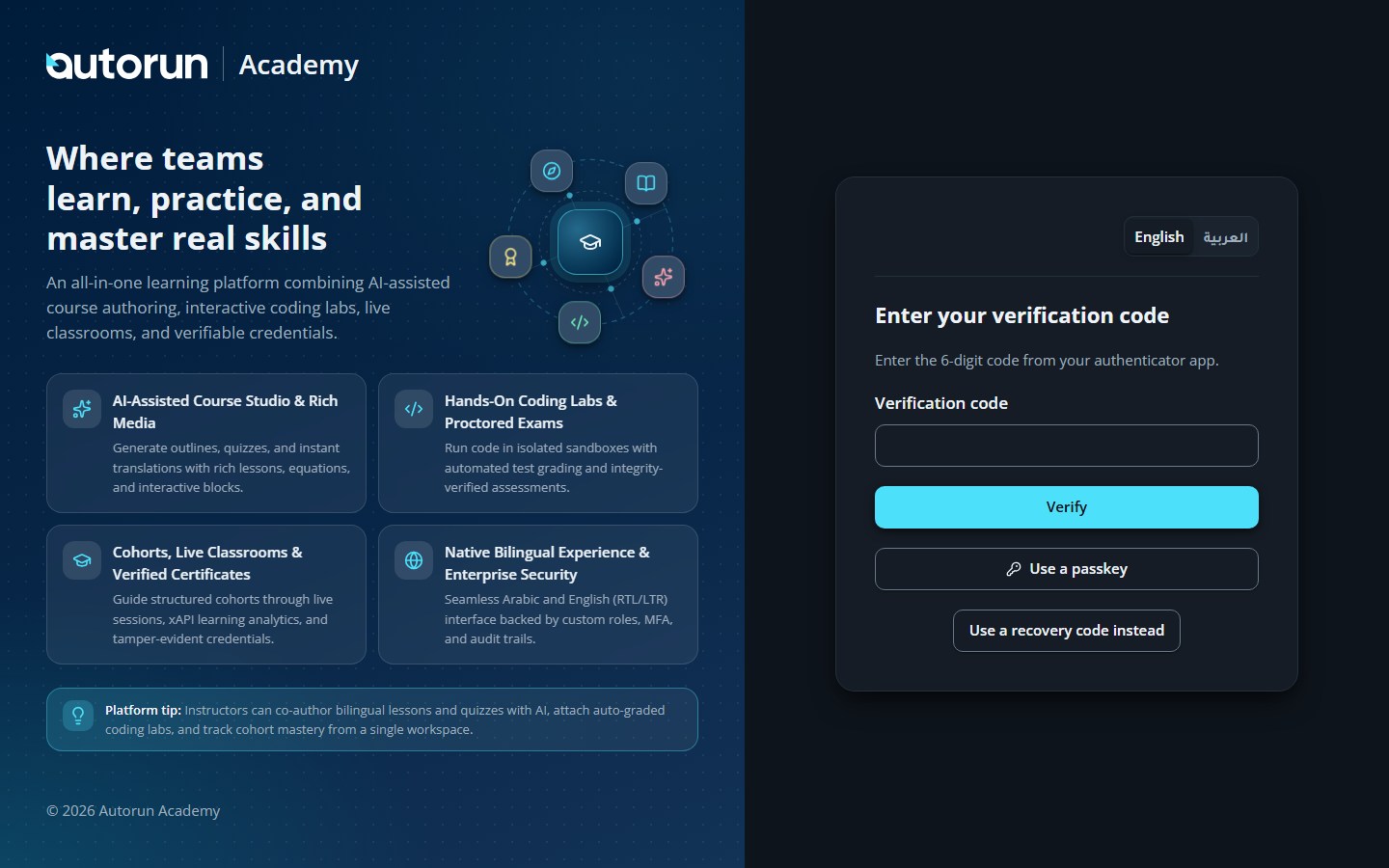
Tip: Switch between your 6-digit authenticator code, a registered Passkey, or a single-use recovery code using the options on the verification card.
The authenticator code step
The recovery-code alternative
05
Accept an invitation
Sign-In & Security
Invitations arrive by email with a personal link. Accepting creates your account and signs you in.
1
Open the invitation link in the email.
2
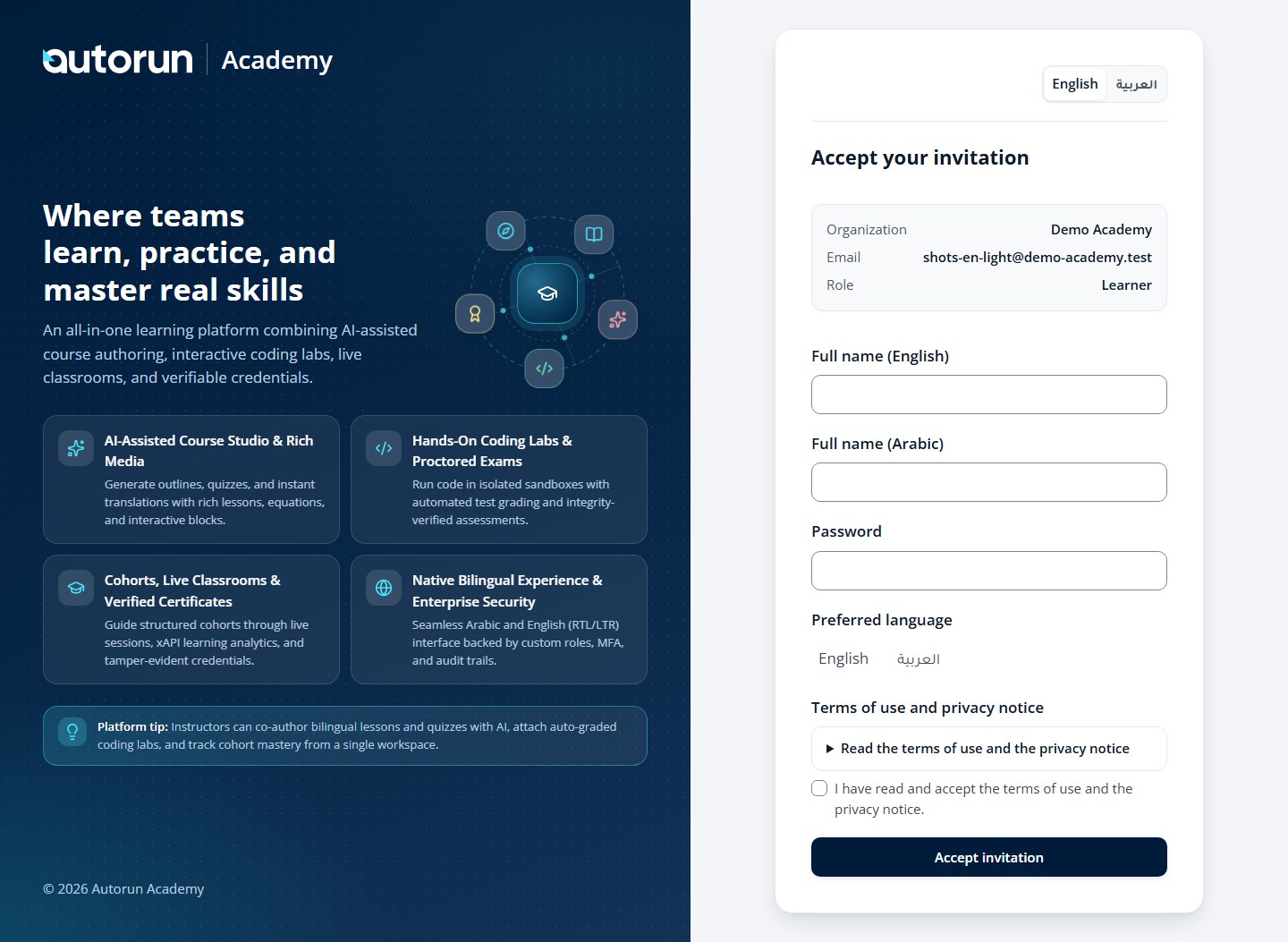
Check the email address shown, then enter your full name in English and Arabic.
3
Create a password and choose your preferred language.
4
Read and accept the terms of use and the privacy notice.
5
Choose Accept invitation — you are signed in to your dashboard immediately.
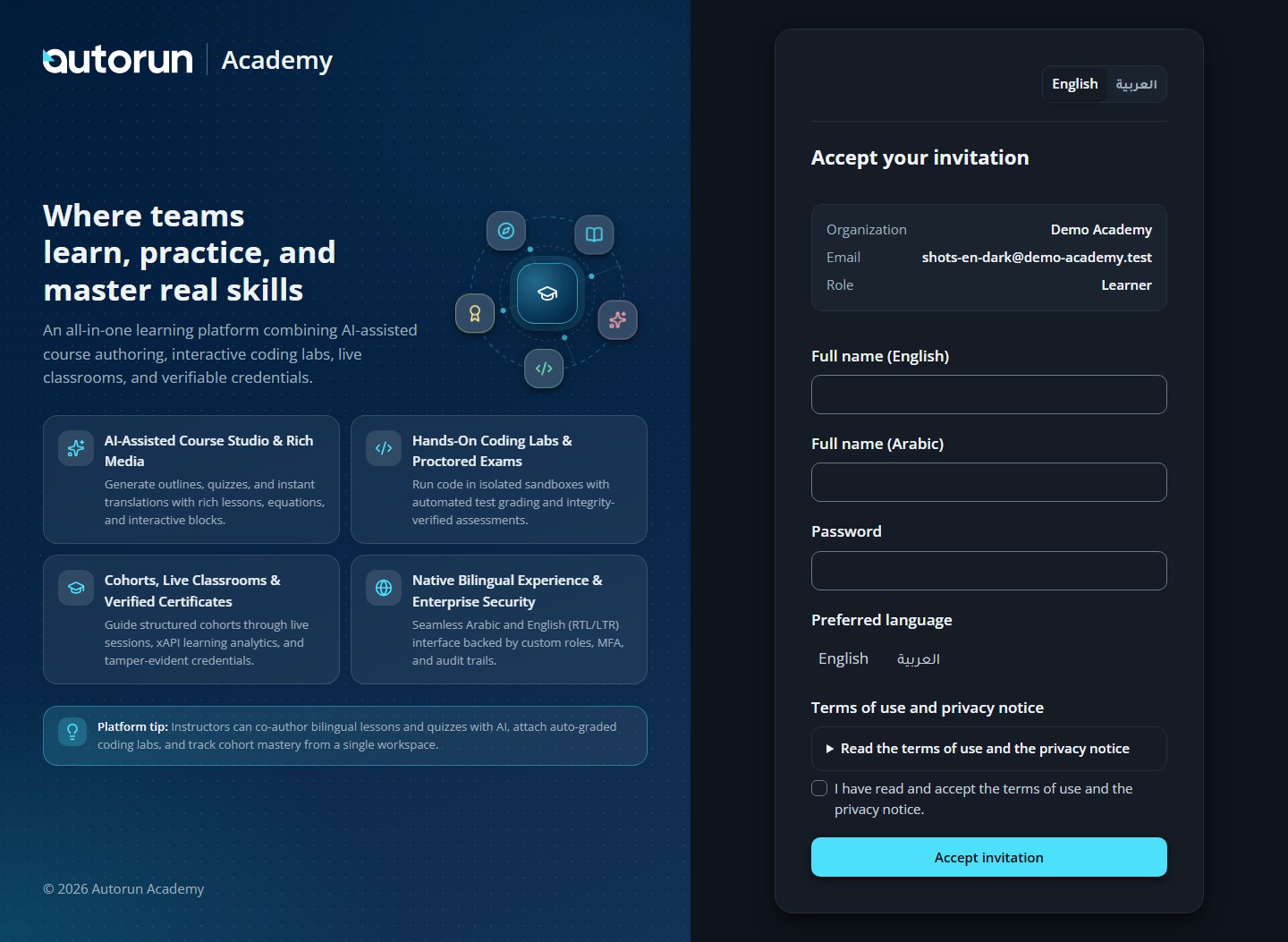
The invitation acceptance form
06
Verify a certificate
Sign-In & SecurityPublic verification link → /certificates/verify
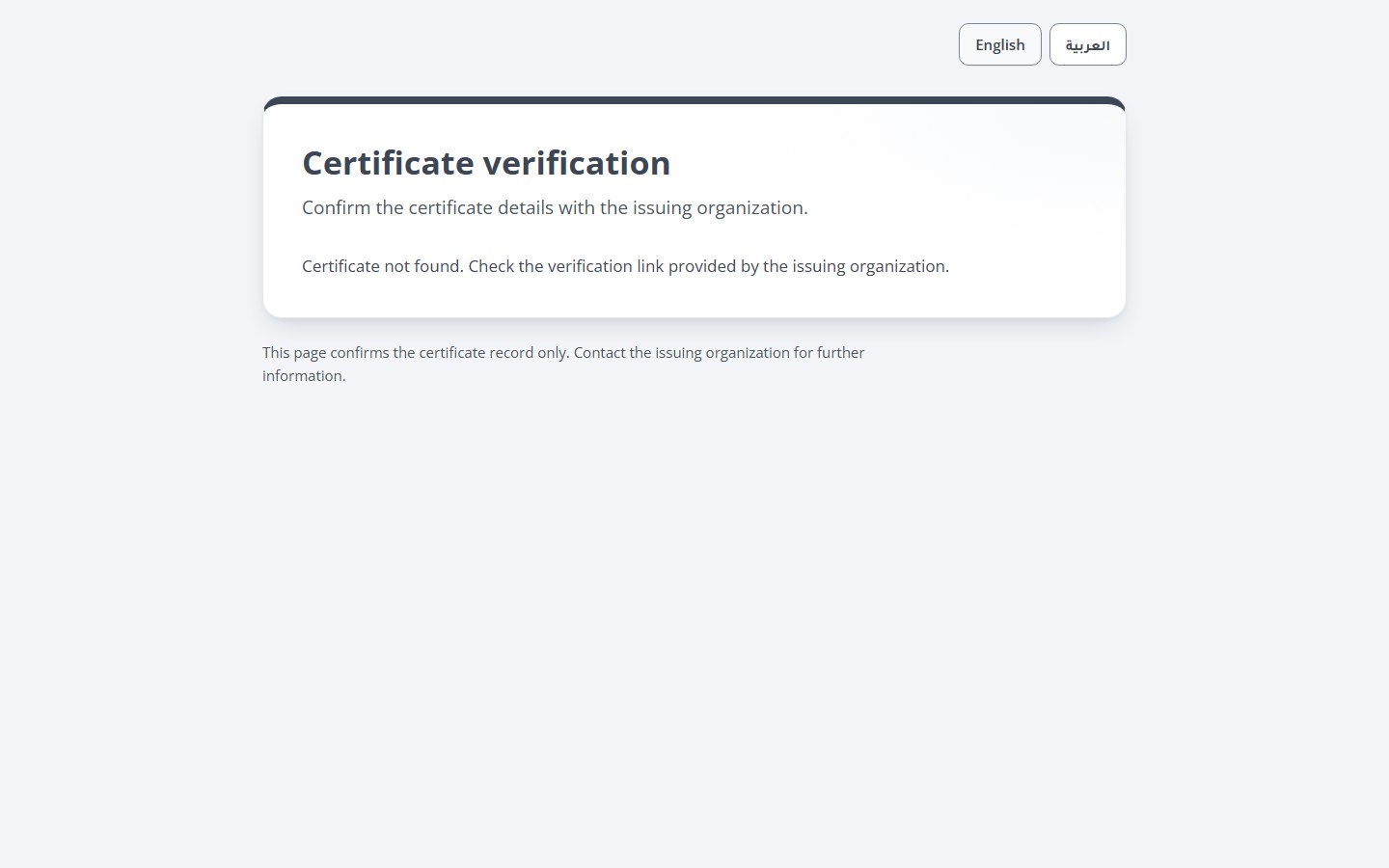
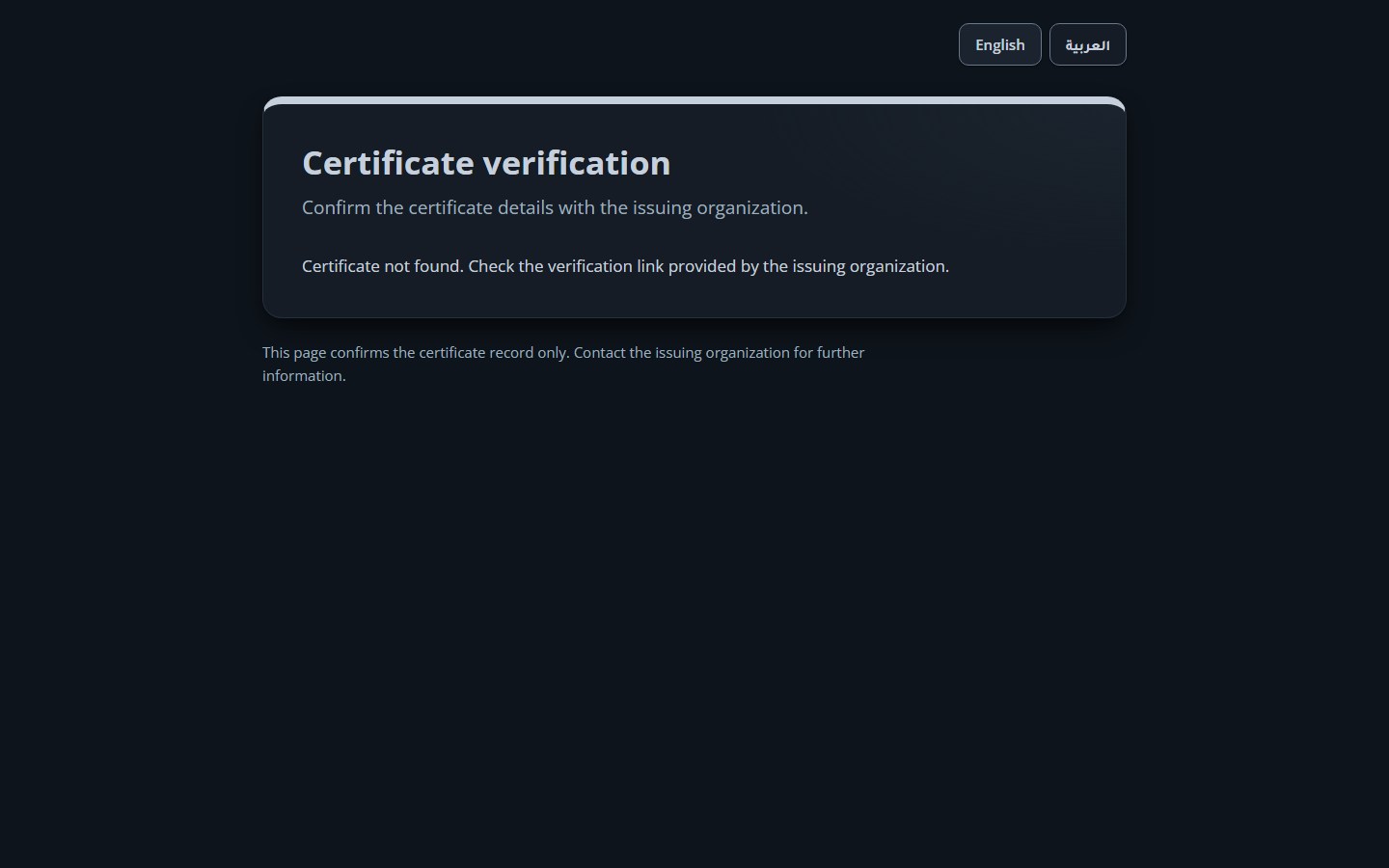
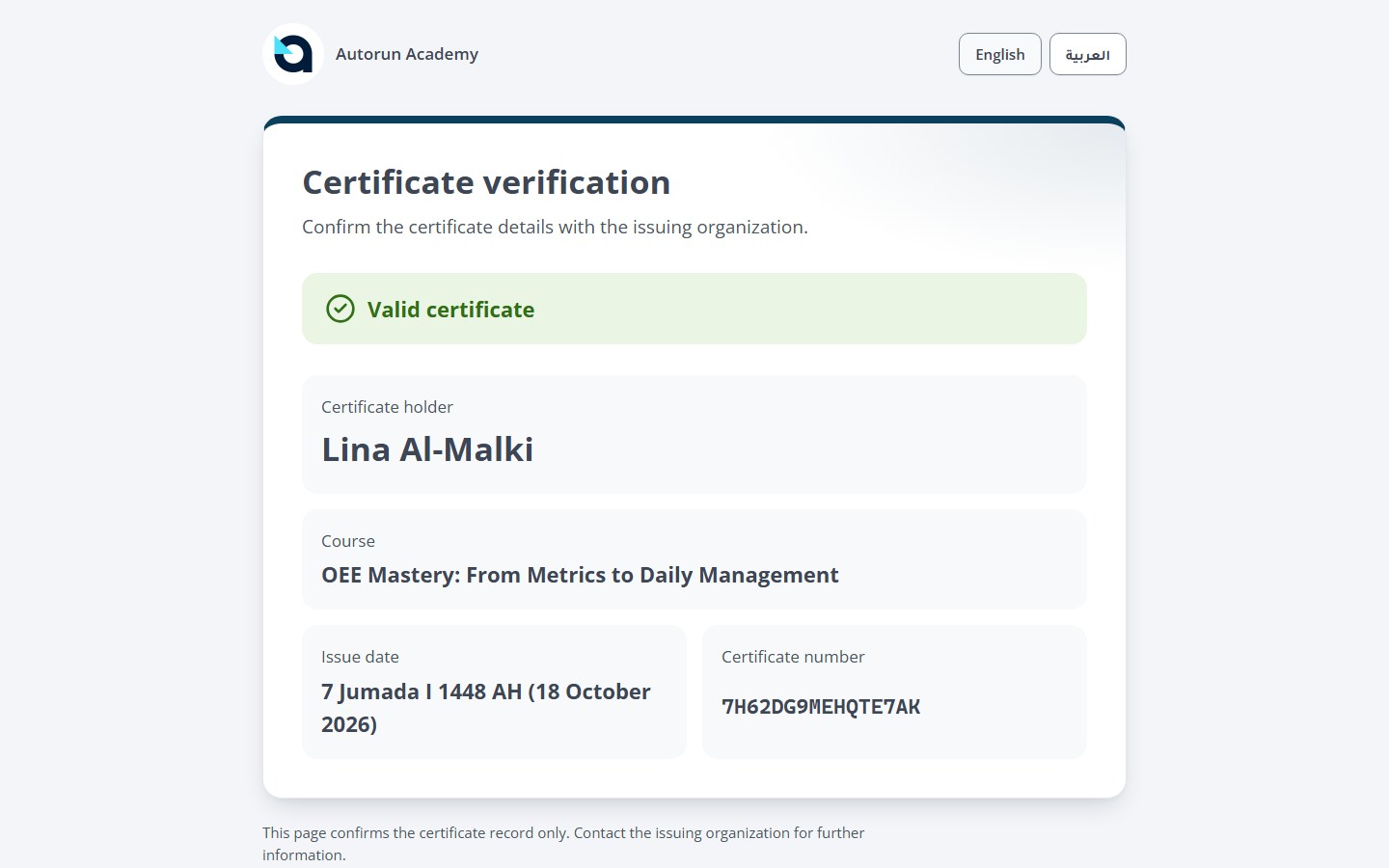
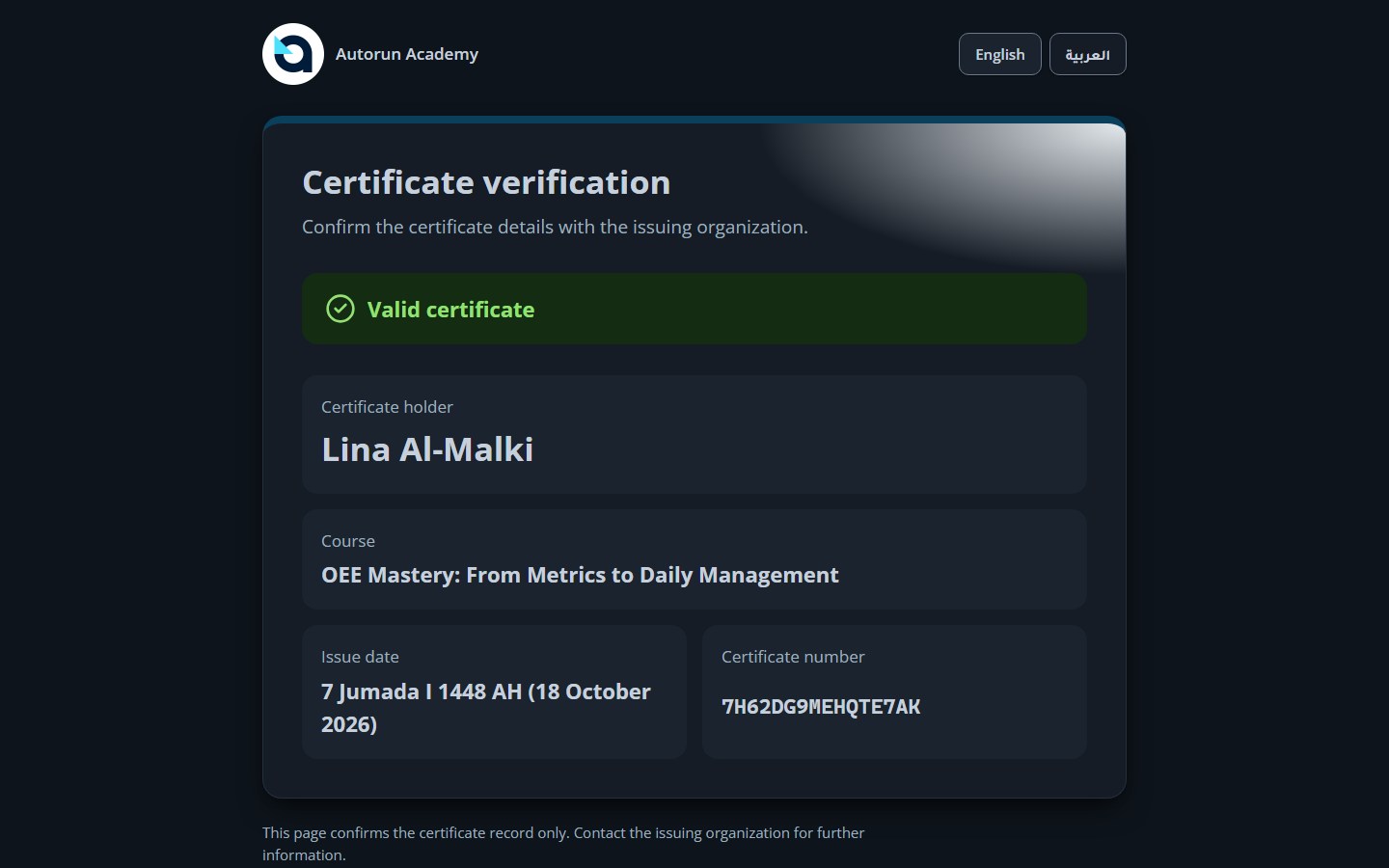
Anyone can check that a certificate is genuine using its public verification page — no account needed.
1
Open the verification link shared with the certificate, or choose Verify on a certificate page.
2
Enter the verification code (or serial number) printed on the certificate.
3
The page shows the learner, the course, the issue date and the certificate status.
Tip: Employers and external verifiers do not need an Academy account—scanning the QR code on any PDF certificate opens this verification page directly.
Entering the verification code
A verified certificate
2 · Learner — your dashboard and workspace
Navigate your personal learning workspace, manage notifications and profile security, sync deadlines to your calendar, explore the catalogue, and download your certificates.
Learner · 9
07
Find your way around the learner dashboard
Learner
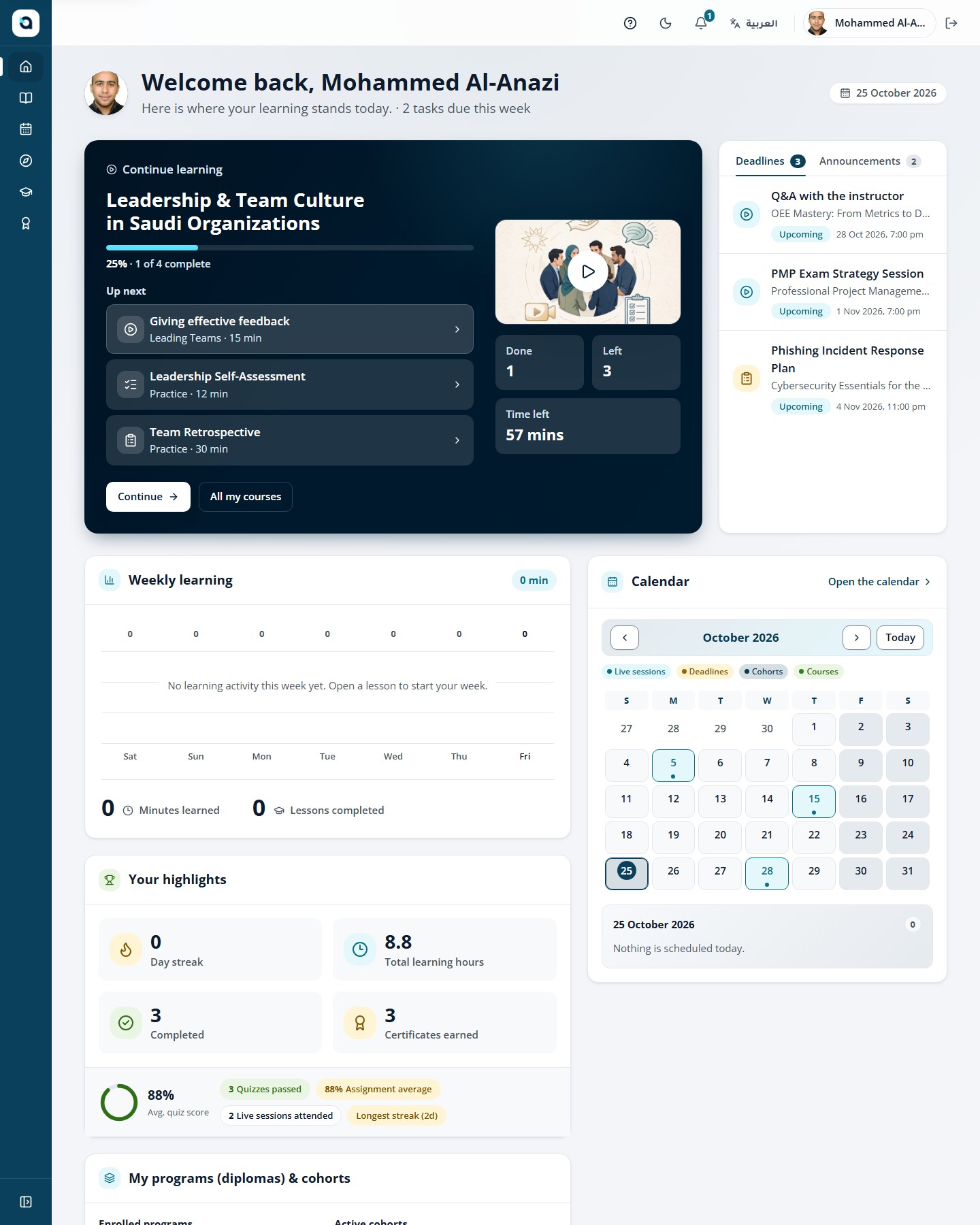
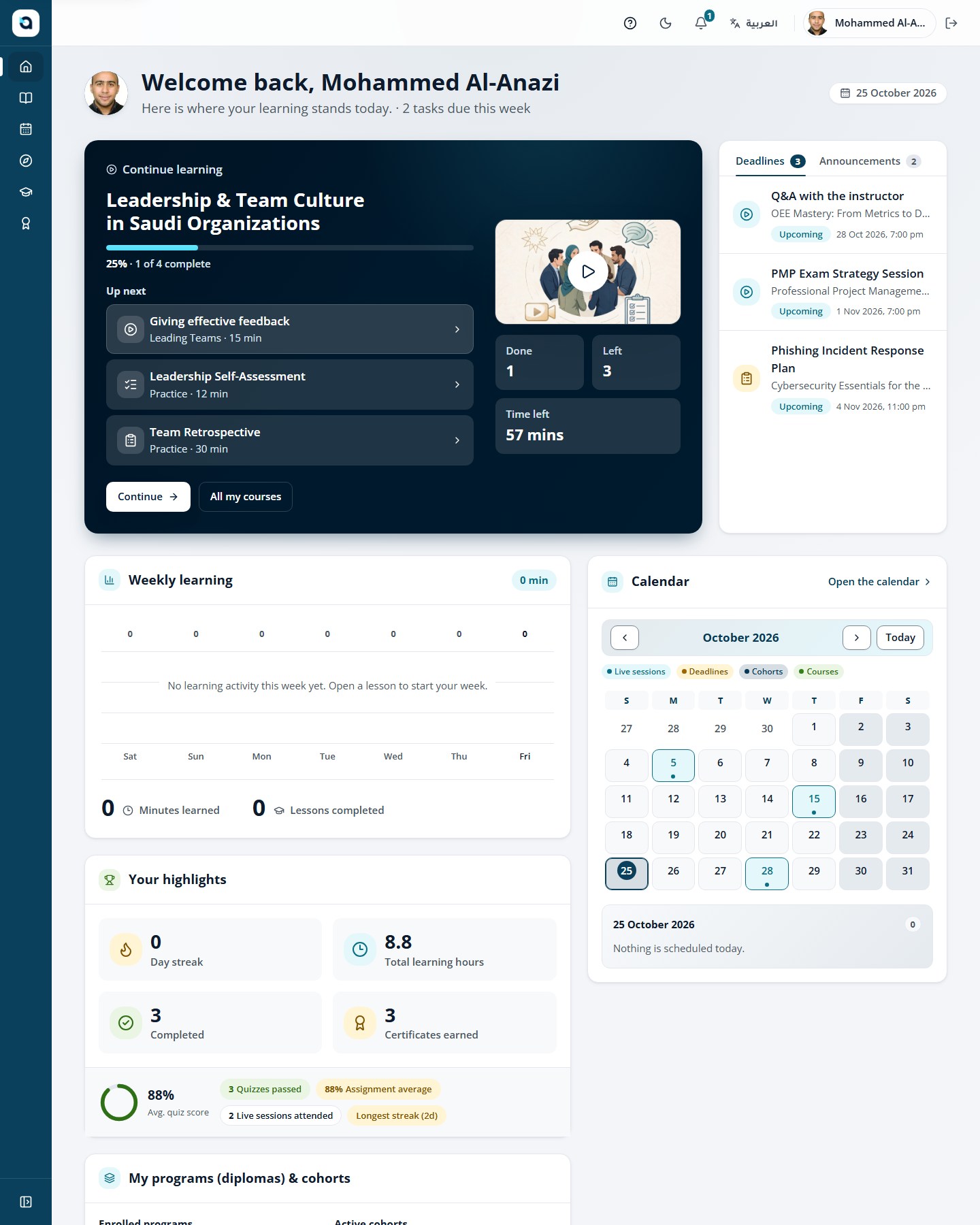
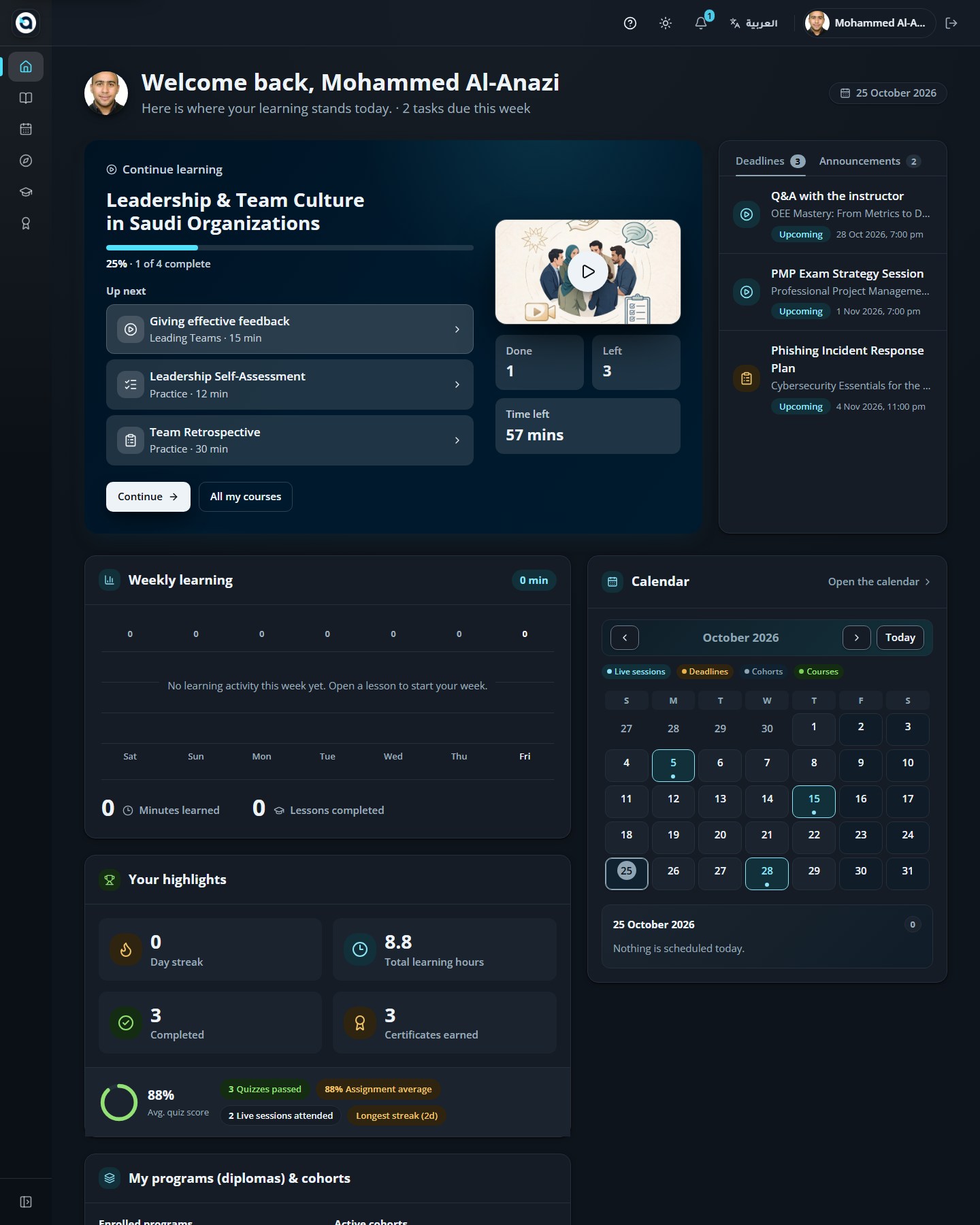
The home screen is your starting point: resume learning, see your progress, deadlines and announcements.
1
The greeting banner shows your name and a Resume learning card that continues where you left off.
2
The stat cards summarise your enrolled, in-progress and completed courses and your certificates.
3
In-progress courses appear with progress bars — choose a card to open the course player.
4
The side column shows your upcoming deadlines and the 7-day learning activity chart.
5
Organization announcements appear at the bottom of the page.
The learner dashboard
08
Read your notifications
LearnerTop bar → Bell icon
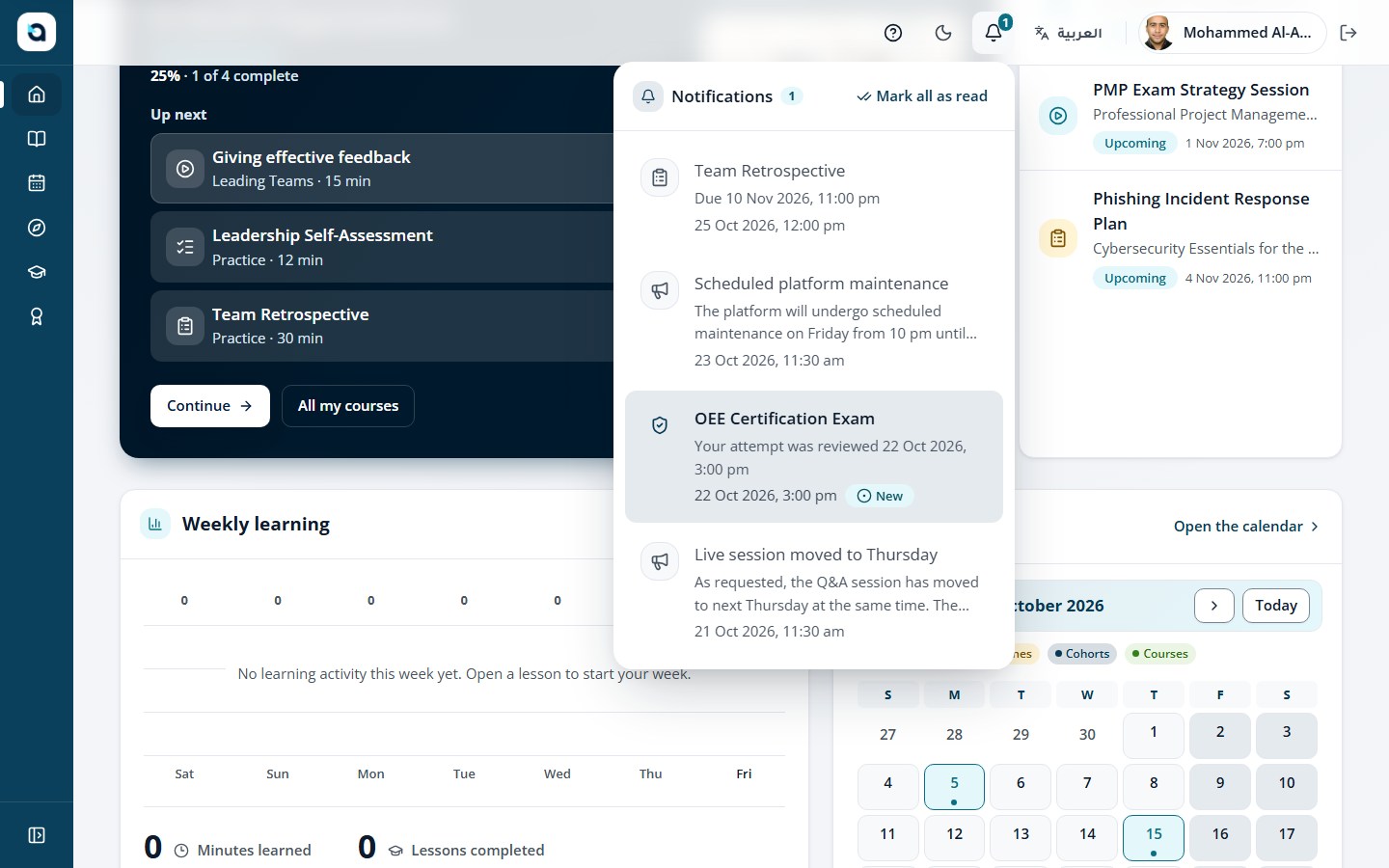
The bell in the top bar collects everything that needs your attention.
1
Choose the bell icon in the top bar — the badge shows how many are unread.
2
Unread notifications are highlighted; choose one to open the related screen.
3
Choose Mark all as read to clear the badge.
Tip: Unread notifications show a numeric badge on the bell icon. Clicking any notification takes you directly to the course, grade, or announcement.
The notifications panel
09
Get help and support
Learner
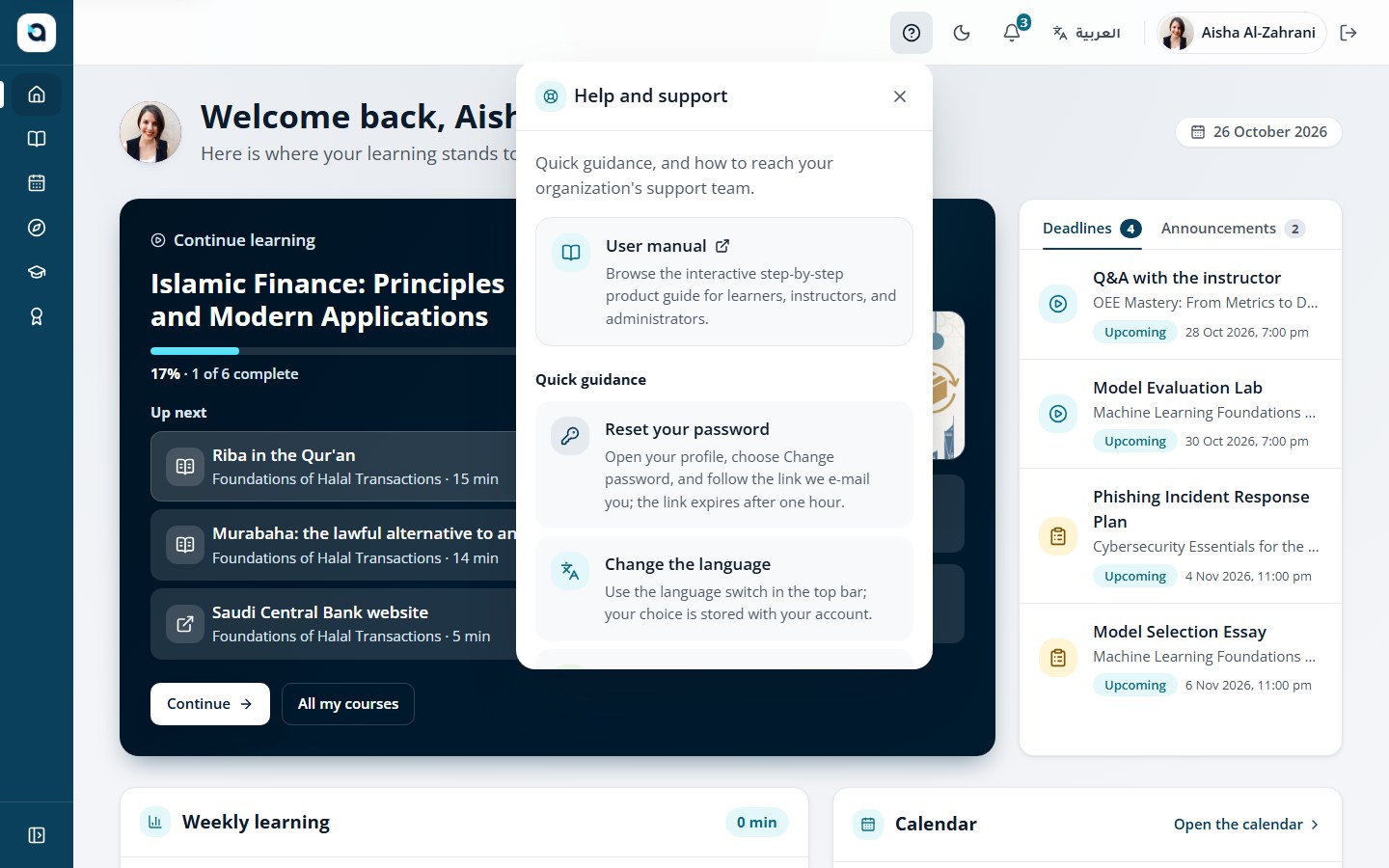
Every screen carries a help button with quick guidance, a link to the User Manual, and your organization’s support contact.
1
Choose the ? button in the top bar.
2
Choose Open user manual to browse the full interactive bilingual guide in a new tab.
3
The panel also shows quick guidance and your organization’s support email and phone number.
4
Questions about a course go to the instructor shown on the course page; everything else goes to this support contact.
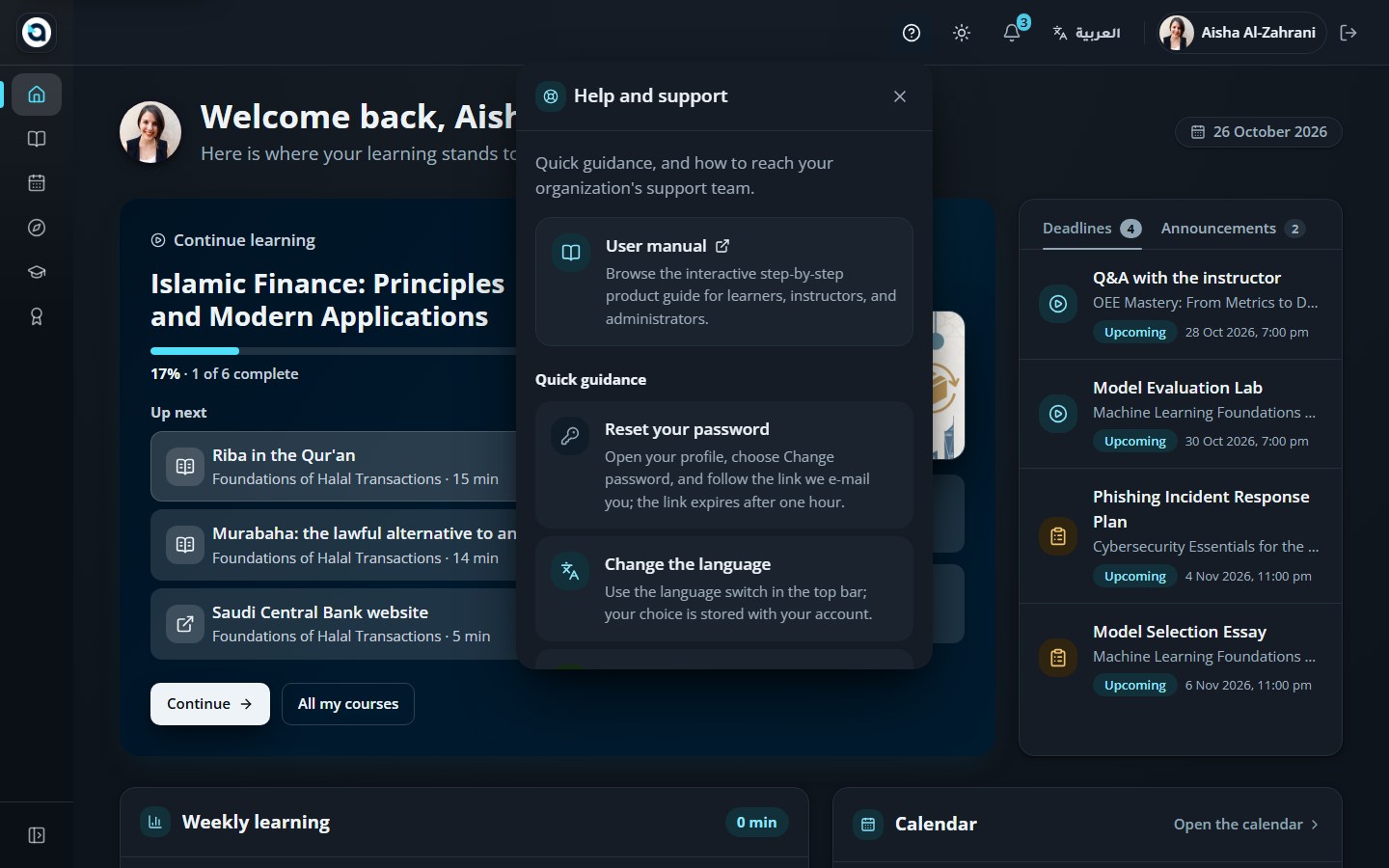
The help panel
10
Manage your profile and security
LearnerSidebar → Profile (/profile)
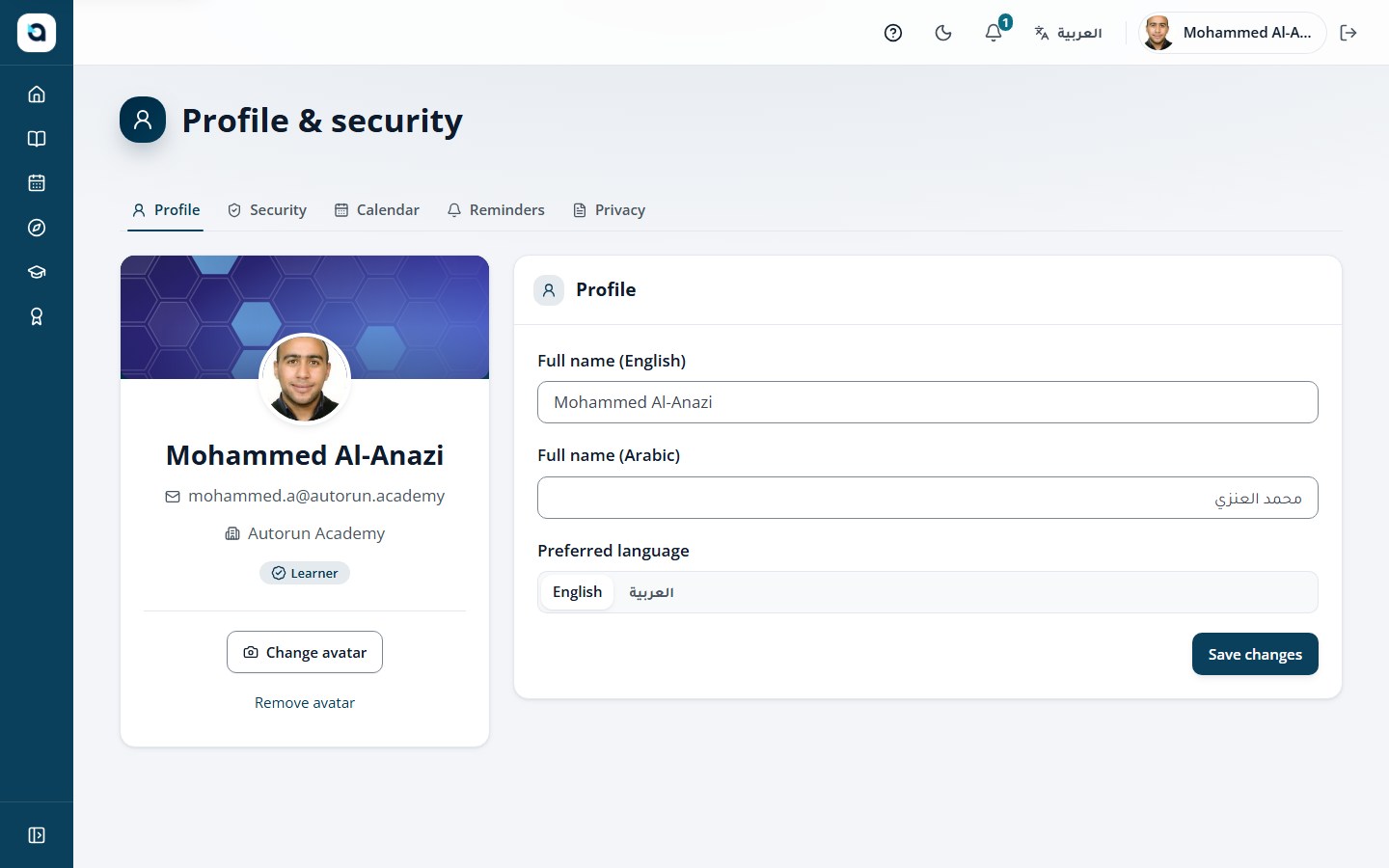
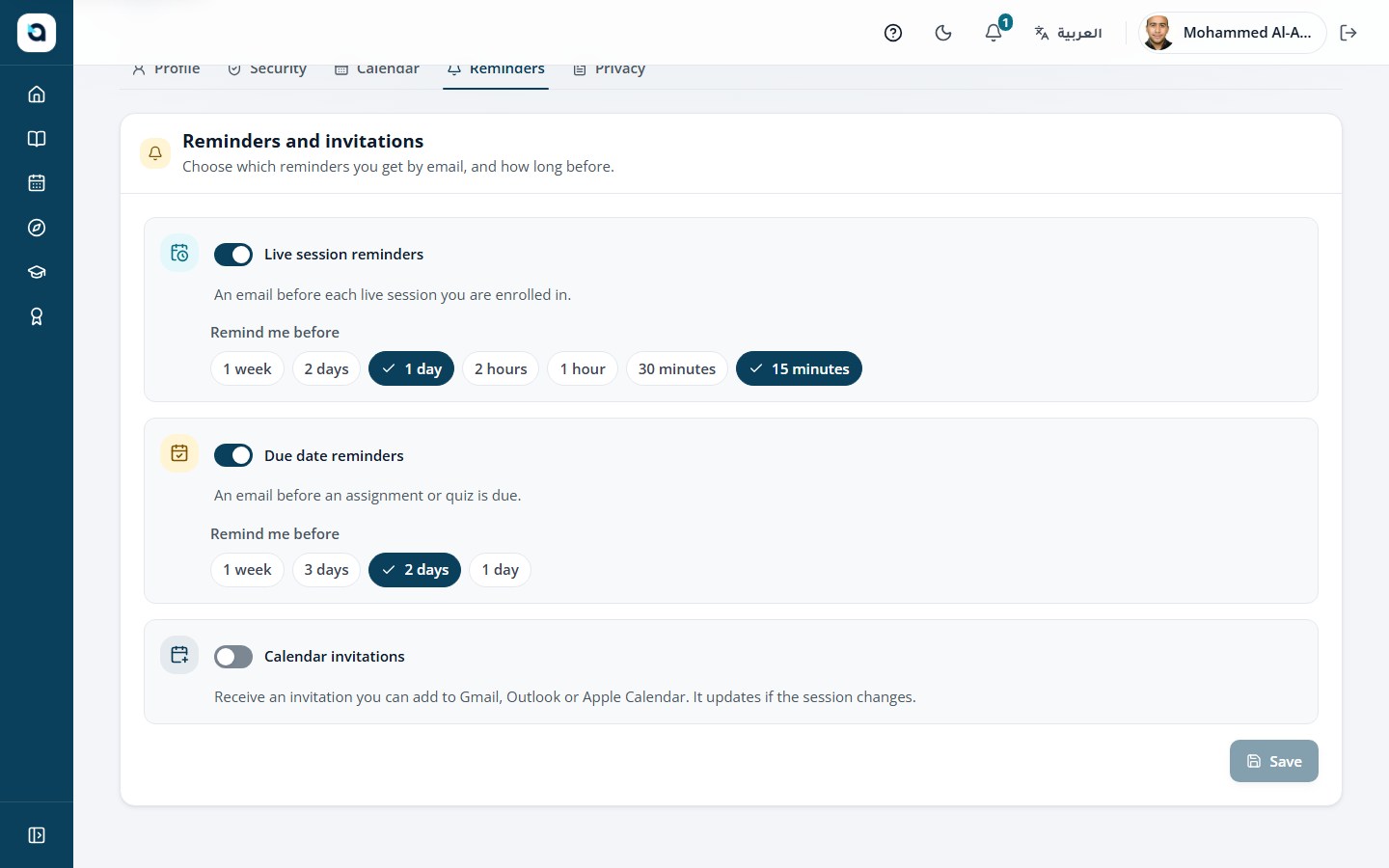
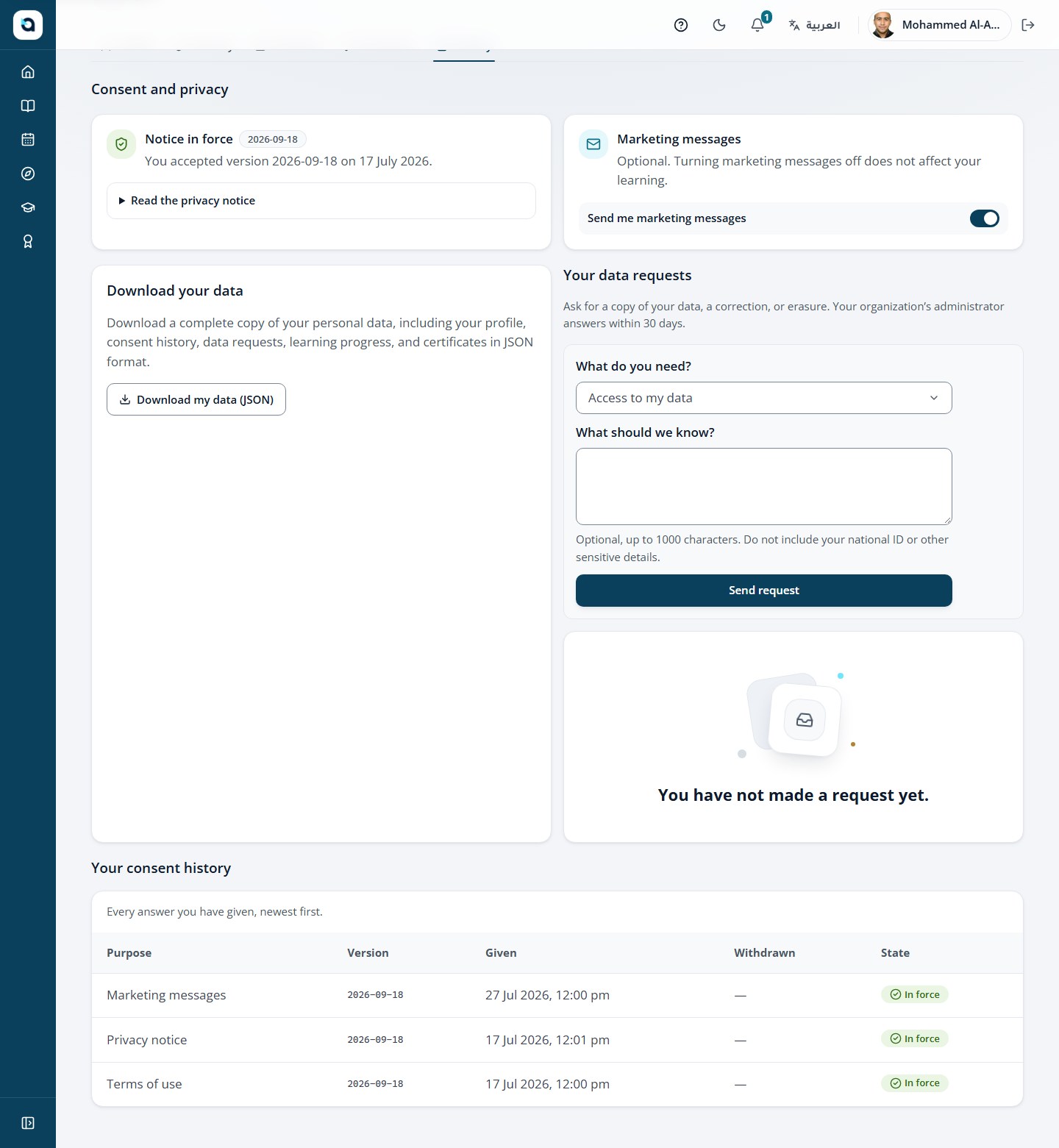
The profile page has five tabs: Profile, Security, Calendar feed, Reminders and Privacy.
1
Profile tab: edit your names in Arabic and English, choose your preferred language and upload an avatar.
2
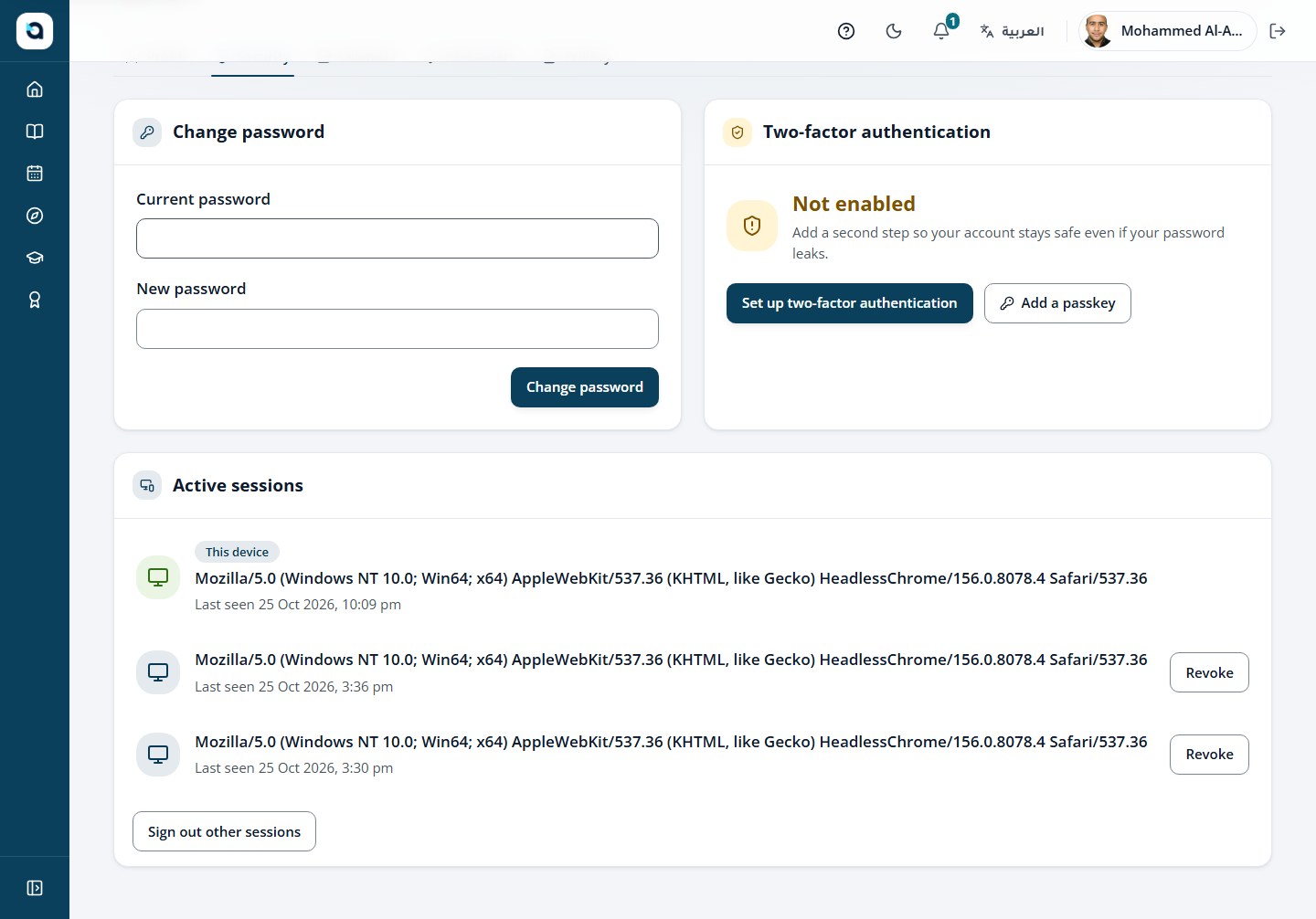
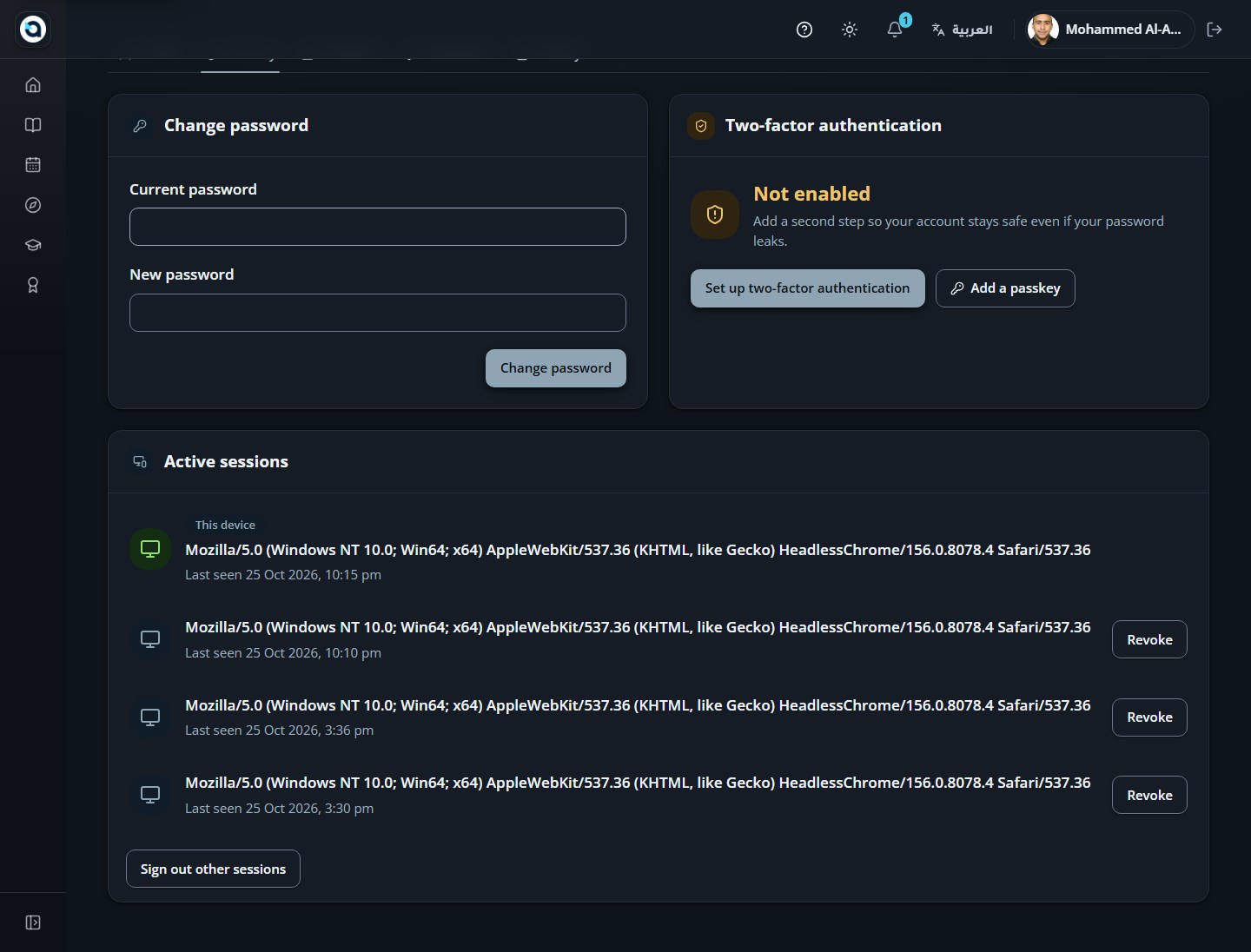
Security tab: change your password, manage two-factor authentication and passkeys, and review or revoke active sessions.
3
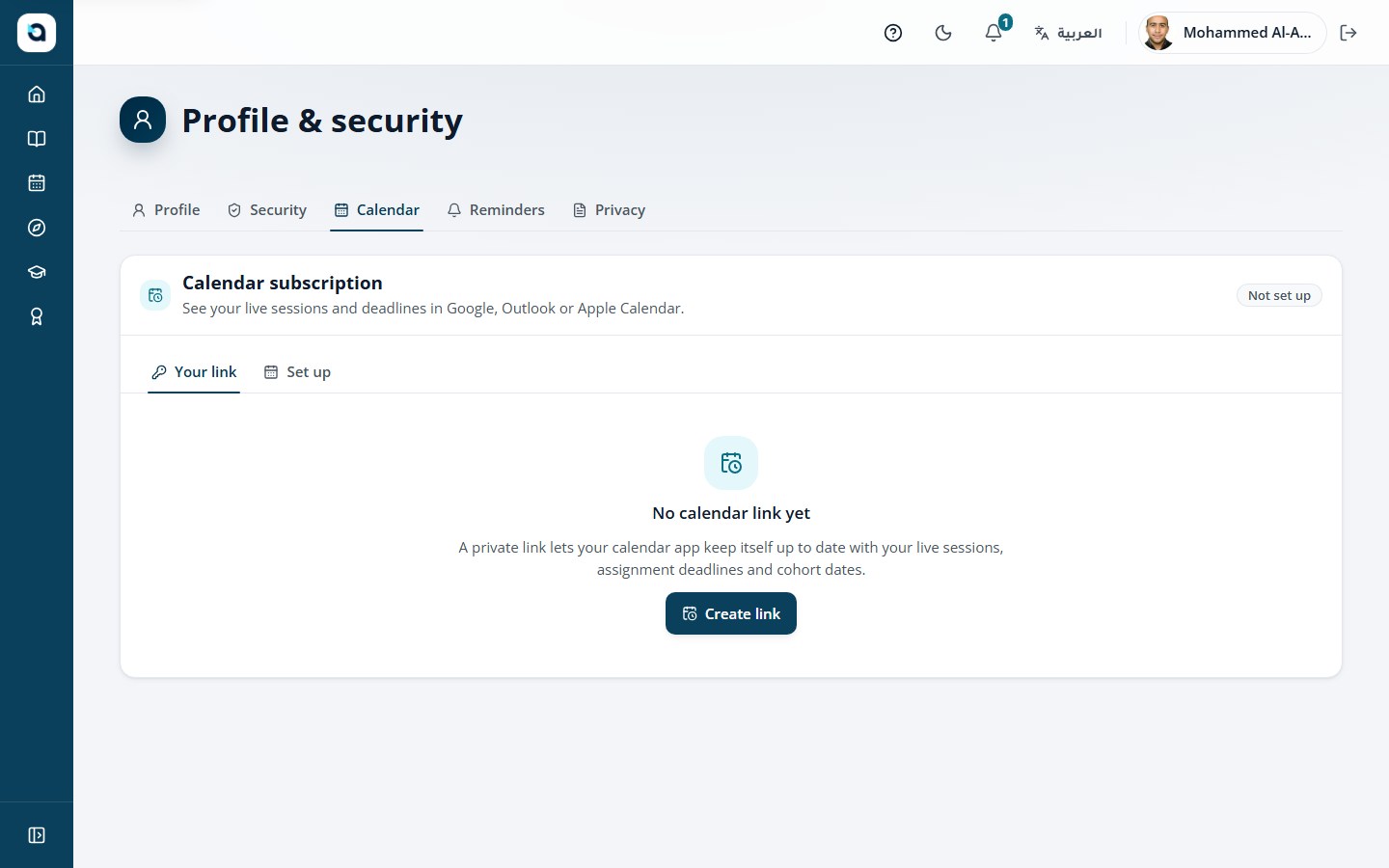
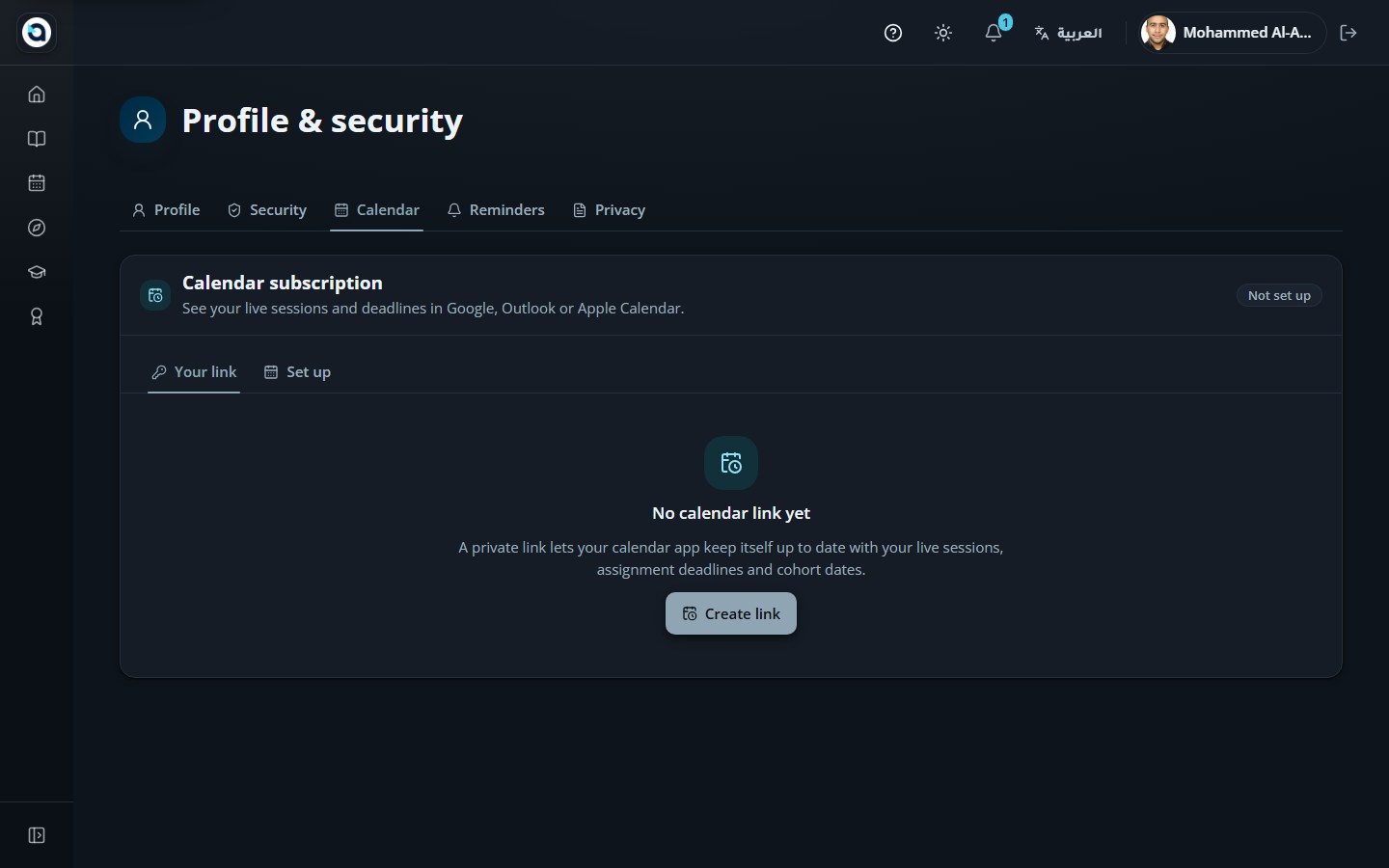
Calendar feed tab: copy your personal calendar (.ics) link to subscribe from any calendar app.
4
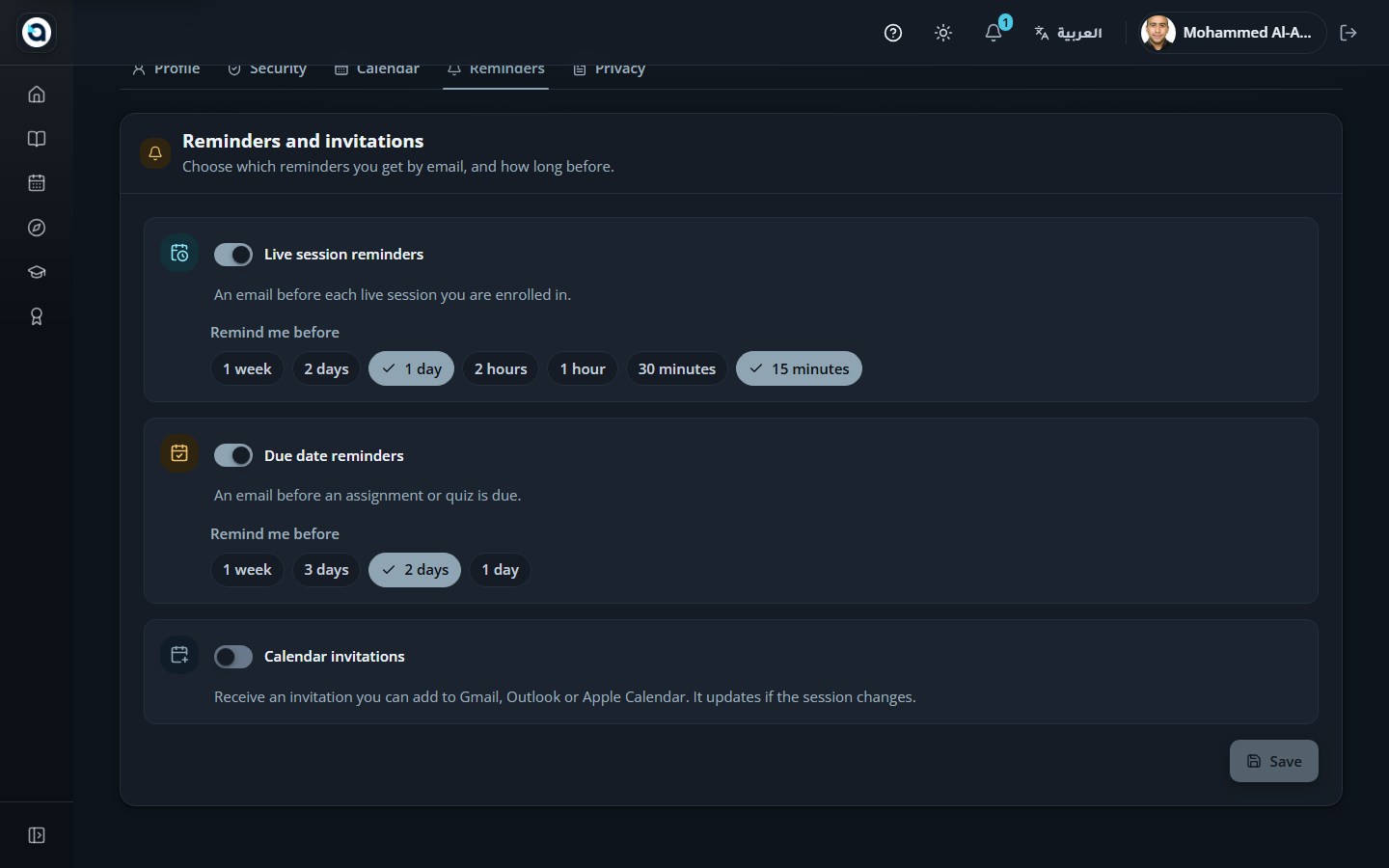
Reminders tab: choose which reminder notifications you receive.
5
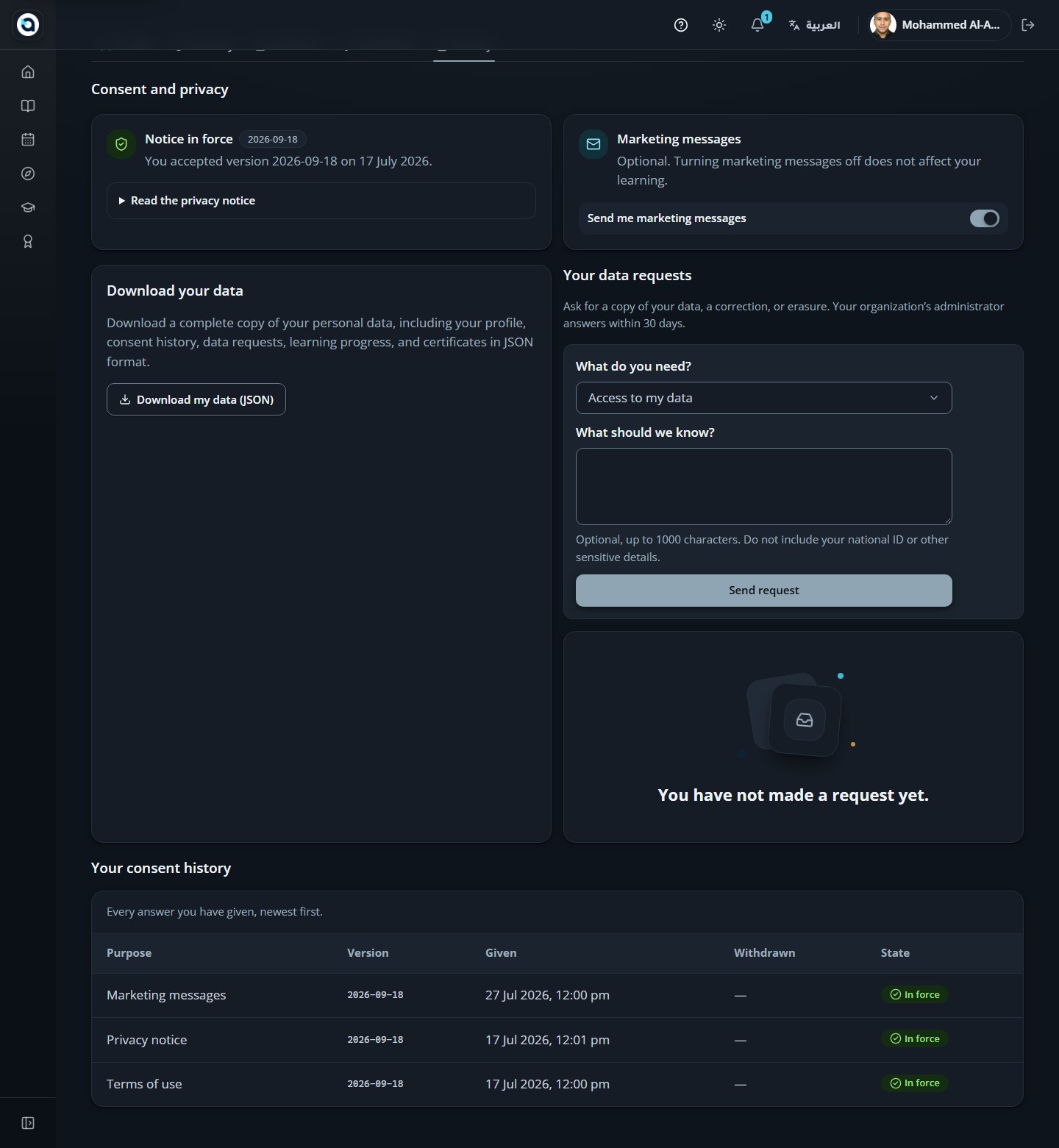
Privacy tab: review the terms of use, the privacy notice and your consents.
Tip: Use the Security tab to add Passkeys, rotate recovery codes, or review every active device session and revoke any device you no longer use.
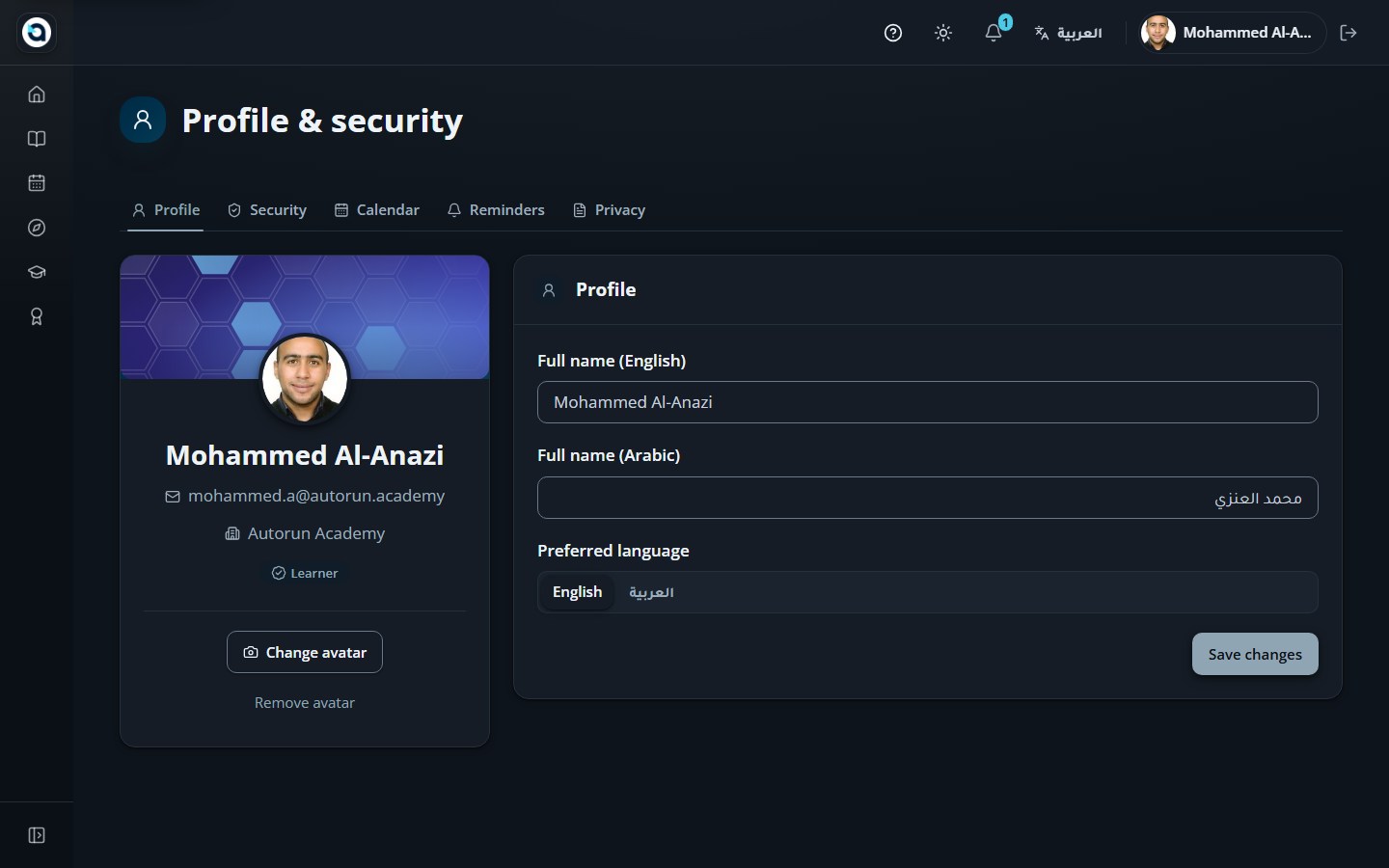
The profile tab
The security tab
The calendar feed tab
Reminders tab — choose when and how the Academy sends deadline and session reminders.
The privacy tab
11
See your schedule in the calendar
LearnerSidebar → Calendar (/calendar)
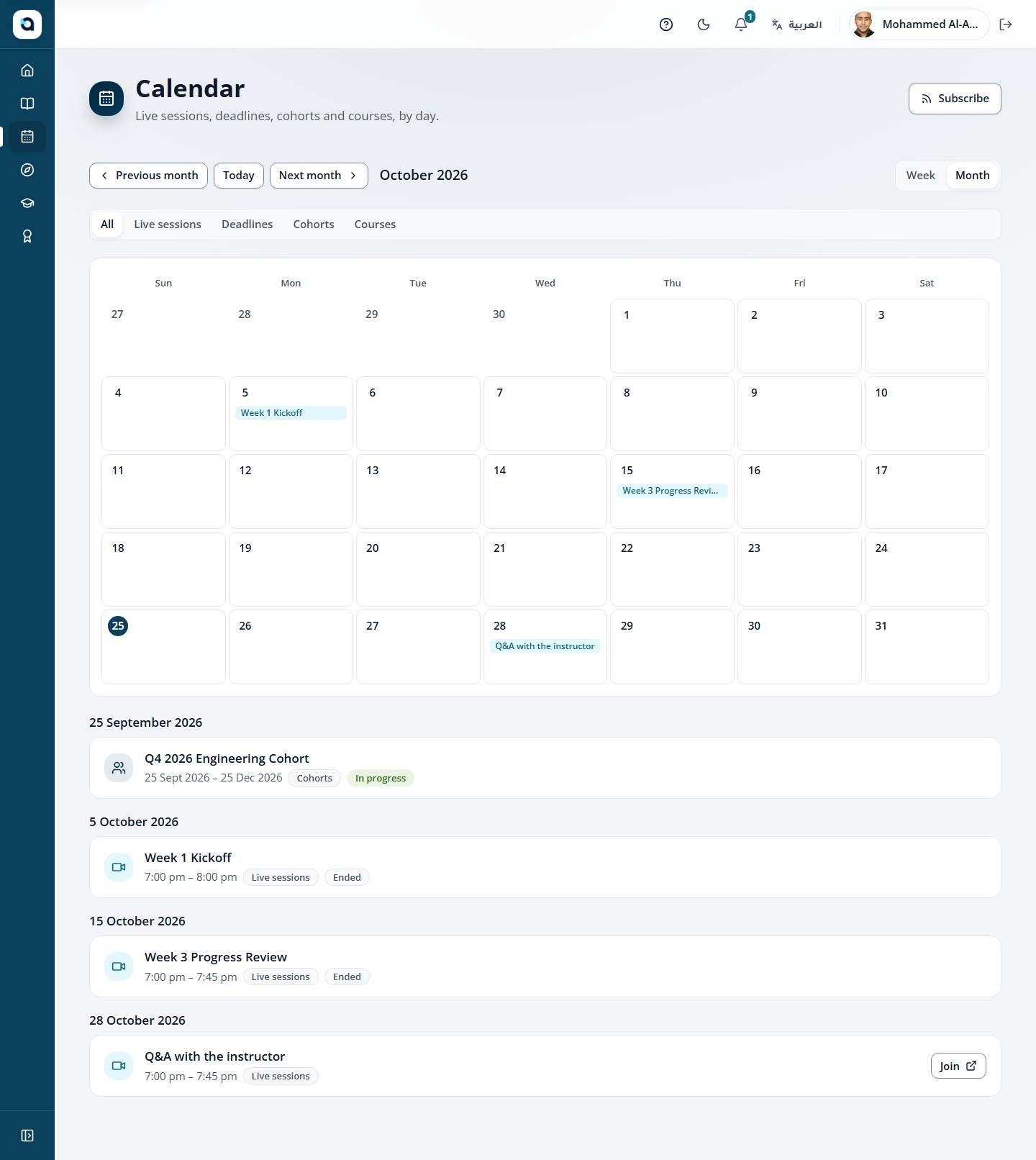
The calendar shows course deadlines, live sessions and other events in your organization’s calendar.
1
Open Calendar from the sidebar.
2
The monthly grid shows your entries in the Gregorian or Hijri (Umm al-Qura) calendar.
3
Upcoming entries are listed beside the grid.
4
Subscribe from another calendar app using the .ics link on your profile page.
Tip: Copy your personal iCal (.ics) feed URL from Profile → Calendar feed to sync all live sessions and assignment due dates to Outlook, Google Calendar, or Apple Calendar.
The monthly calendar
12
Browse the catalogue and enrol
LearnerSidebar → Catalogue (/catalogue)
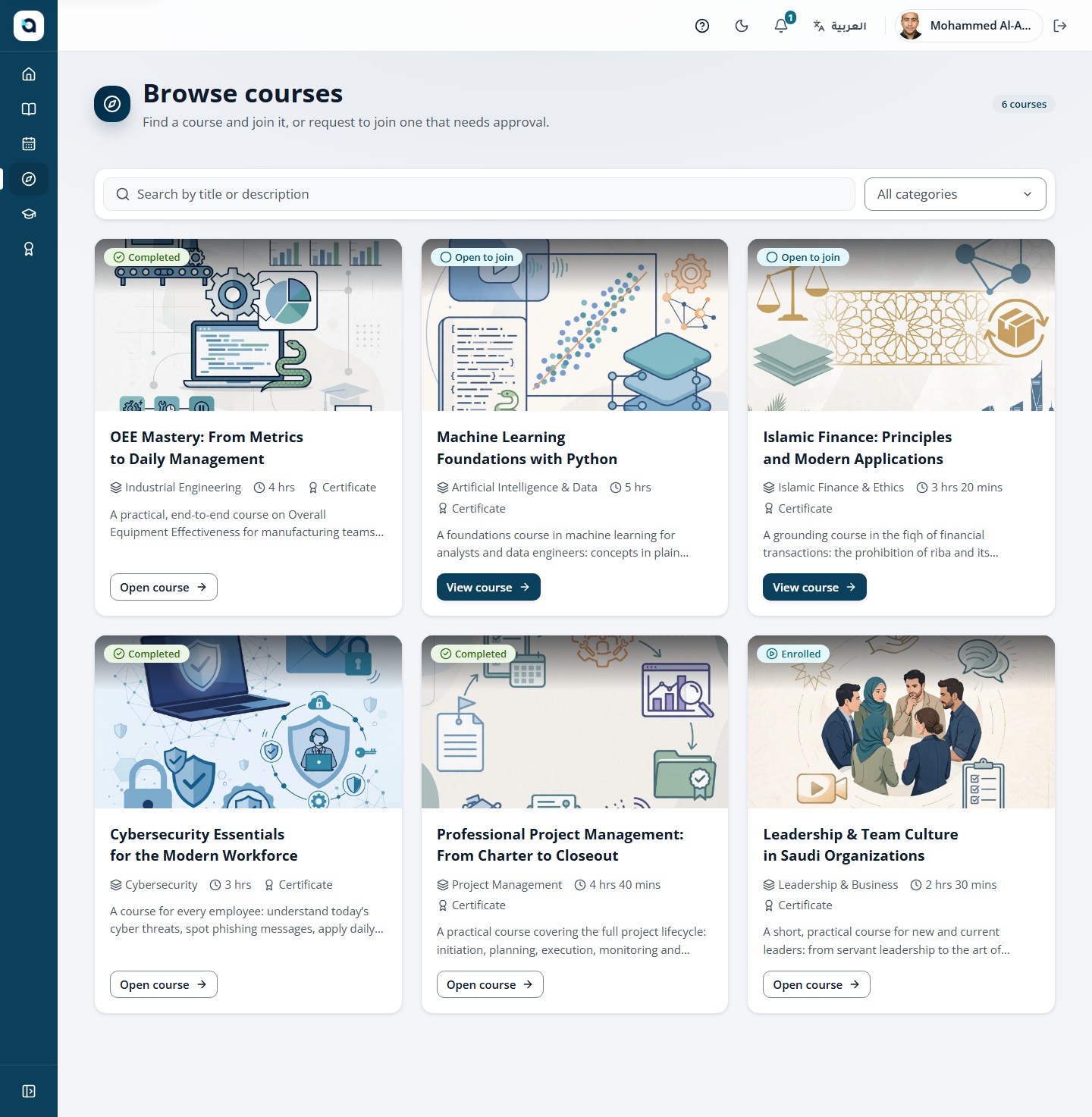
The catalogue lists every published course you can join, with search and category filters.
1
Open Catalogue from the sidebar.
2
Search by title or filter by category to find a course.
3
Choose a course card to open its preview page with description, objectives and duration.
4
Choose Request to join when enrolment needs approval; otherwise enrol directly.
5
Once approved, the course appears in My learning.
Tip: Filter courses by category, language, or delivery mode. Self-enrollment courses let you start immediately; restricted courses let you submit a 1-click enrollment request.
The course catalogue
A course preview
13
Continue your courses
LearnerSidebar → My learning (/my-learning)
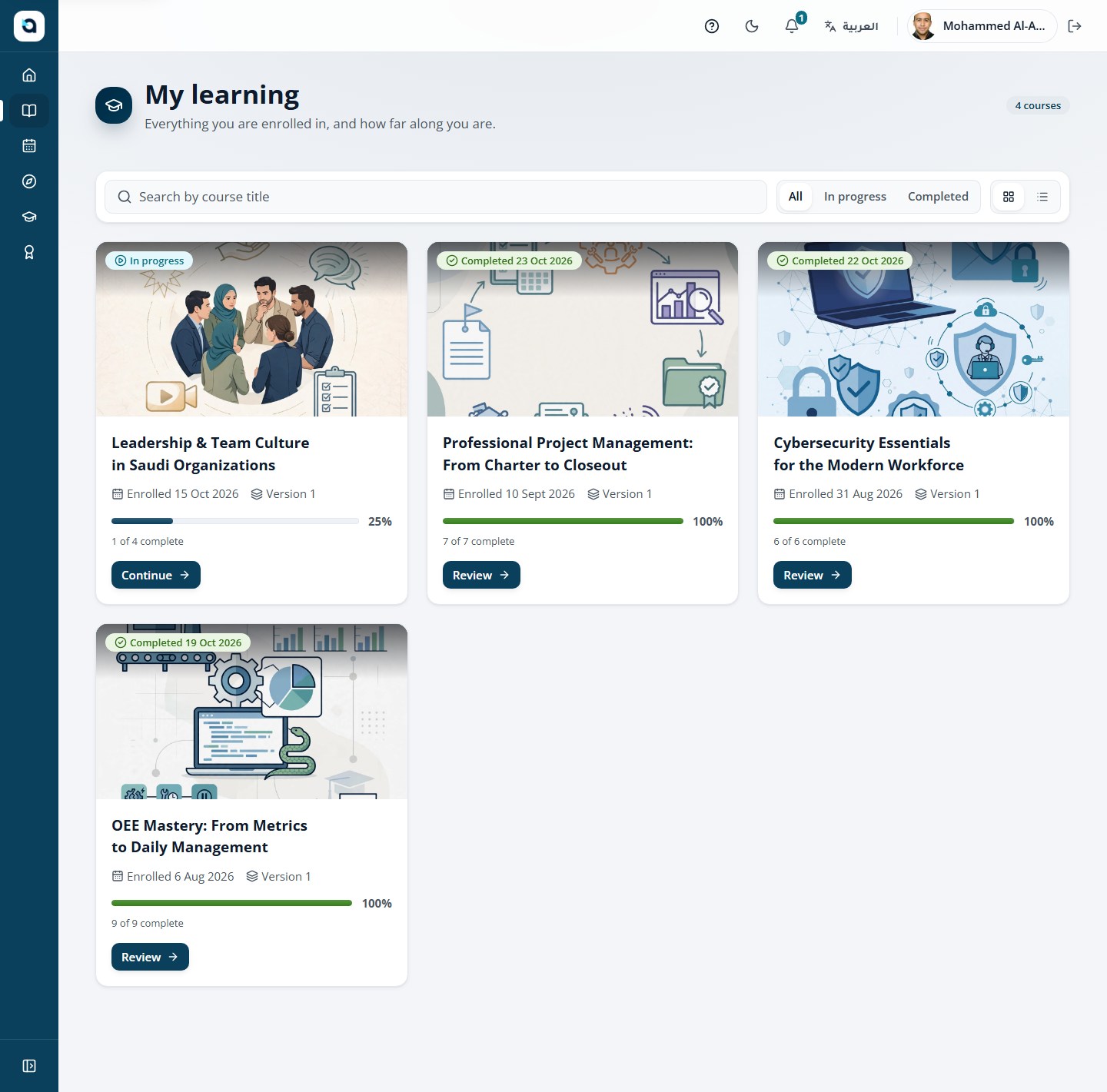
My learning gathers every course you are enrolled in, with your progress.
1
Open My learning from the sidebar.
2
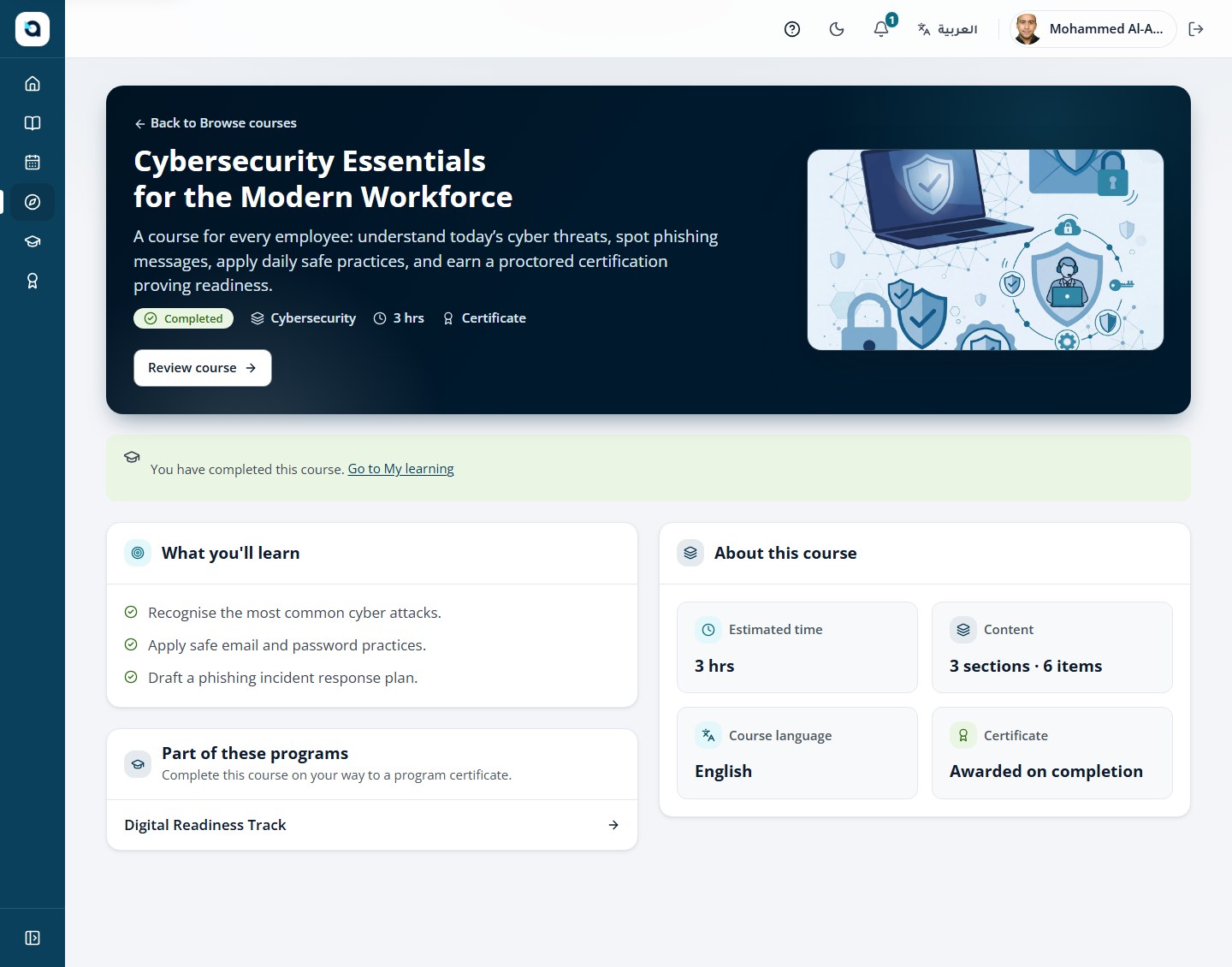
Each card shows the enrolment status, category, title and a progress bar.
3
Choose Continue to reopen the course player at the current item.
4
Completed courses offer Review so you can revisit the material.
Tip: Switch between In progress, Completed, and Pending requests tabs to track every course in your learning journey.
My learning
14
Track a program (diploma)
LearnerSidebar → My programs (/my-programs)
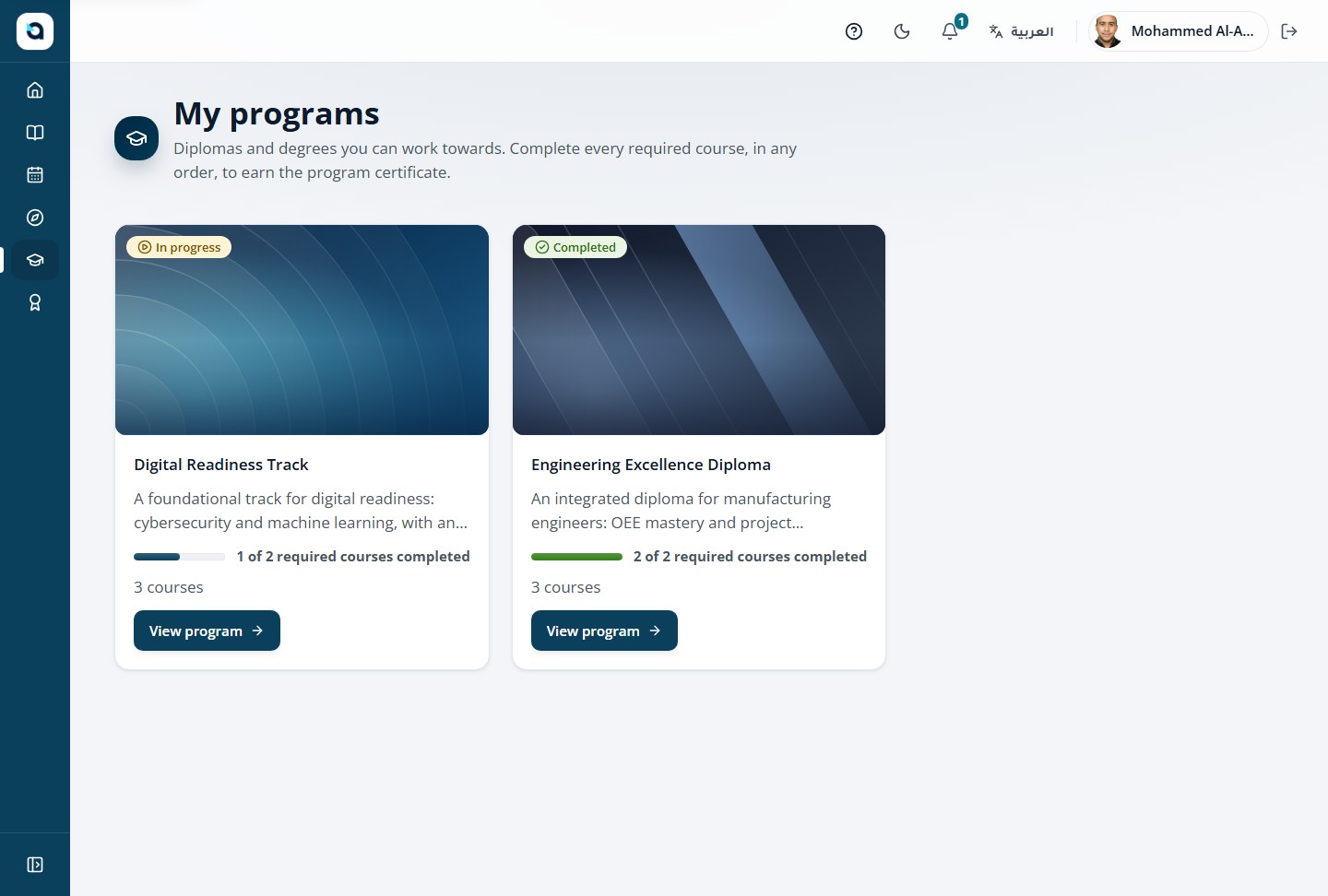
Programs group several courses into a diploma. You can see how far you are and earn a program certificate.
1
Open My programs from the sidebar.
2
Each program shows how many of its required courses you have completed.
3
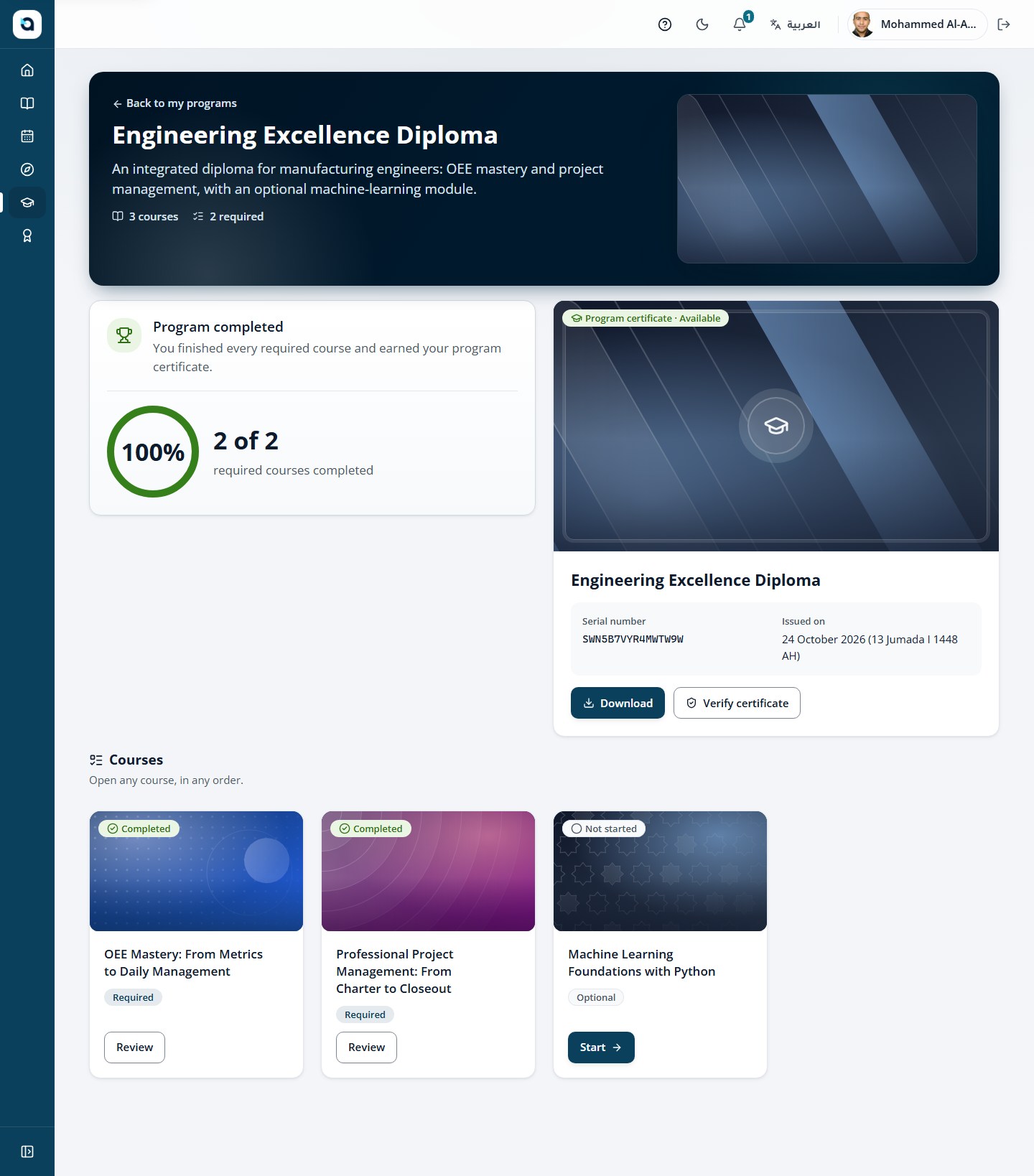
Open a program to see its courses — required or optional — with your progress.
4
When every required course is done, the program certificate appears with its serial number and download link.
Tip: Multi-course diploma programs unlock a distinct Program Certificate once every required course in the track is completed.
My programs
Inside a program
15
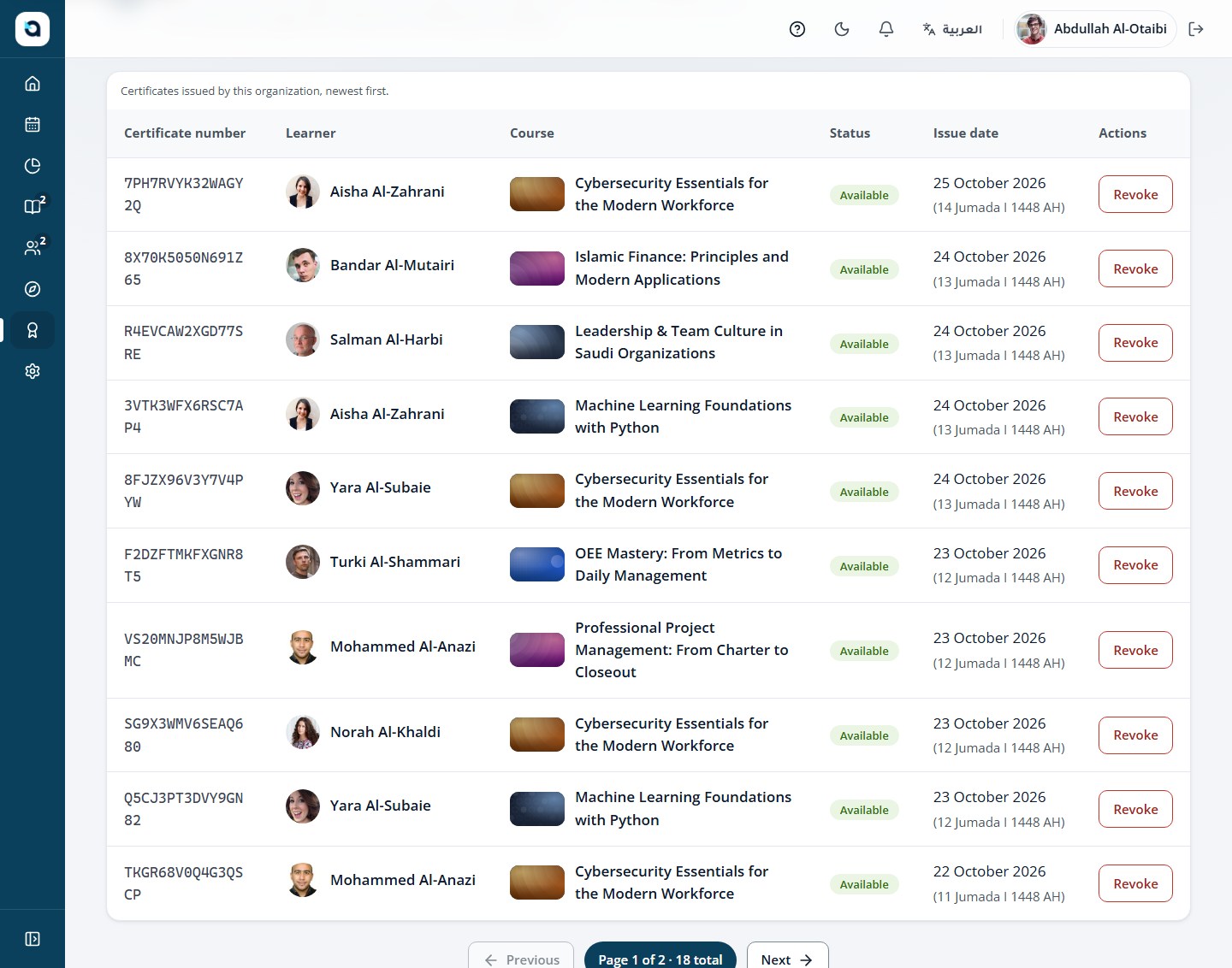
Download your certificates
LearnerSidebar → My certificates (/my-certificates)
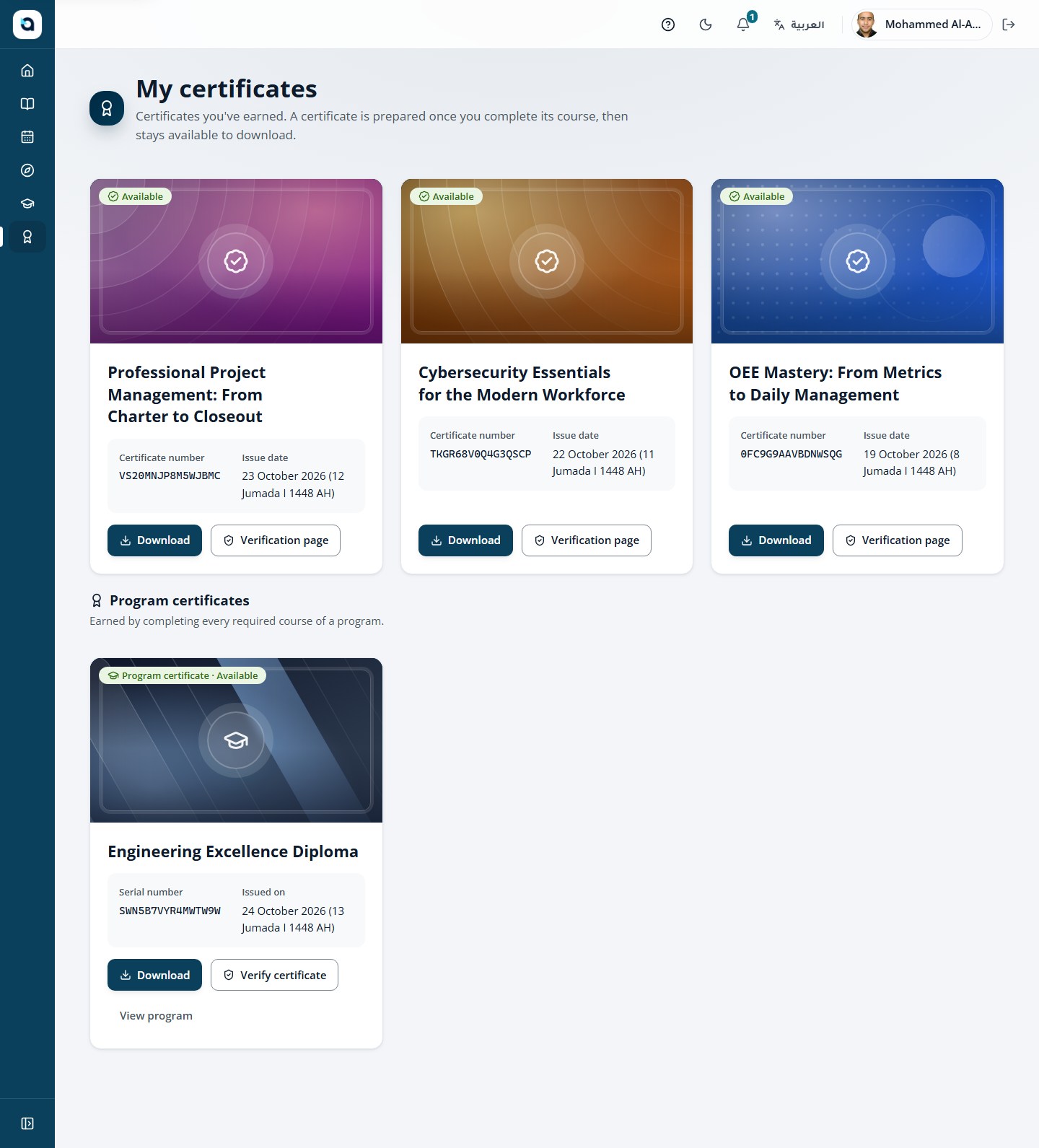
Every completed course issues a certificate with a serial number and a verification link.
1
Open My certificates from the sidebar.
2
Each certificate shows the course, the issue date in Gregorian and Hijri, and the serial number.
3
Choose the PDF action to save or print the certificate.
4
Choose Verify to open the public verification page proving it is genuine.
Tip: Every certificate displays both Hijri and Gregorian issue dates with Western digits and a verifiable QR code.
My certificates
3 · Learner — the course player
Study interactive lessons with bilingual closed captions, Quranic verses, PDFs, live Zoom classes, and a course-grounded AI Tutor.
Learner · 9
16
Get around the course player
LearnerMy learning → Continue → Course Player
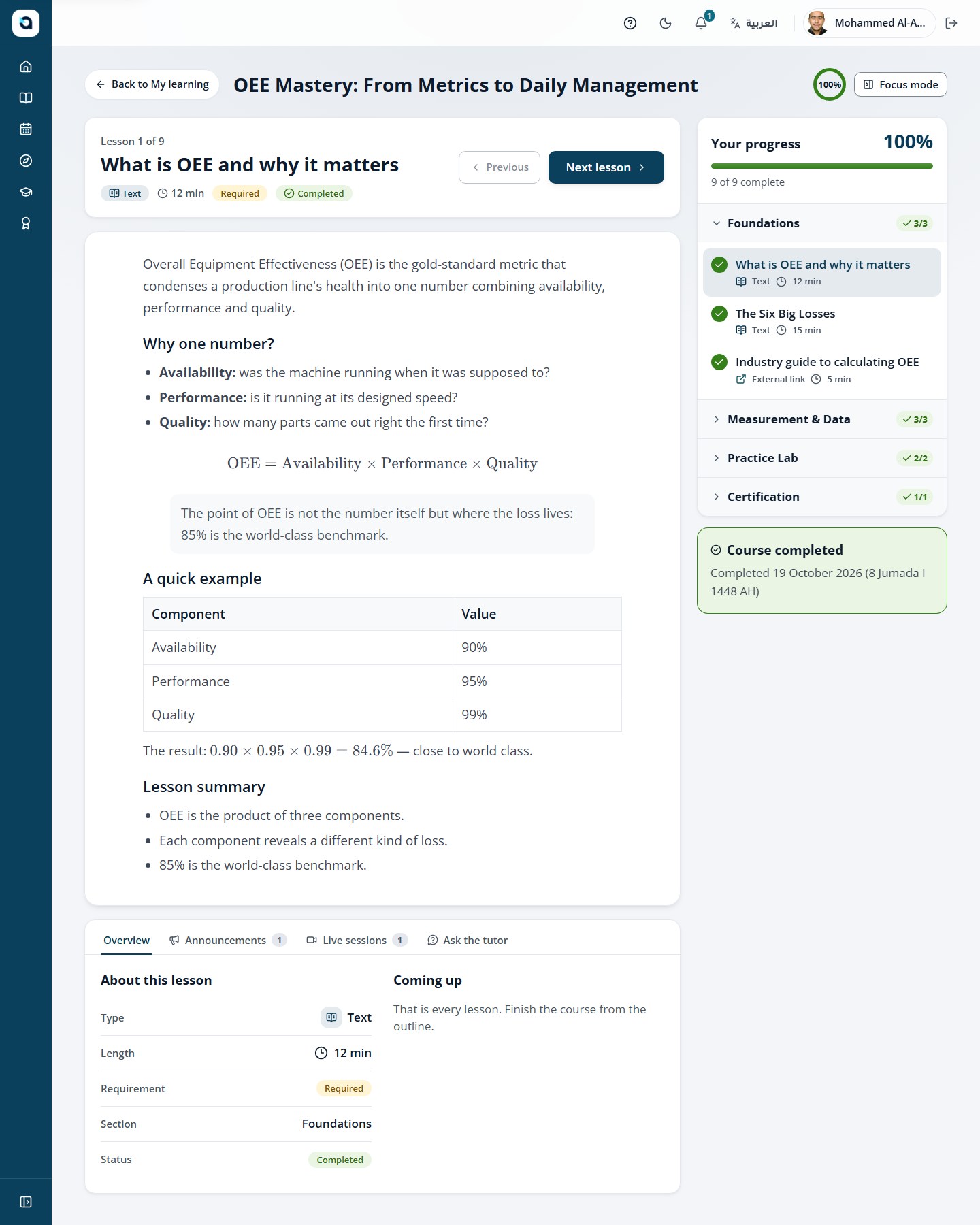
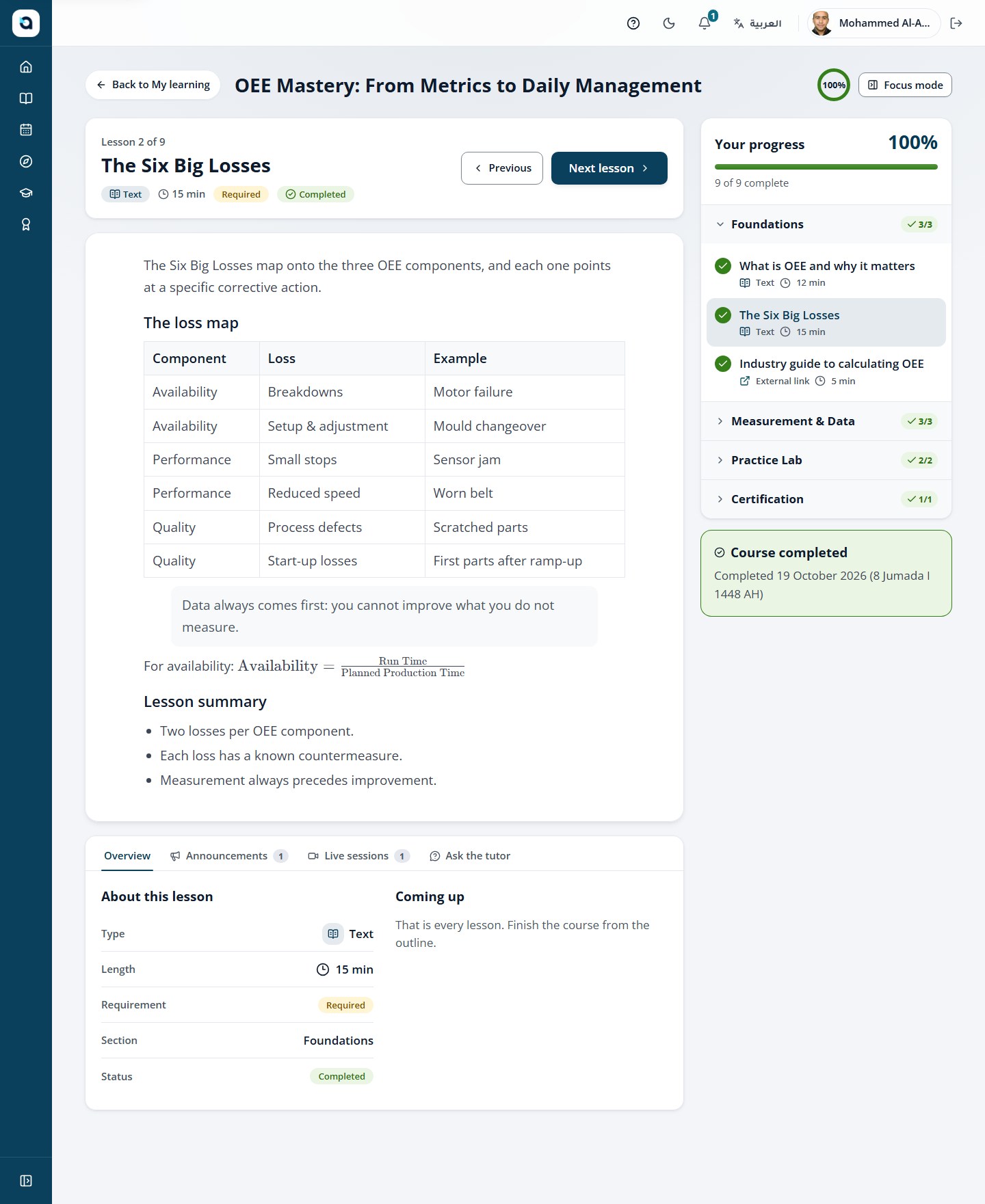
The Course Player is where you study lessons, watch videos, attend live sessions, and ask the AI Tutor. It remembers your exact position and shows your completion percentage at the top of the outline.
1
From your dashboard or My learning, choose Continue on any enrolled course to open the Course Player.
2
Use the course outline sidebar on the start side of the screen to see every section and item; completed lessons display a green checkmark.
3
Use the top navigation bar above the lesson stage (Previous, Mark as complete / Completed, and Next) to move briskly through lessons without scrolling to the bottom.
4
Switch between the top tabs (Lesson, Live sessions, and AI tutor) at any time while staying inside the same course.
Tip: Use the top navigation bar in the lesson stage to jump to the Previous or Next lesson or toggle "Mark as complete" without scrolling.
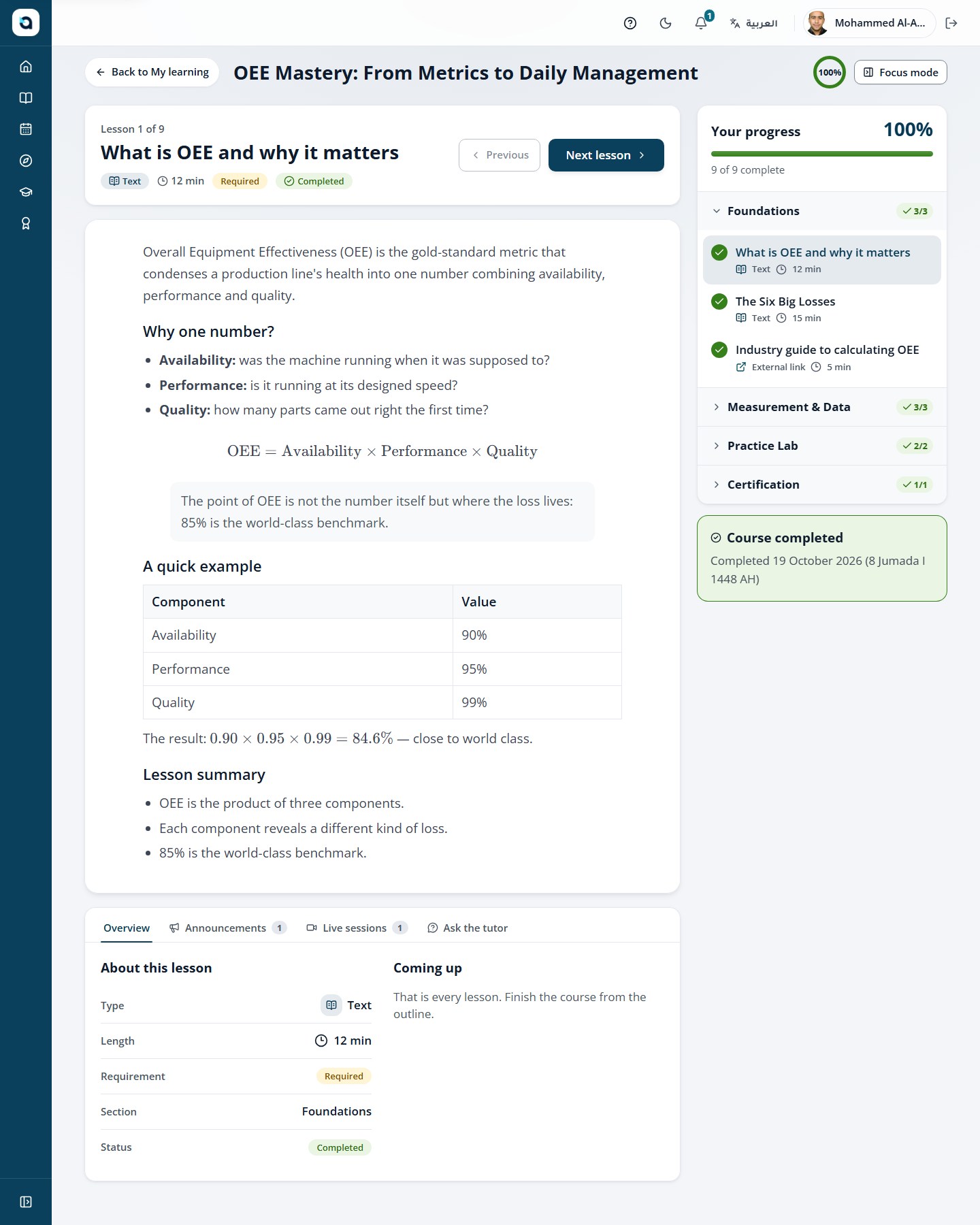
The course player
17
Read a text lesson
LearnerCourse Player → Text lesson
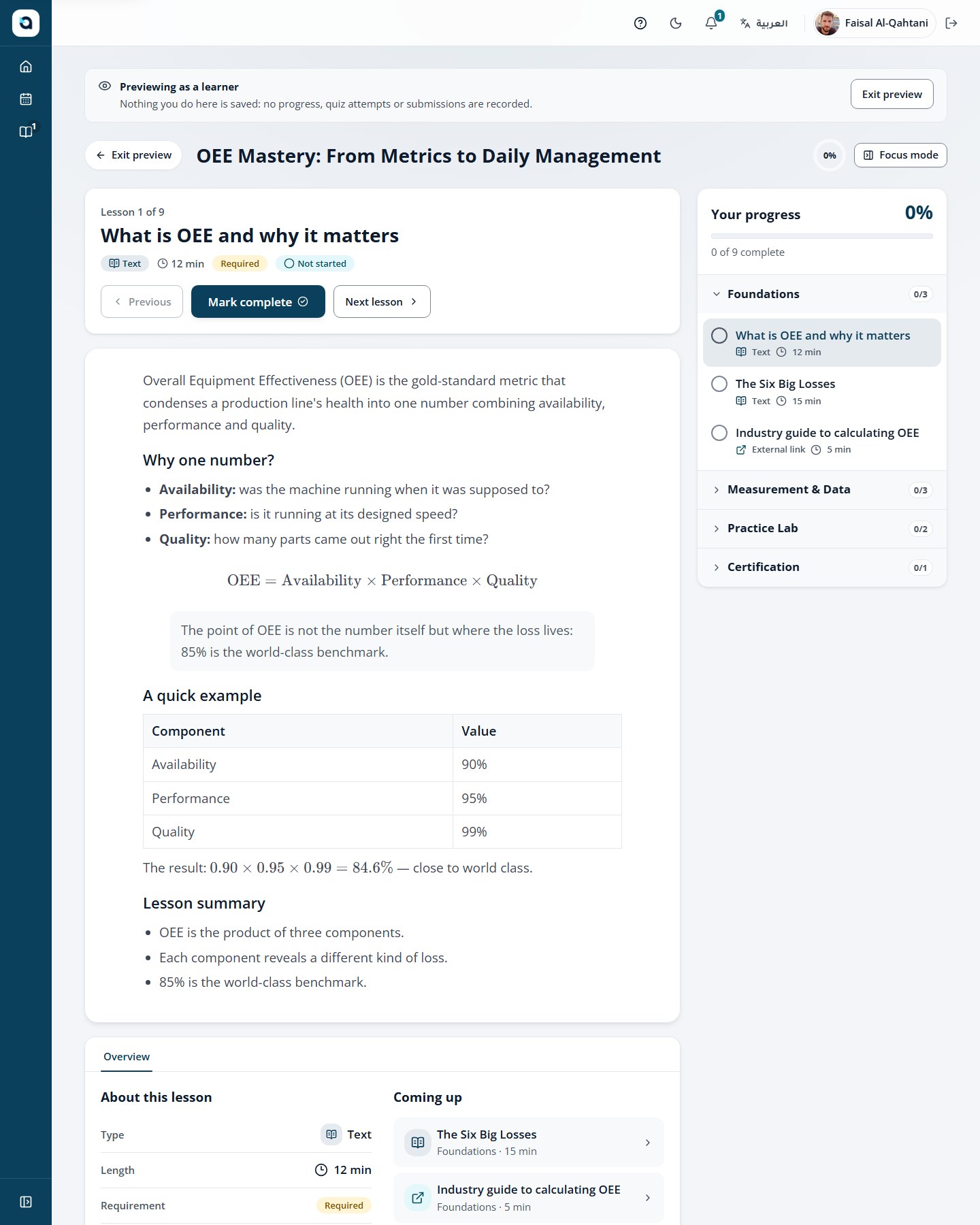
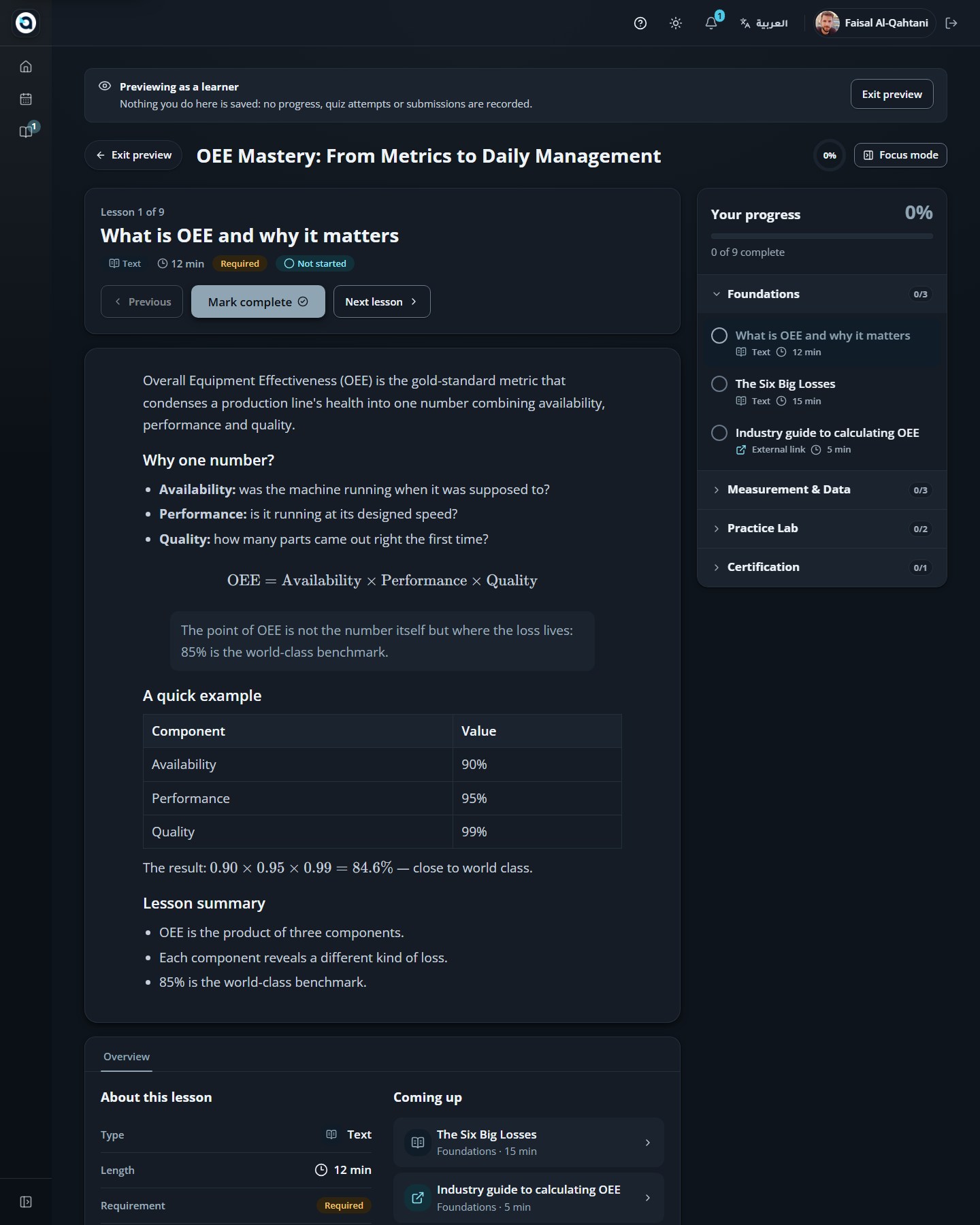
Text lessons present the core material with headings, lists and quotes.
1
Choose a text item in the curriculum.
2
Read the lesson; scrolling is free, and nothing is recorded until you complete the item.
3
Choose the complete button to mark it done and move on.
Tip: When you finish reading, click "Mark as complete" in the top bar and then click "Next" to advance to the next item.
A text lesson
18
Study a Quran passage
LearnerCourse Player → Quranic verse / callout lesson
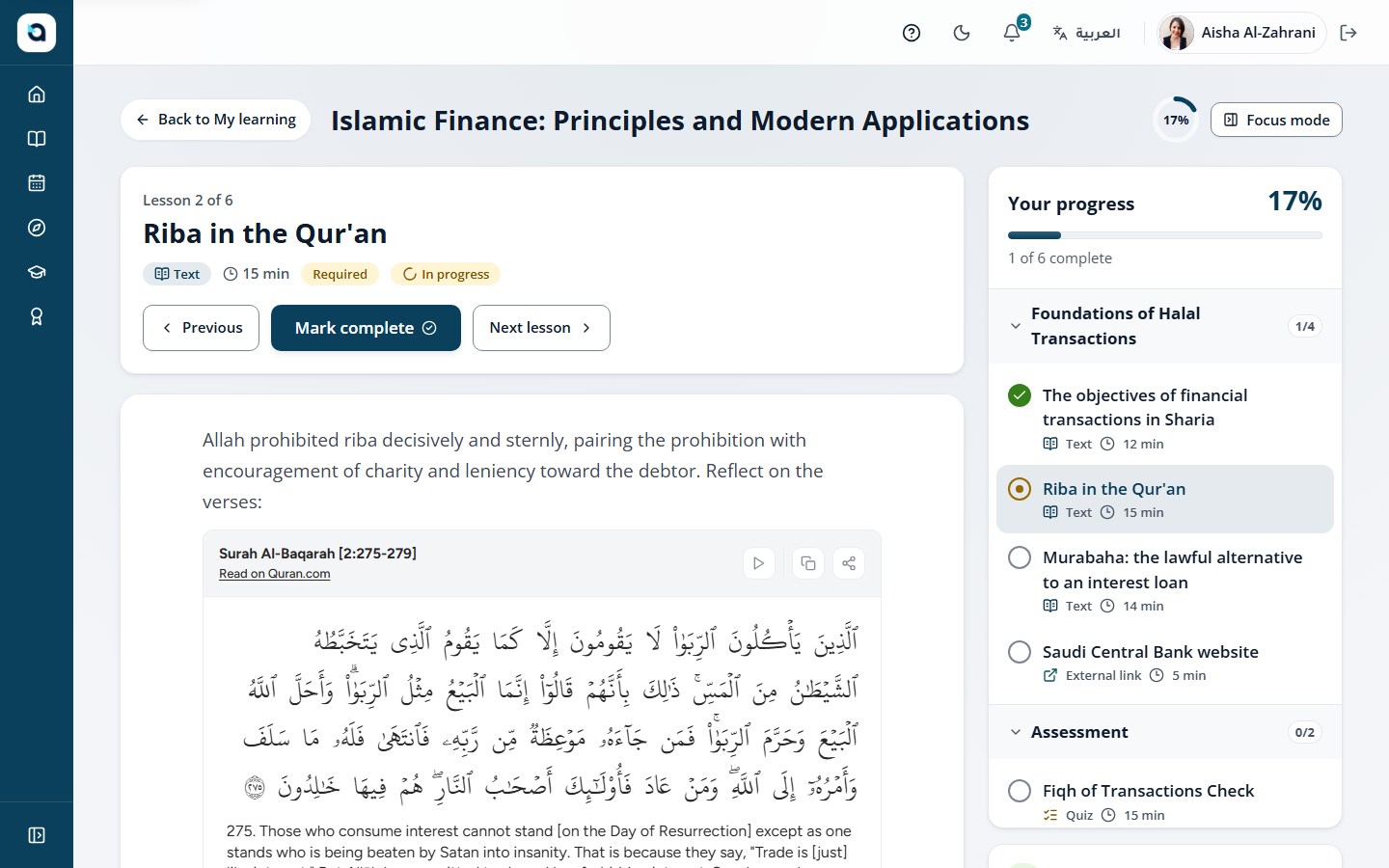
Quran items show the verses in the Quran.com widget with a translation.
1
Open a Quran ayah item.
2
The widget shows the selected verses; an English translation appears when the platform is in English.
3
Complete the item as usual to record your progress.
Tip: Quranic verses are rendered in dedicated Uthmani script styling with generous line height so diacritics (tashkeel) never clip.
A Quran passage lesson
19
Rich text lessons
Learner
Longer lessons use headings, ordered lists and blockquotes to structure the material.
1
Open the lesson from the curriculum.
2
Use the headings and lists to follow the structure; key definitions are highlighted in bold.
3
Complete the item to continue.
A structured rich-text lesson
20
Watch a video lesson
LearnerCourse Player → Video lesson
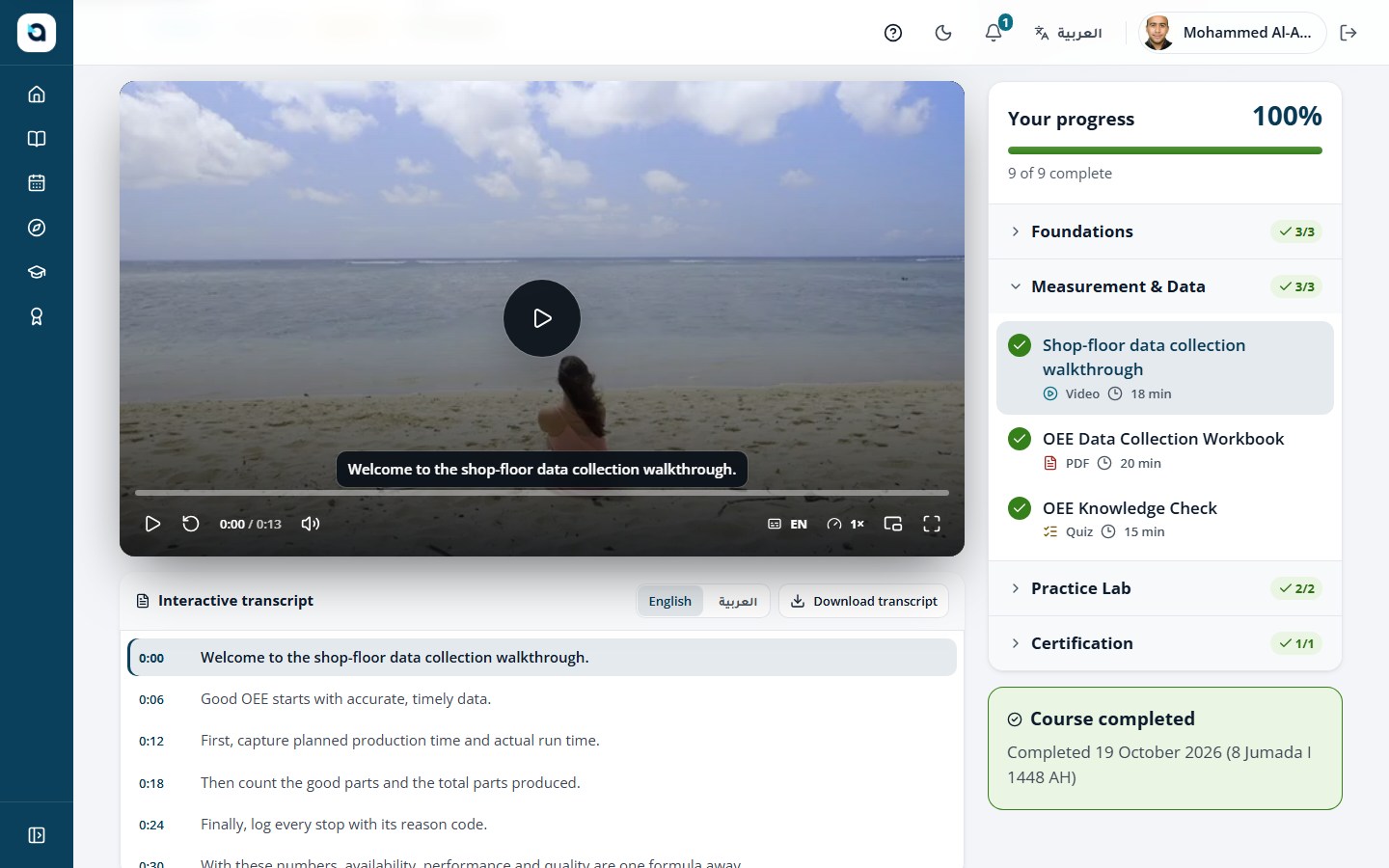
Video lessons stream directly in the browser with bilingual Closed Captions (Arabic & English), an interactive timestamped transcript, and automatic completion tracking.
1
Press Play on the video player; use the bottom control bar to adjust volume, playback speed, or enter full-screen mode.
2
Click the CC button in the player bar (or press the C keyboard shortcut) to toggle Closed Captions on or off, and choose between العربية and English subtitle tracks.
3
Browse the interactive Transcript panel below the video—the active cue highlights automatically as the video plays, and clicking any line seeks directly to that timestamp.
4
Once you watch at least 80% of the video, the lesson is automatically marked Completed (or you can toggle Mark as complete manually in the top bar).
Tip: Press the "C" key (or click CC) to toggle closed captions, switch between Arabic and English subtitles, click any line in the transcript to seek the video, and watch 80% to auto-complete the lesson.
A video lesson
21
Read a PDF lesson
LearnerCourse Player → PDF document lesson
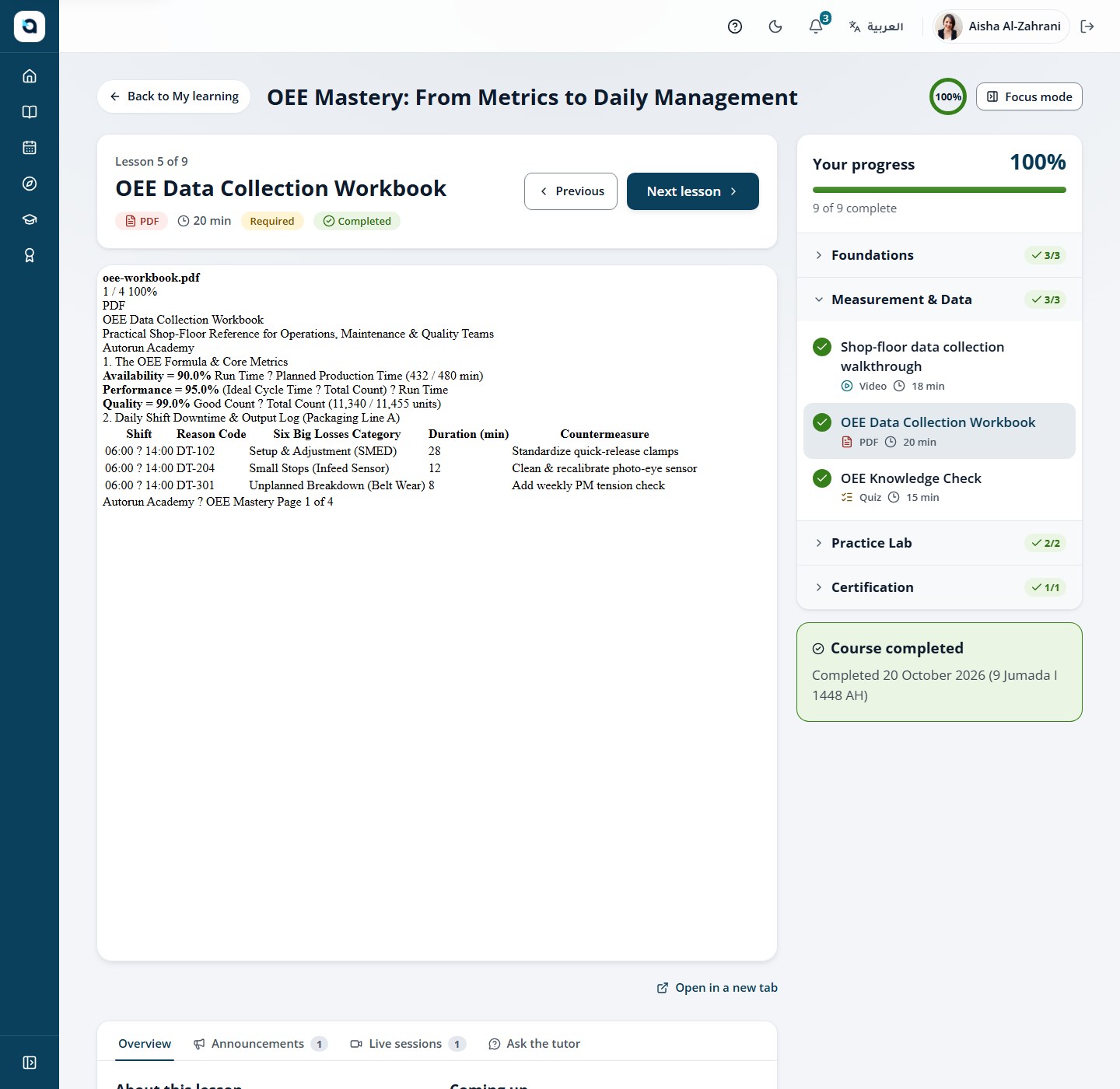
PDF items open the document inside the player.
1
Open the PDF item from the curriculum.
2
Scroll and zoom inside the embedded viewer, or open the file in a new tab.
3
Complete the item when you are done reading.
Tip: Read the document directly inside the embedded viewer or use the toolbar download button if your instructor enabled offline reading.
A PDF lesson
22
Open an external resource
Learner
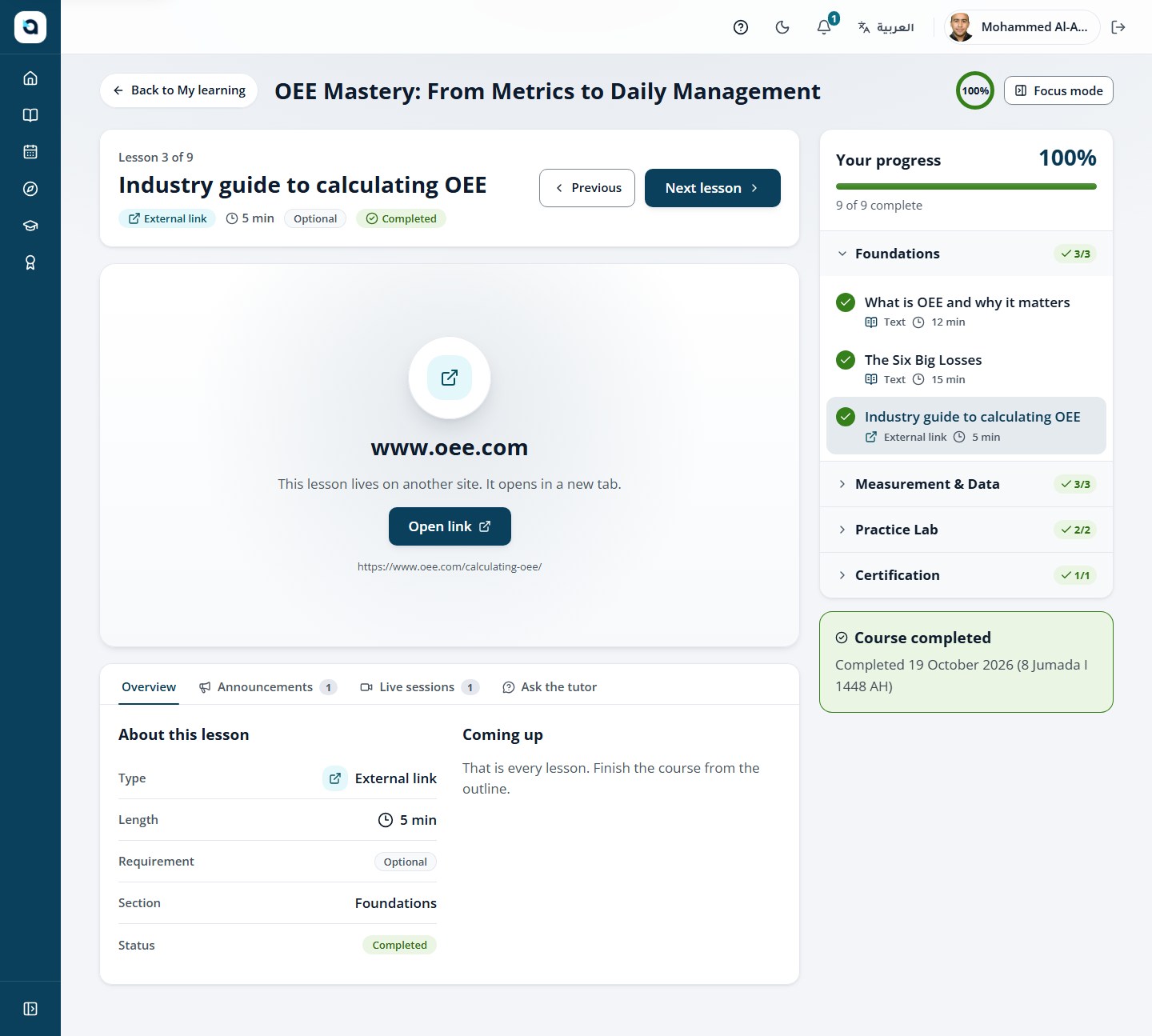
External-link items point to a resource your instructor chose, such as a guide or a reference site.
1
Open the external-link item.
2
Choose the link to open the resource in a new tab.
3
Return and complete the item.
An external-link item
23
Join a live session
LearnerCourse Player → Live sessions tab
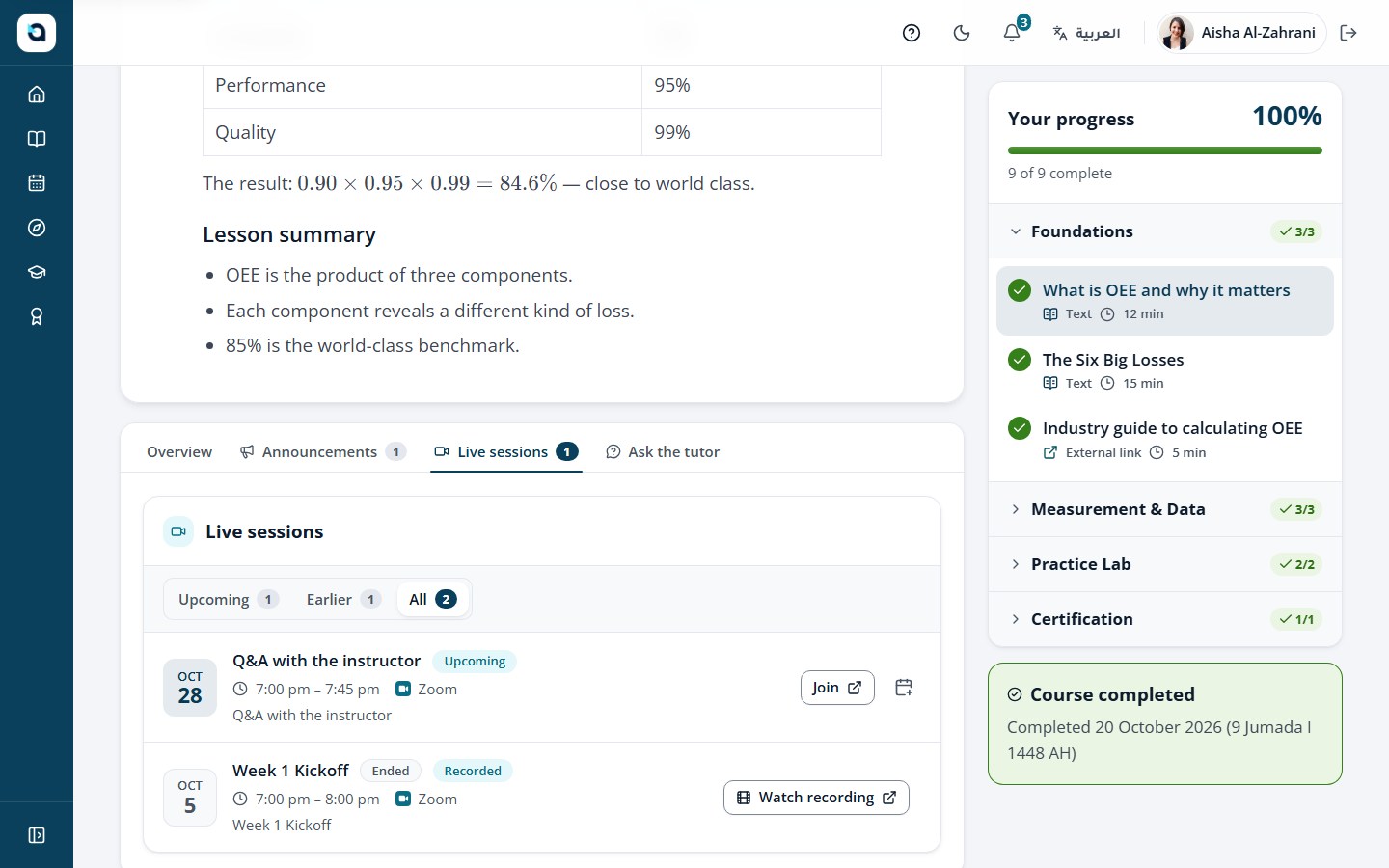
Courses can include live sessions (for example Zoom meetings) scheduled by the instructor.
1
Open the Live sessions tab in the course player.
2
Each session shows its date, time and topic.
3
When a session is about to start, the Join link appears — choose it to open the meeting.
4
Missed a session or want to review? Once the Zoom cloud recording finishes processing, a Watch recording link appears automatically on the session card.
Tip: Joining a scheduled Zoom session through the Academy automatically logs your attendance and emits an xAPI event, and completed cloud recordings appear right on the session card.
Live sessions in a course
24
Ask the AI tutor
LearnerCourse Player → AI Tutor panel
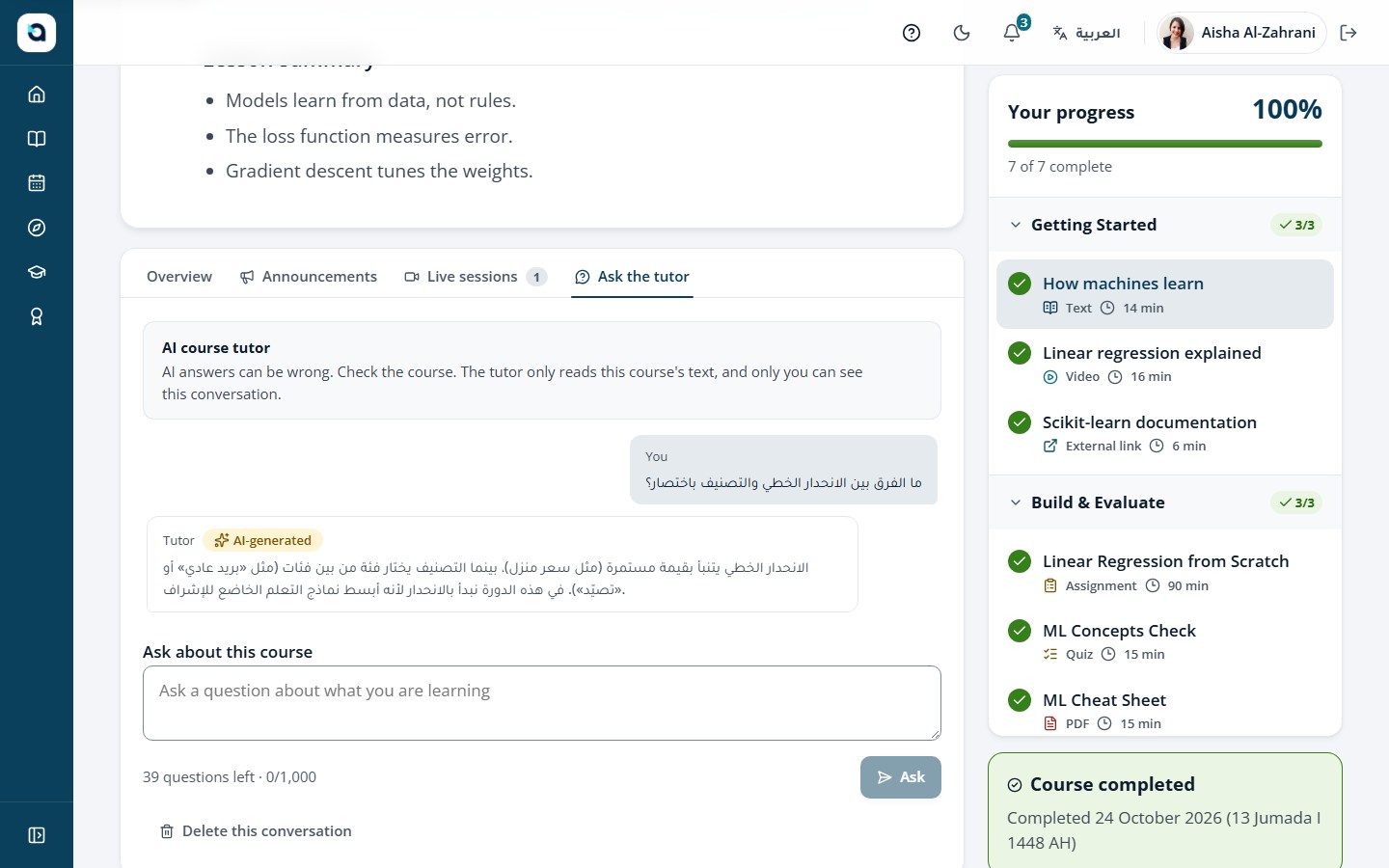
The AI tutor answers questions about the course text, in the course language.
1
Open the Ask the tutor tab in the course player.
2
Type a question about the course material and send it.
3
Read the answer; remember the notice — AI answers can be wrong, and the tutor only reads this course’s text.
4
Your conversation is visible only to you.
Tip: The AI Tutor is strictly grounded in your current course material and responds in either Arabic or English. Avoid pasting personal or sensitive data into prompts.
The AI tutor conversation
4 · Learner — quizzes, assignments and coding labs
Complete timed quizzes, proctored exams, file/text assignments, and browser-based coding labs with automated test suites.
Learner · 5
25
Take a quiz
LearnerCourse Player → Quiz item
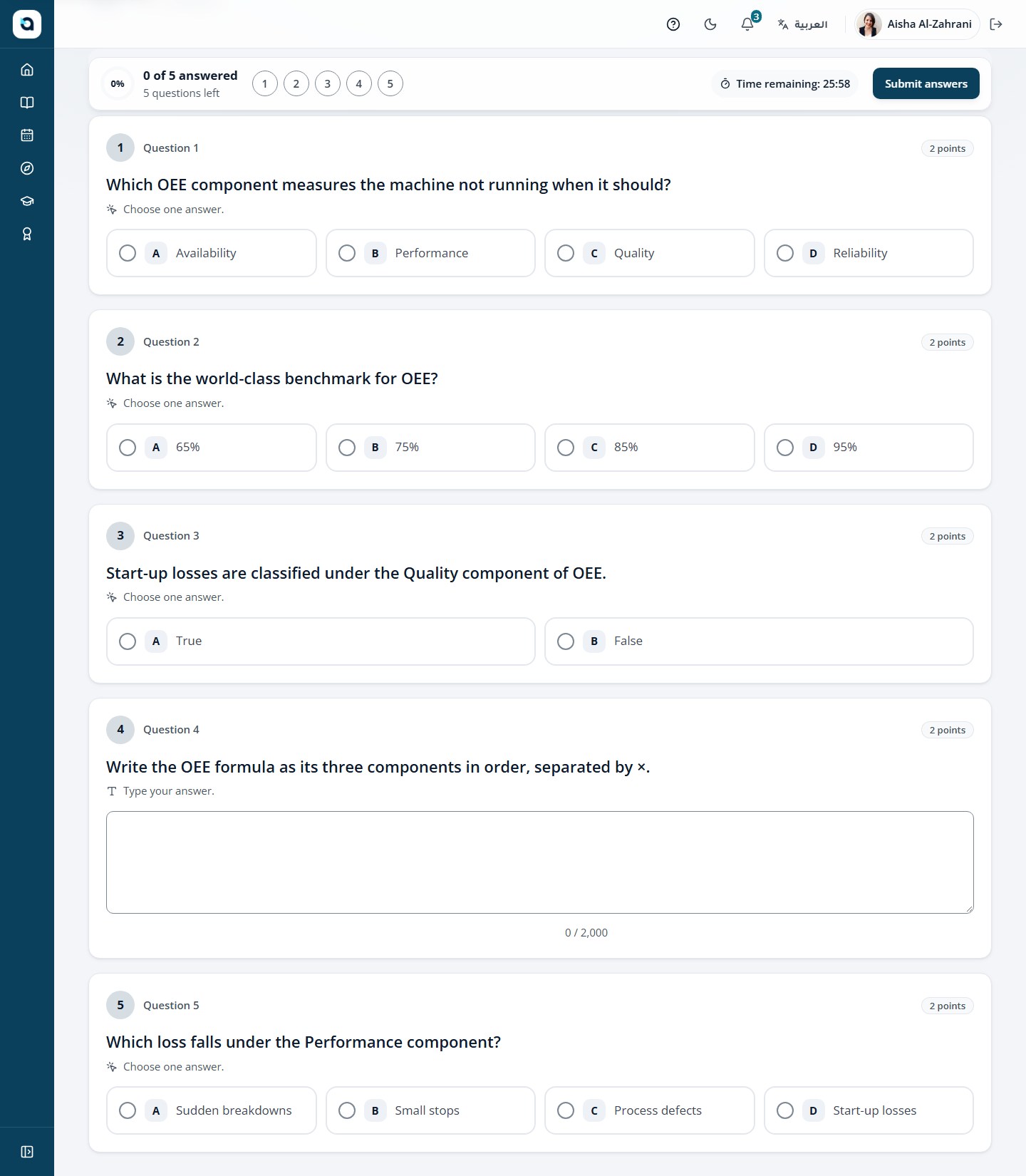
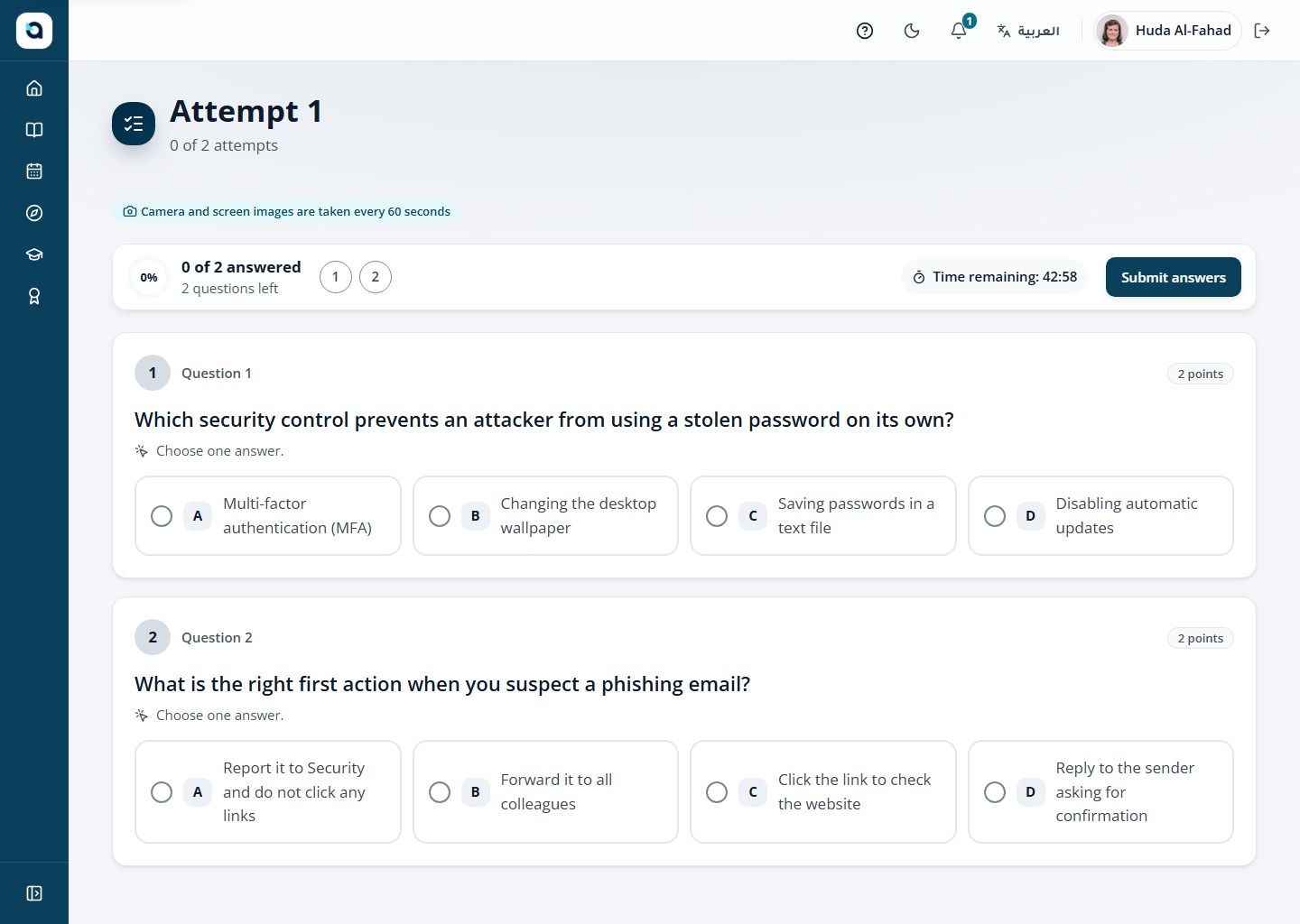
Quizzes check your understanding. Your best result counts toward course completion.
1
Open a quiz item and choose to start the attempt.
2
Answer the questions and move between them with the navigation.
3
Submit when you are ready — you see your result and, where enabled, the correct answers.
4
You can retry within the limits the course sets.
Tip: Your answers auto-save as you progress. Keep an eye on the countdown timer in the header—when time expires, saved answers are submitted automatically.
A quiz attempt
26
Take a proctored exam
LearnerCourse Player → Proctored Exam
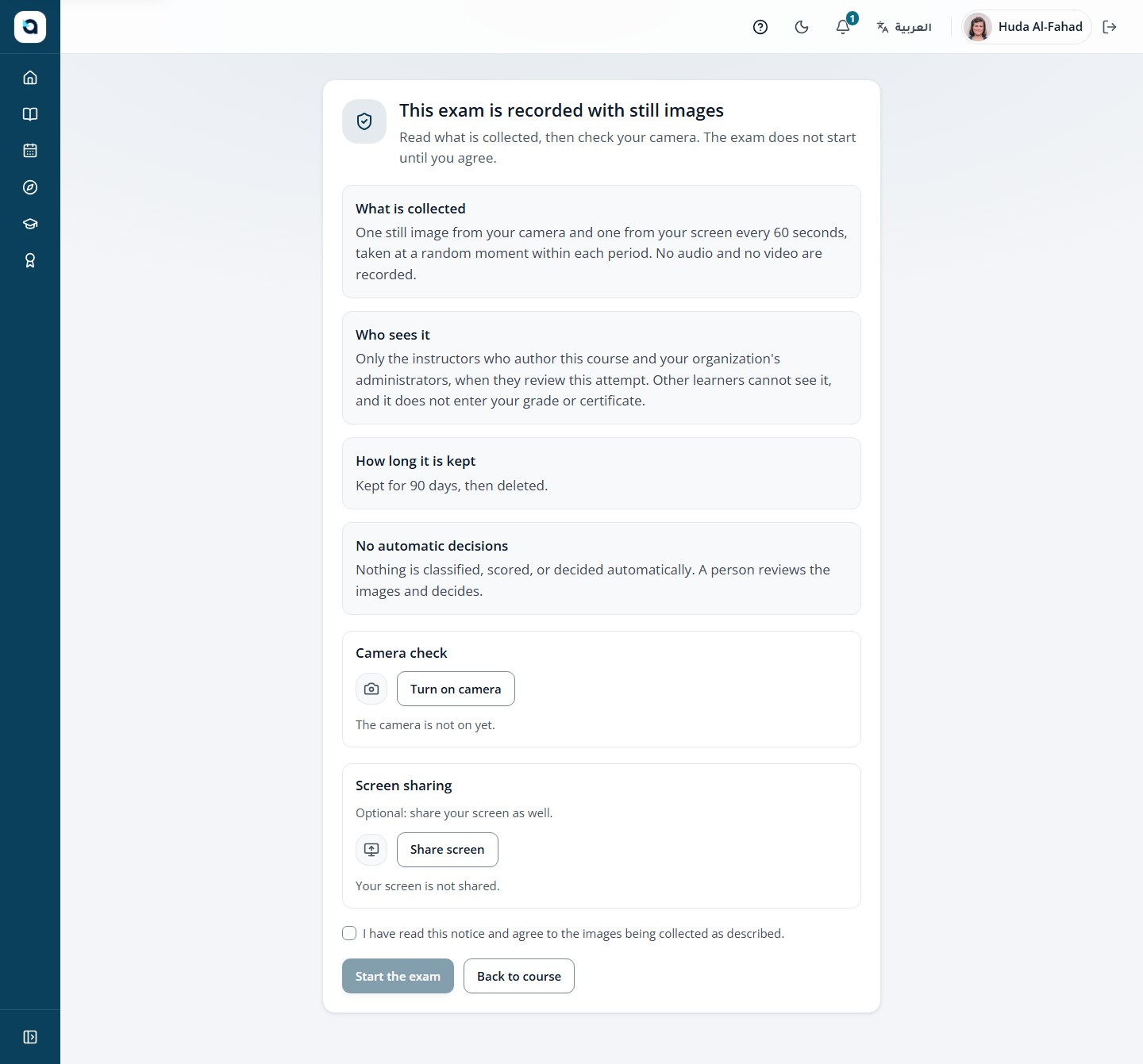
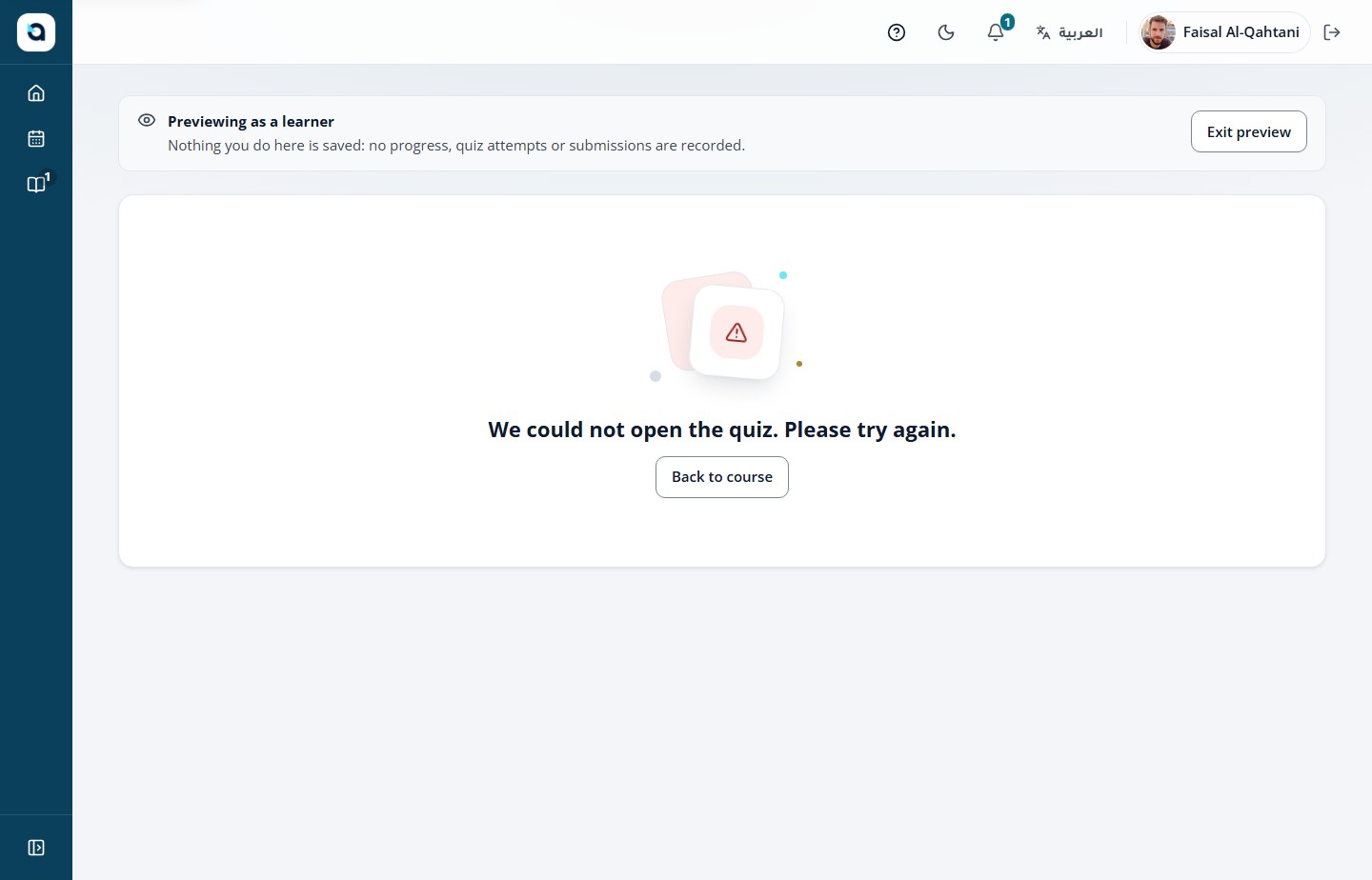
Some quizzes are exams: they may require Safe Exam Browser or screen recording, and need your consent.
1
Open the exam quiz and read the protection notice carefully.
2
When recording is required, give the consent the notice asks for before starting.
3
Start the attempt — the exam captures evidence while you answer.
4
The course team reviews the recorded attempt and confirms your result.
Tip: Ensure good lighting and a stable camera before starting. Leaving full-screen mode or switching tabs is logged for instructor integrity review.
A proctored exam quiz
Active proctored exam attempt — live recording badge, timer, and question navigation.
27
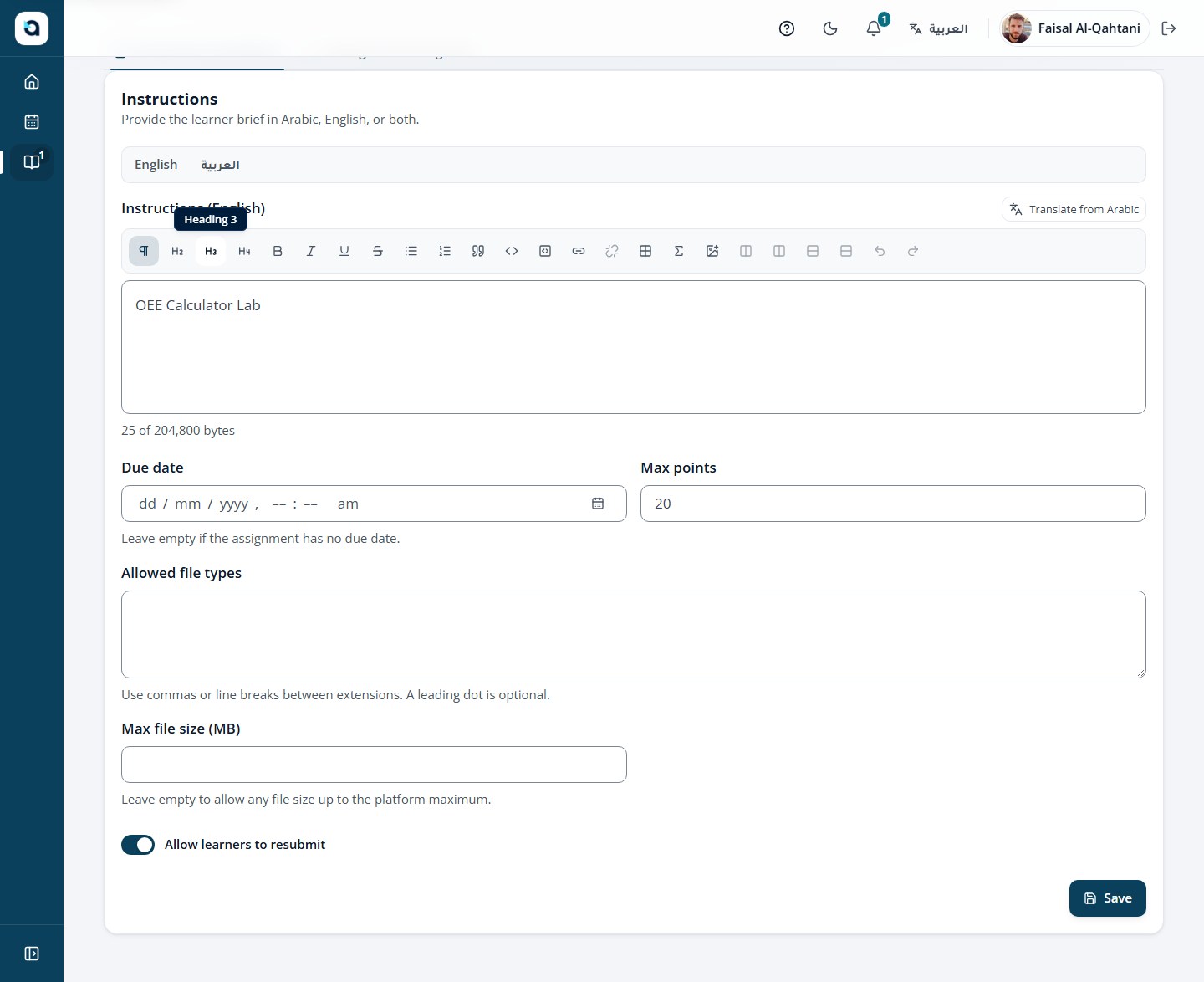
Submit an assignment
LearnerCourse Player → Assignment item
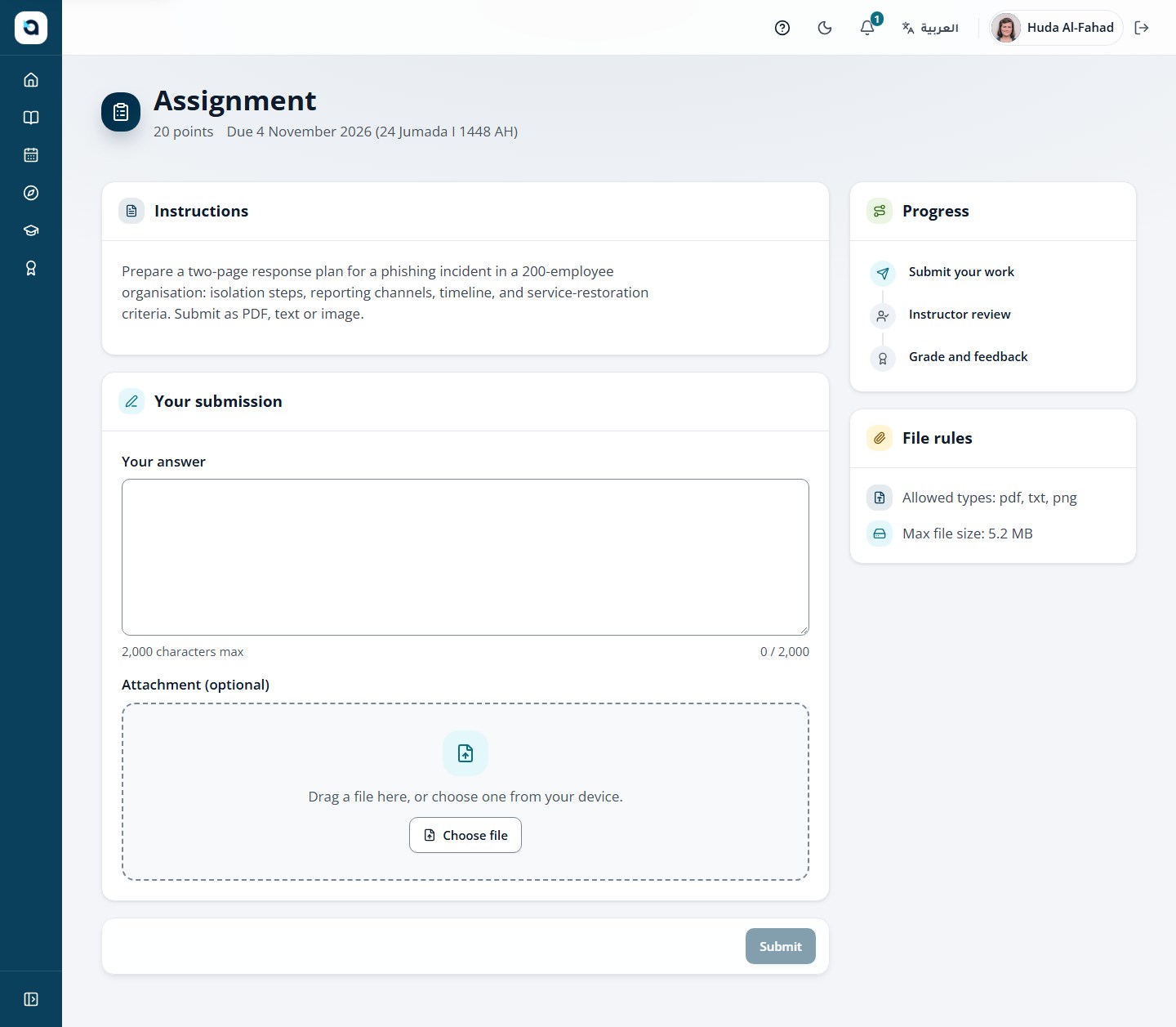
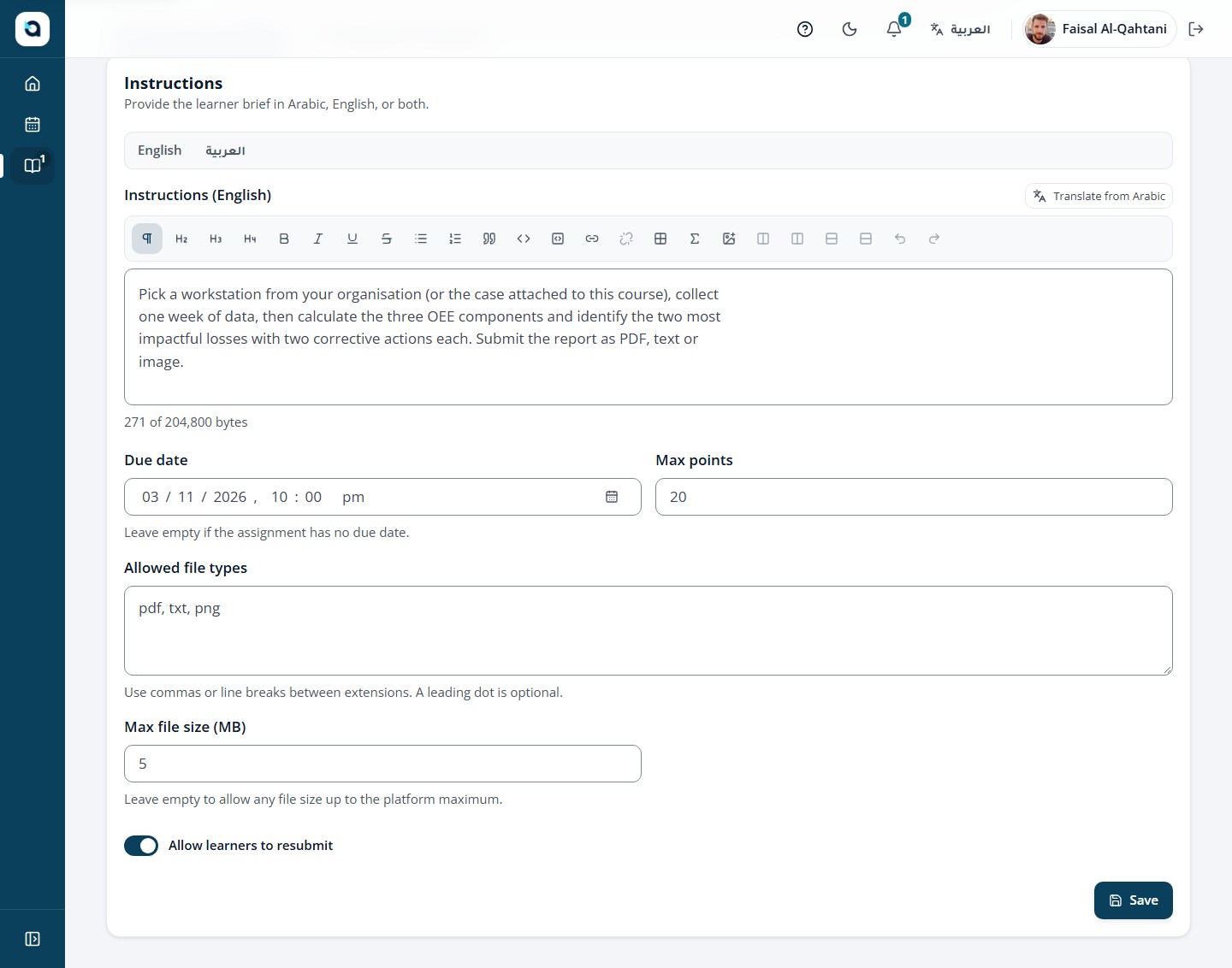
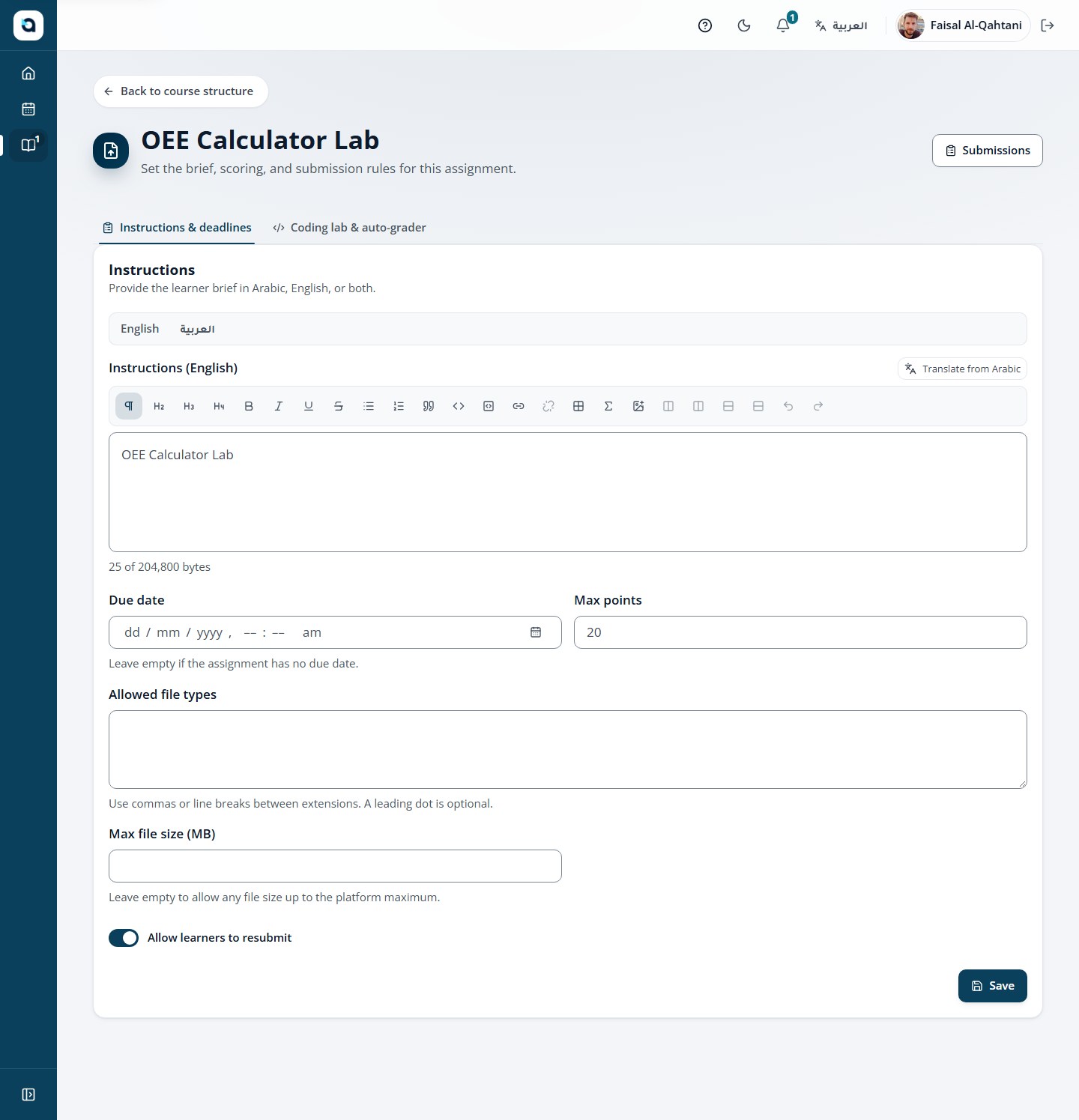
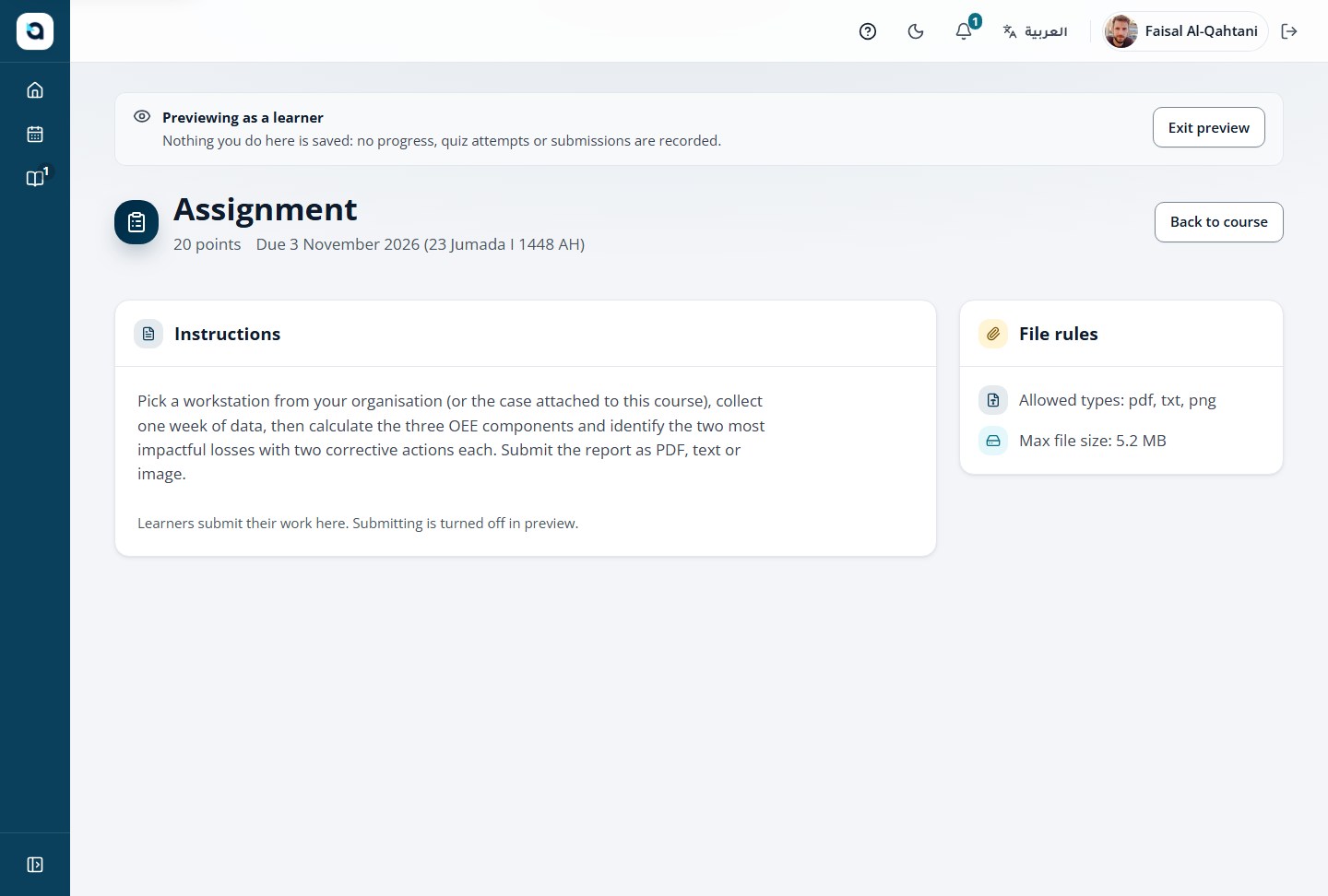
Assignments ask for a written answer or a file. The instructor reviews and grades every submission.
1
Open the assignment item and read the instructions.
2
Check the points and the due date before you start.
3
Write your answer or upload a file of the allowed type and size.
4
Choose Submit — you can resubmit until grading or the deadline, as the course allows.
Tip: Every uploaded file is scanned for malware before instructors download it. Review the grading rubric on the assignment page before submitting.
An assignment page
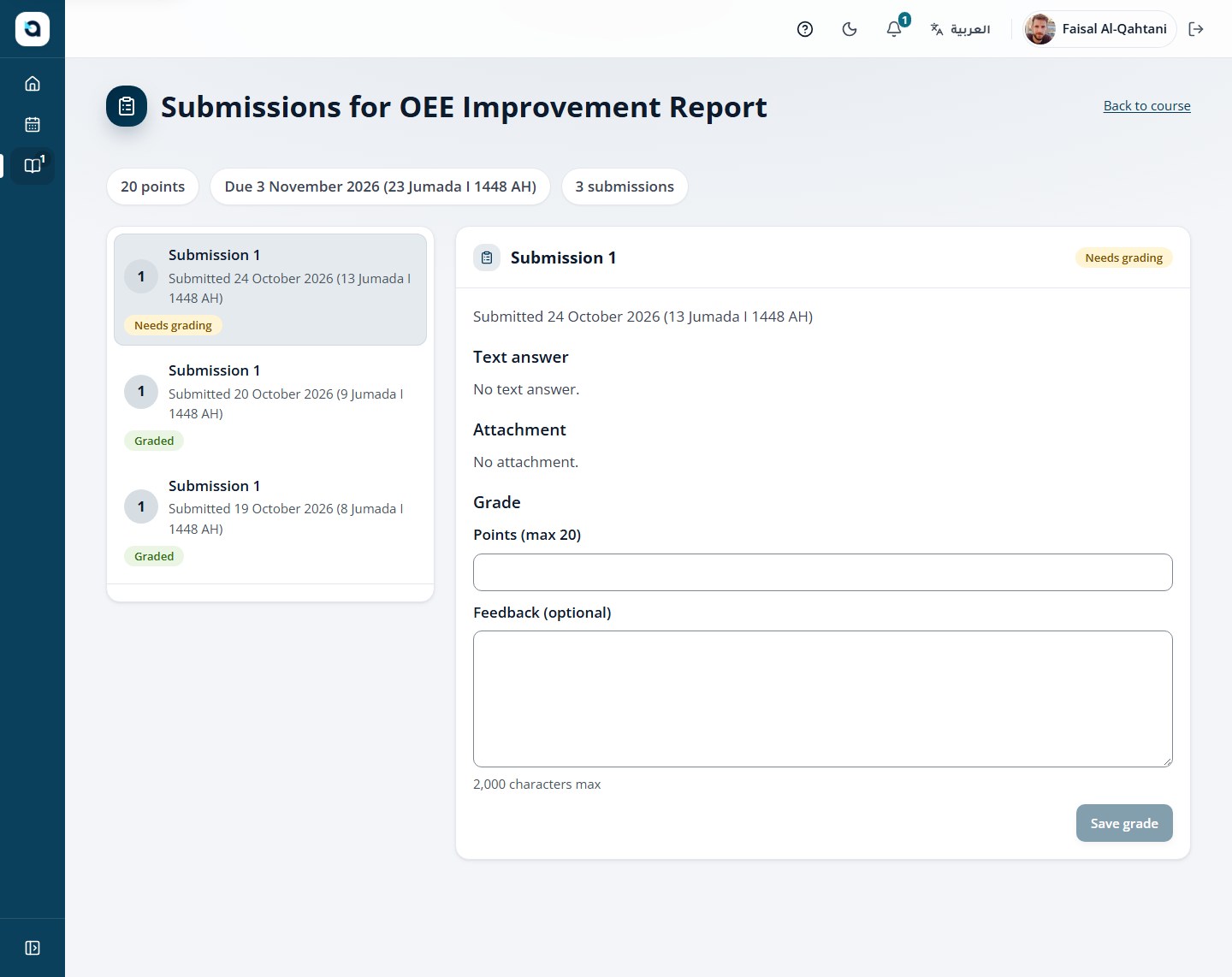
28
See your grade and feedback
Learner
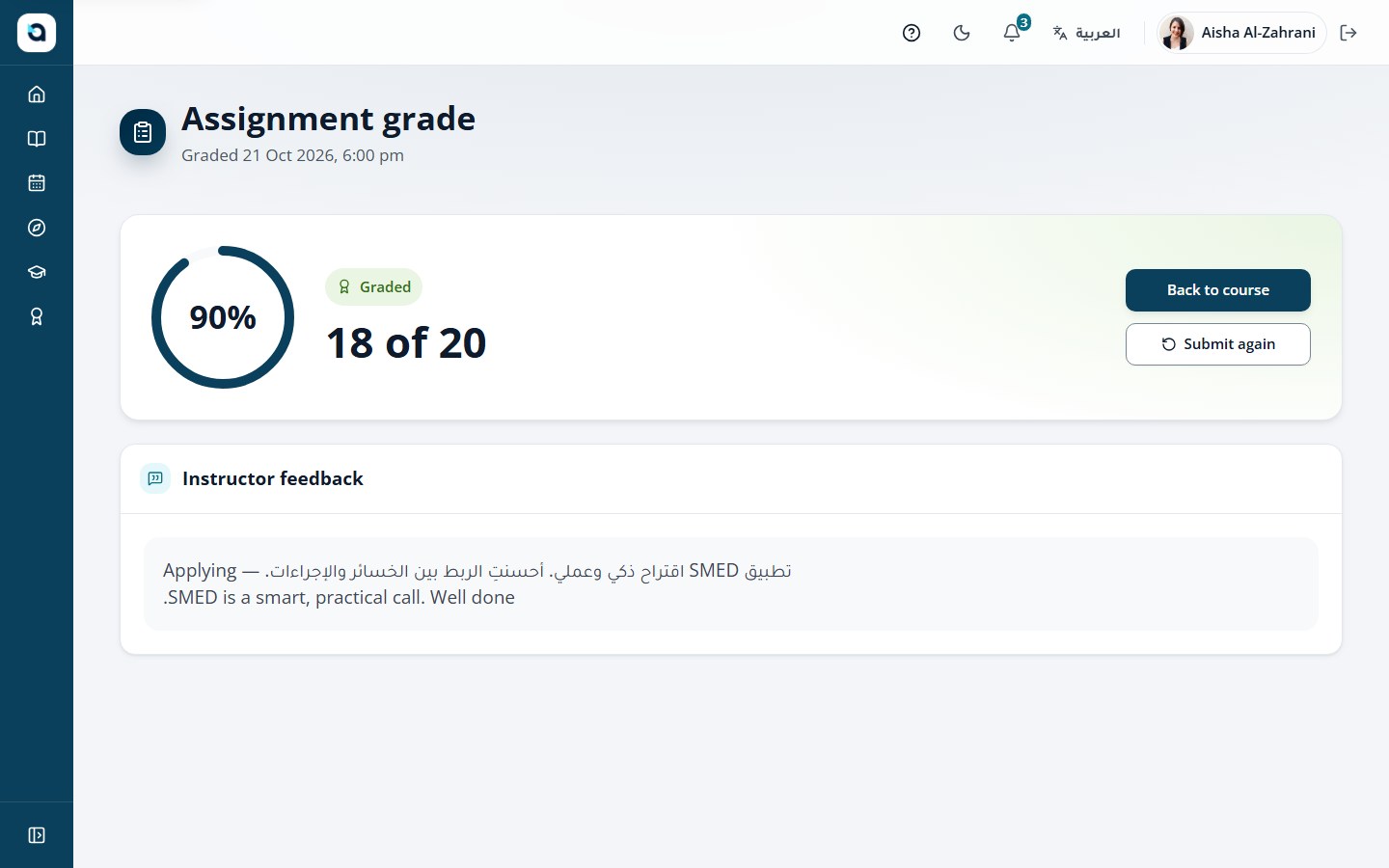
After the instructor grades your submission, the assignment page shows the result.
1
Reopen the assignment after grading.
2
The page shows your points and the instructor’s feedback.
3
Use the feedback to improve your next submission.
A graded assignment
29
Work in a coding lab
LearnerCourse Player → Coding assignment workspace
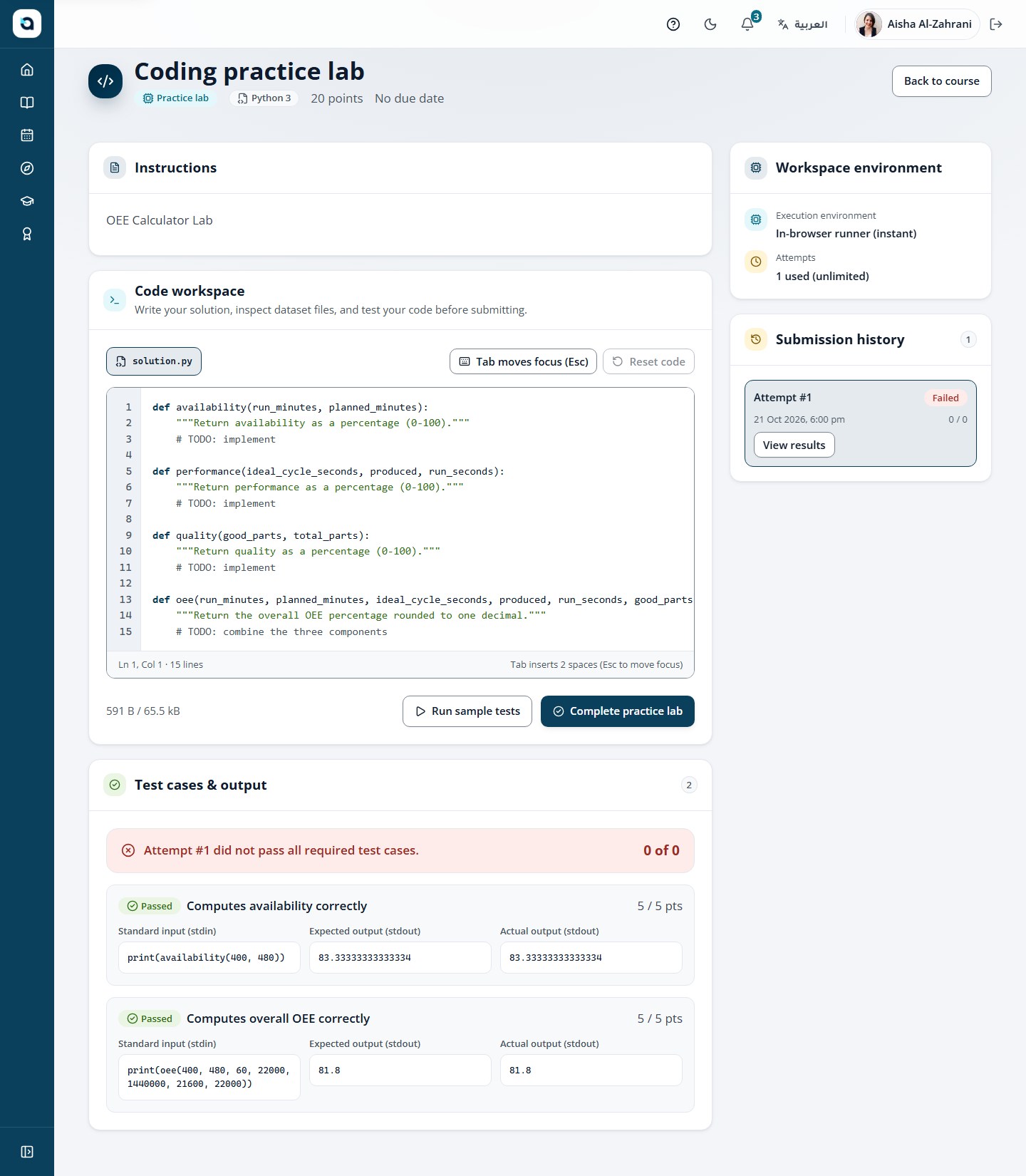
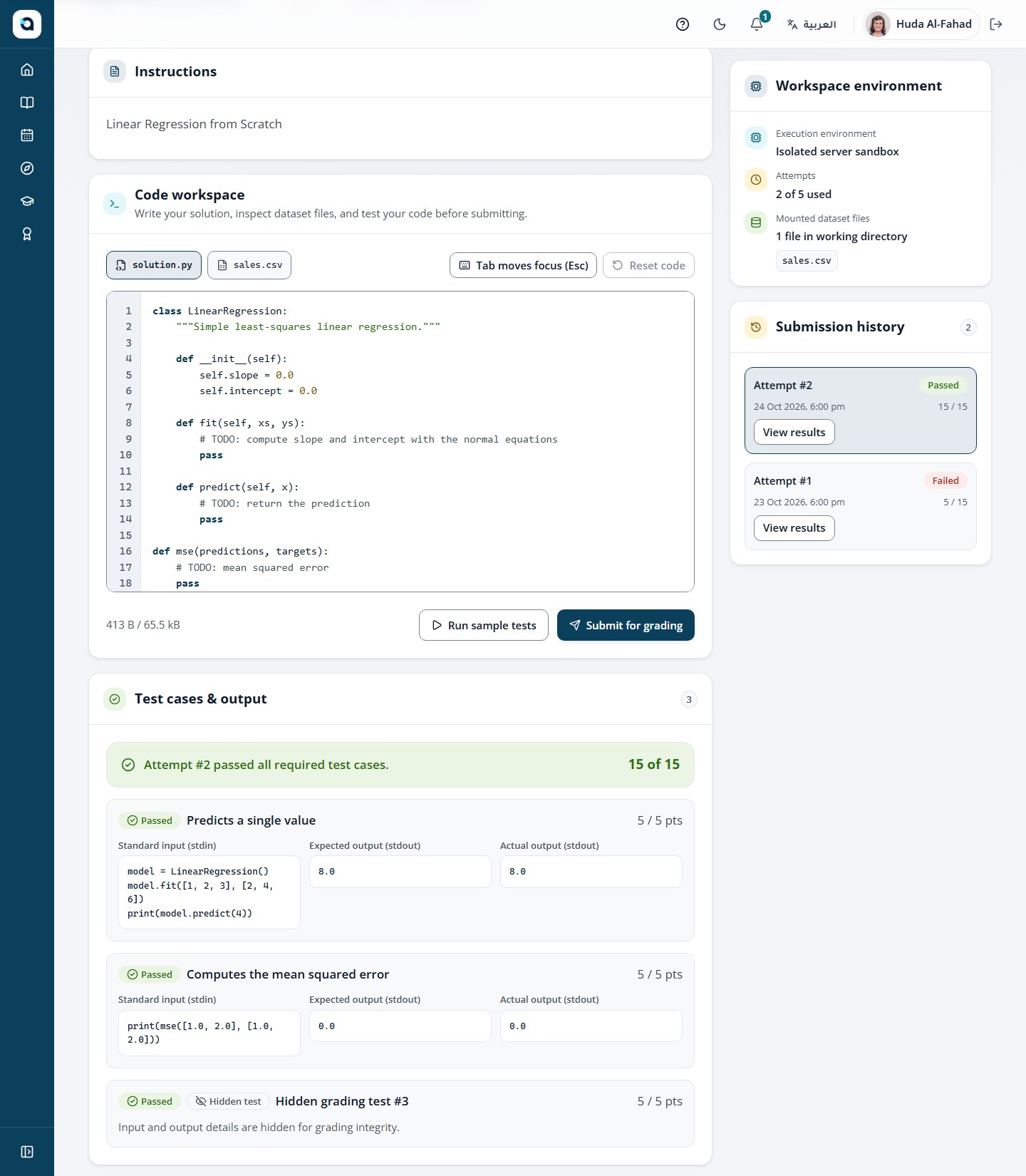
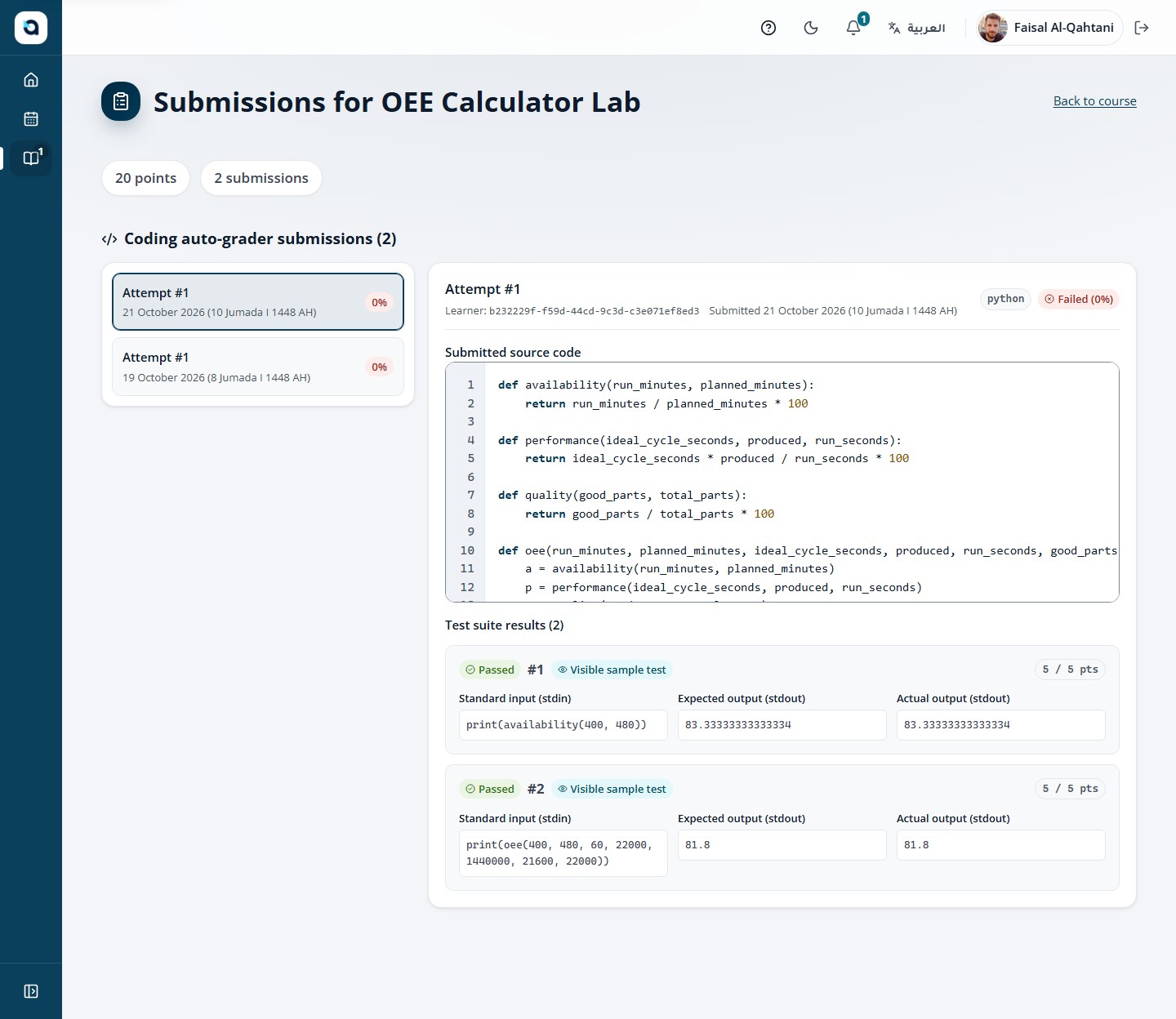
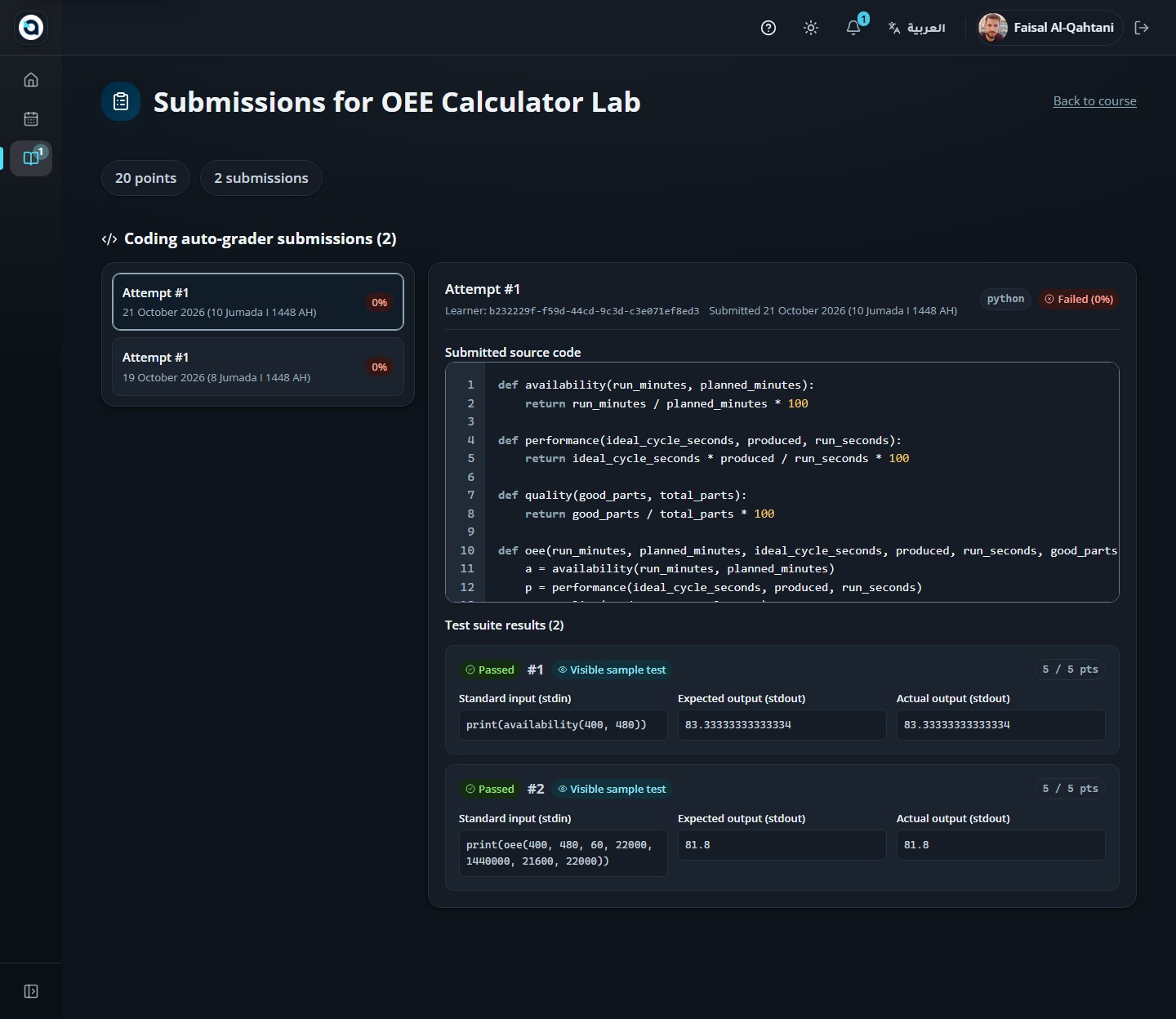
Coding items give you a real code editor, sample tests and — for graded labs — hidden-test grading.
1
Open a coding item to see the workspace: the editor, mounted data files and the test cases.
2
Write your solution; use Run sample tests to check it instantly in the browser.
3
For a graded assignment choose Submit for grading — the server runs the visible and hidden tests.
4
The results panel shows each test, the points awarded and how many attempts you have used.
Tip: Use "Run code" as many times as you like to test against public test cases without penalty. Click "Submit for grading" when you are ready for full evaluation against hidden test cases.
The coding workspace
Grading results
5 · Instructor — authoring and teaching
Design structured courses, generate outlines and bilingual video captions with AI, build quizzes and coding labs, grade submissions, and review proctored exams.
Instructor · 16
30
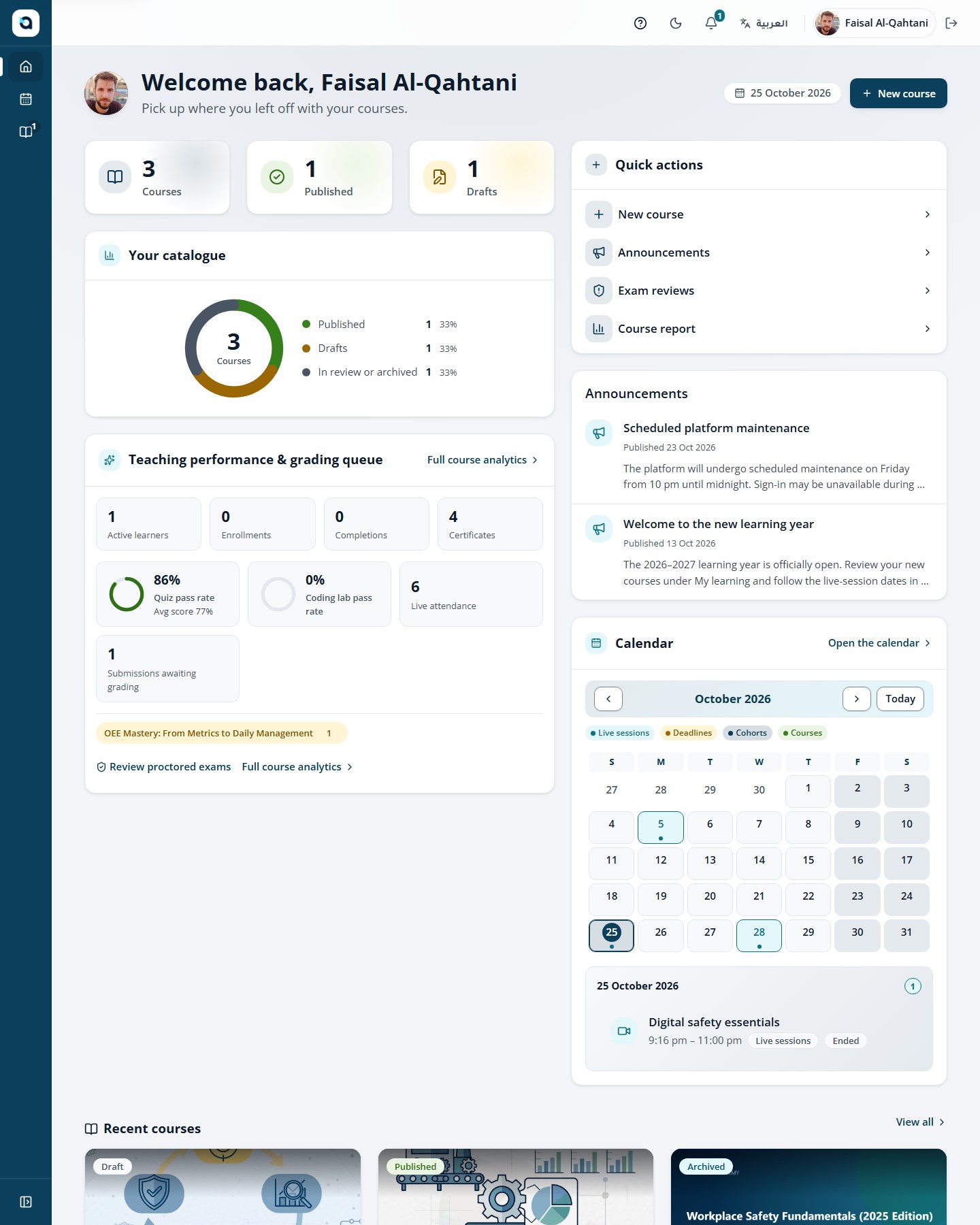
The instructor dashboard
Instructor
Instructors get the staff dashboard: your courses, your calendar and your deadlines.
1
The home screen shows your teaching workload: courses, upcoming sessions and deadlines.
2
The calendar widget shows your month at a glance.
3
Choose a course card to open it, or Courses in the sidebar for the full list.
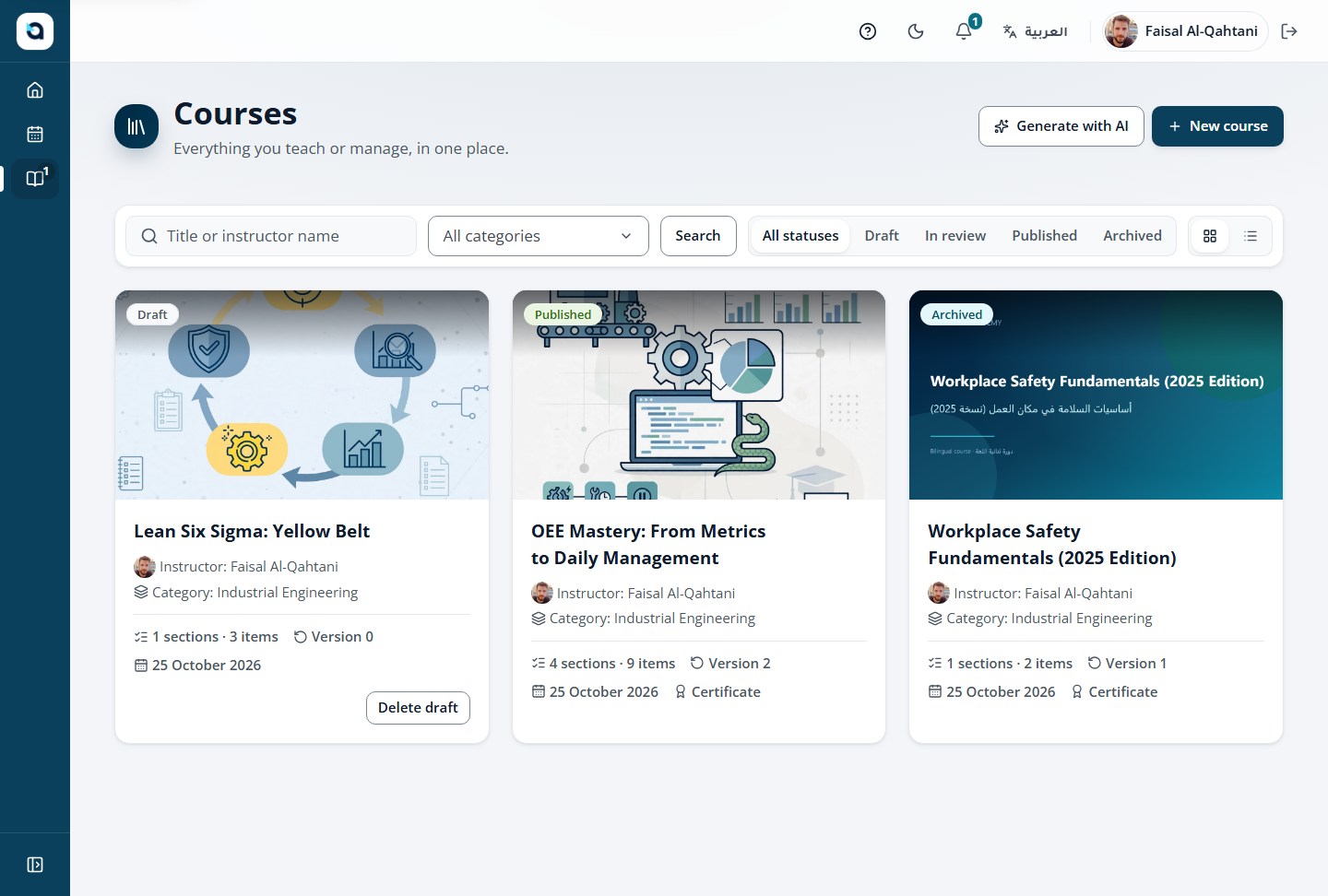
The instructor dashboard
31
Manage your courses
Instructor
The courses list shows every course you author, with its status and actions.
1
Open Courses from the sidebar.
2
Each row shows the title, category, language and status — Draft, Published or Archived.
3
Choose a course to open its detail page, or New course to create one.
4
Drafts stay private until you publish them.
The courses list
32
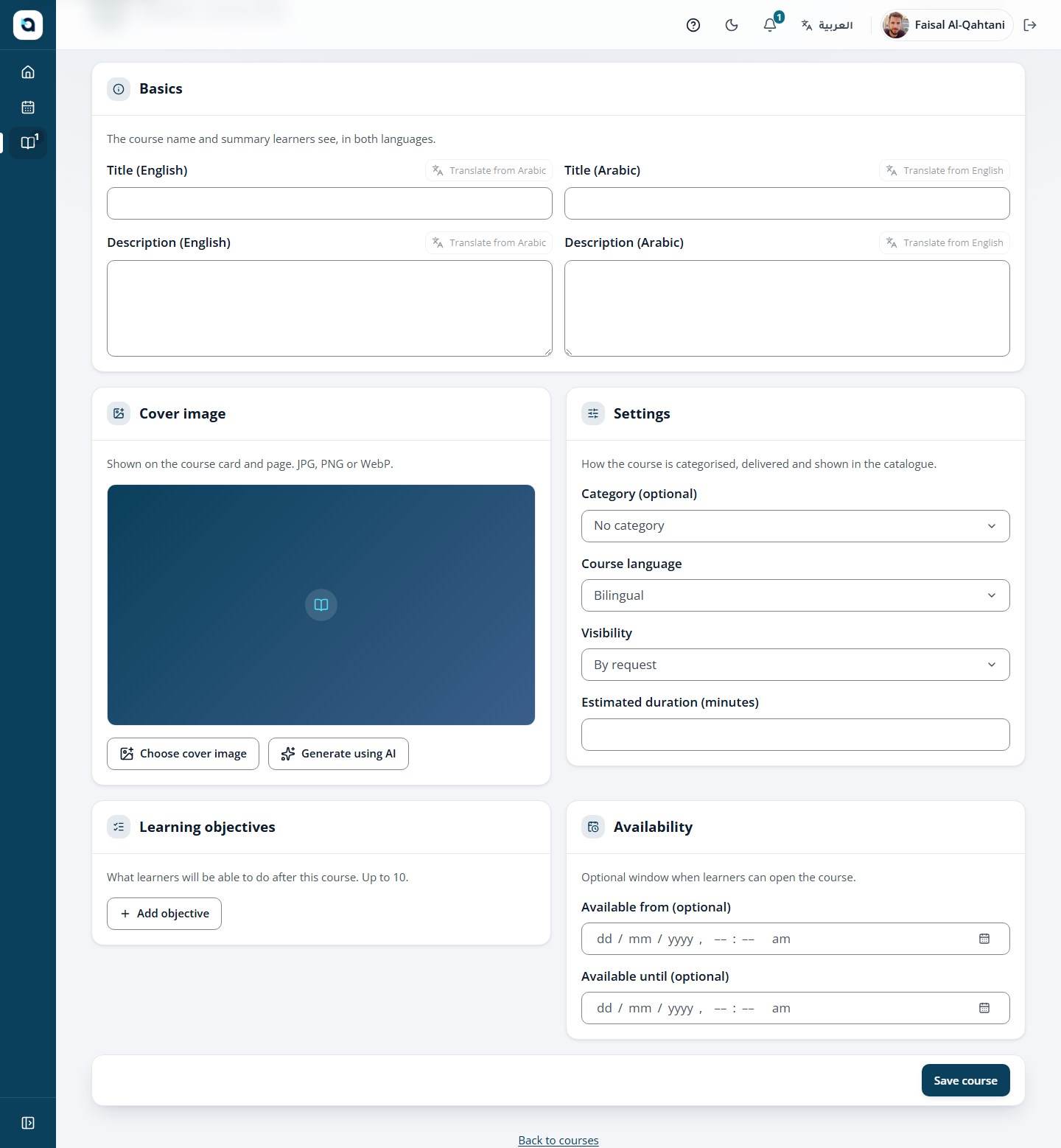
Create a course
InstructorTeaching → Courses → New course
Every course starts as a draft with bilingual information you can edit until publication.
1
Open Courses and choose New course.
2
Enter the title and description in Arabic and English.
3
Choose the category, the estimated minutes, the course language and the course cover (generate one with AI if you like).
4
Add learning objectives.
5
Save — the draft opens, ready for its structure.
Tip: Always provide both Arabic and English titles and summaries so your course card looks polished in both locales, or use the AI cover generator to design a custom banner.
The course creation form
33
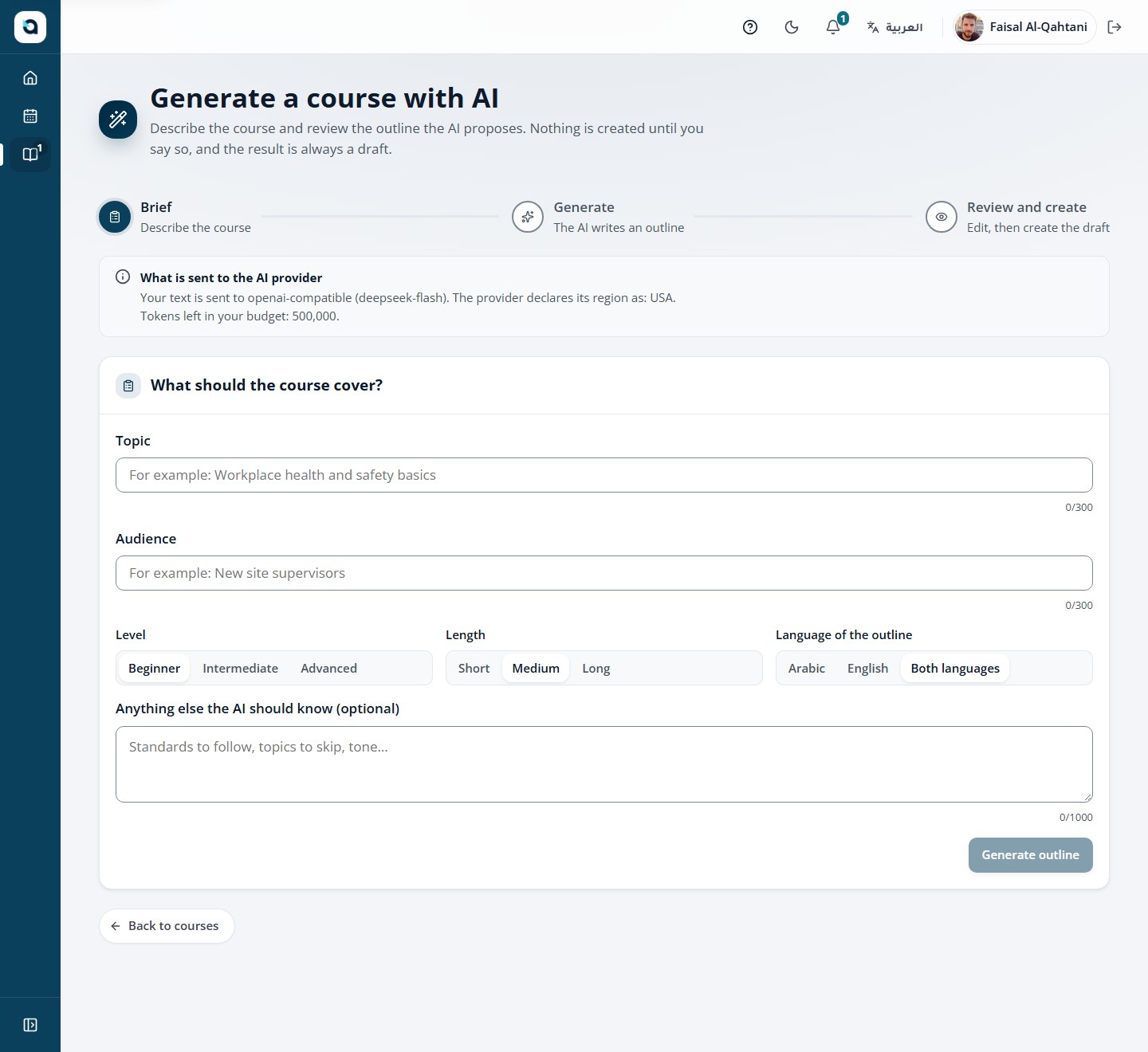
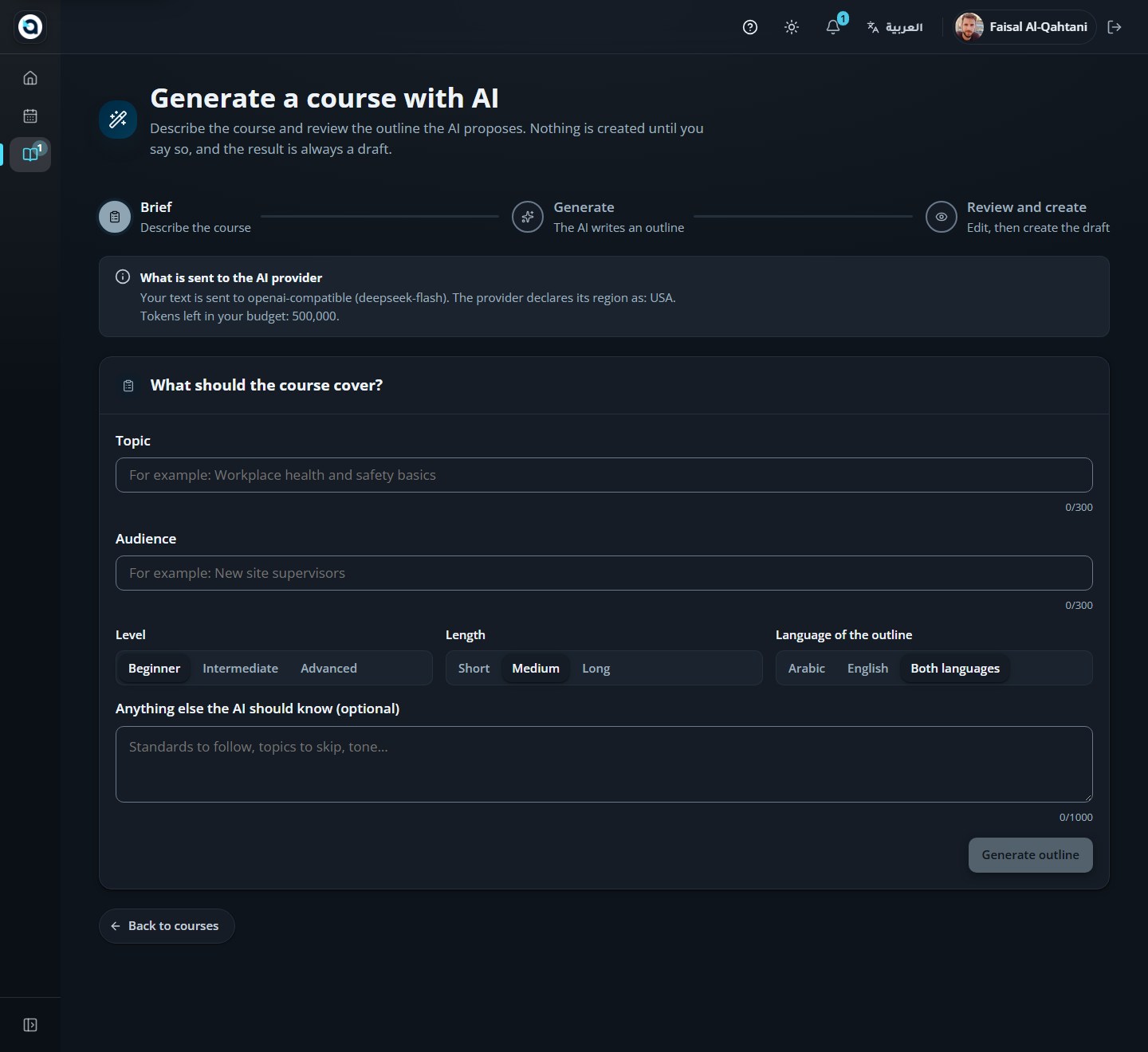
Generate a course outline with AI
Instructor
The AI outline wizard writes a full bilingual course structure from a short brief.
1
Open New course and choose the AI outline wizard.
2
Describe the topic and choose the level, the length and the outline language.
3
Generate and wait while the AI writes the course.
4
Review every lesson on the review step — the outline is AI-generated and editable.
5
Create the course, then edit it as any other draft.
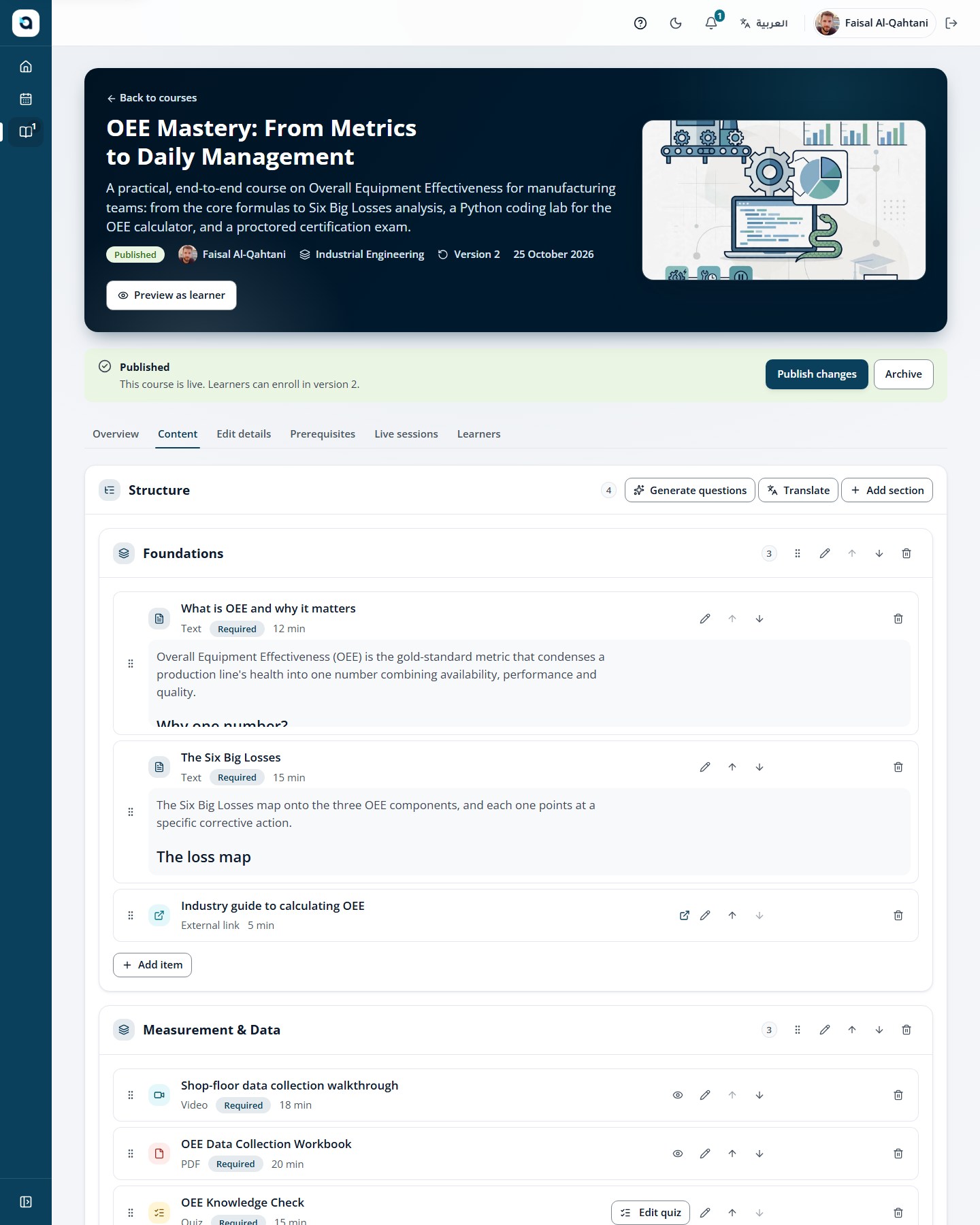
Every course is organized into Sections, and each section contains ordered Learning Items—text lessons, videos with AI captions, PDFs, links, embeds, quizzes, and assignments.
1
Open the course and stay on the Structure tab. Choose Add section to create a new module with Arabic and English titles.
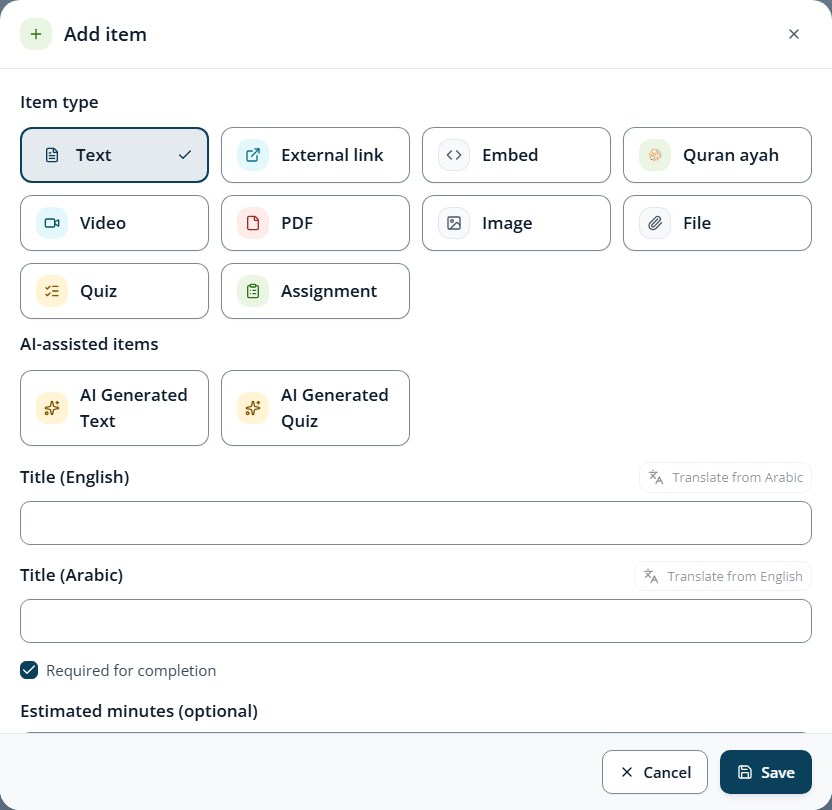
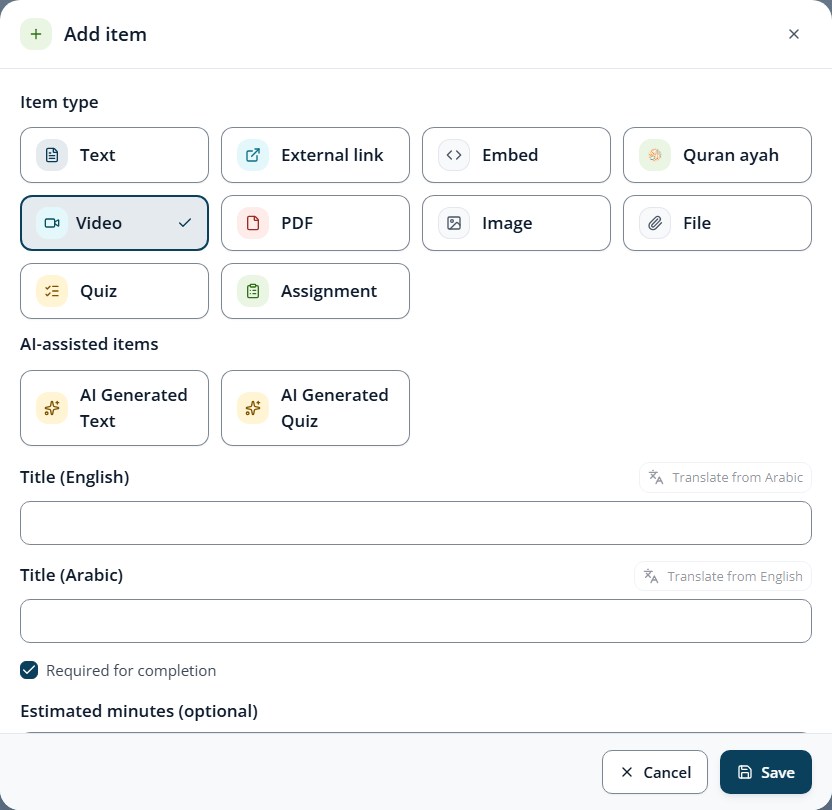
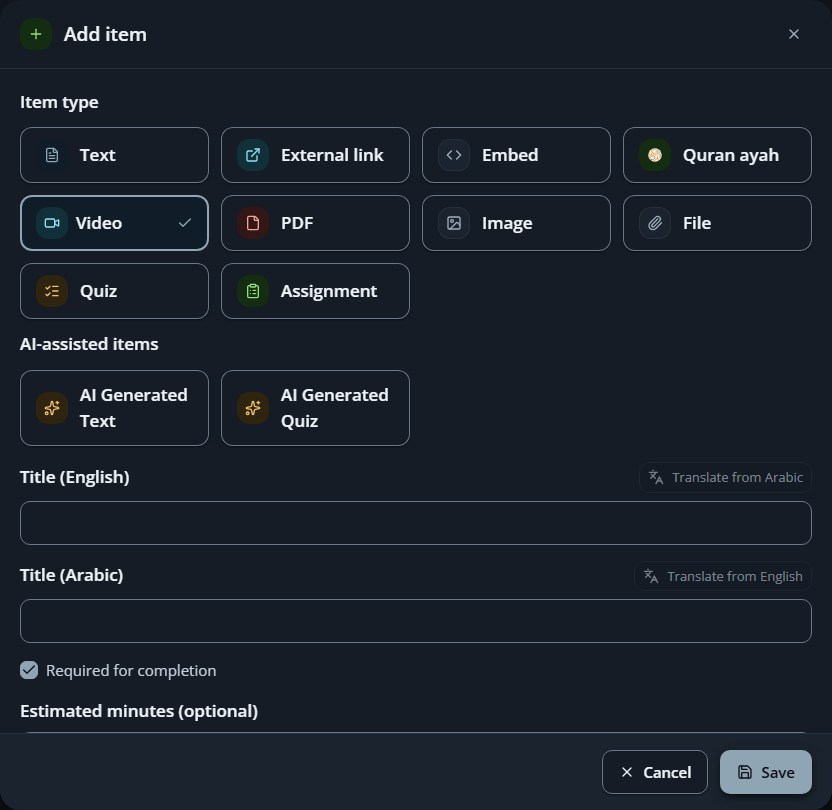
2
Inside any section, choose Add item and pick the item type (Text, Video, PDF, External link, Embed, Quiz, or Assignment).
3
For Video lessons, upload the video file and use the Subtitles & Captions (CC) card: click Generate with AI to auto-transcribe the audio into WebVTT captions, then click Translate with AI to generate the second language track automatically.
4
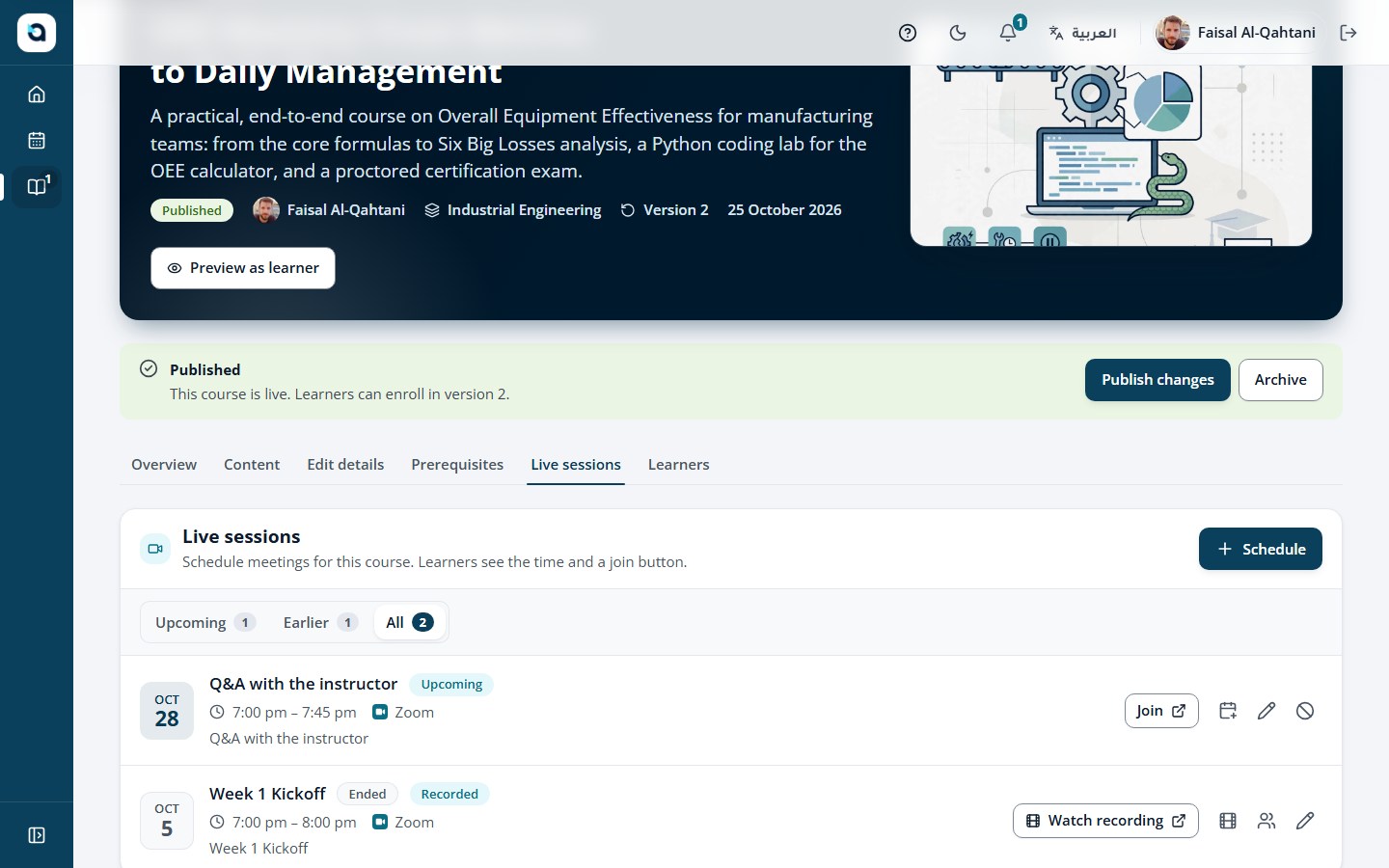
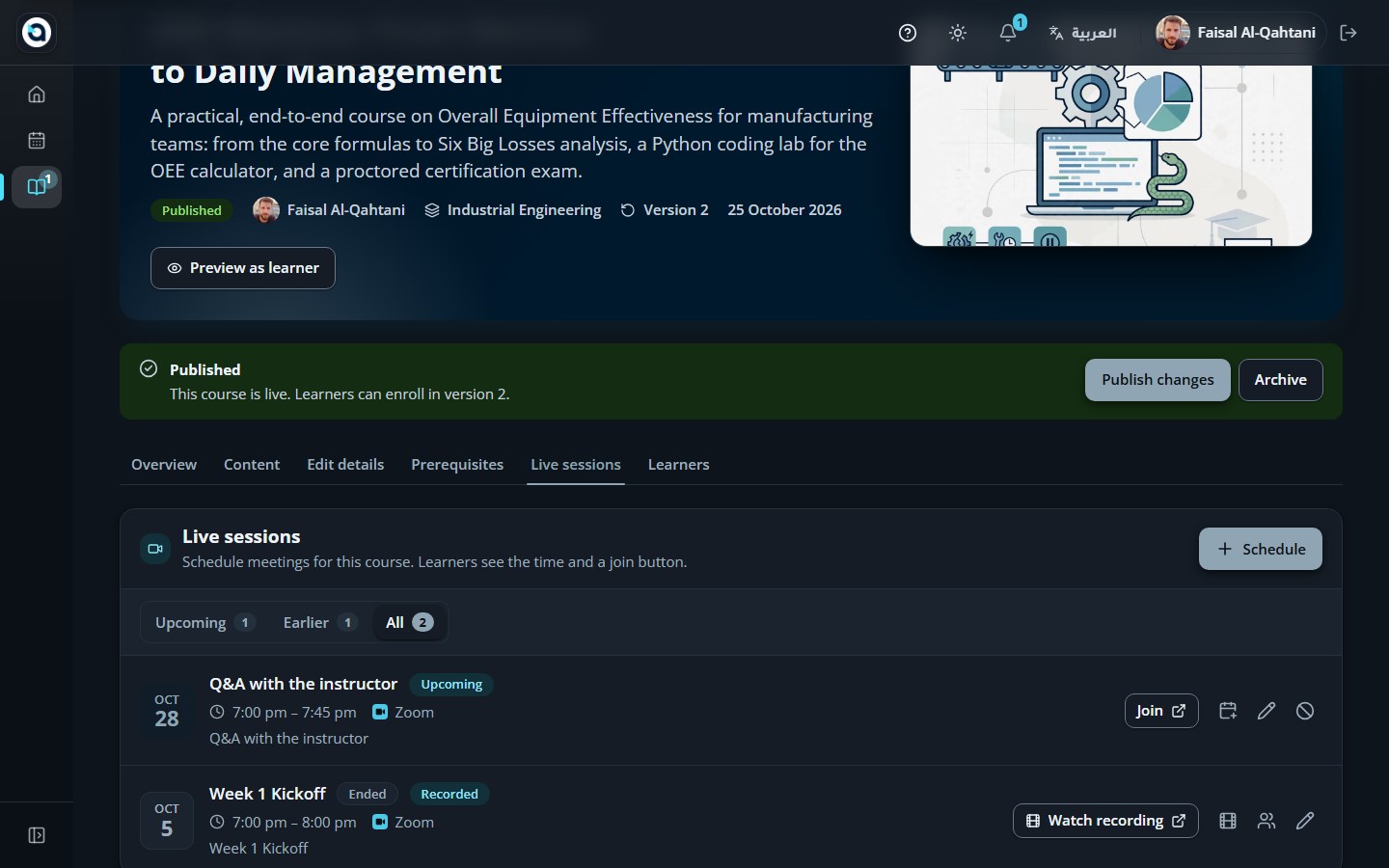
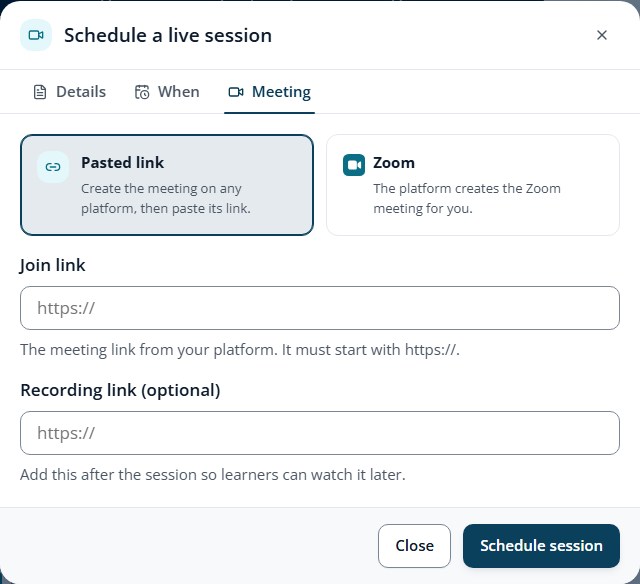
On the Live sessions tab, click Schedule session to set the bilingual title, choose a connected provider (Zoom), pick the date, time, and duration, or sync/paste a cloud recording link; review Overview, Settings, and Learners, then choose Publish when ready.
Tip: In any Video item dialog, use "Generate with AI" to auto-transcribe audio into timestamped WebVTT captions, and "Translate with AI" to produce the companion Arabic or English caption track in one click!
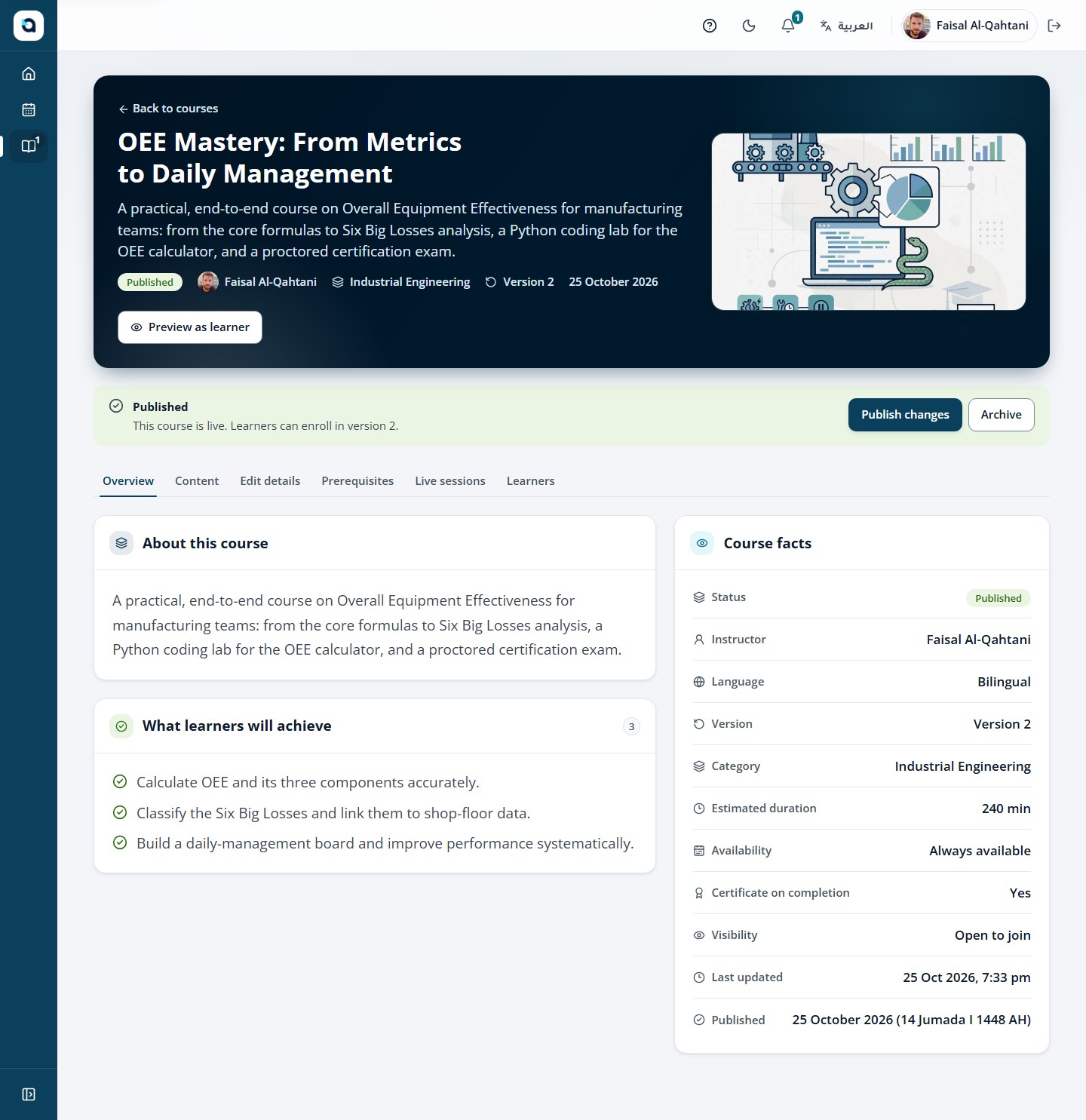
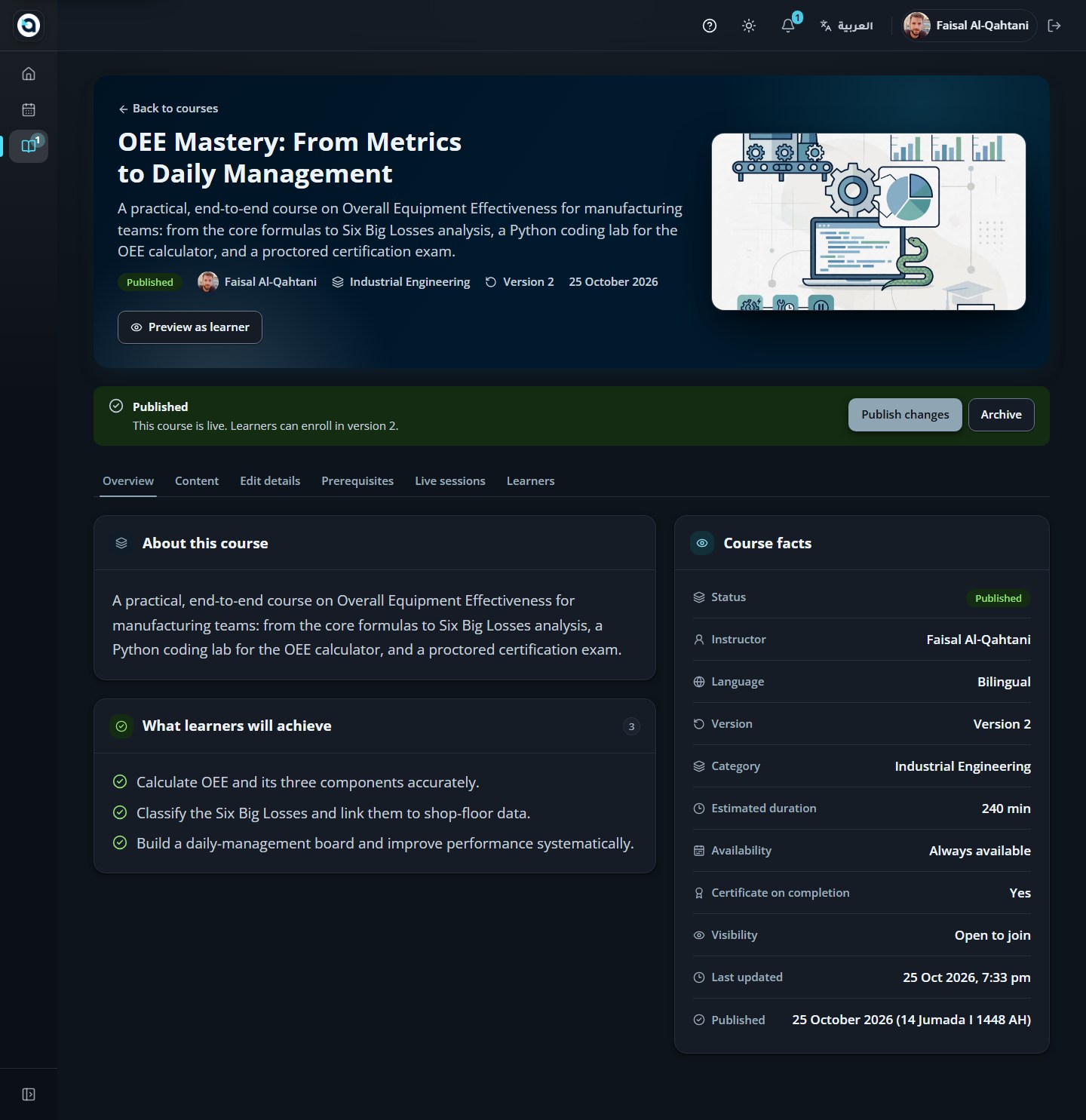
The course overview
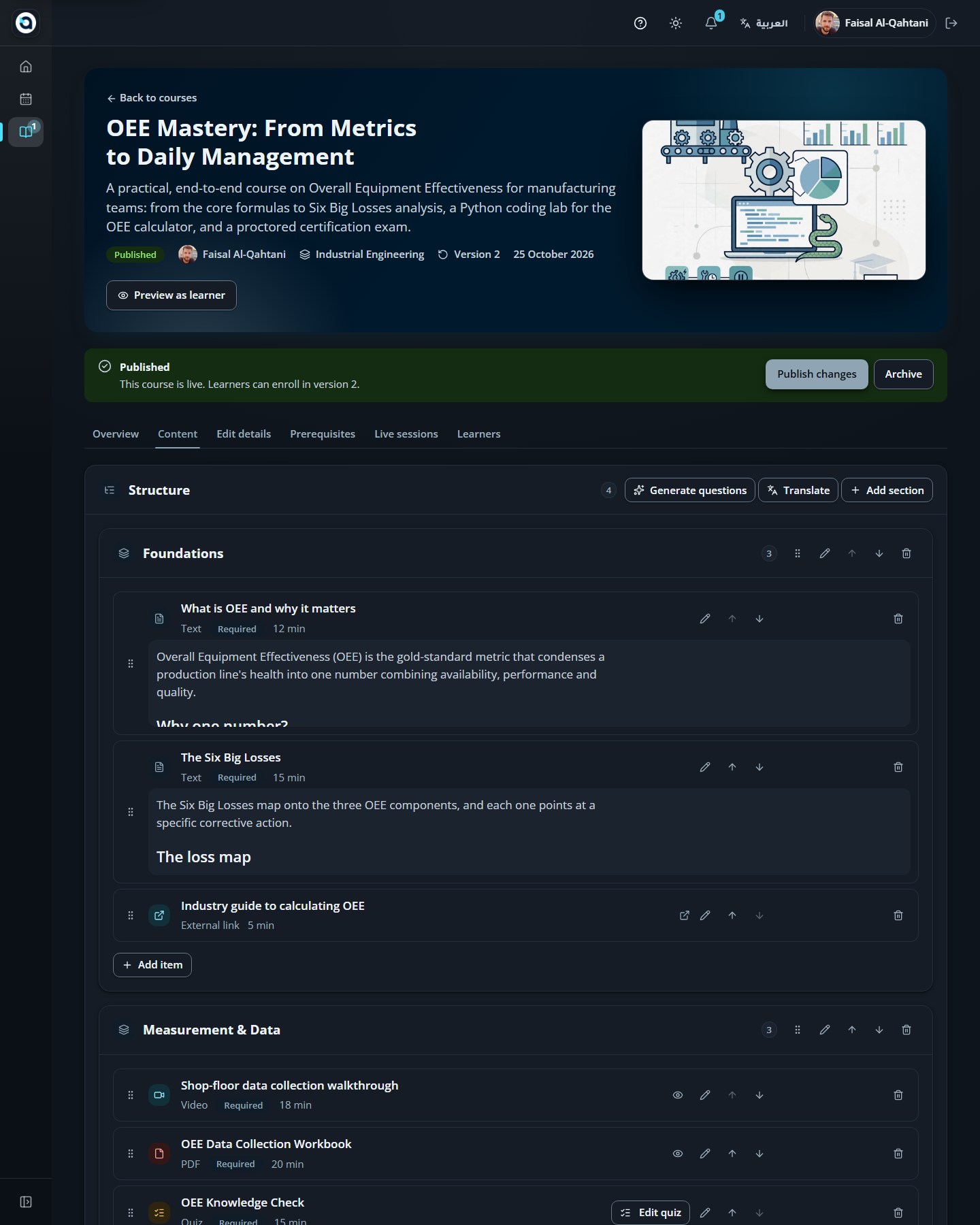
The content tab
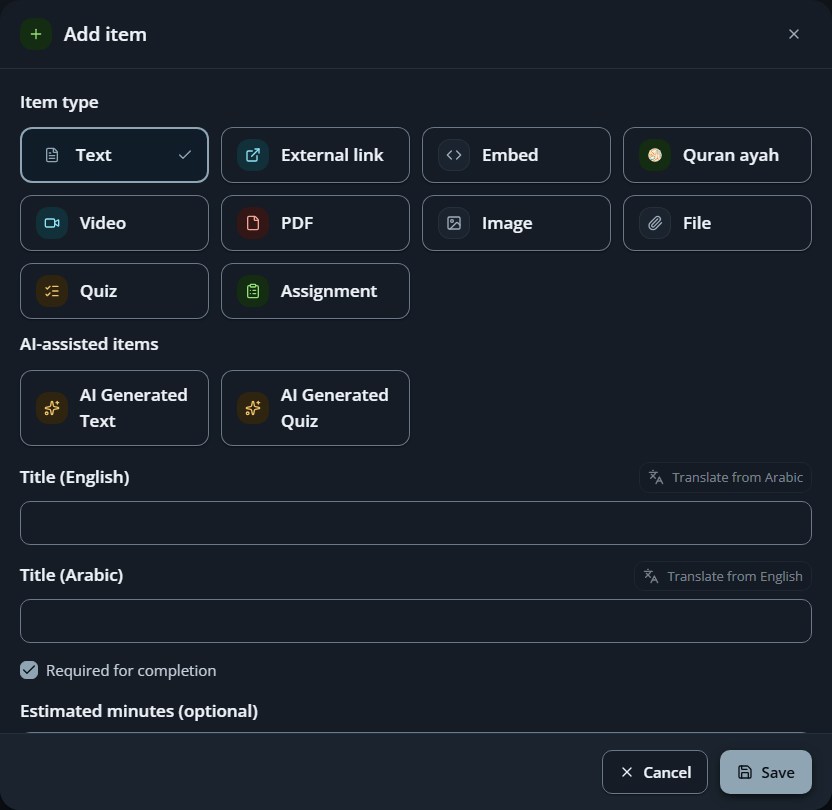
Adding an item
Video lesson editor — upload video and generate or translate Arabic & English WebVTT captions with AI.
Course Live sessions tab — schedule and manage Zoom sessions and cloud recordings for this course.
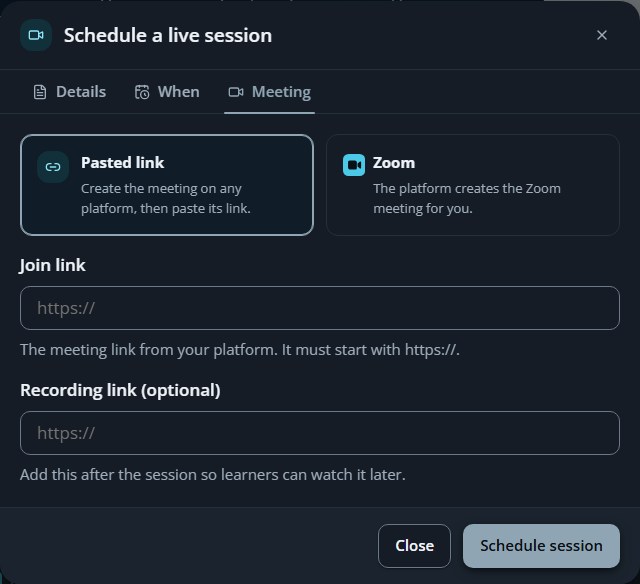
Schedule a live session — set bilingual titles, provider, schedule, duration, and recording link.
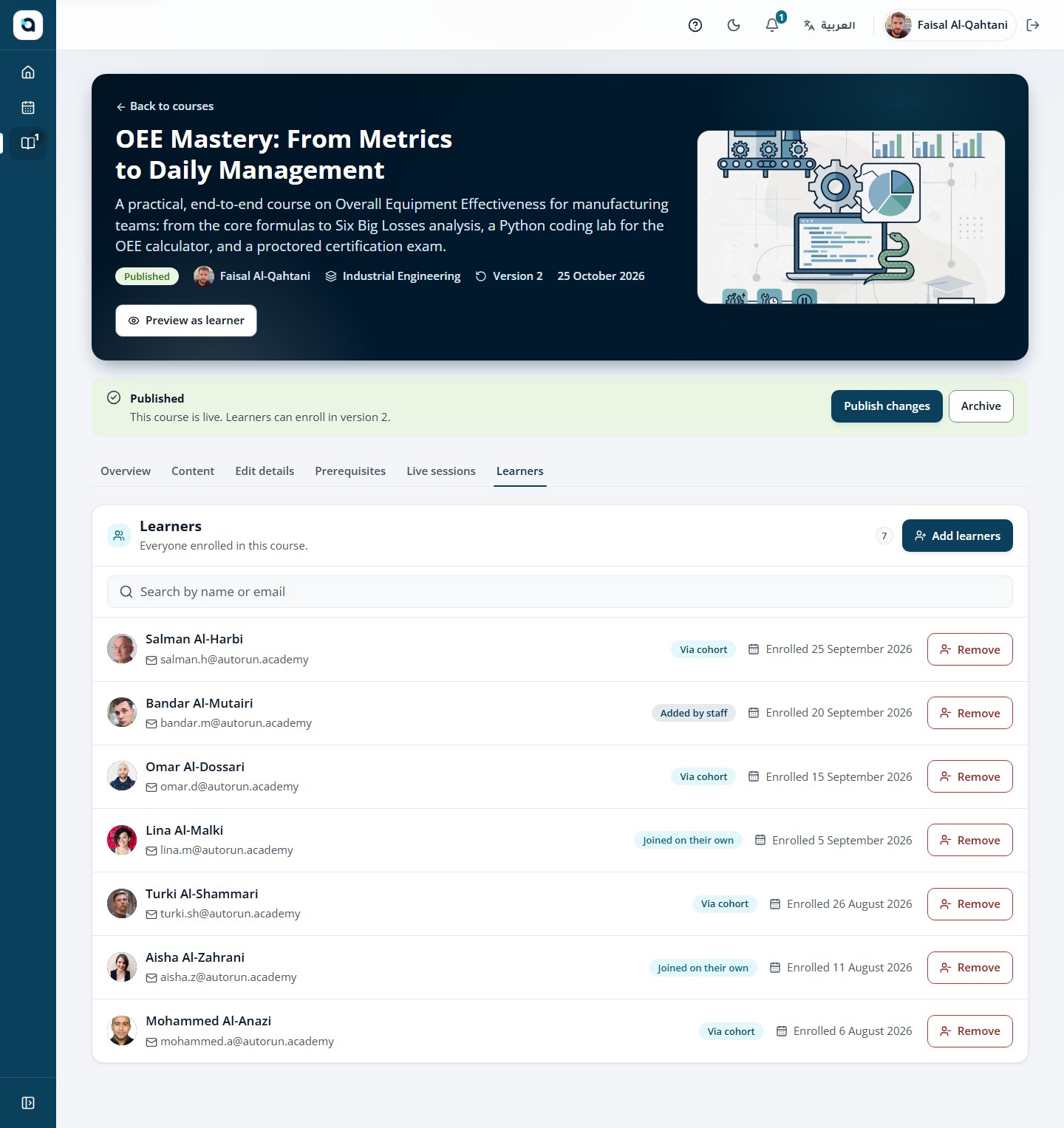
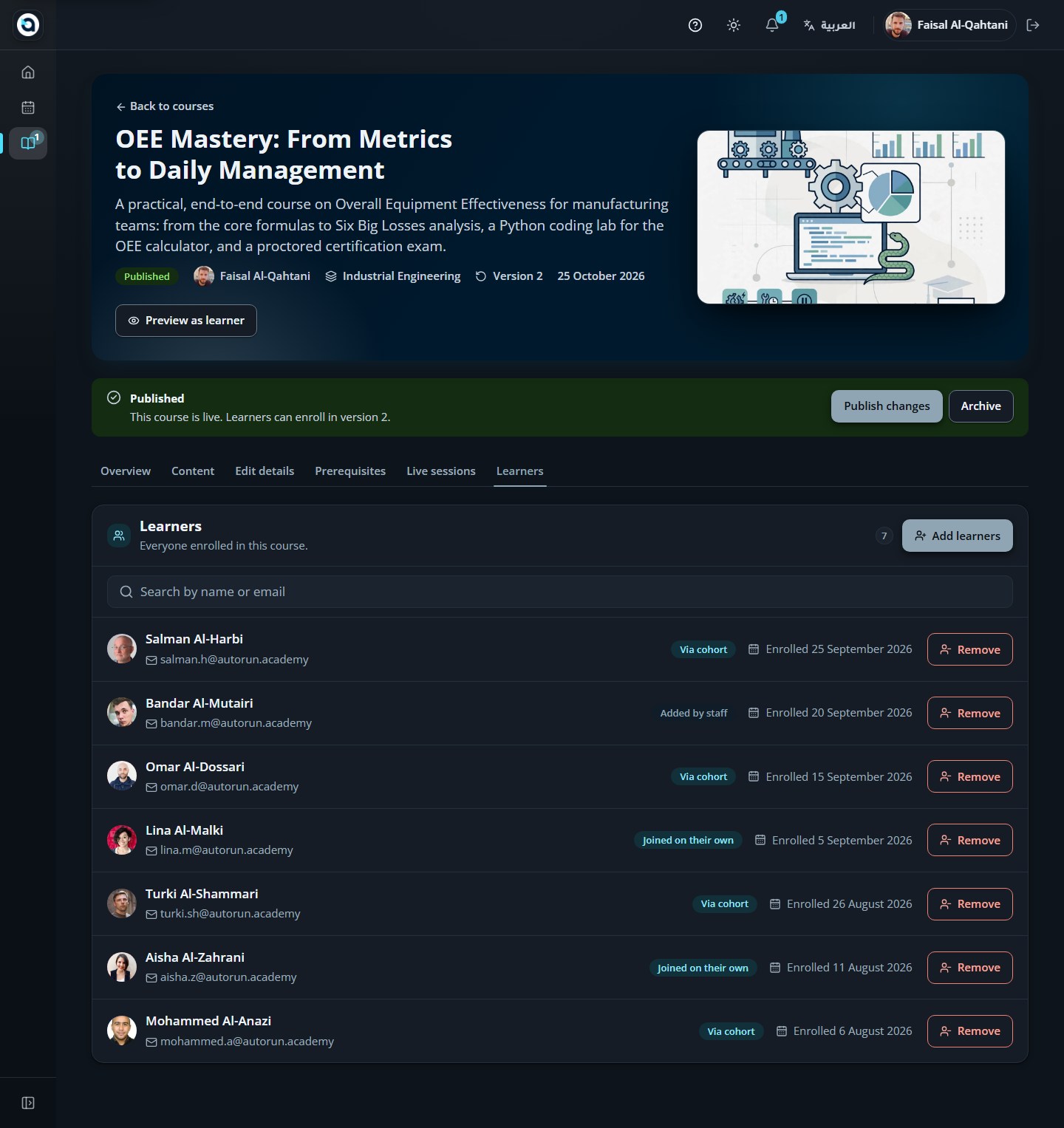
Course Learners tab — monitor enrolled learners and their completion progress.
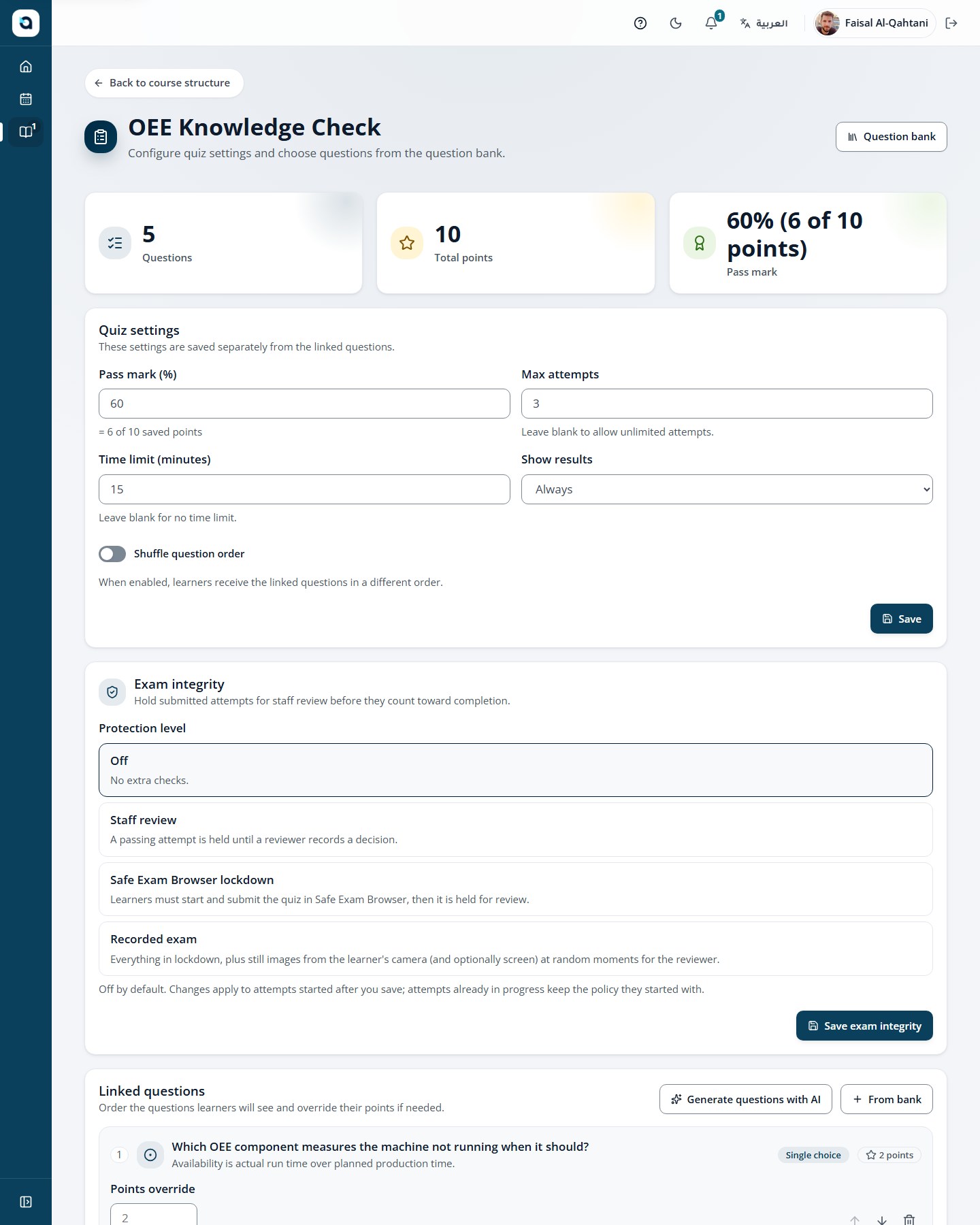
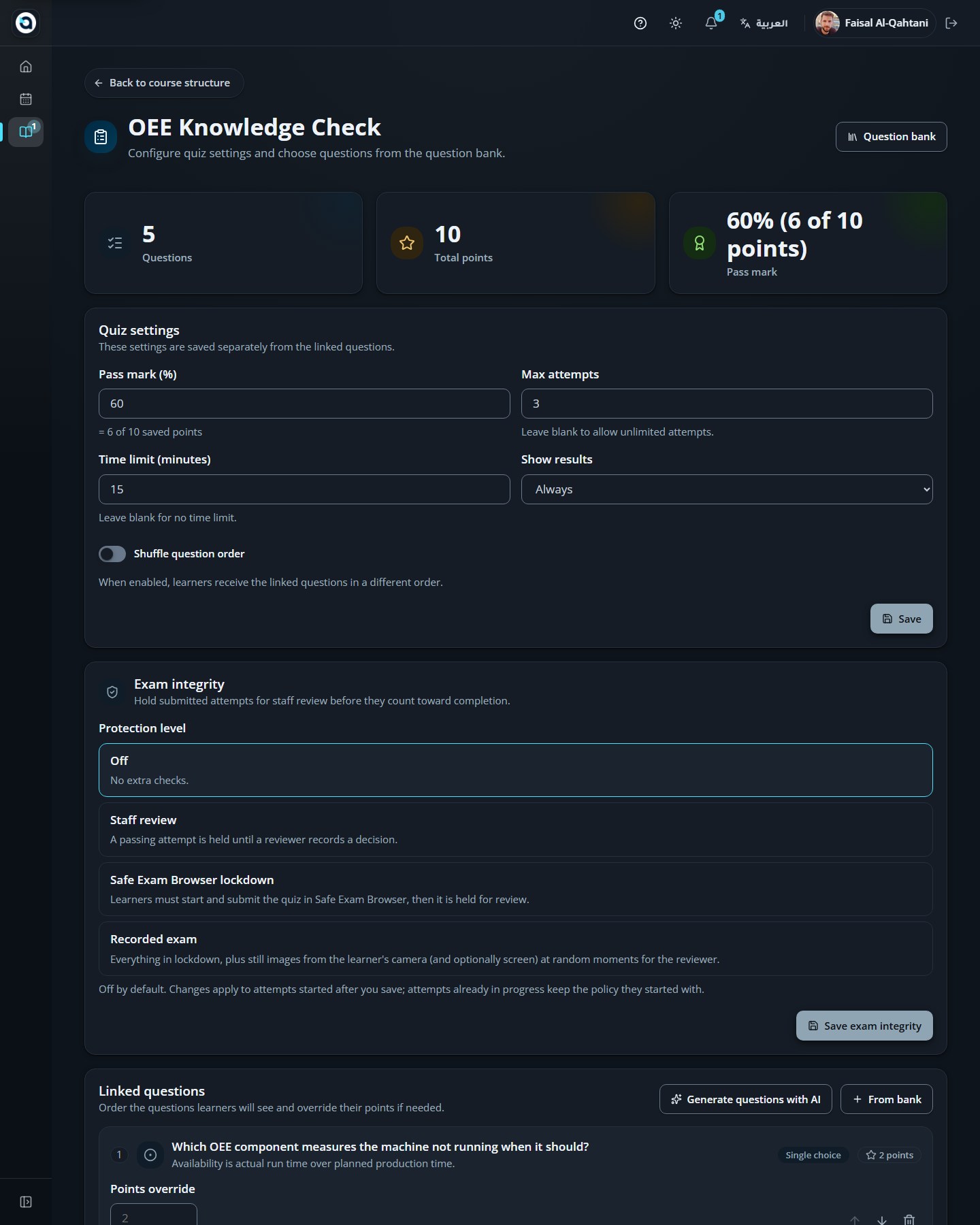
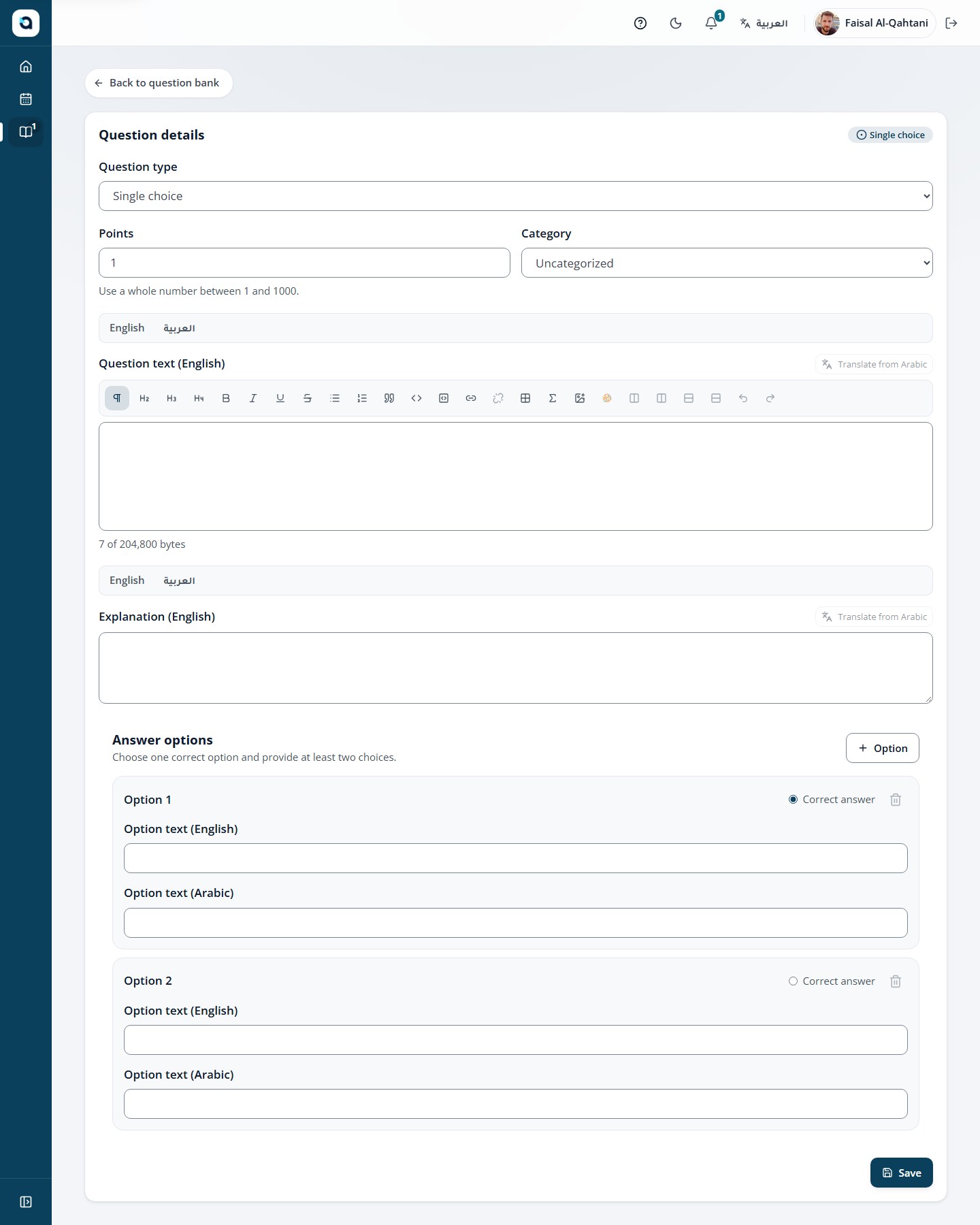
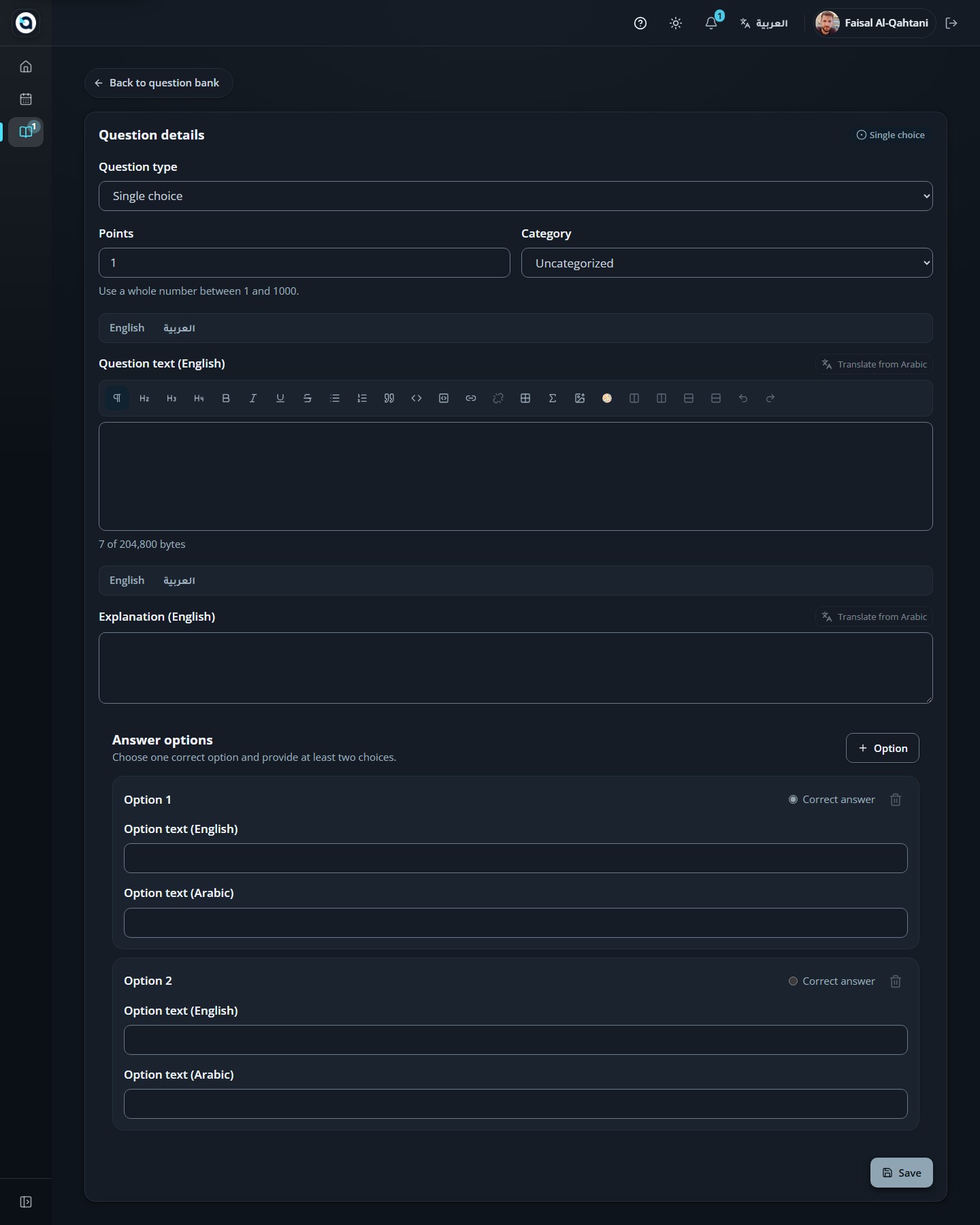
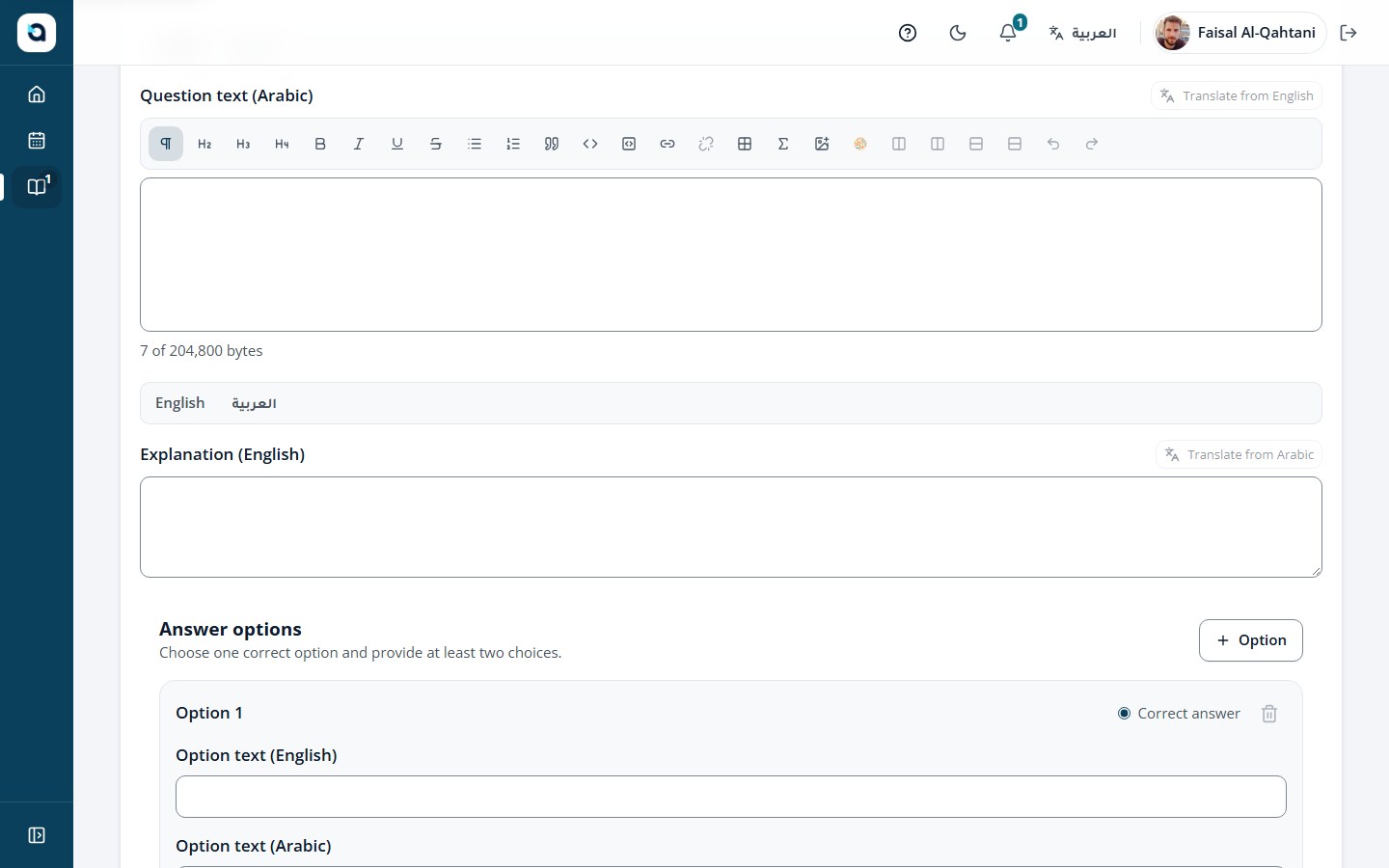
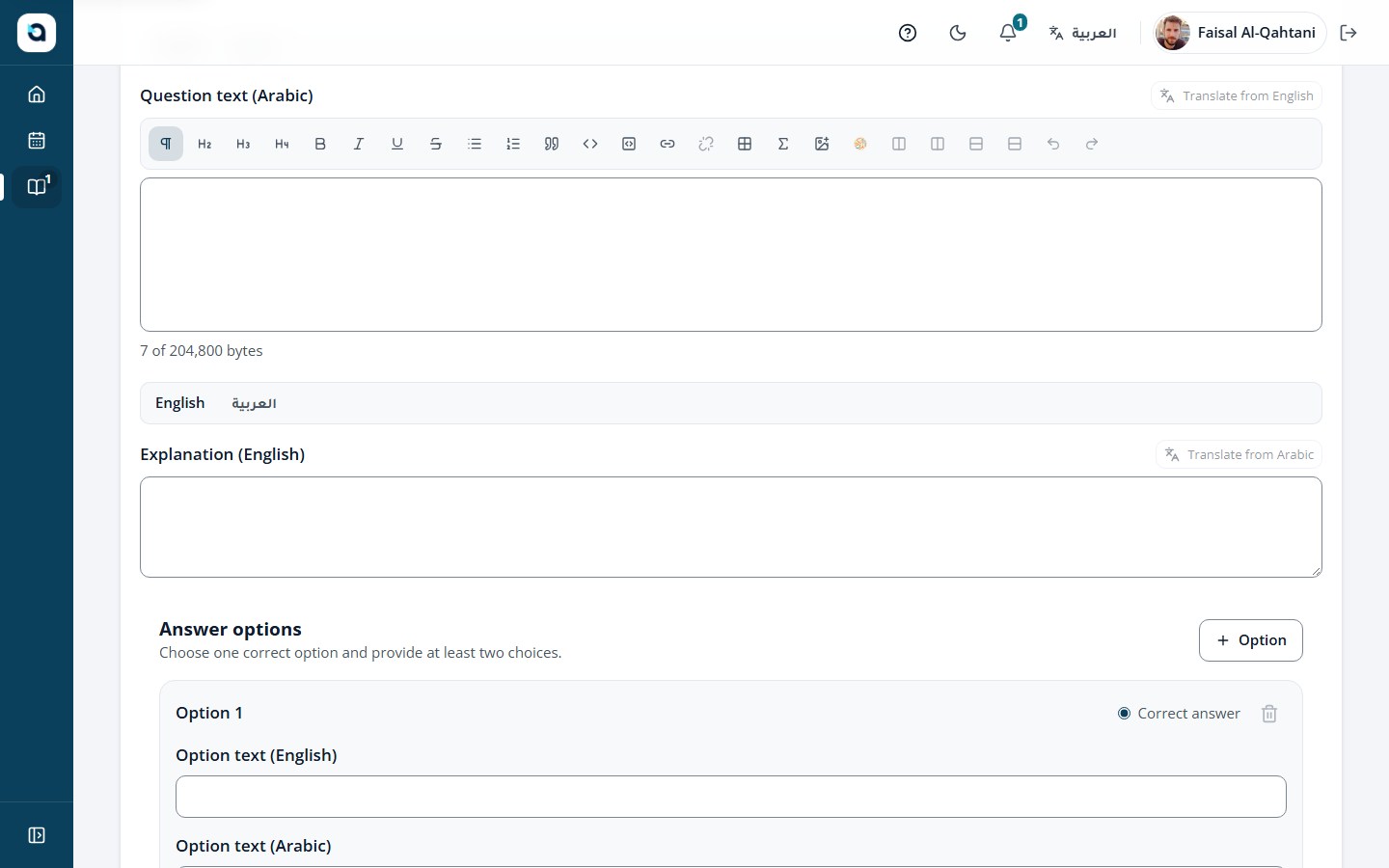
Quizzes are authored item by item, with AI help and an exam policy for serious assessments.
1
From the course content, choose Edit quiz on a quiz item.
2
Add questions and set the correct answers and points.
3
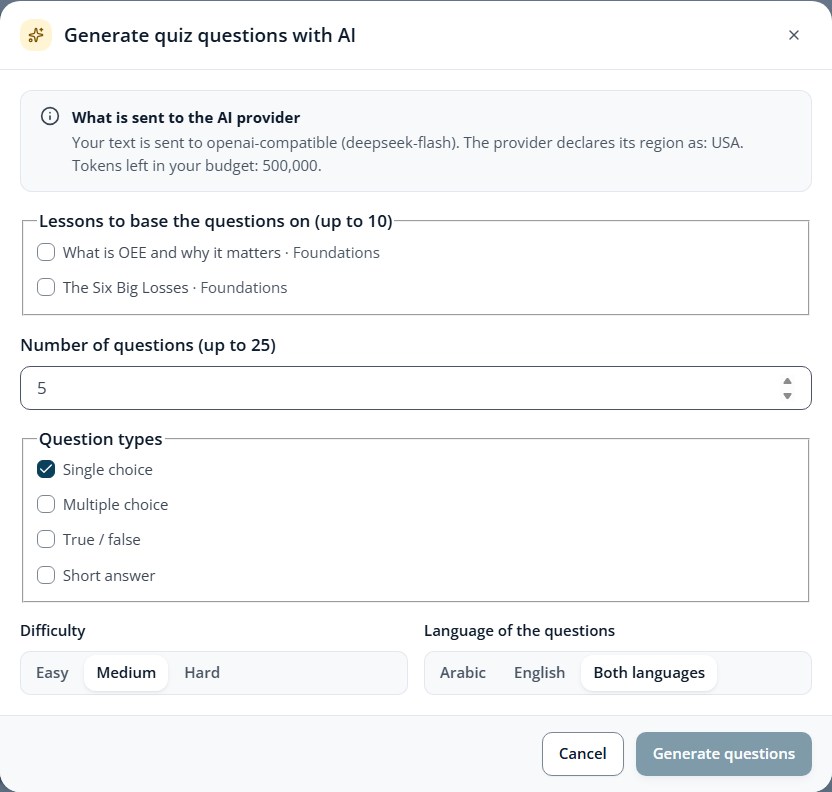
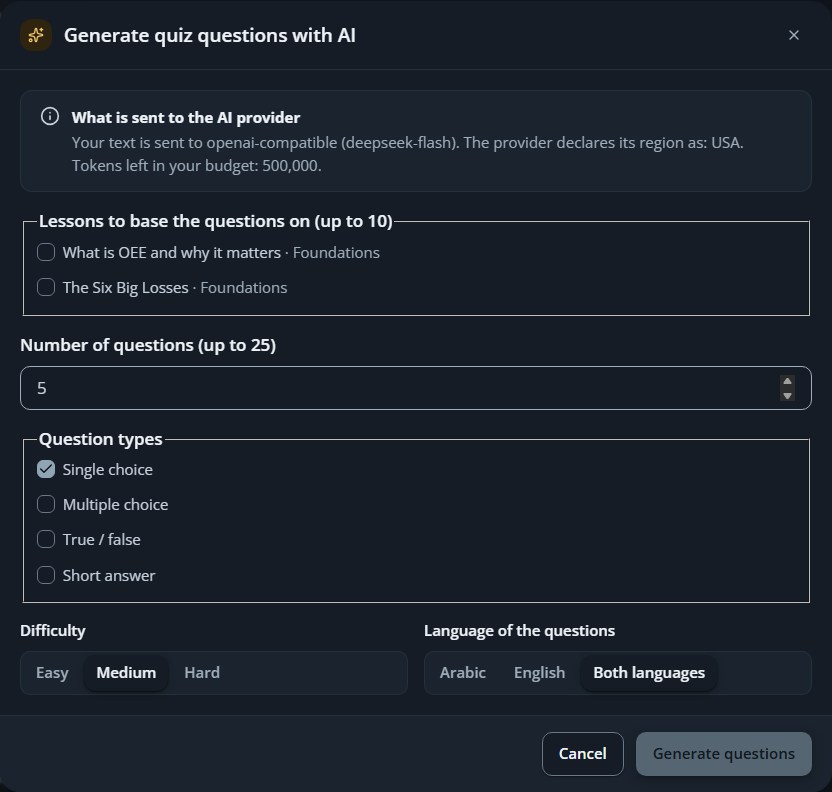
Use the AI suggestion dialog to generate questions from the course, then keep the ones you want.
4
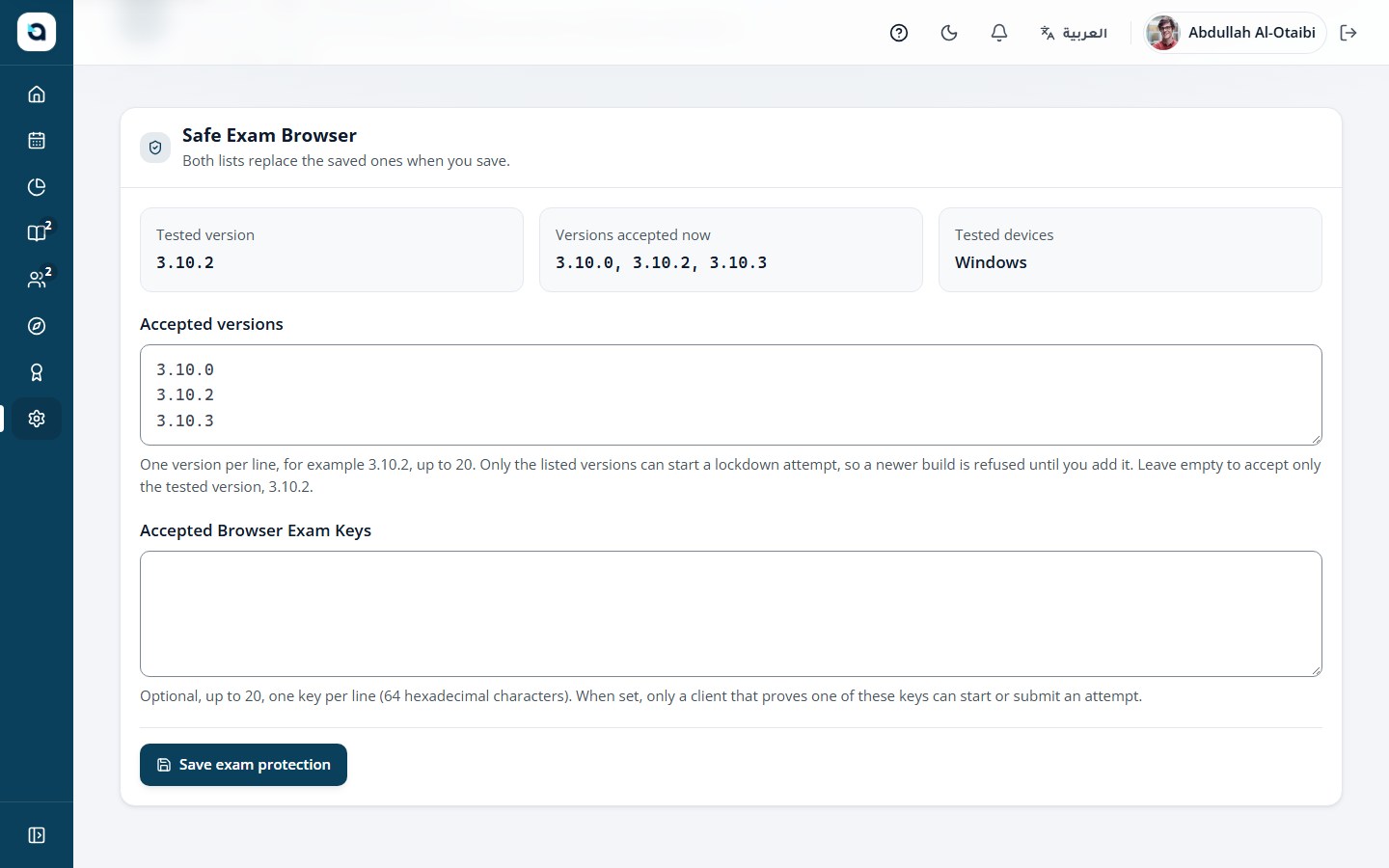
Set the exam policy — none, lockdown (Safe Exam Browser) or recorded — and the evidence retention.
5
Save; the quiz is ready for learners when the course is published.
Tip: Use "Suggest with AI" inside the quiz builder to draft curriculum-aligned multiple-choice questions, then inspect and approve each question before saving.
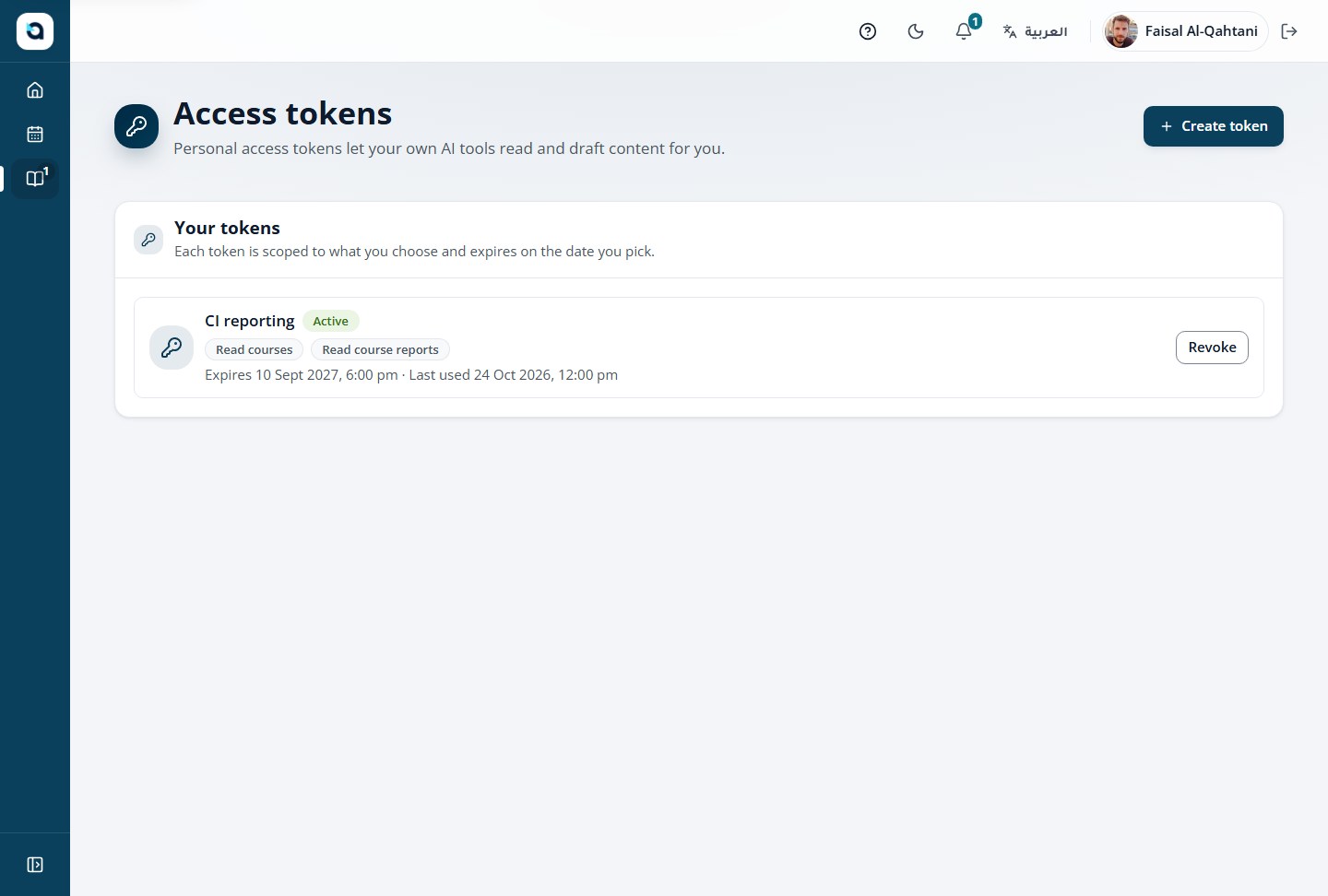
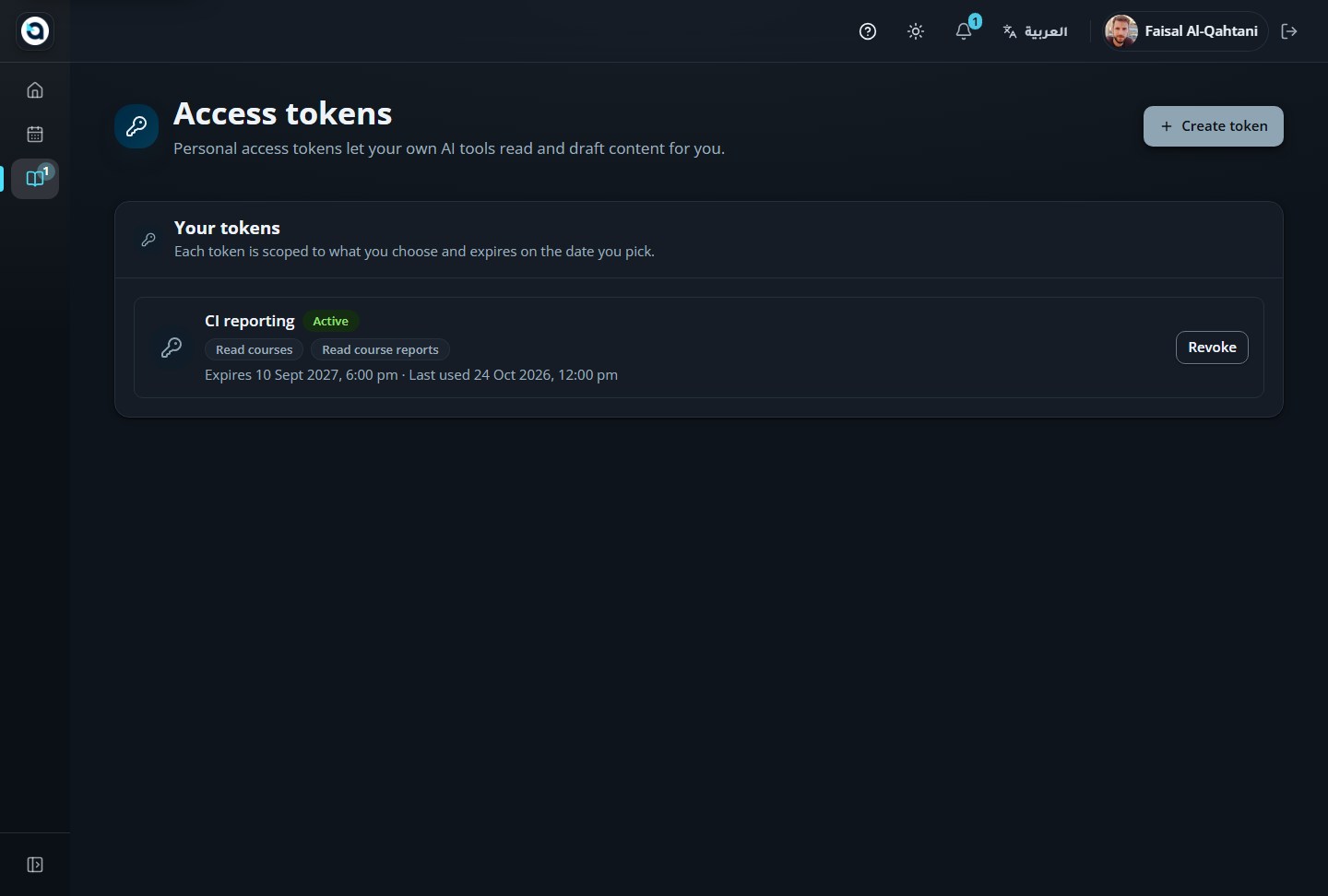
Instructors can create personal access tokens for AI tools, scripts and integrations.
1
Open Access tokens from your account menu.
2
Choose Create token, give it a name and choose the scopes.
3
Copy the token once — it is shown a single time.
4
Revoke any token you no longer use.
Tip: Personal access tokens are displayed only once at creation time. Always set an expiration date and revoke tokens as soon as an automation finishes.
Personal access tokens
6 · Organization administrator — running the academy
Govern your academy: track organization-wide analytics, manage programs, cohorts, users, custom roles, certificates, branding, AI providers, NeLC/FutureX xAPI, and PDPL compliance.
Organization Admin · 23
46
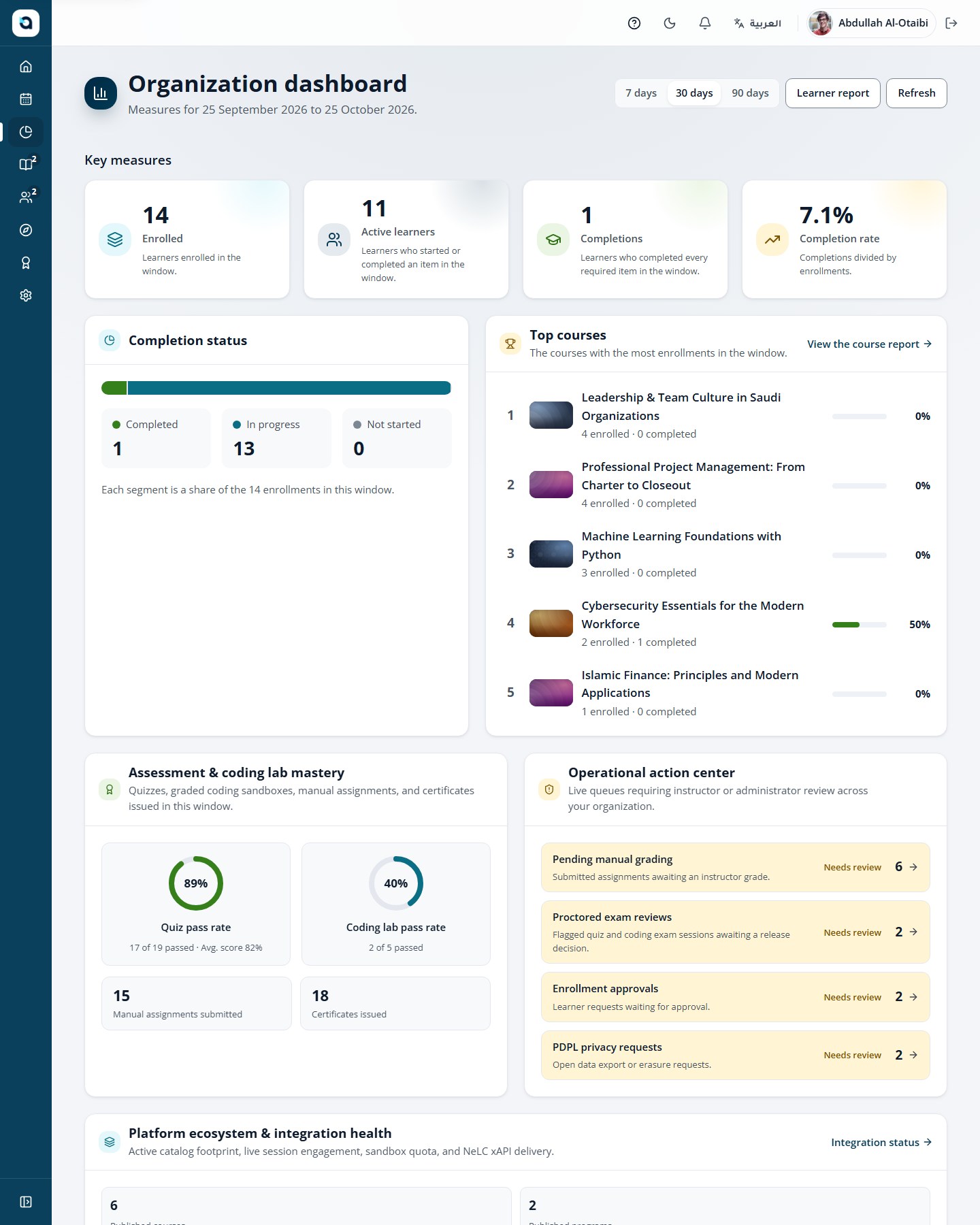
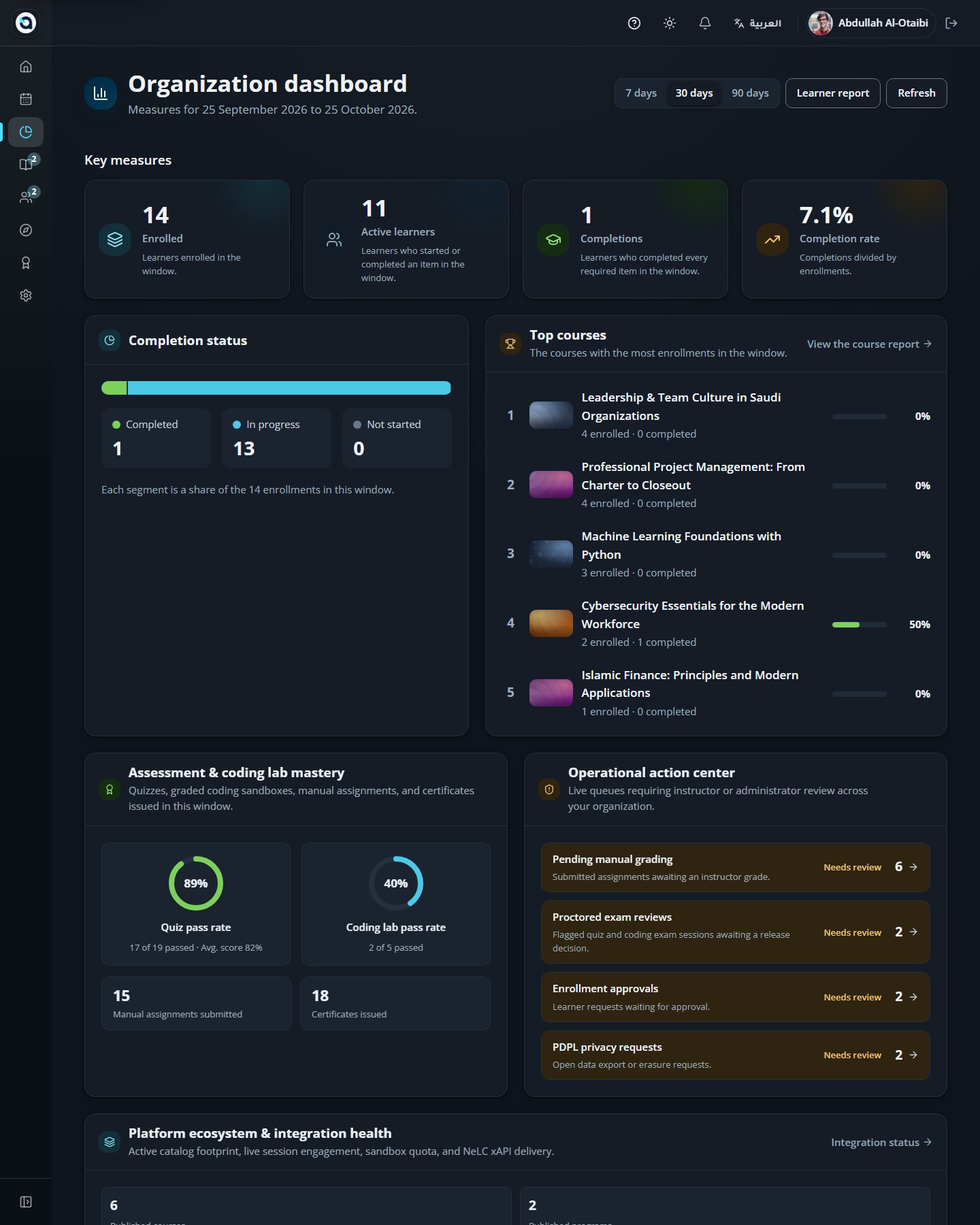
The analytics dashboard
Organization Admin
The admin dashboard summarises the academy: learners, enrollments, completions and certification rate.
1
Open Reports from the sidebar.
2
The KPI tiles show active learners, enrollments, completions and the certification rate.
3
Use the links to jump to the detailed course and learner reports.
4
Profile, Calendar and Notifications work the same for administrators as for any user.
The reports dashboard
47
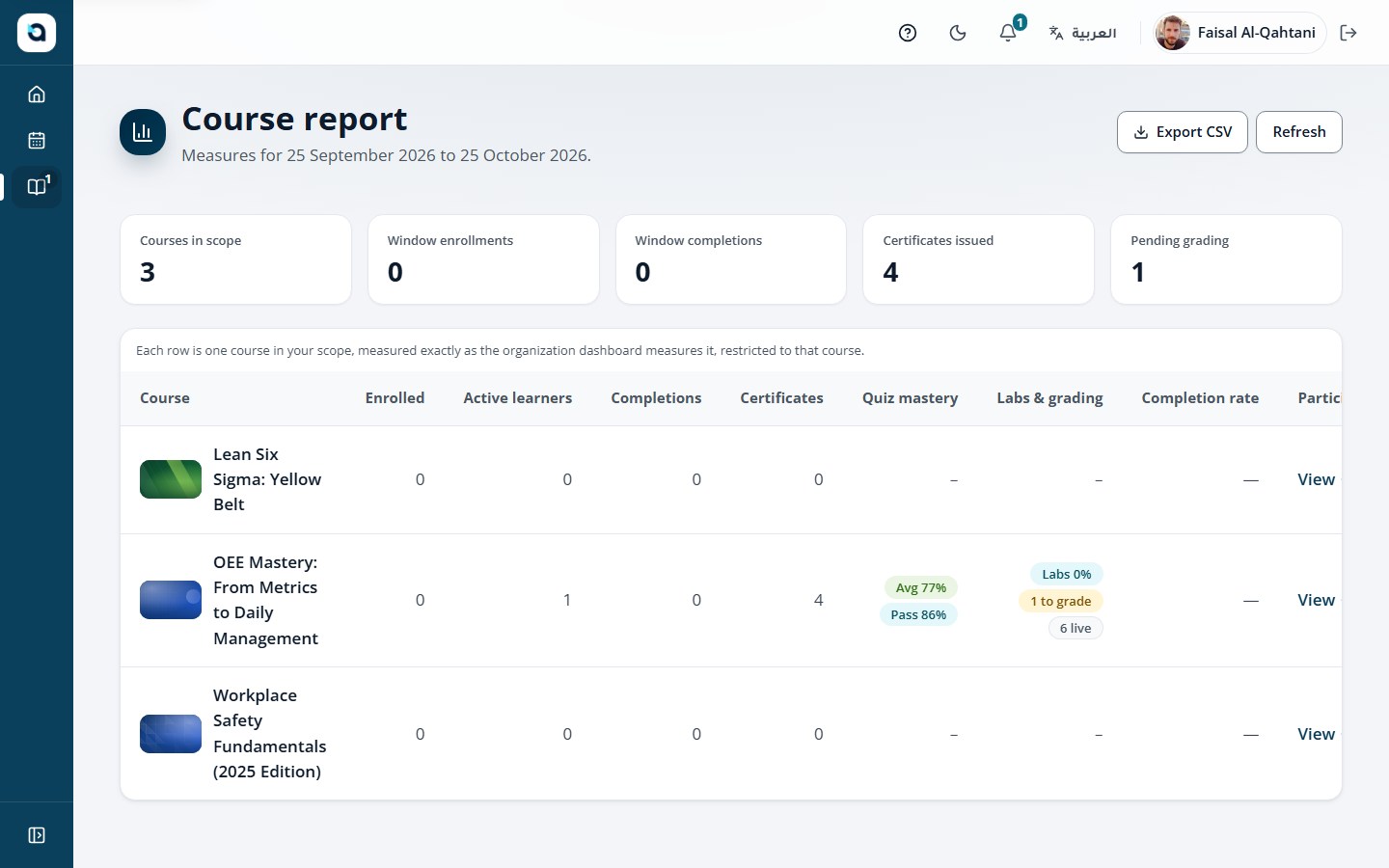
Course completion reports
Organization Admin
See completion statistics for every course, then drill into each course’s participants.
1
Open Reports → Courses.
2
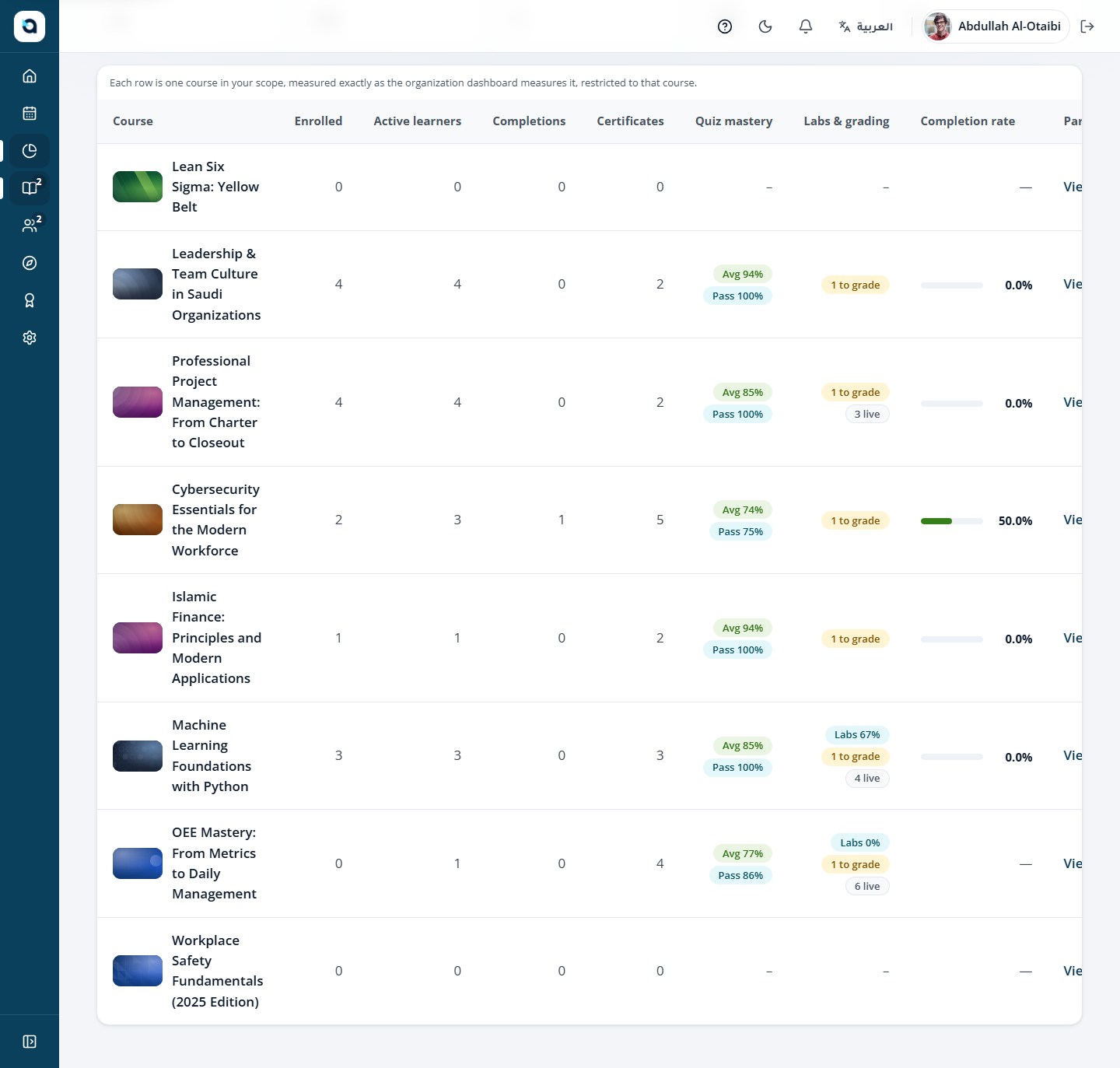
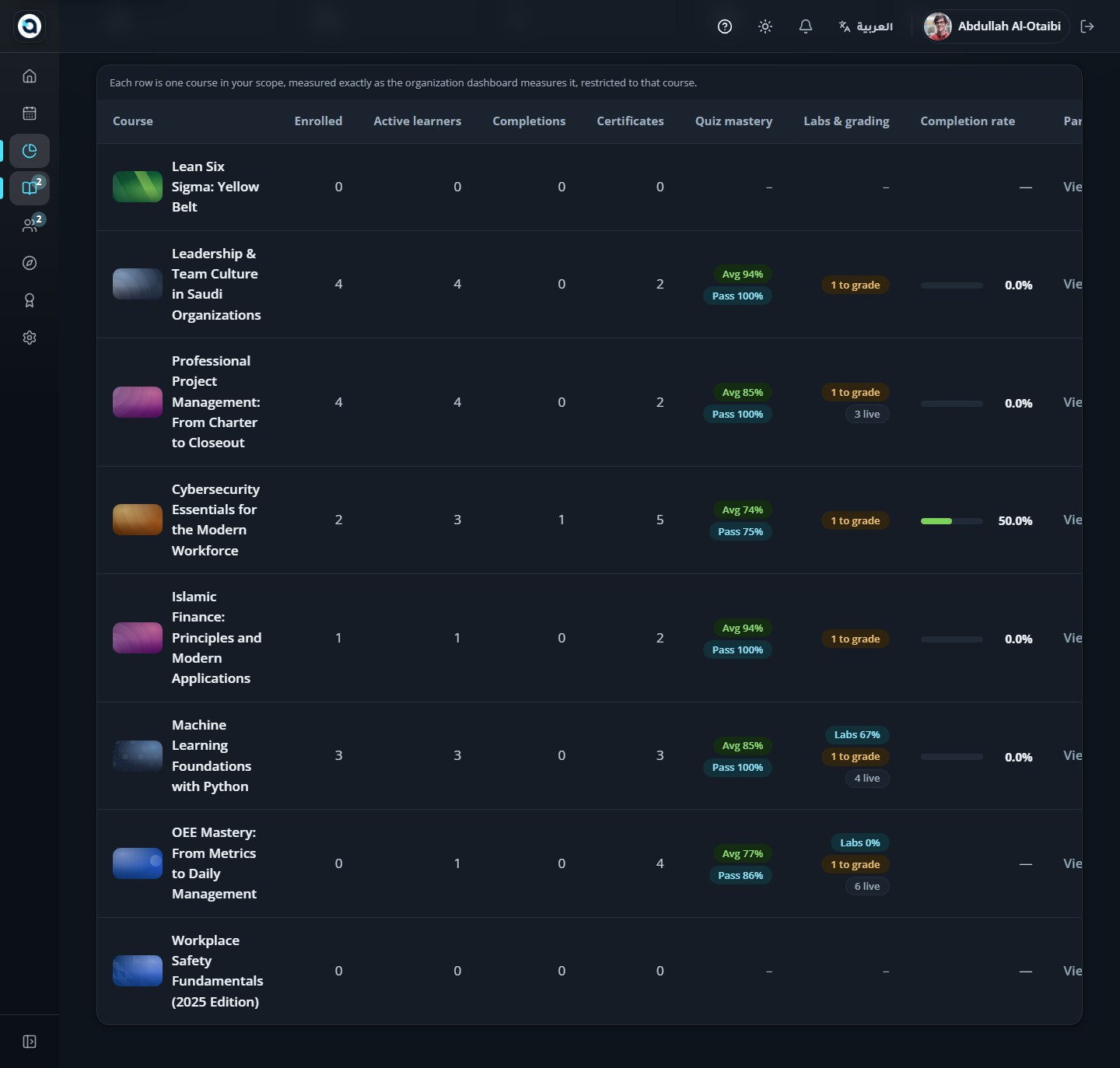
Each course row shows its completion progress.
3
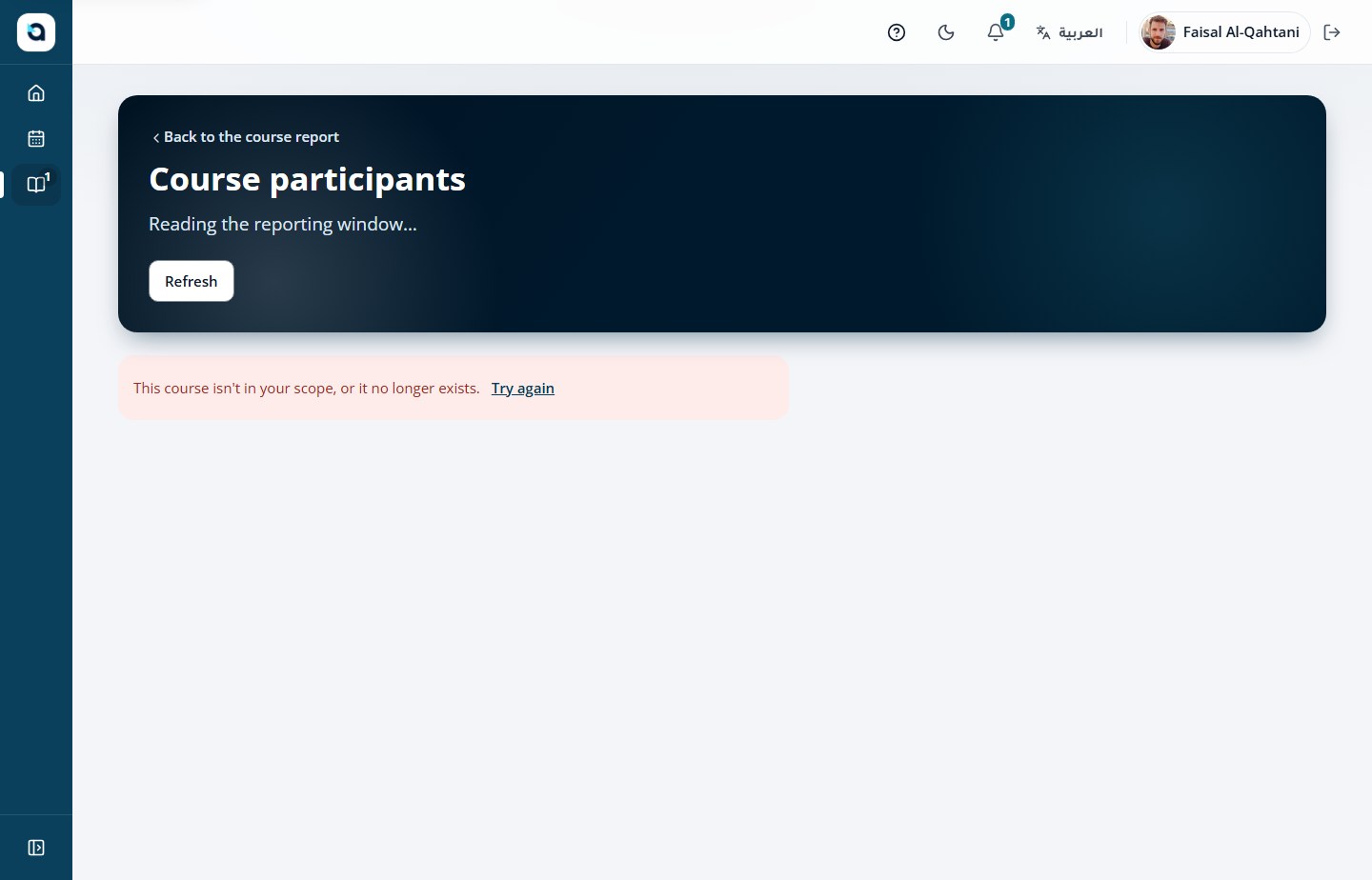
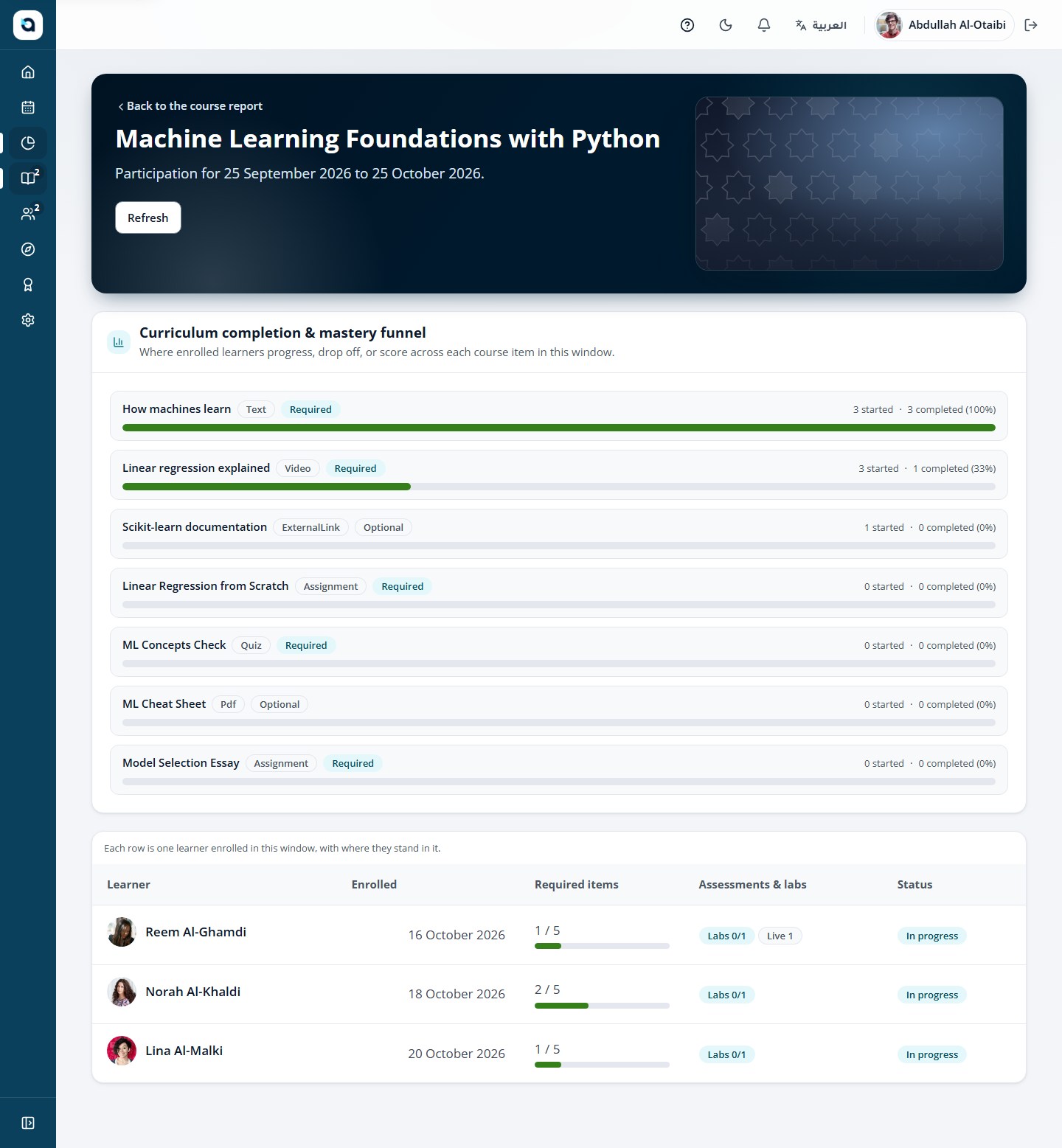
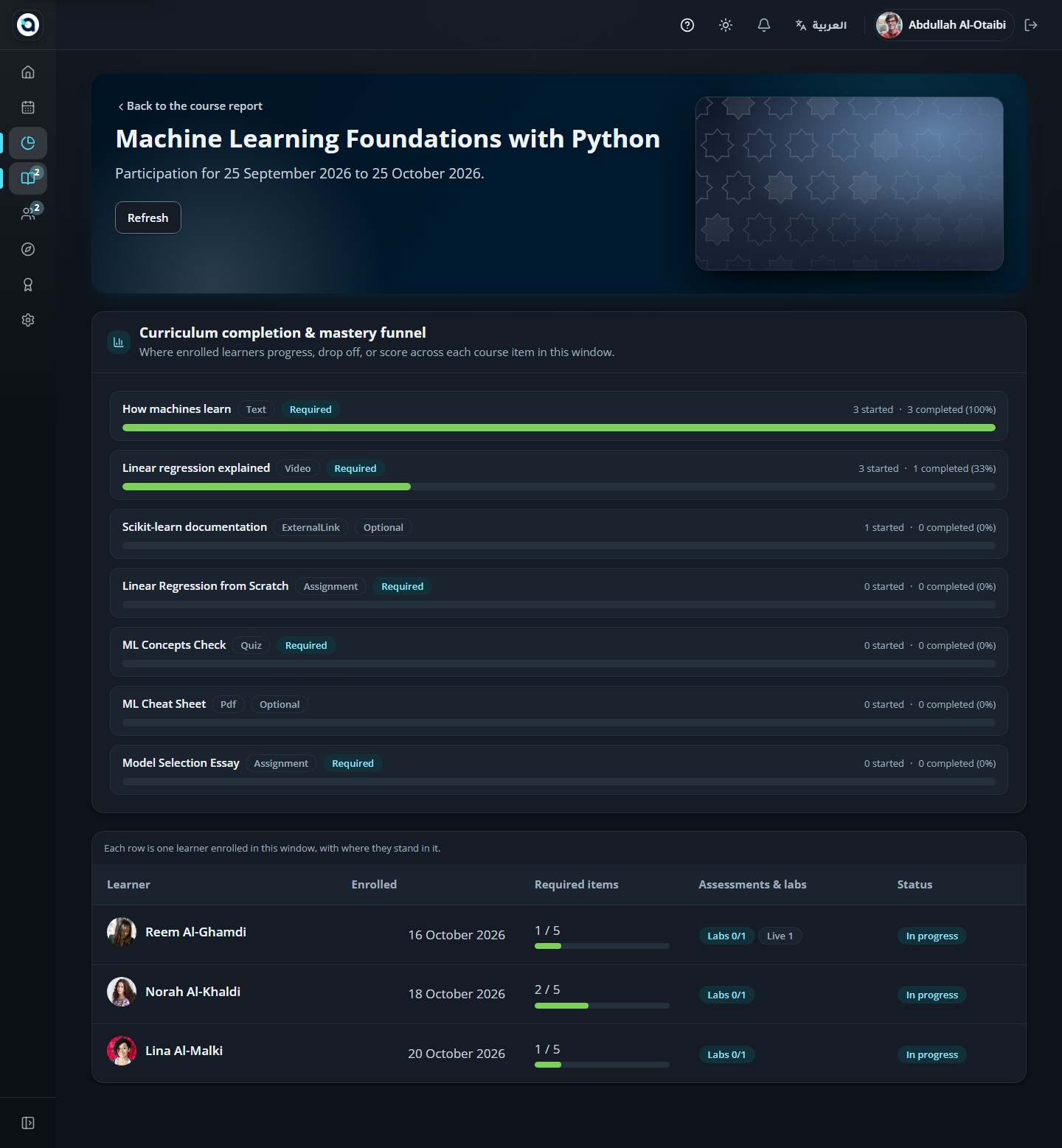
Open a course to see every participant with their status and progress.
The course report
Participants of a course
48
The learner report
Organization Admin
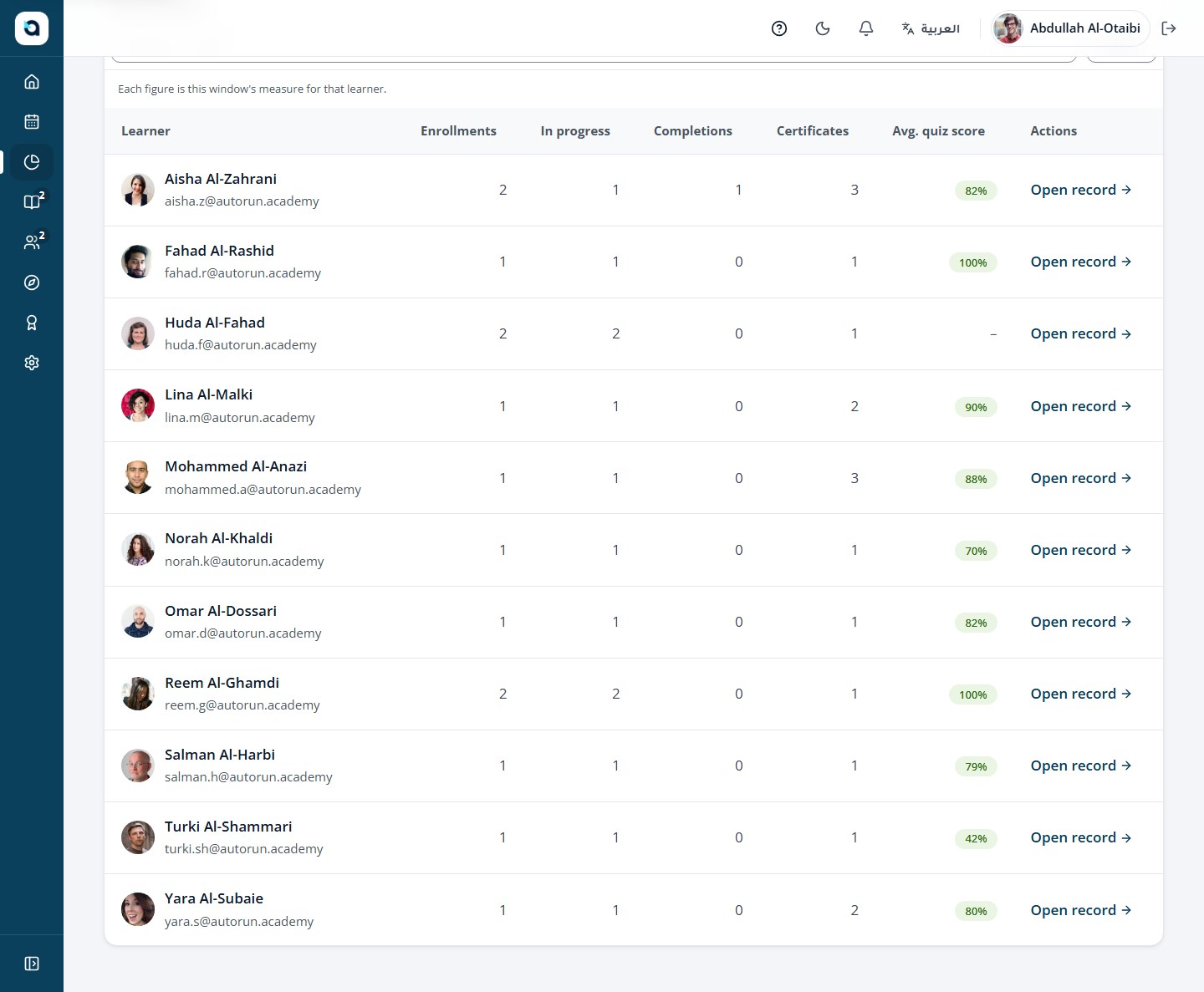
The learner report lists every learner with their enrollments, completions and certificates.
1
Open Reports → Learners.
2
The table shows learners with enrolled and completed courses and certificates earned.
3
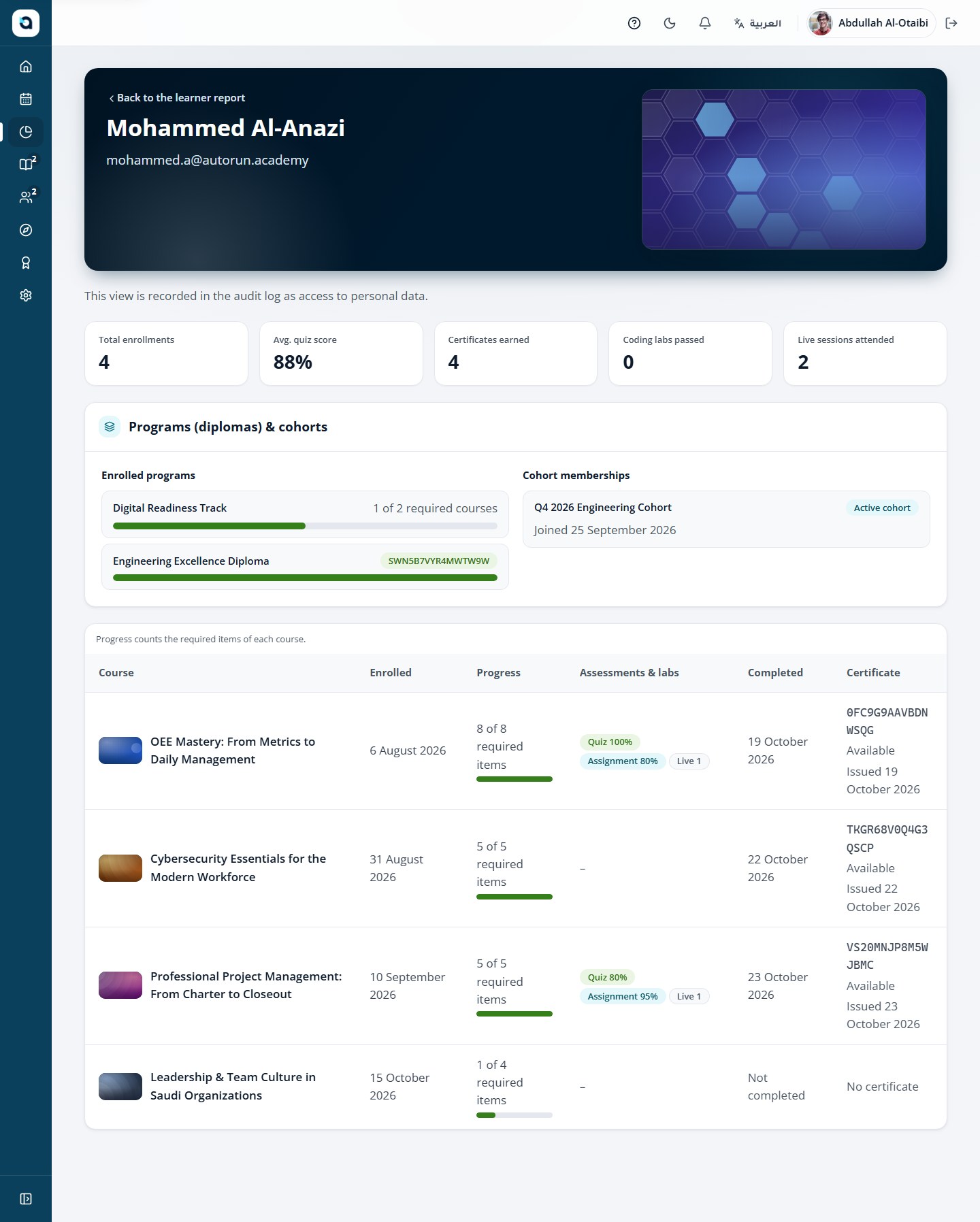
Open a learner to see their full history — enrollments, progress and every certificate.
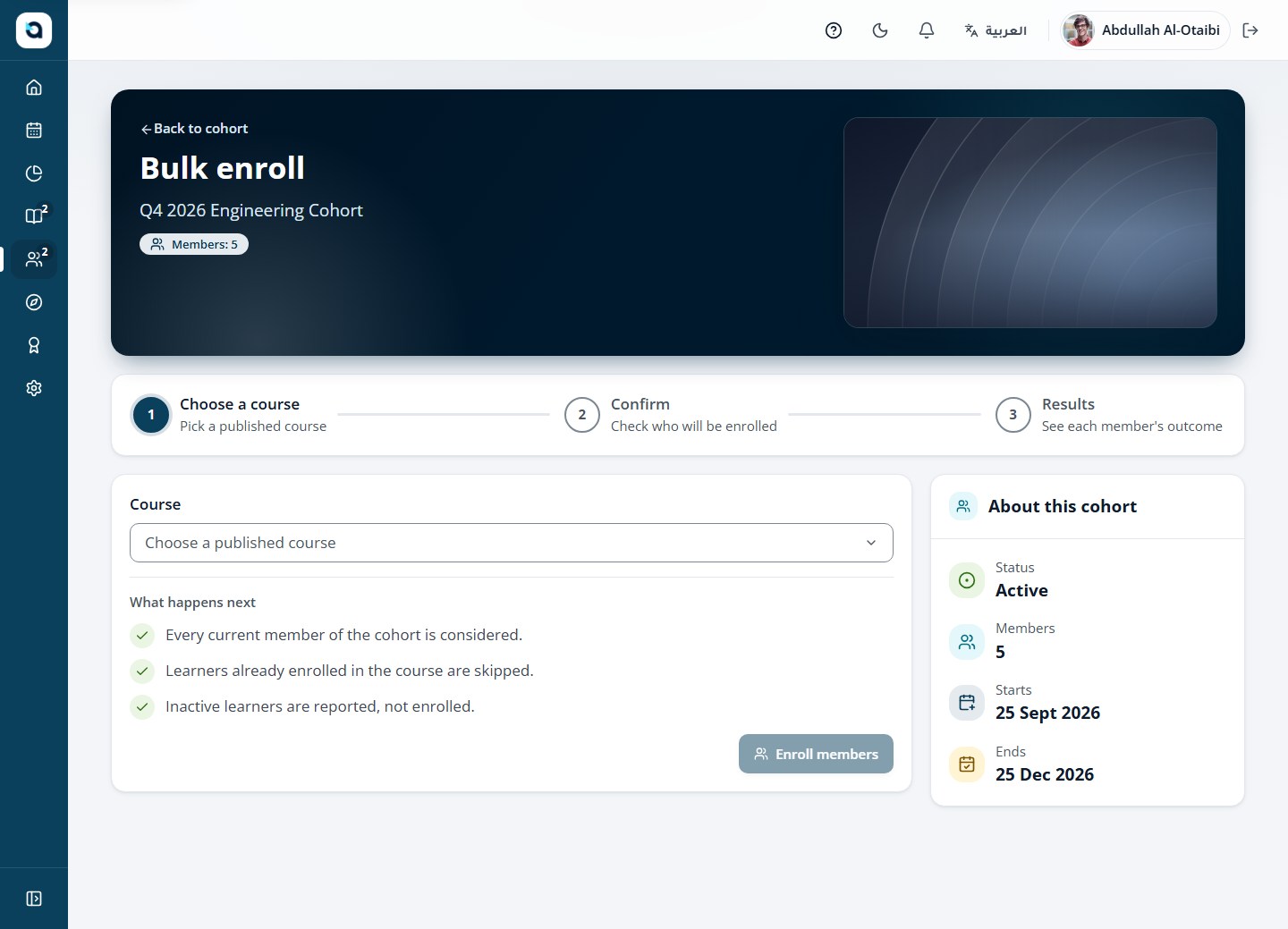
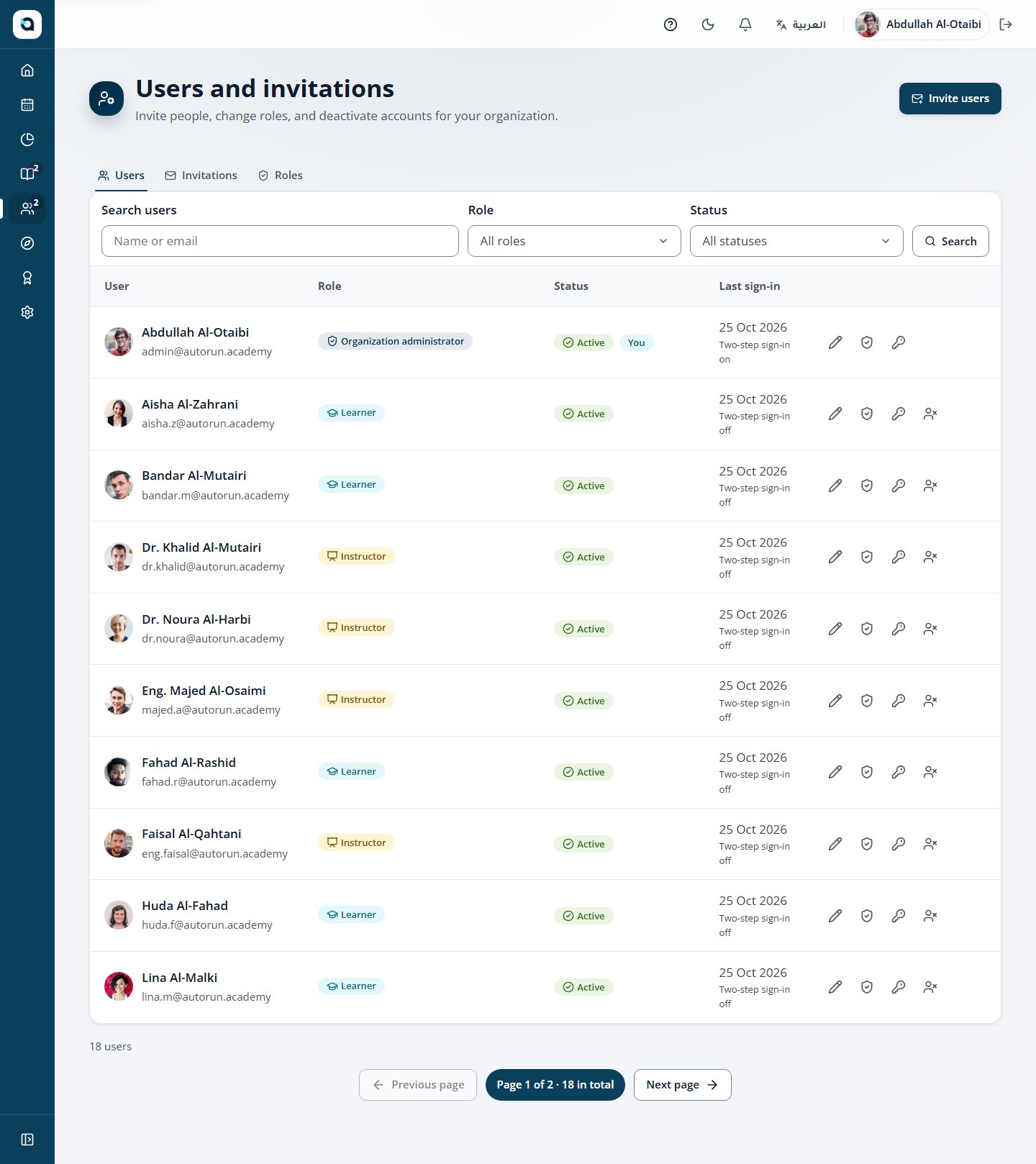
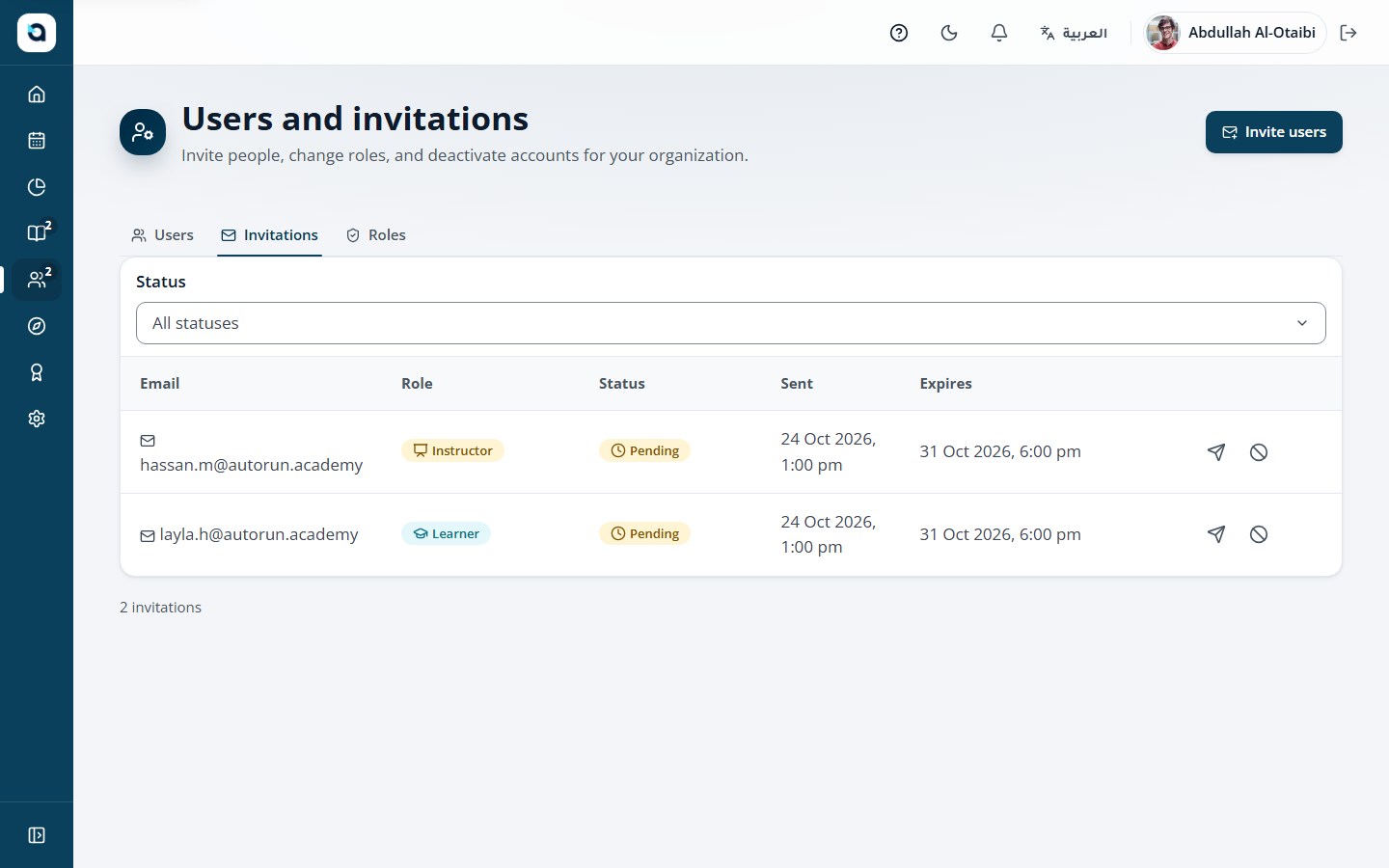
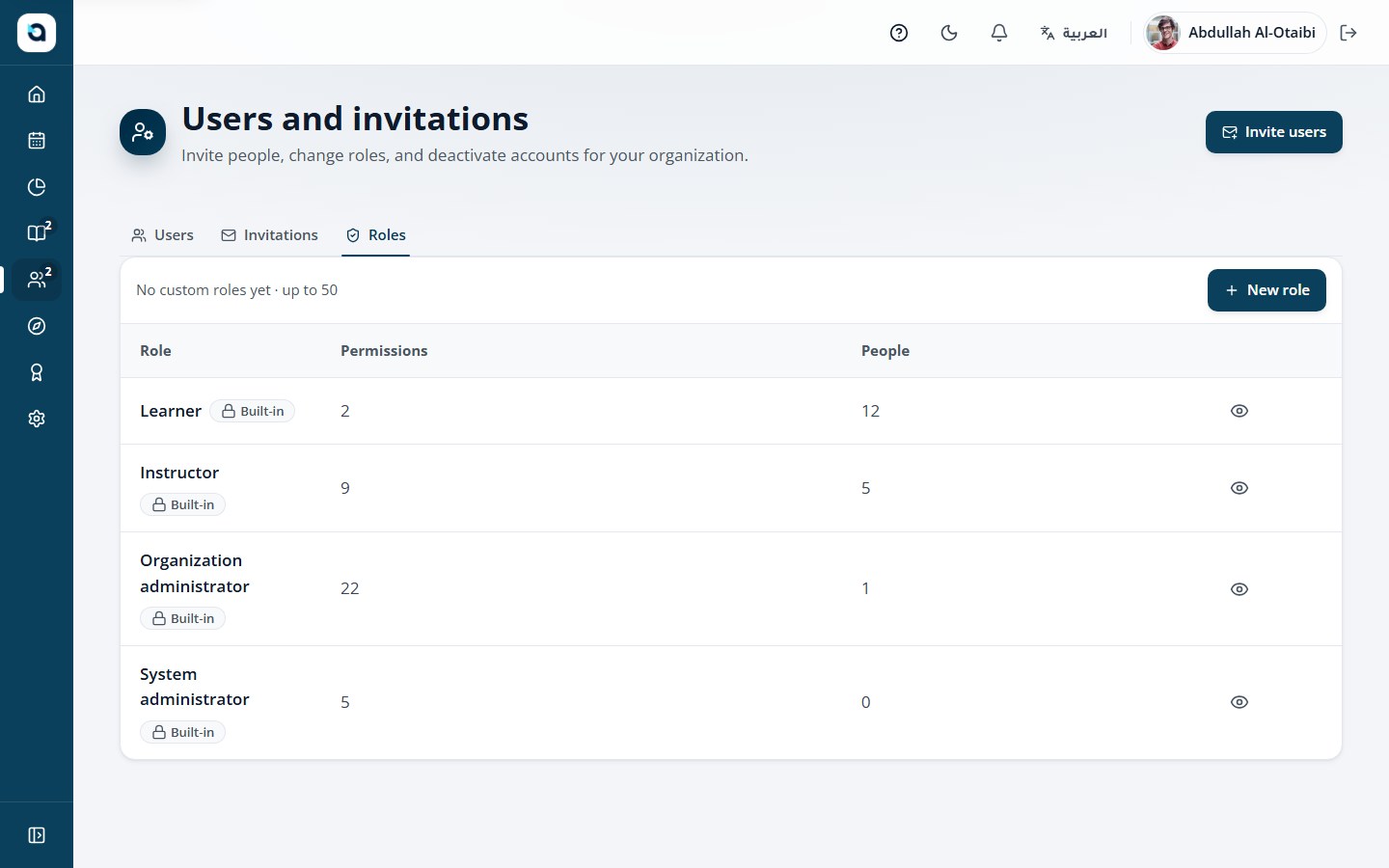
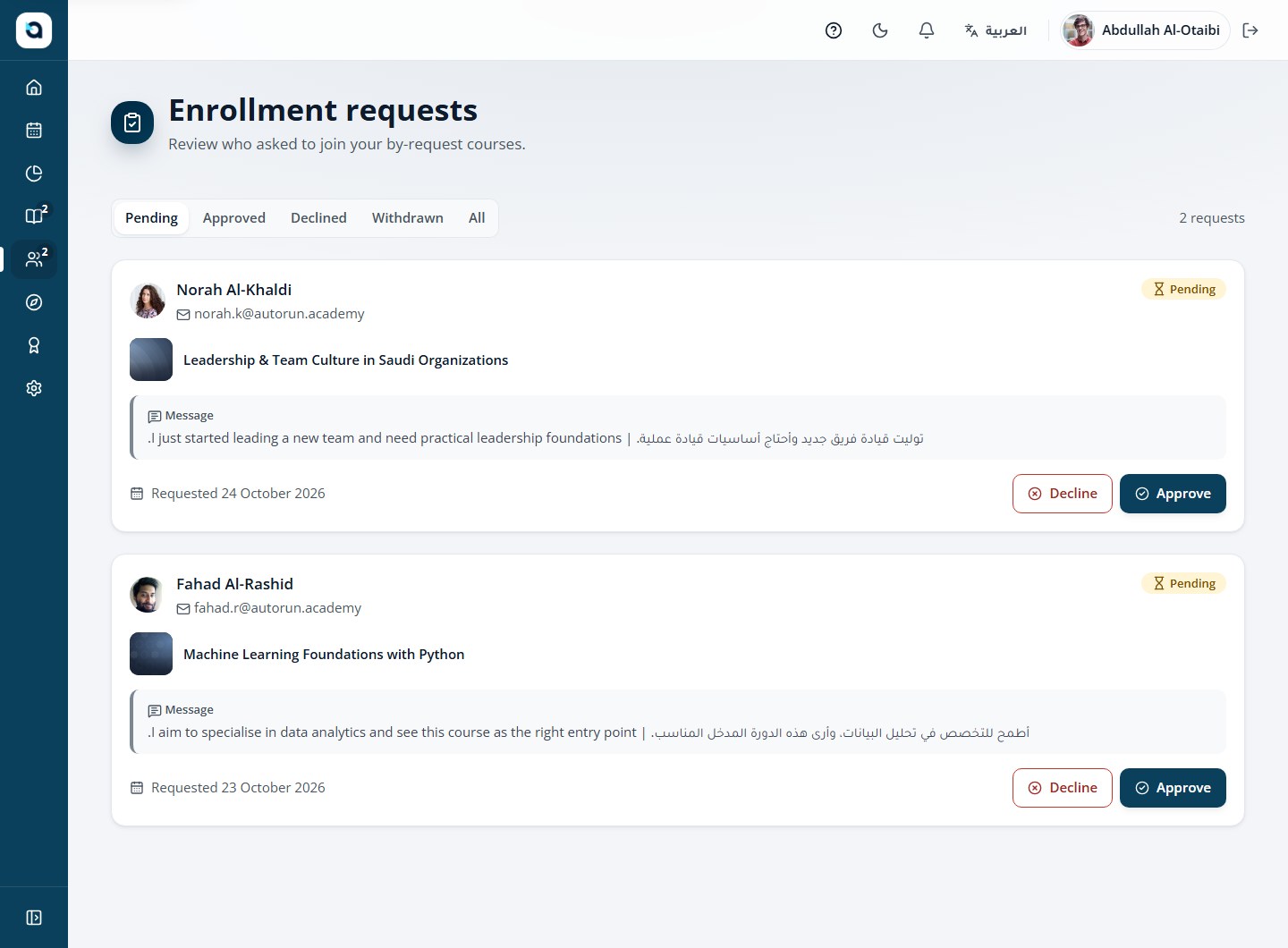
The users page has three tabs: Users, Invitations and Roles.
1
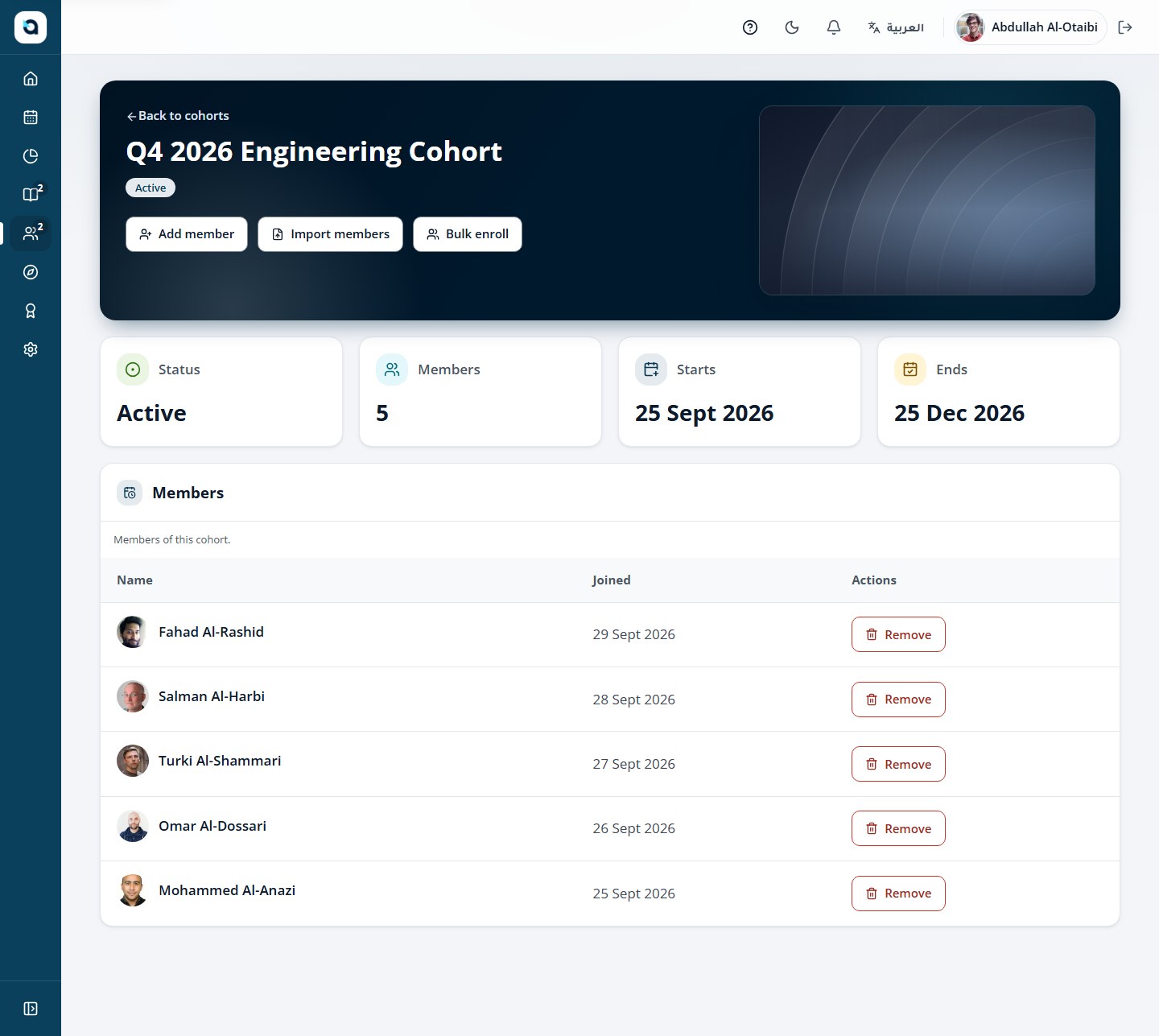
Users tab: search any user and manage their account and roles.
2
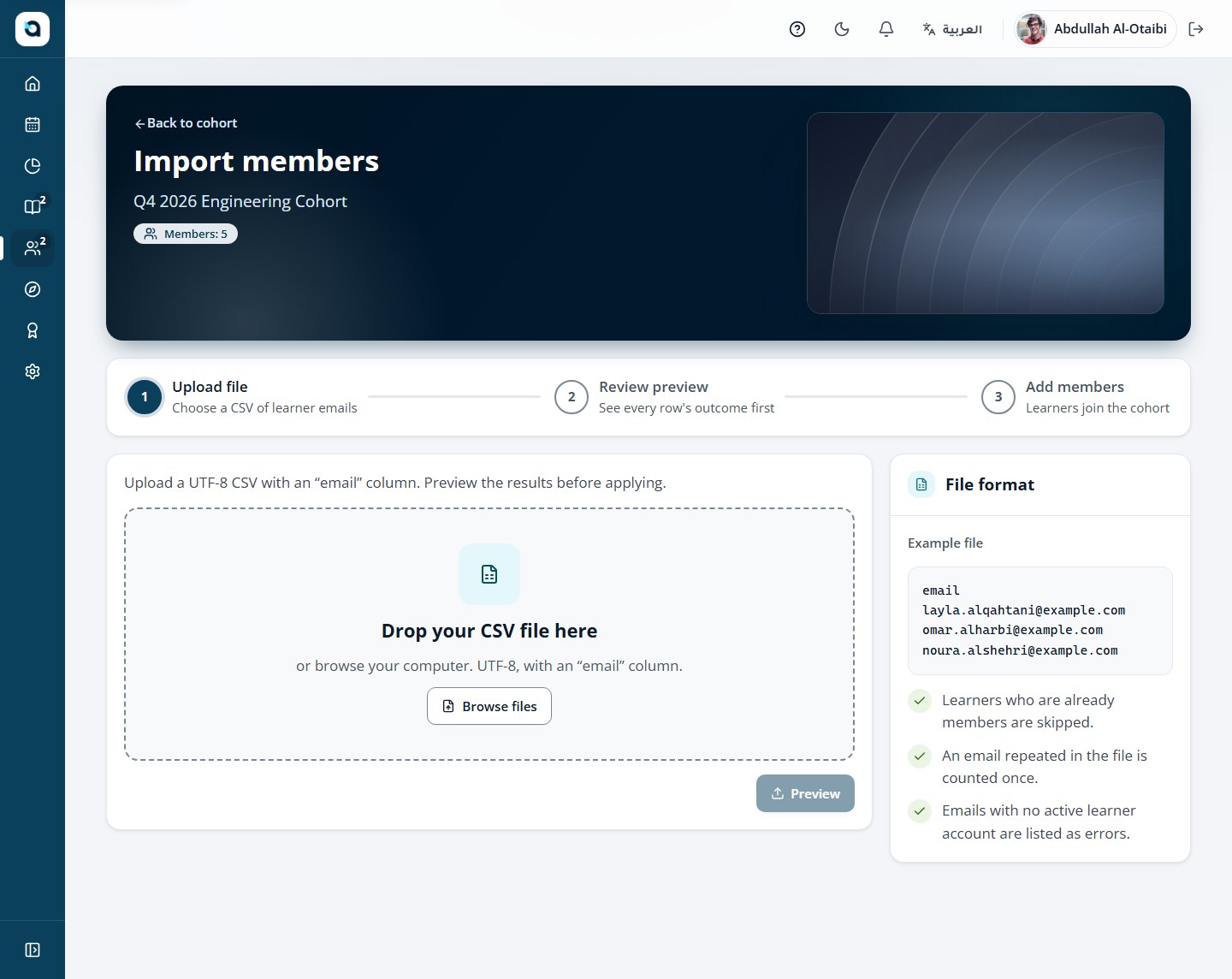
Invitations tab: invite learners and instructors by email — they accept from the email link.
3
Roles tab: manage custom roles and the permissions each role grants.
4
Deactivated accounts cannot sign in but keep their history.
Tip: Use custom roles when staff need granular permissions (such as viewing reports or reviewing exams) without granting full Organization Admin access.
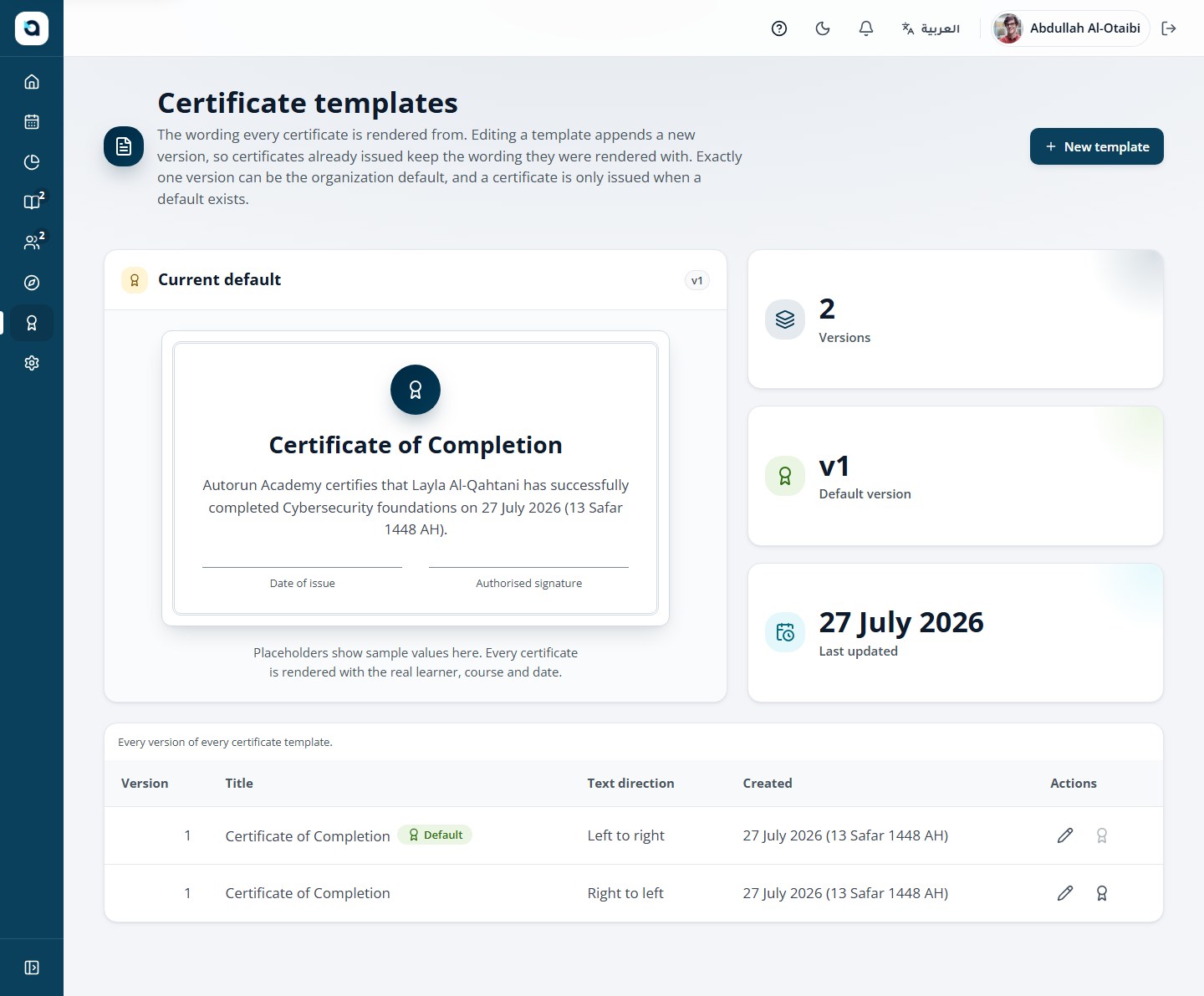
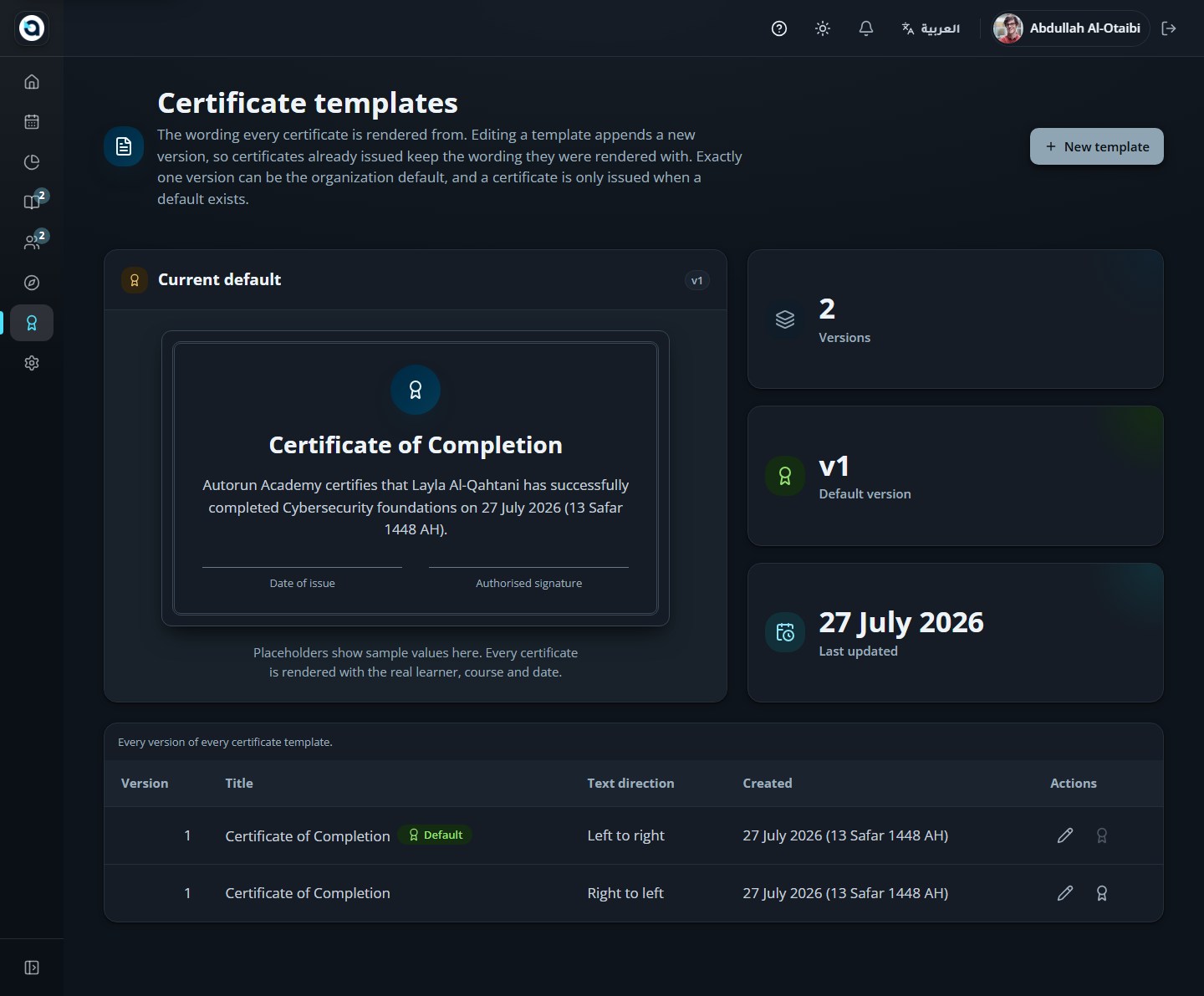
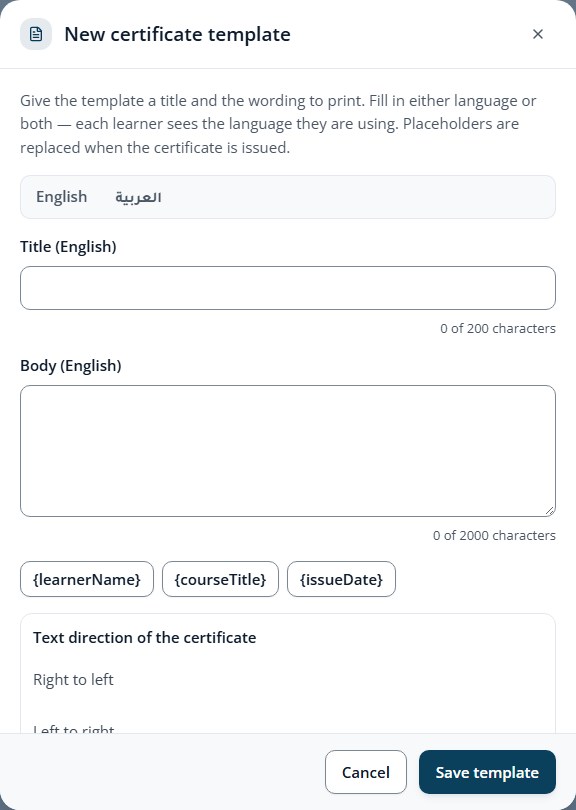
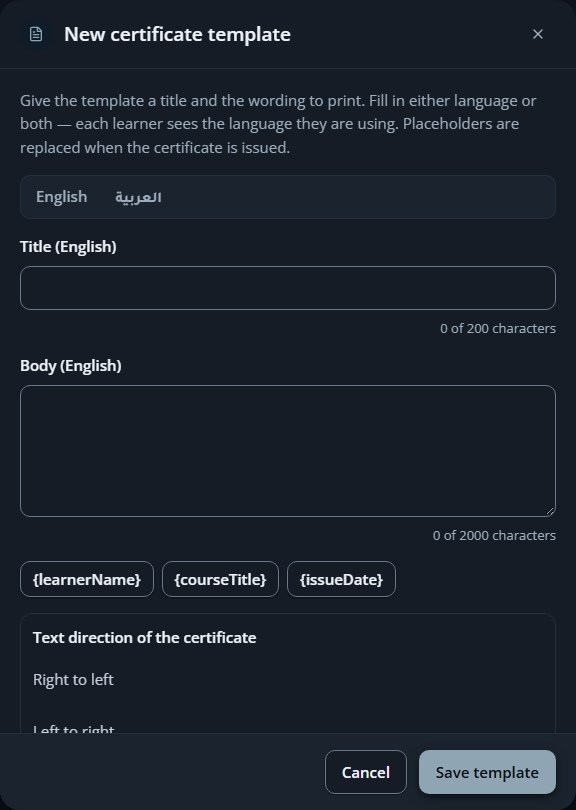
Templates control how certificates look, in Arabic and English, RTL or LTR.
1
Open Certificate templates and choose New template.
2
Write the bilingual body using placeholders such as {learnerName}, {courseTitle} and {issueDate}.
3
Choose the layout direction — RTL or LTR — and preview the result.
4
Mark one template as the default for new certificates.
Tip: Issued certificates feature your organization’s logo, seal, and signatory—per Autorun brand policy, the Autorun platform trademark never appears on learner certificates.
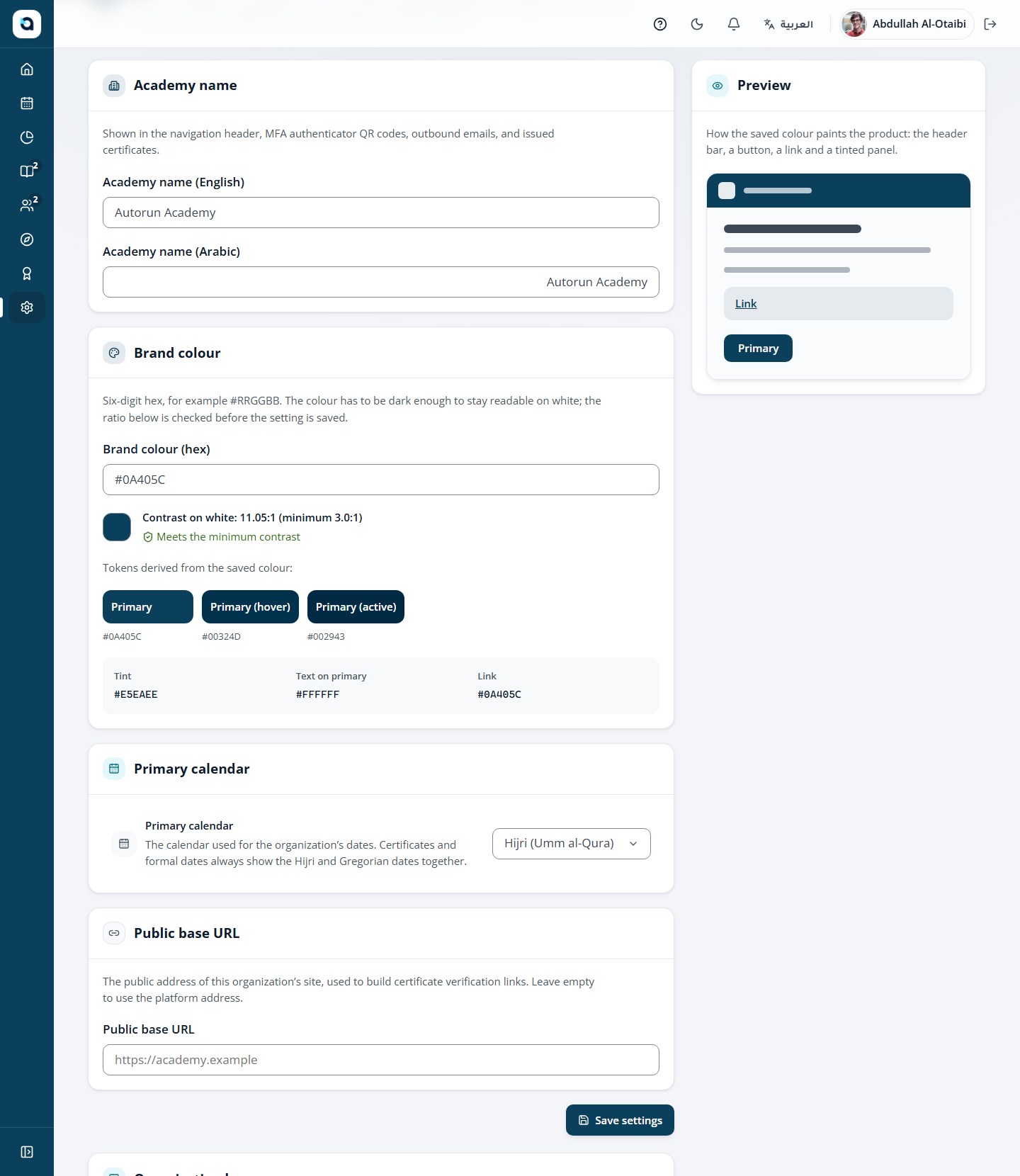
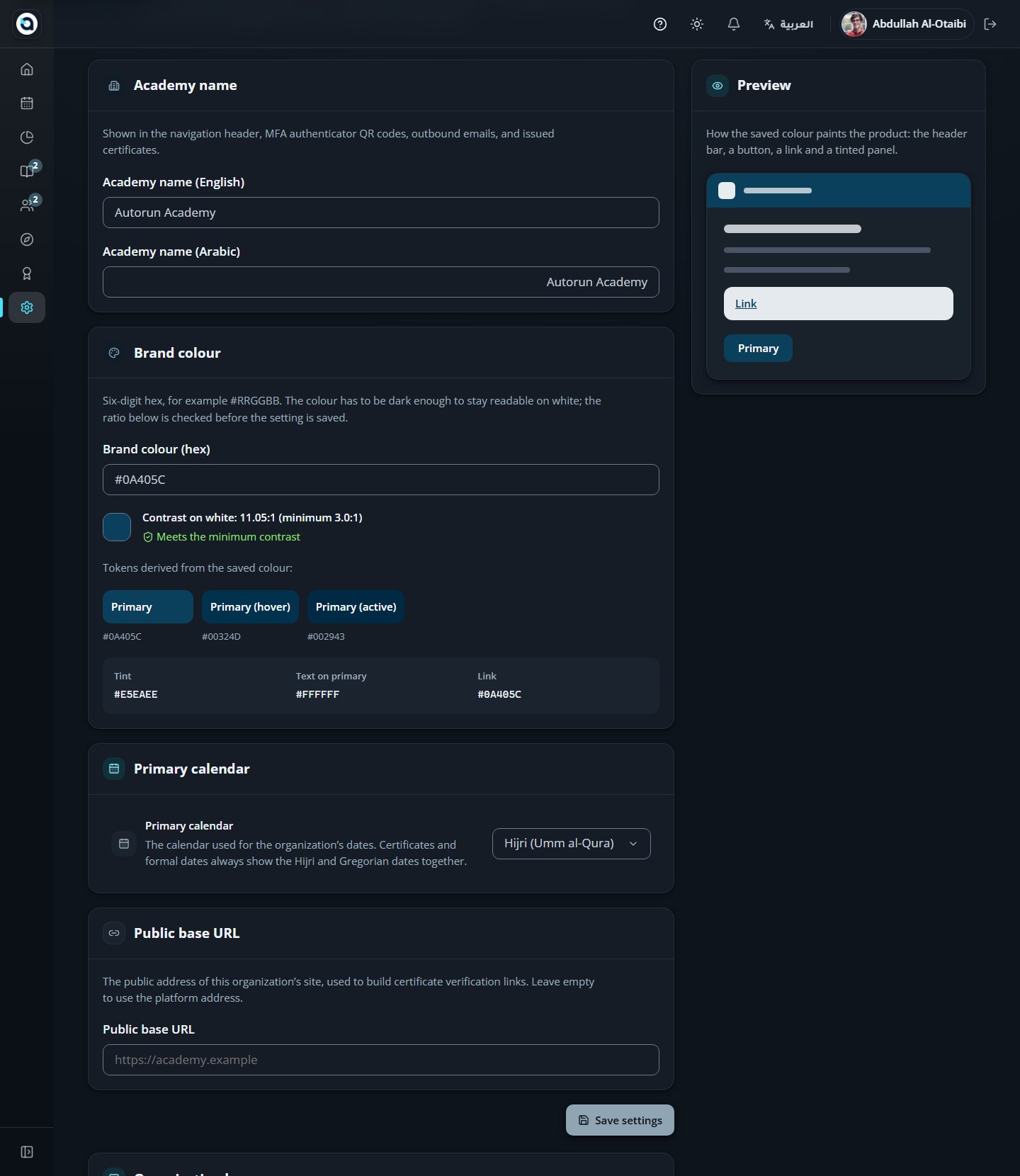
Branding sets the academy name, logo, brand color and the default calendar.
1
Open Branding from the sidebar.
2
Set the academy name in Arabic and English.
3
Upload the organization logo and preview it.
4
Choose the brand color and the primary calendar — Gregorian or Hijri (Umm al-Qura).
5
Save; the changes apply across the platform.
Tip: Custom brand colors and logos apply to your organization’s transactional emails and certificate headers while preserving WCAG AA contrast in the workspace.
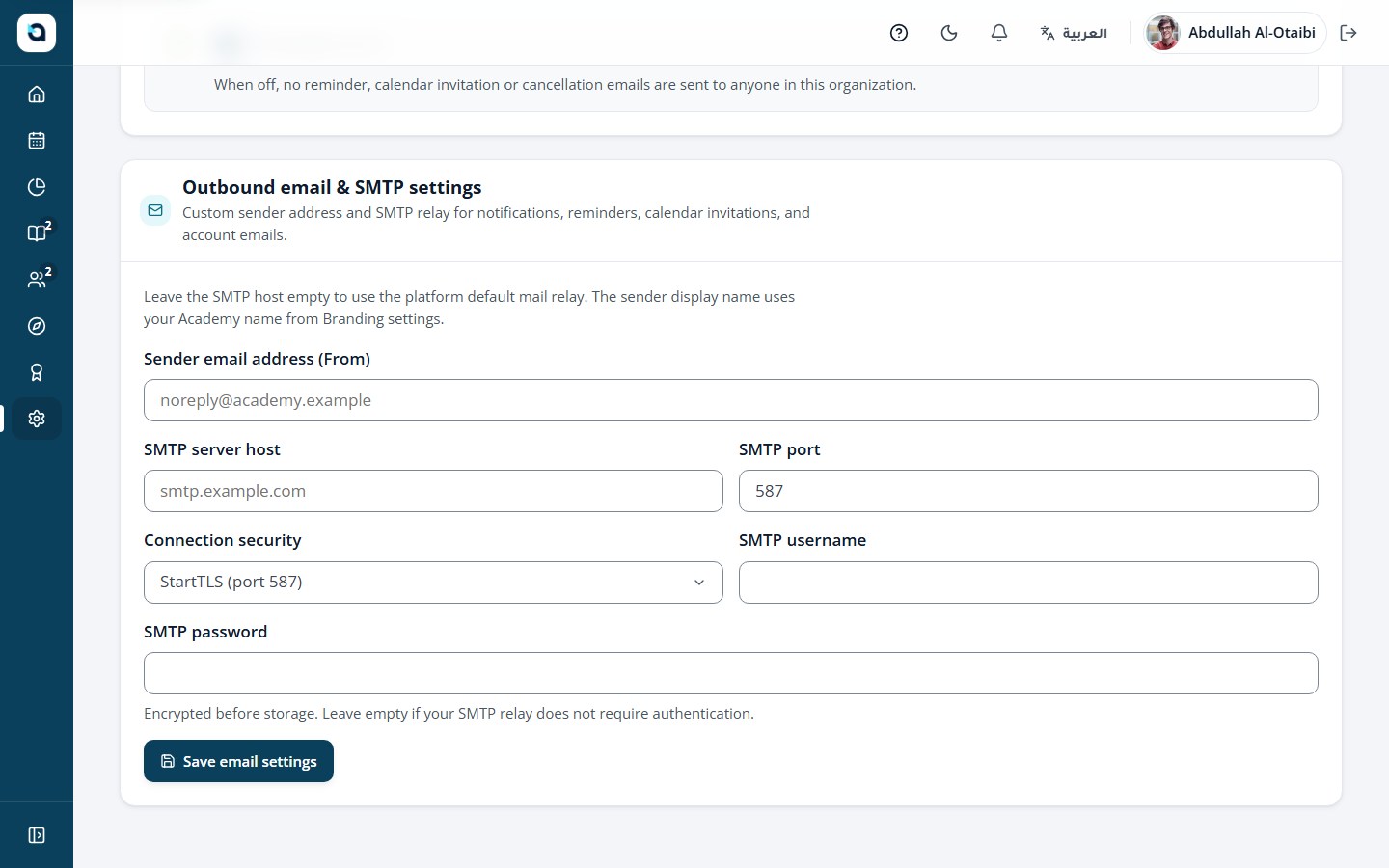
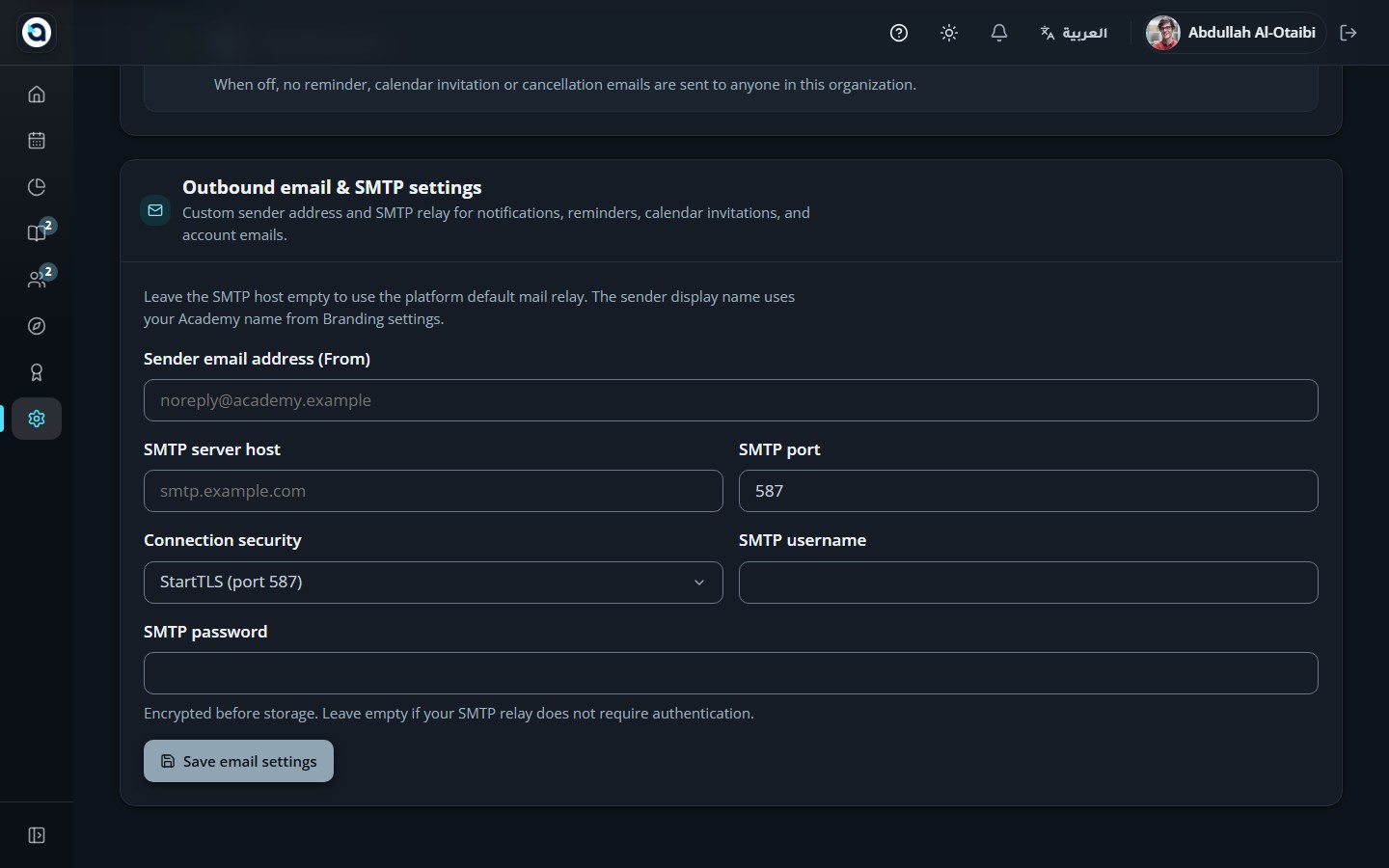
Reminders, outbound email (SMTP) and notification preferences live on this page.
1
Open Reminders from the sidebar.
2
Set the reminder schedules — deadlines, sessions and course nudges.
3
Outbound email: enter the SMTP server used to send messages.
4
Notification preferences: choose which events notify whom.
Tip: Automated reminders help cohorts finish on schedule before deadlines pass, while learners can still fine-tune their personal preferences.
Reminder settings
58
Manage AI features
Organization AdminSidebar → Admin → AI settings (/admin/ai-settings)
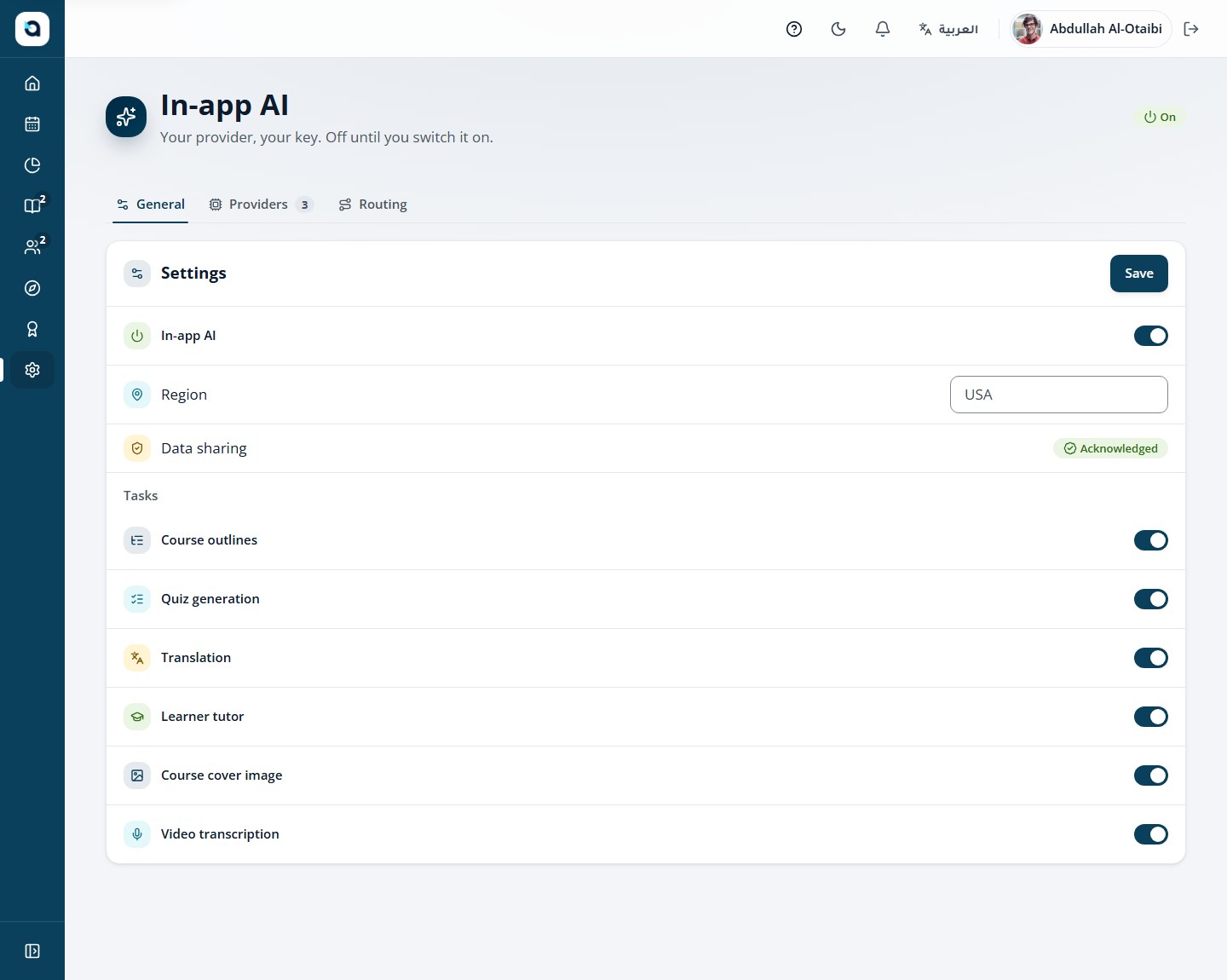
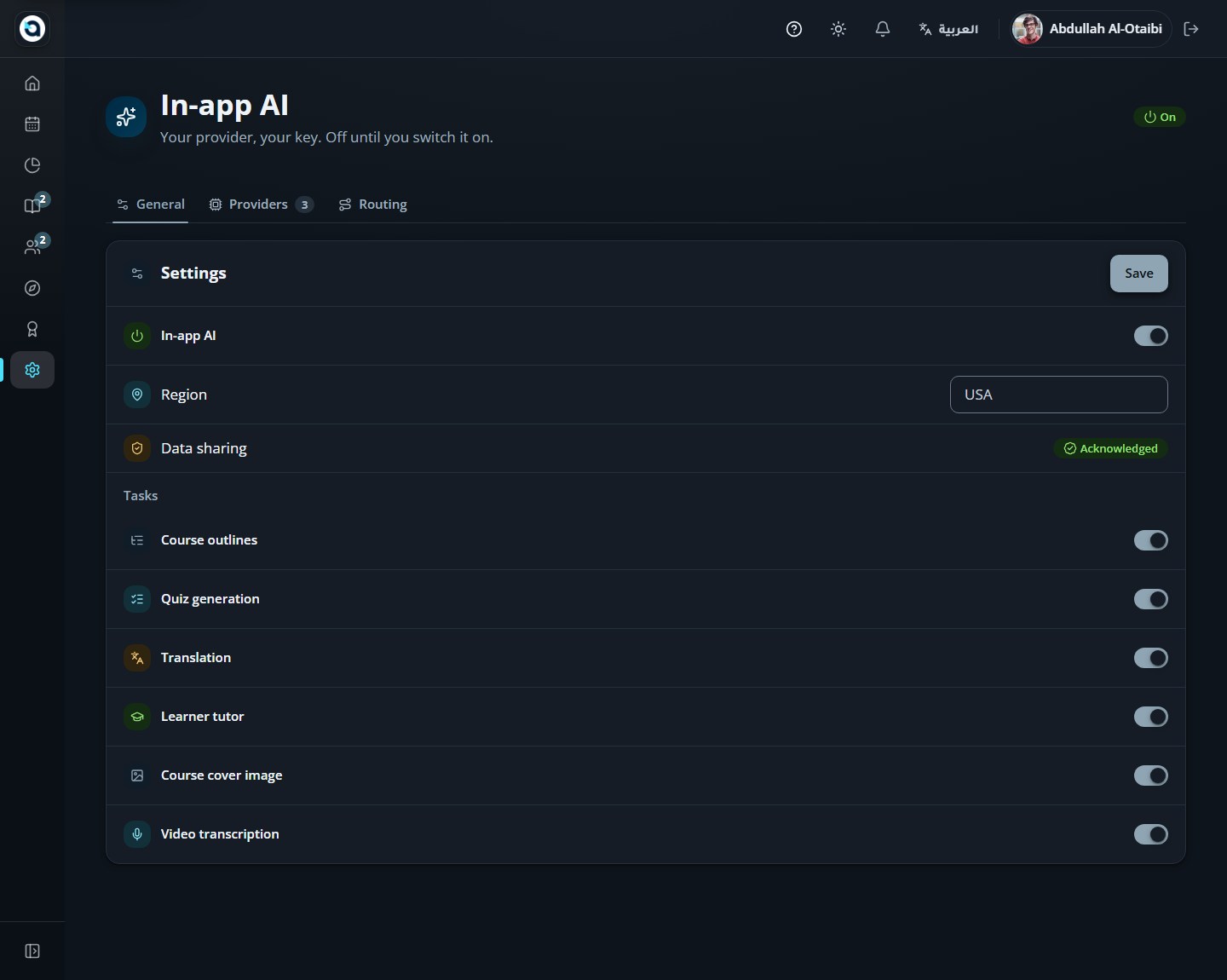
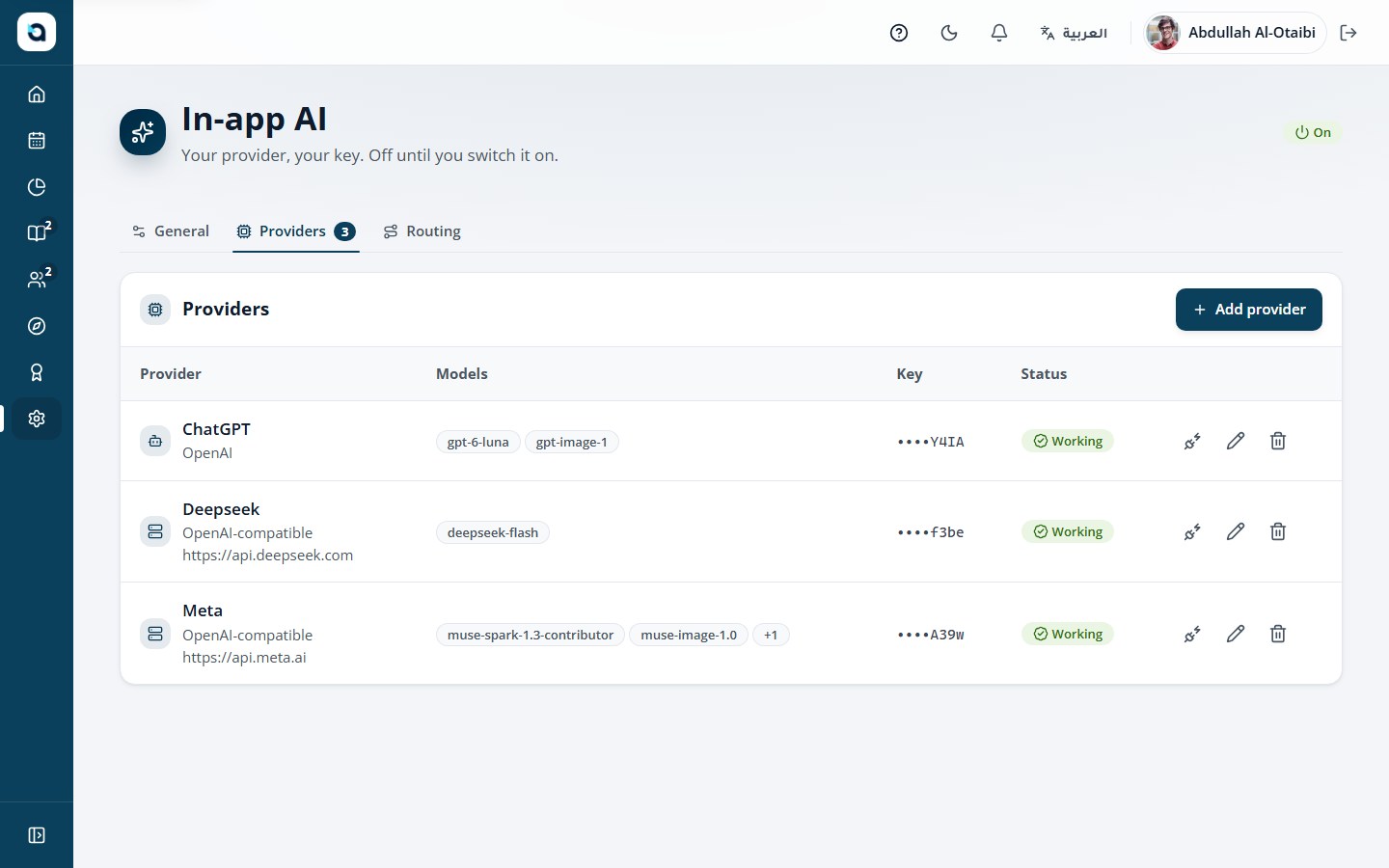
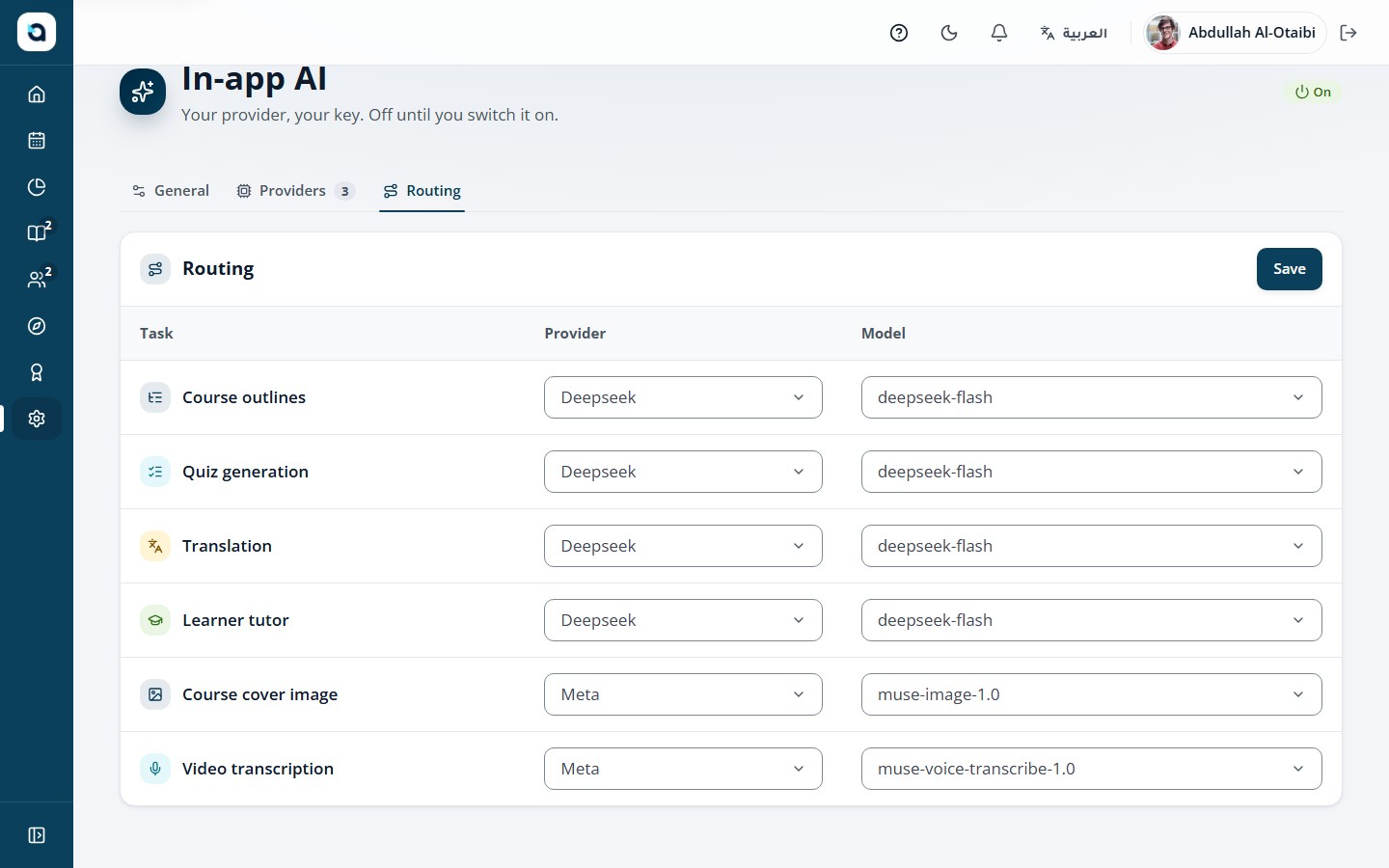
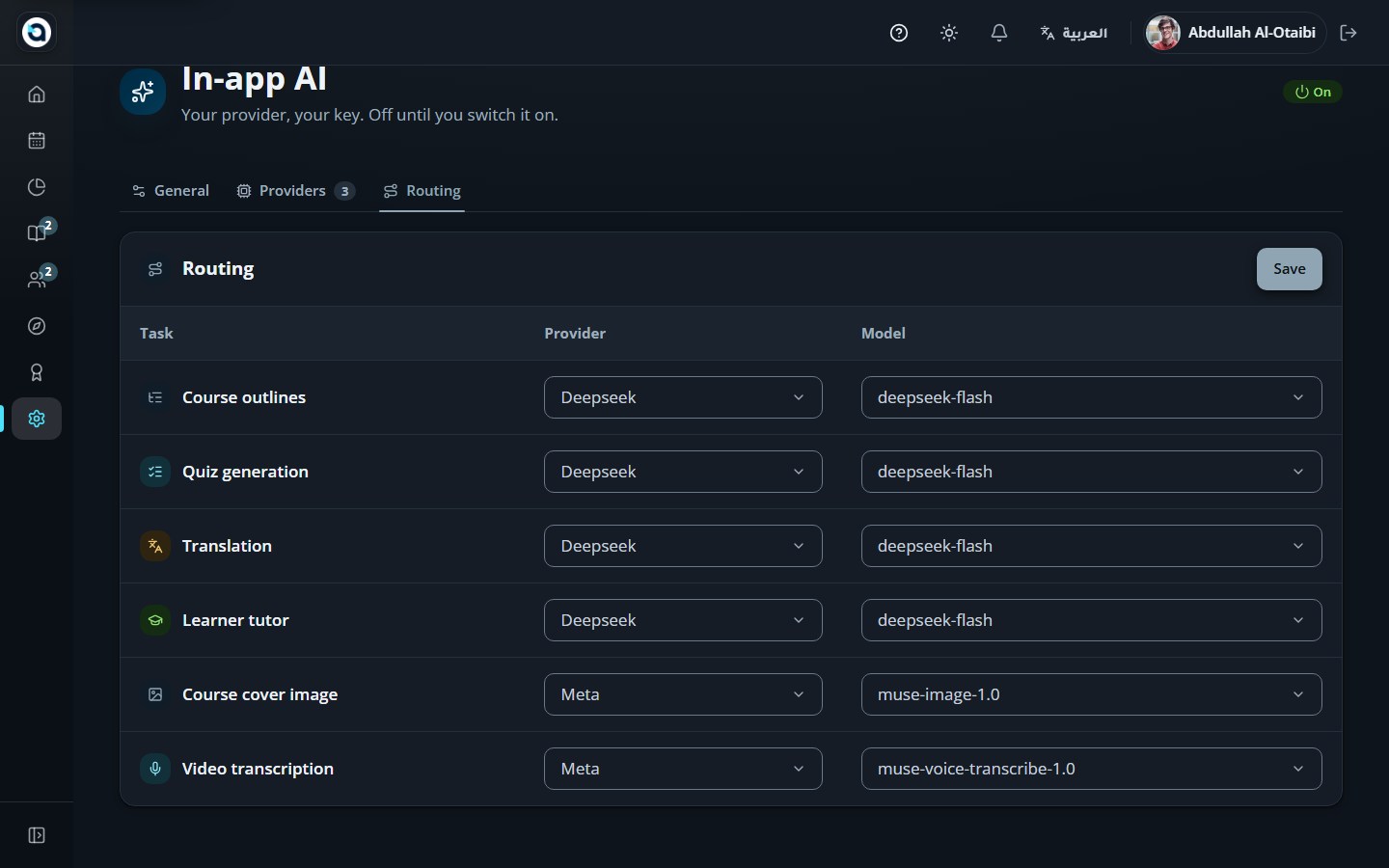
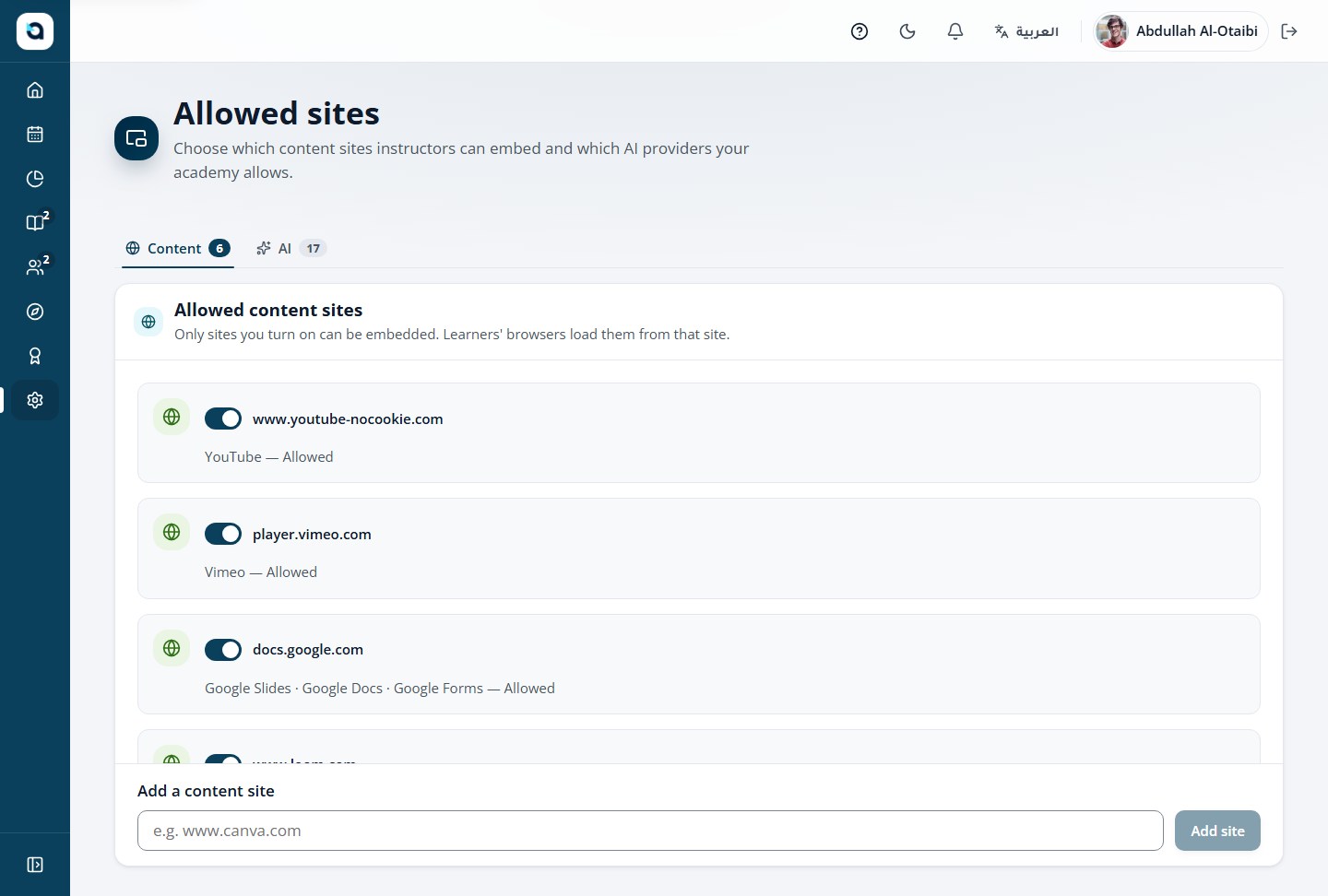
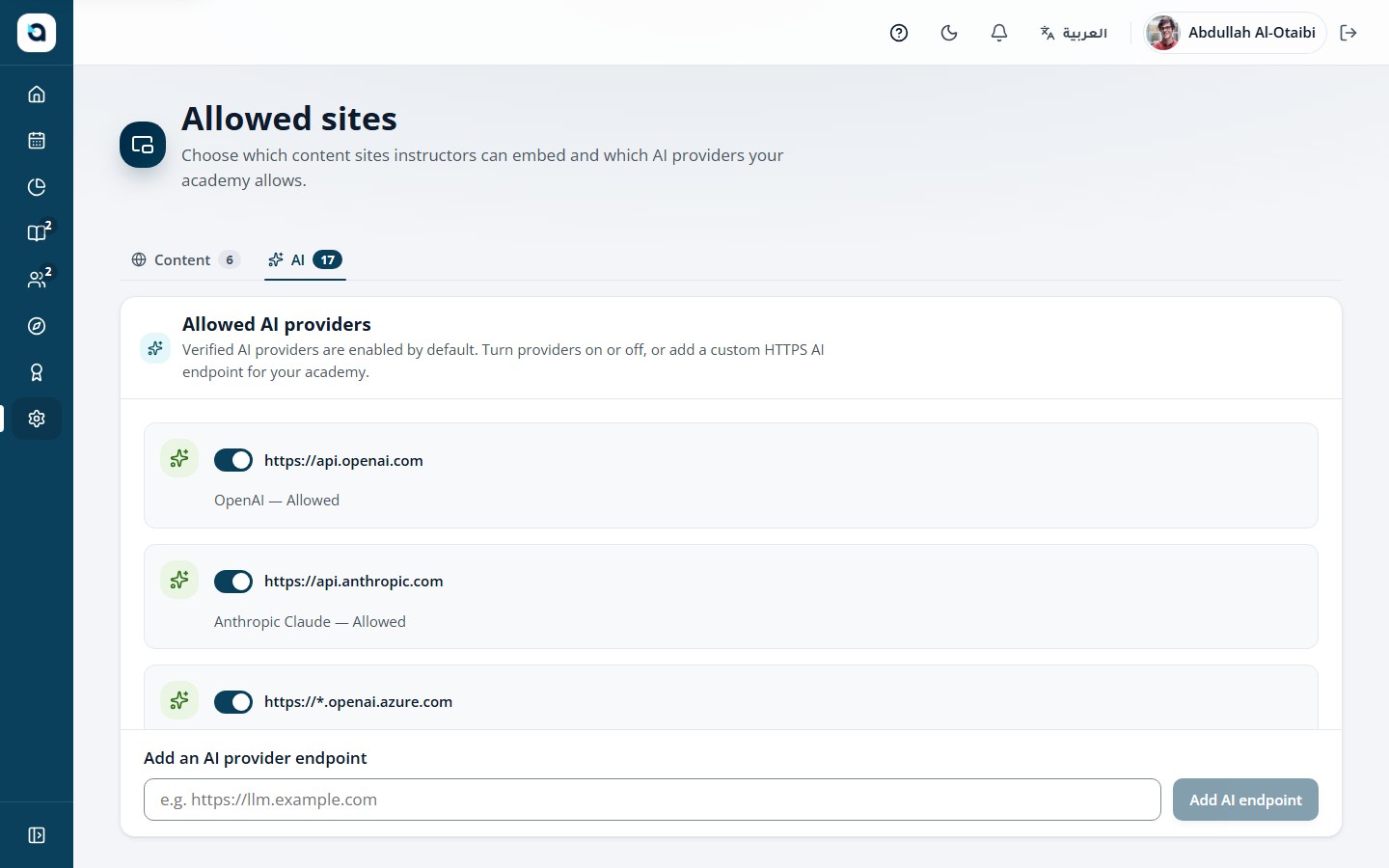
Configure organization-wide AI capabilities and route each AI feature—Course Outlines, Quiz Suggestions, AI Tutor, Video Transcription, and Caption Translation—to the right model.
1
In the sidebar under Admin, choose AI settings and switch on the master AI enablement toggle for your organization.
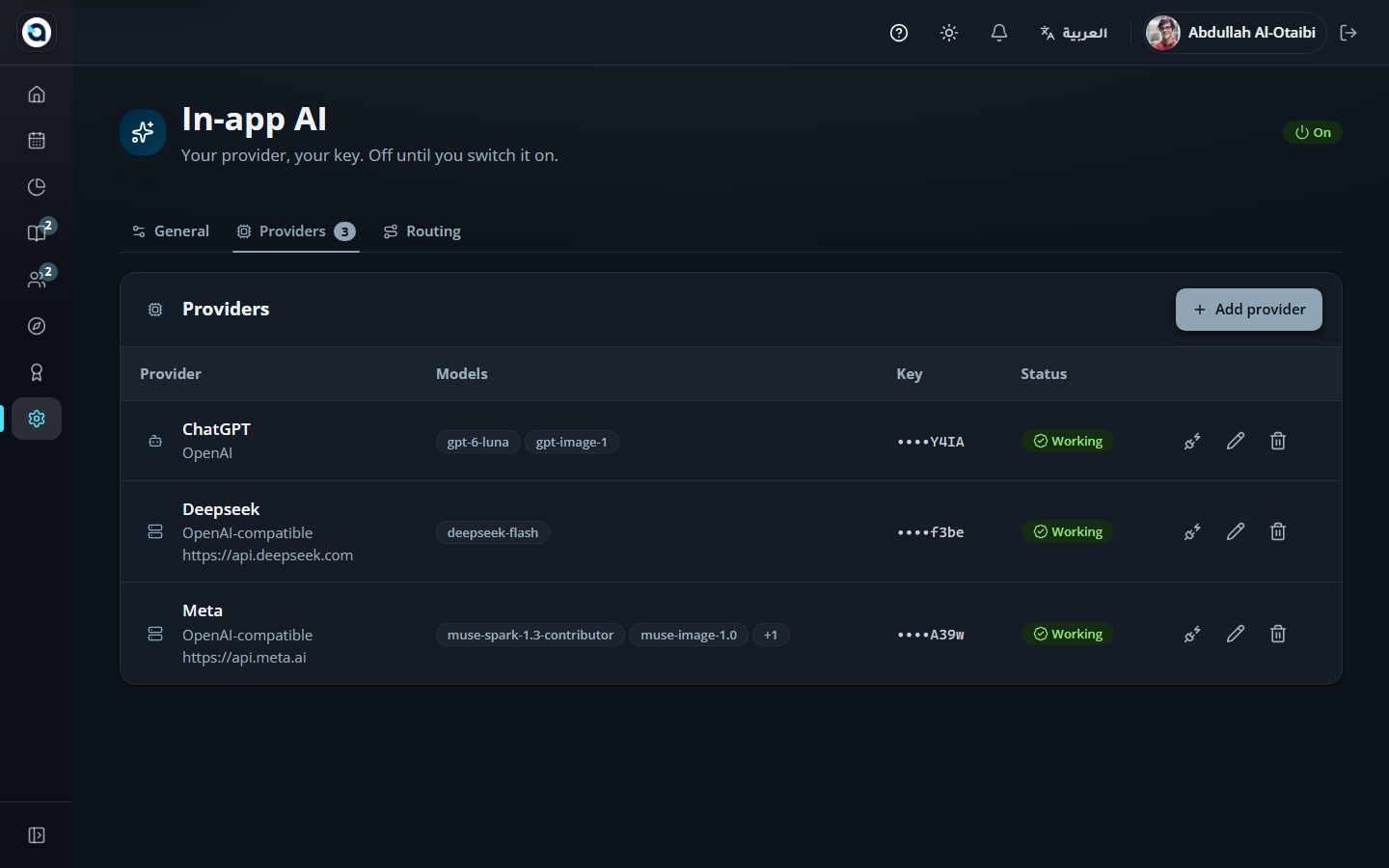
2
Enter the default OpenAI-compatible base URL, API key (stored encrypted and write-only), and default chat model.
3
Optionally configure per-feature model routes: assign dedicated models or endpoints for Course Outline, Quiz Suggestions, AI Tutor, Video Transcription (Whisper or Meta Omnilingual ASR), and Caption Translation.
4
Set daily token budgets and rate limits per role, then choose Test connection and Save.
Tip: Configure distinct endpoints or models per capability—for example, an LLM for Course Outlines & AI Tutor, a Whisper/Meta ASR model for Video Transcription, and a fast LLM for Caption Translation.
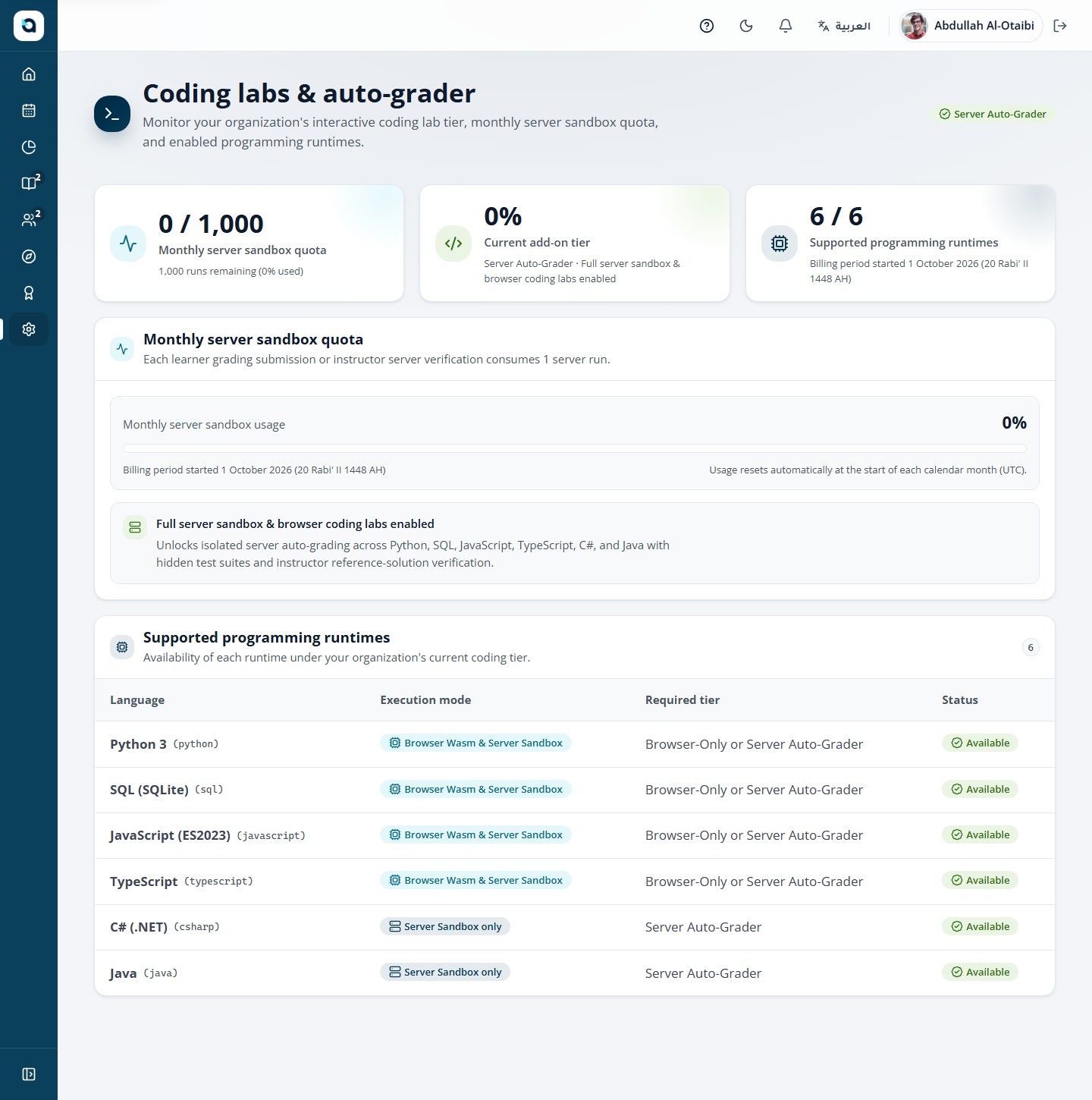
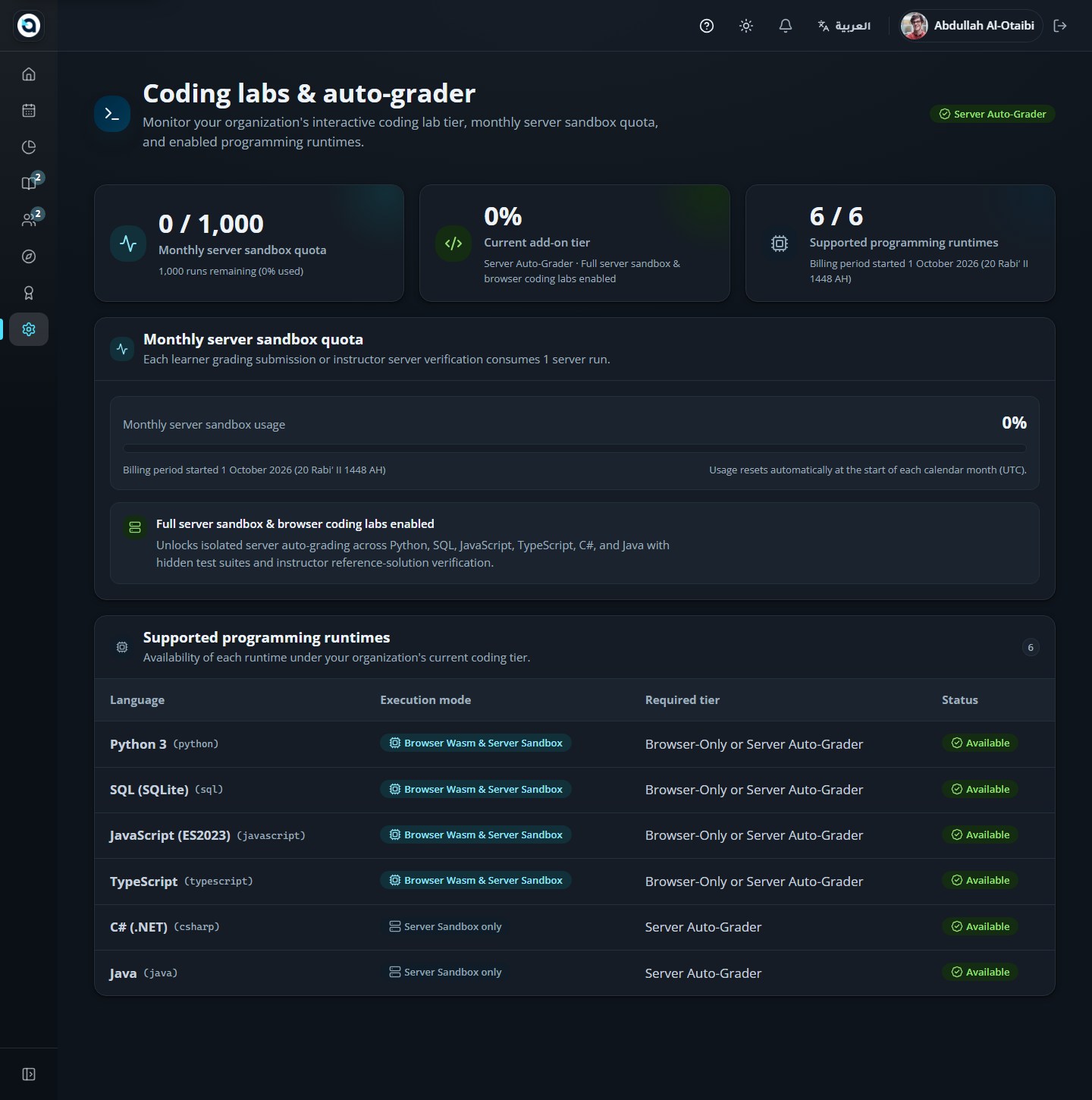
This page shows the coding tier and usage; only the platform operator can upgrade it.
1
Open Coding from the sidebar.
2
The tier is Off, Browser-only or Server-graded, with the monthly usage shown.
3
Contact the platform operator to upgrade the tier or the monthly server-run cap.
Tip: Monitor monthly execution usage and active languages from this screen to keep sandbox compute within your organization’s quota.
The coding entitlement page
60
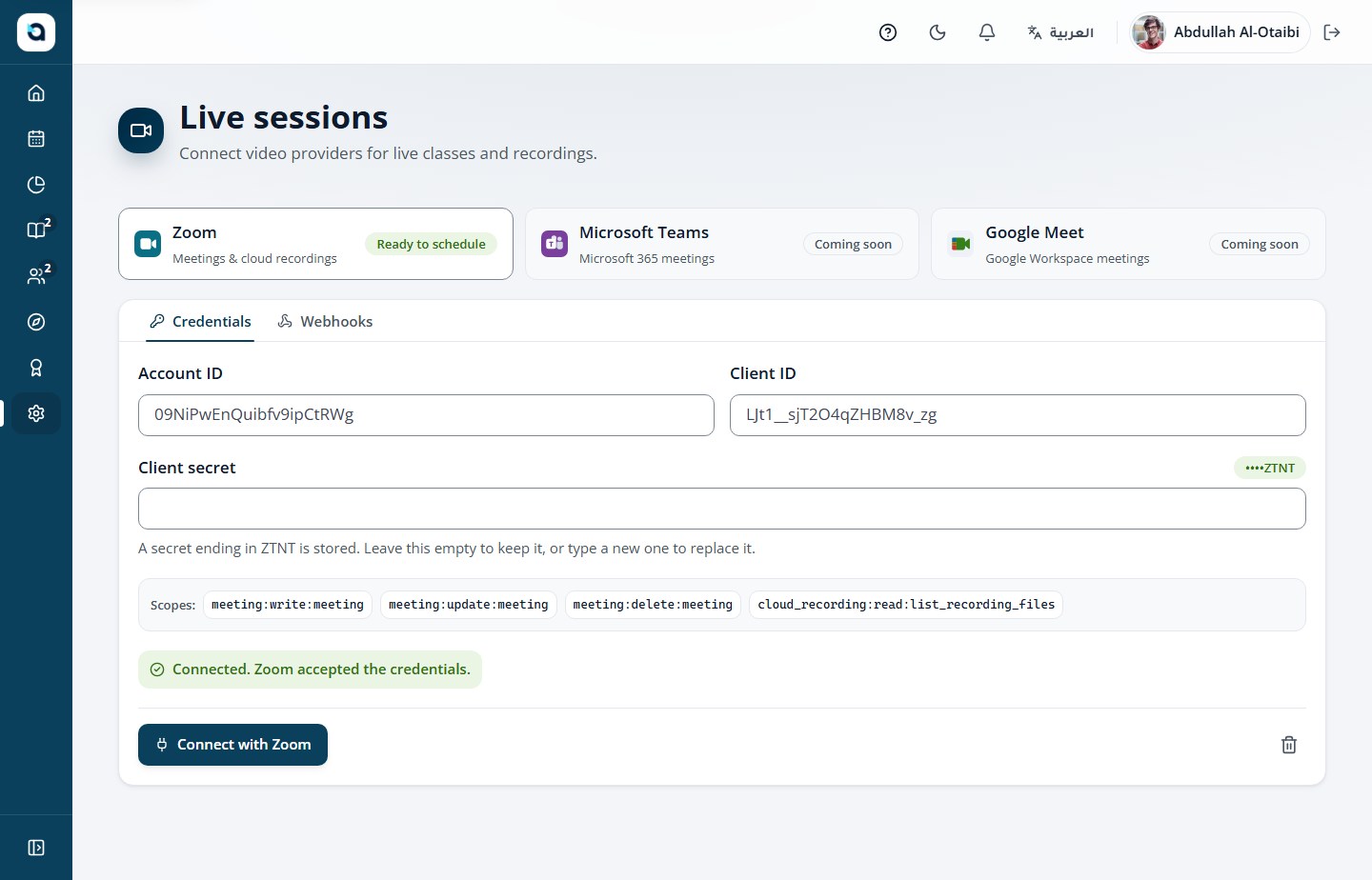
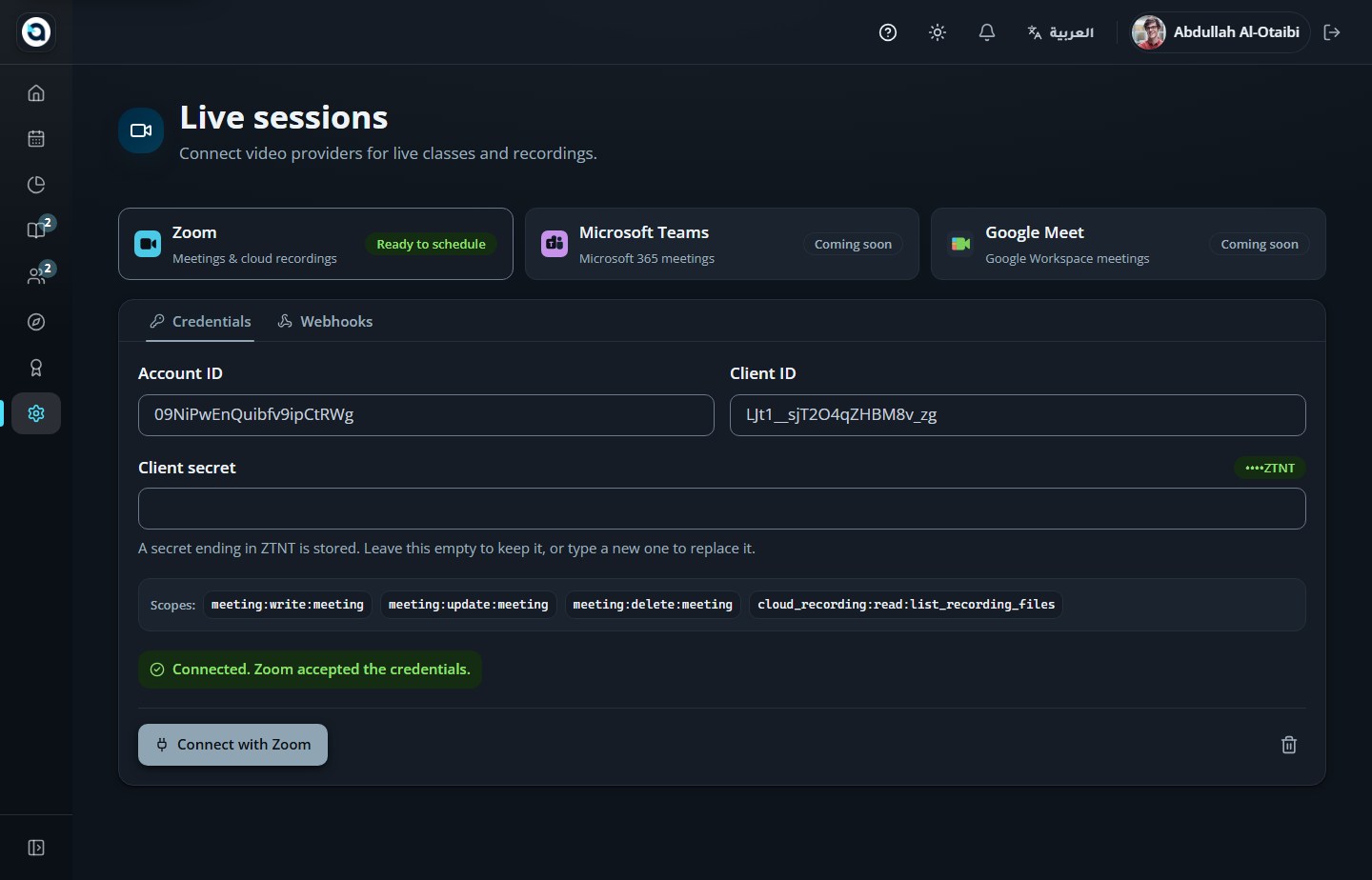
Connect Zoom for live sessions
Organization AdminSidebar → Admin → Live sessions (/admin/live-sessions)
Connect your organization’s Zoom account in one click from the Live Sessions hub so instructors can schedule meetings and sync cloud recordings automatically.
1
Open Live sessions from the Admin sidebar to view supported providers (Zoom, with Microsoft Teams and Google Meet coming soon).
2
Choose Connect with Zoom (or Manage on an existing connection) to enter your Zoom Server-to-Server OAuth Account ID, Client ID, and Client Secret.
3
Grant the required Zoom Marketplace scopes, including cloud_recording:read:list_recording_files:admin so missed-meeting cloud recordings sync automatically.
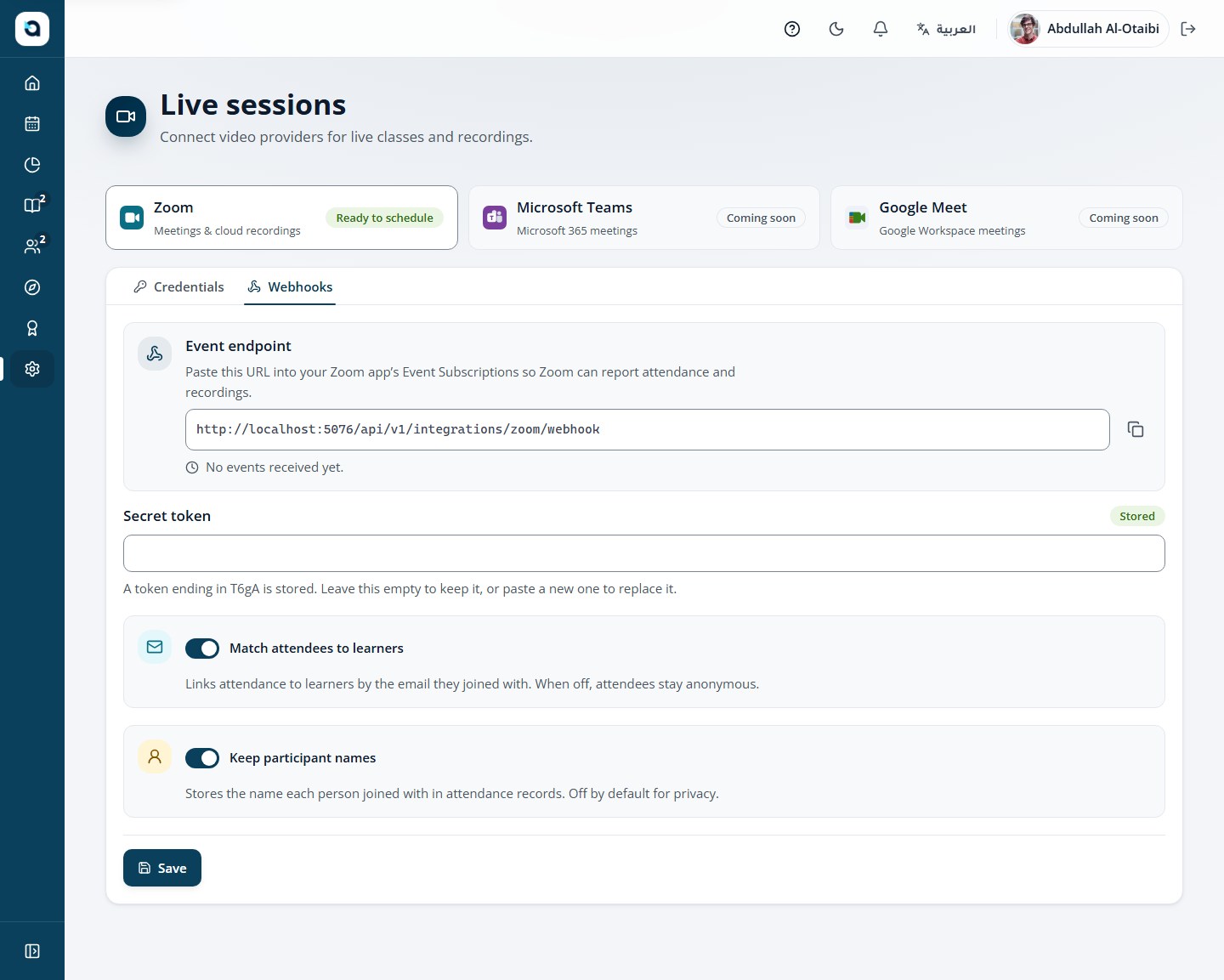
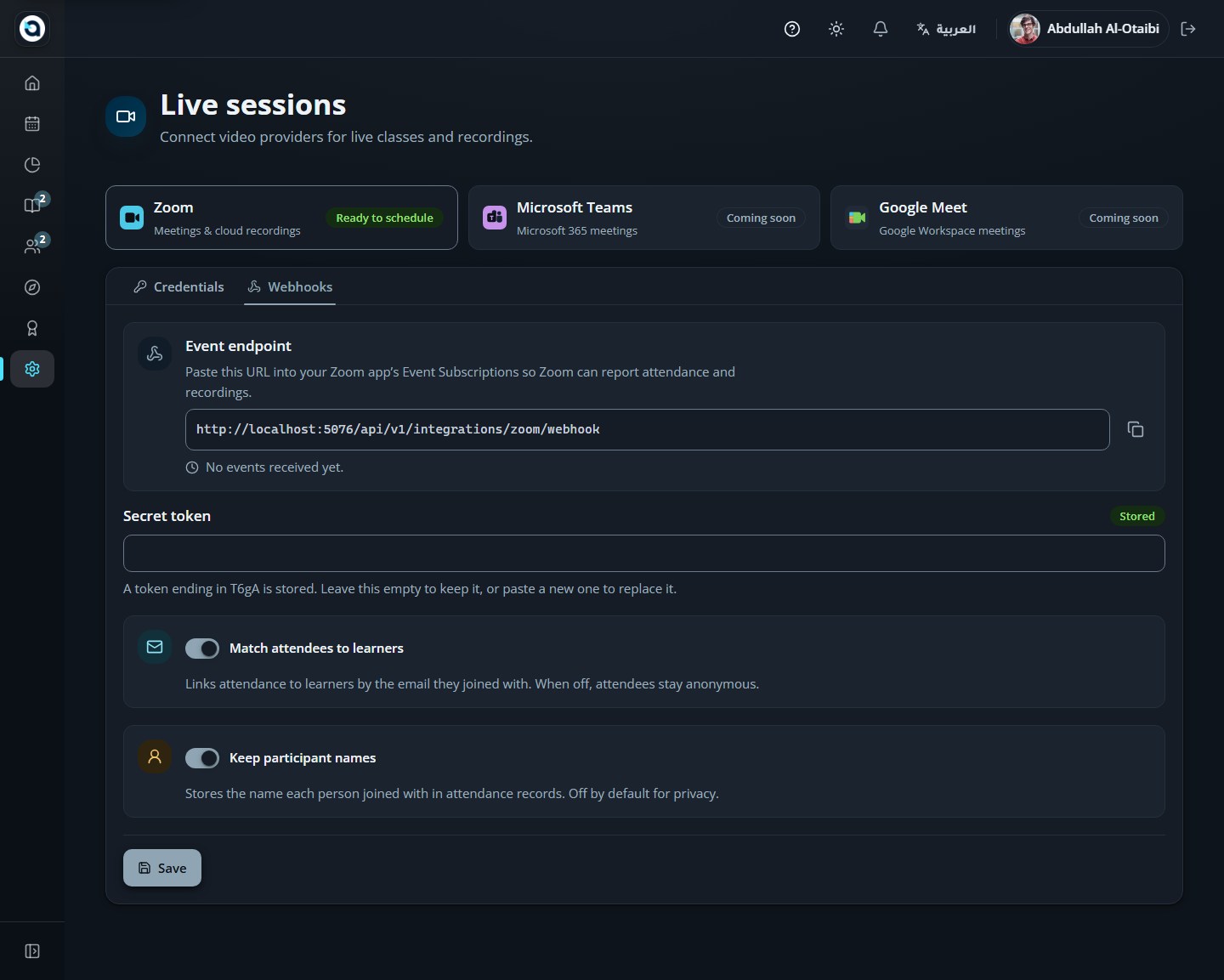
4
Save to verify and activate the connection in one click, or configure the optional Webhook secret to log live participant join/leave events on the Events tab.
5
Disconnecting stops new meeting creation while preserving all existing session links and recordings.
Tip: Server-to-Server OAuth apps appear in the Zoom App Marketplace under Develop → Build App (Created Apps). Enabling cloud_recording:read:list_recording_files:admin lets instructors sync recordings of past meetings in one click.
Live sessions providers — Zoom connected with Microsoft Teams and Google Meet cards
Zoom Events tab — inspect live meeting and attendance webhook events received from Zoom.
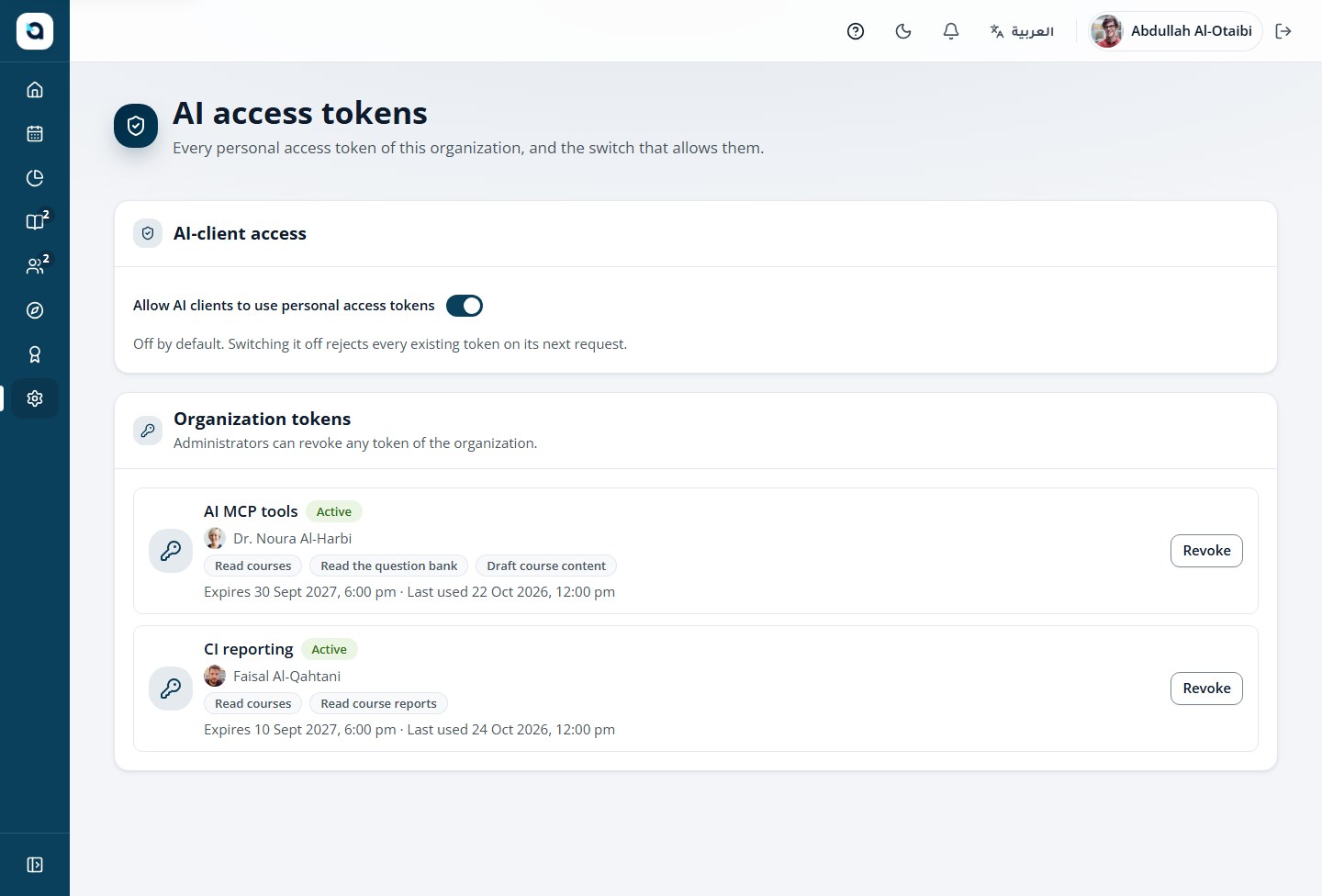
Administrators see every personal access token in the organization and can revoke any.
1
Open Access tokens under Admin.
2
The table shows each token, its owner, scopes and last use.
3
Revoke any token that is lost, leaked or no longer needed.
Tip: Audit all active Personal Access Tokens across your organization and immediately revoke any token belonging to a departed contractor or legacy integration.
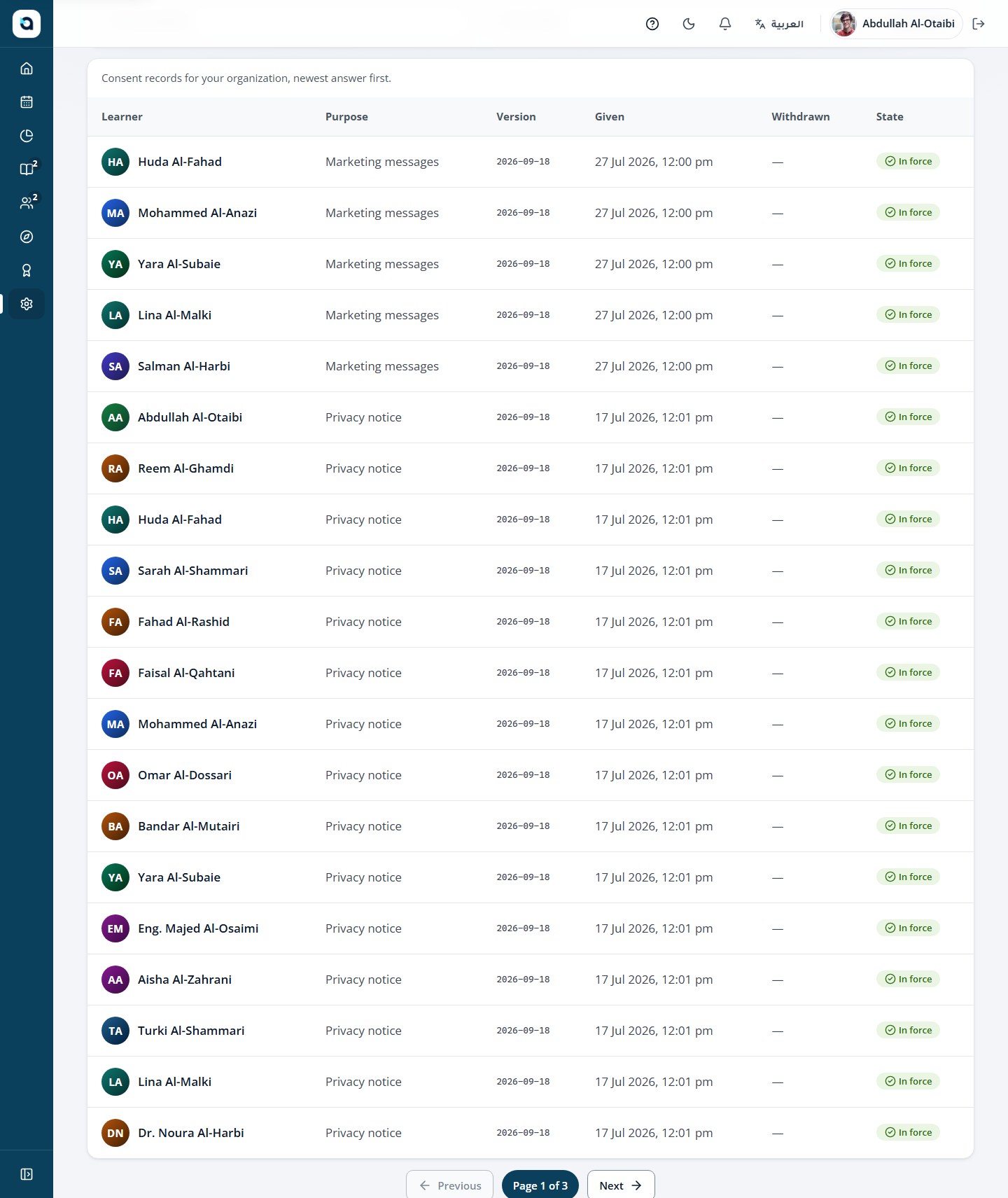
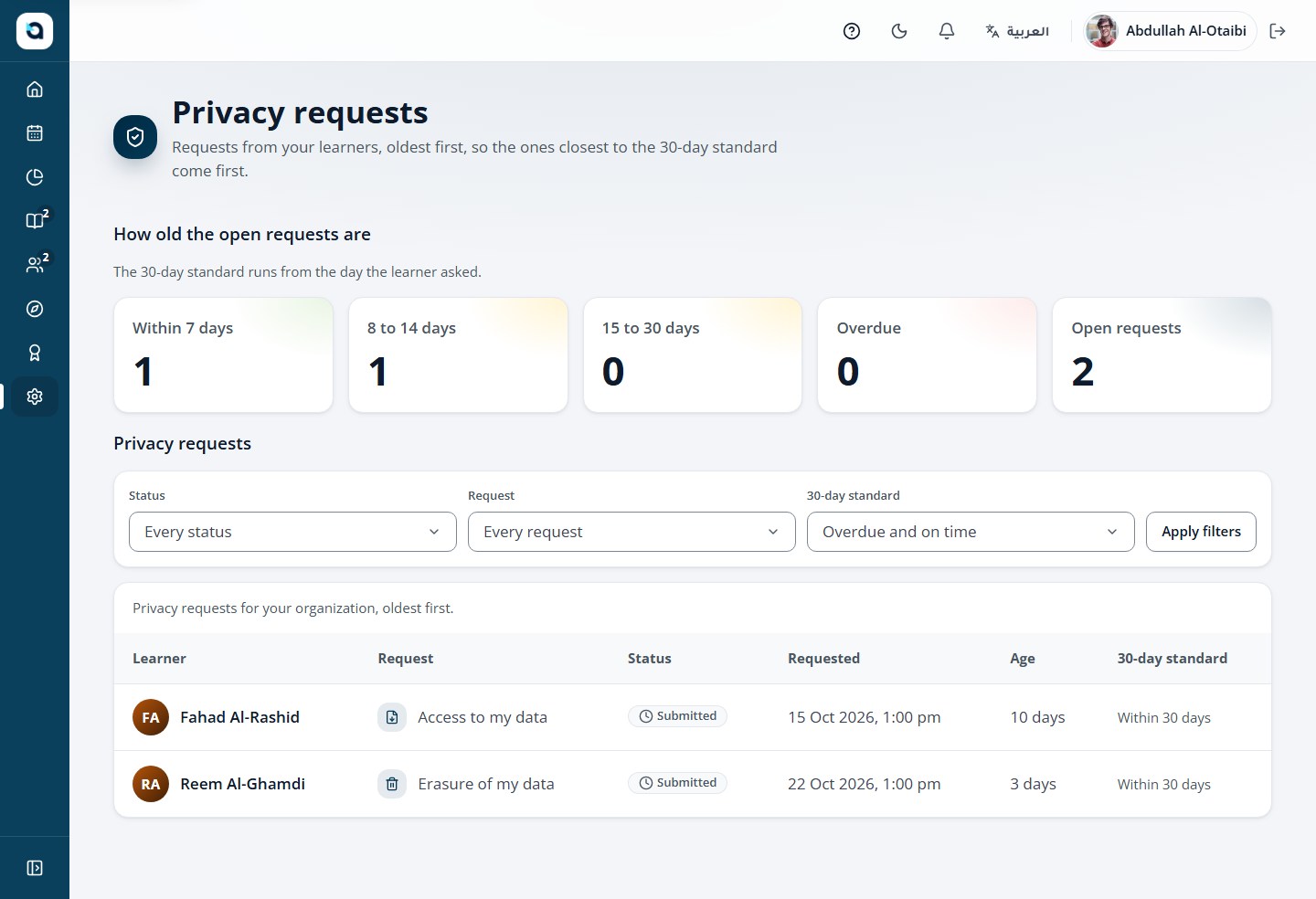
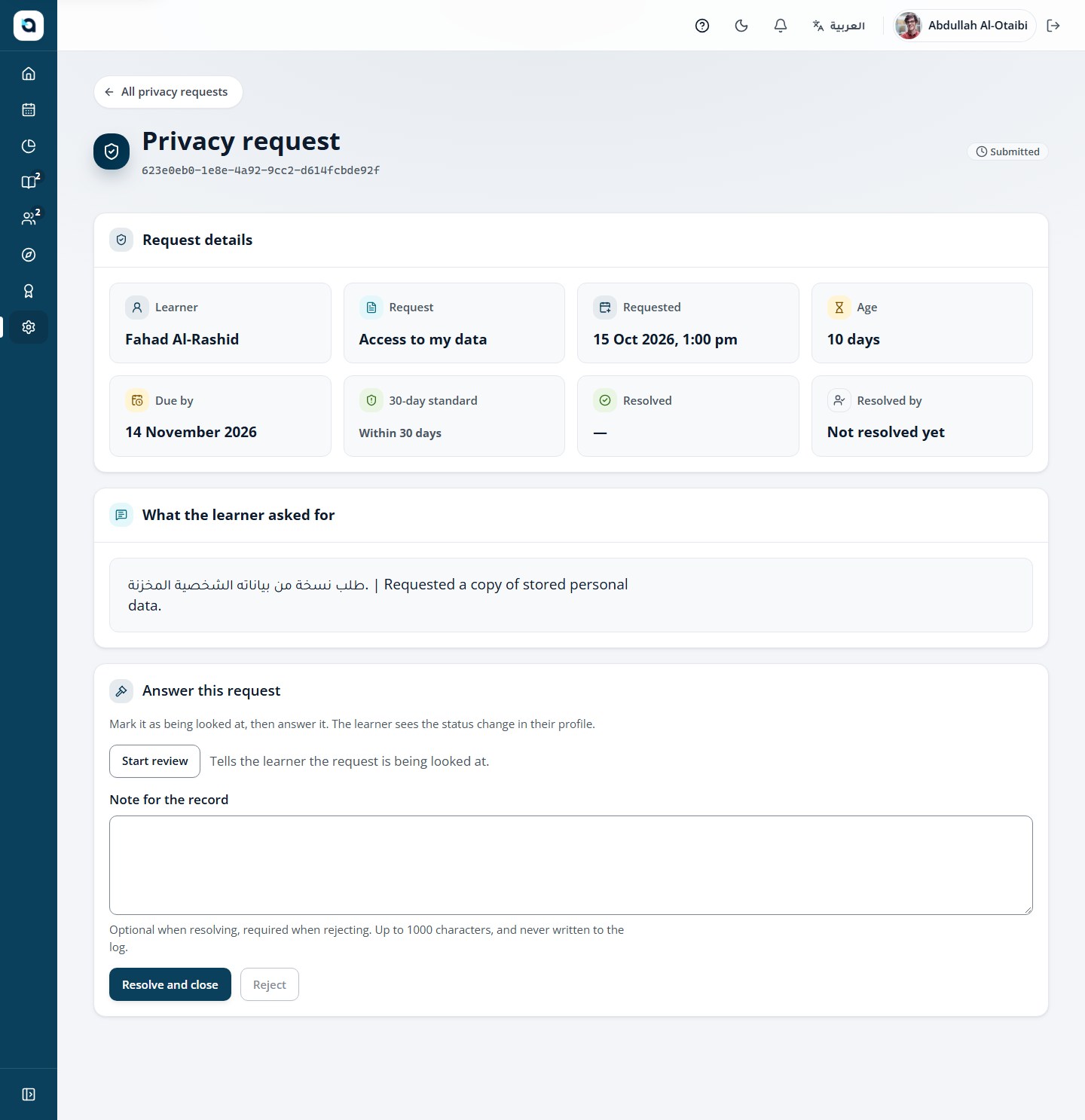
Export and deletion requests must be handled within the statutory 30-day deadline.
1
Open Privacy → Requests from the sidebar.
2
Each request shows its type (export or deletion), status and the deadline countdown.
3
Open a request to see its details and act on it.
4
Keep the register complete — every request stays auditable.
Tip: Under the Saudi Personal Data Protection Law (PDPL), Data Subject Requests (access, portability, correction, erasure) track a 30-day statutory SLA countdown.
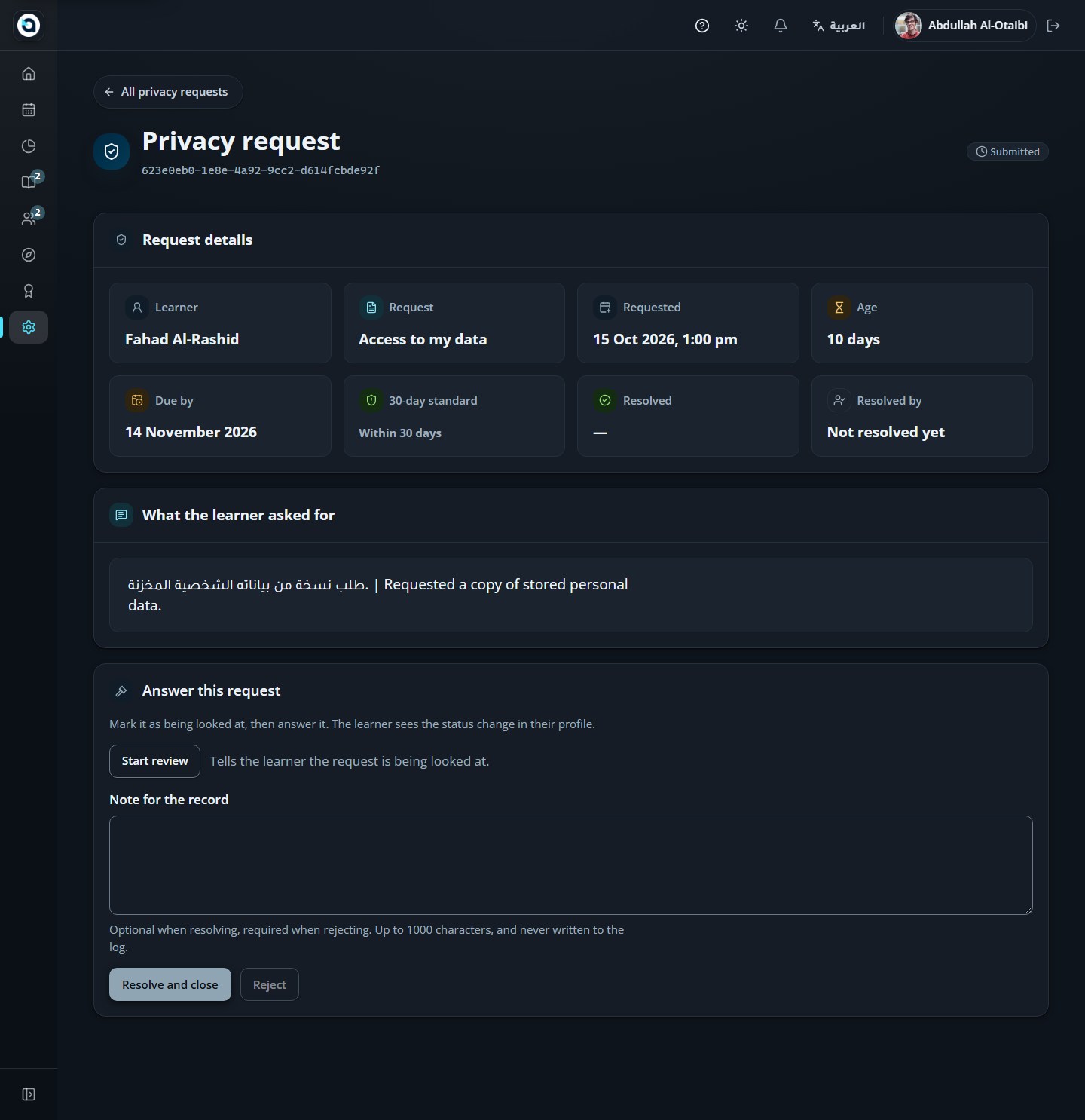
Privacy requests
A request’s detail
68
Exam reviews for administrators
Organization Admin
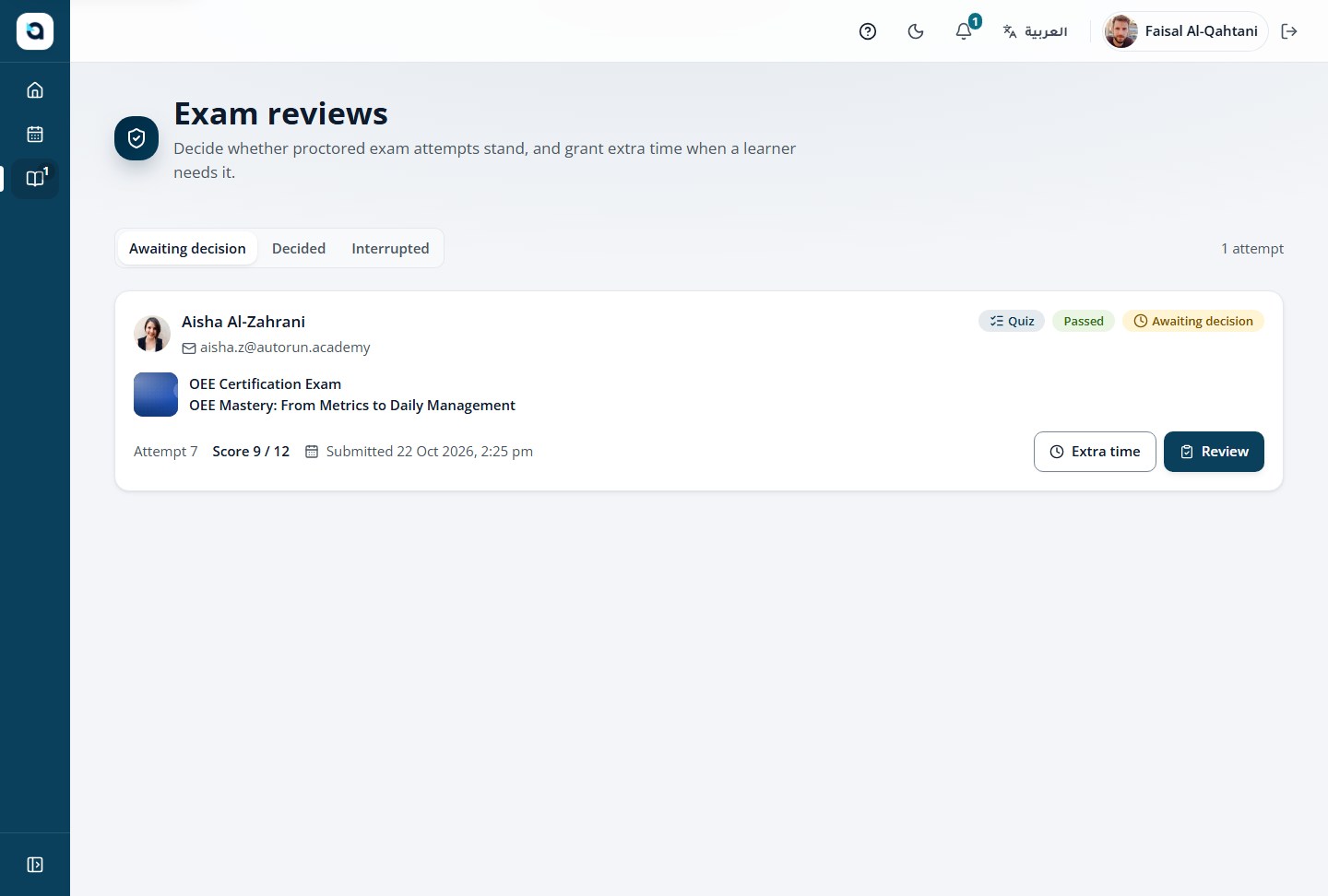
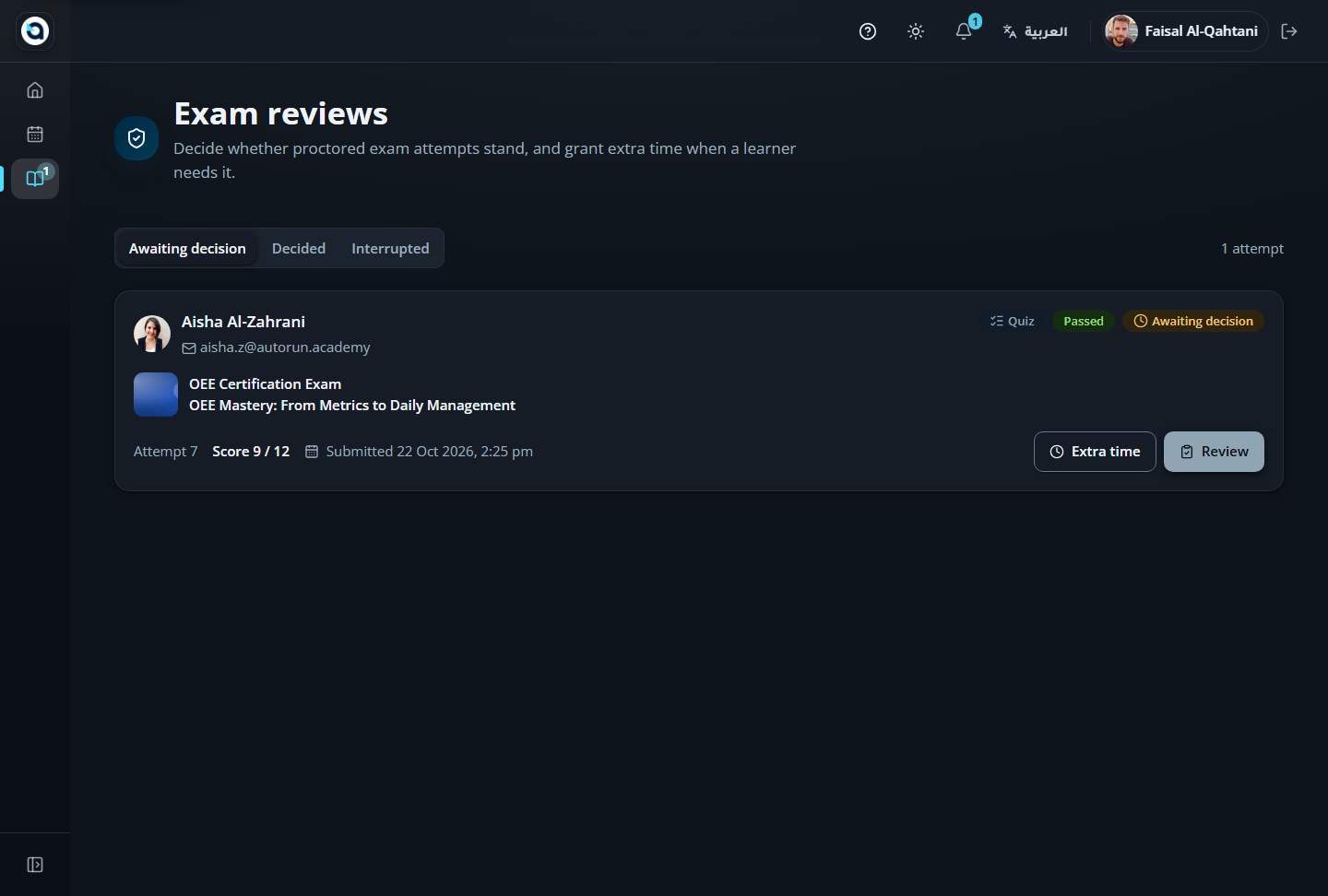
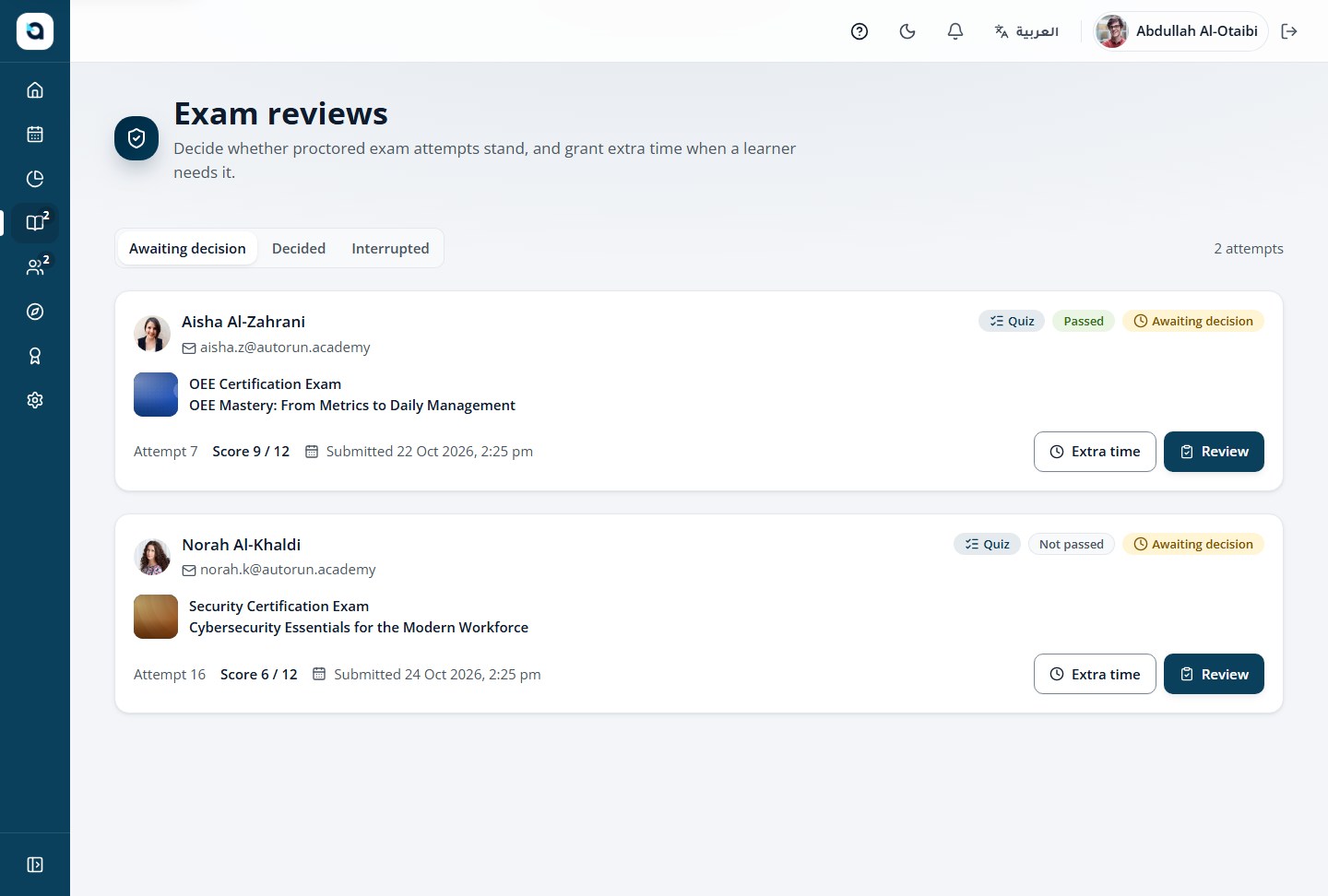
Administrators see the same proctored-attempt queue as instructors, across all courses.
1
Open Exam reviews from the sidebar.
2
Review recorded evidence for any attempt in the organization.
3
Approve or flag attempts; grant accommodations where appropriate.
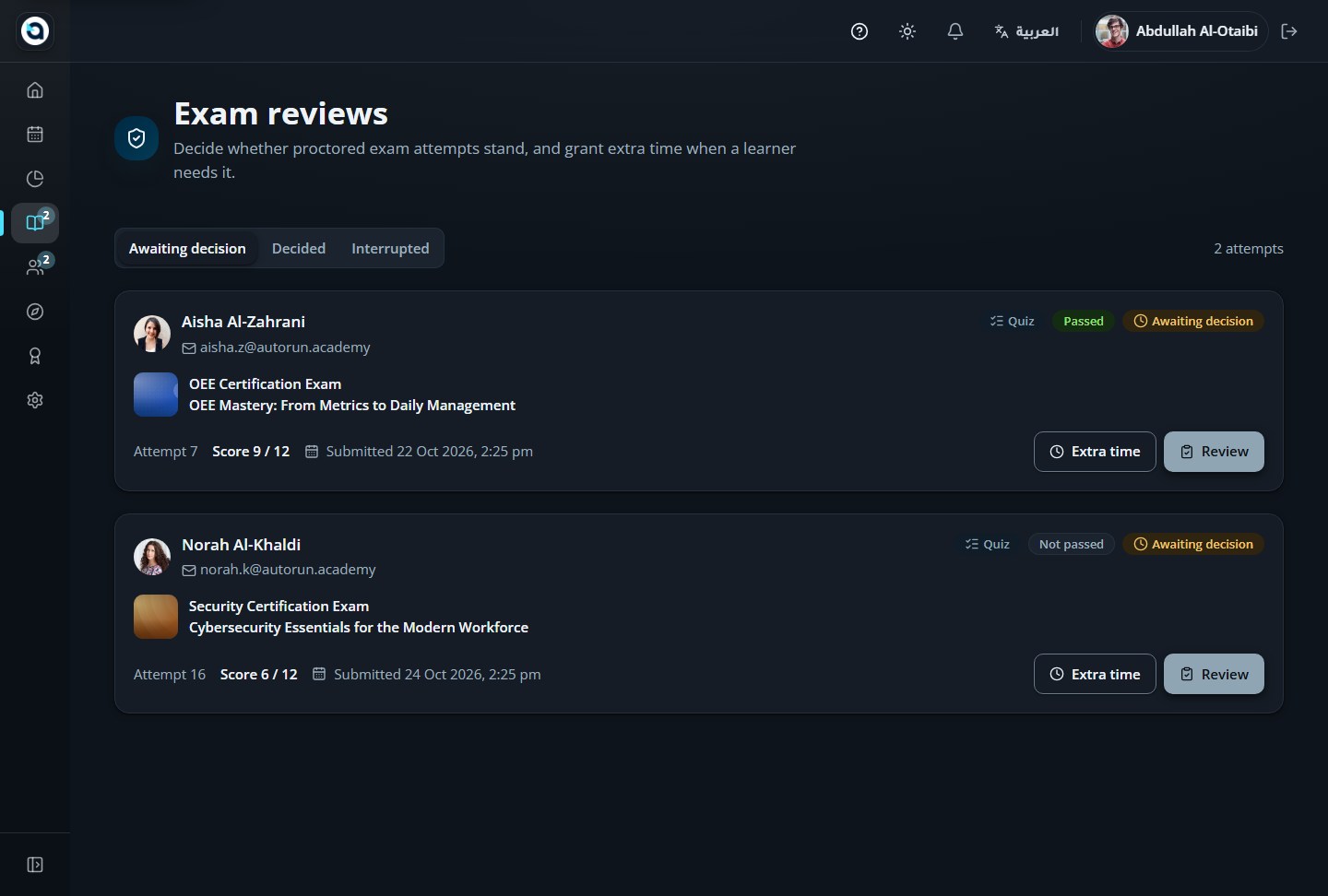
Exam reviews (admin)
7 · Language and appearance
Switch seamlessly between English (LTR) and Arabic (RTL) or toggle between Light and Dark appearance at any time.
All Guides · 2
69
Switch the language
All Guides
The platform is fully bilingual: Arabic (RTL) and English (LTR), on every screen.
1
Use the language button in the top bar — it shows the other language (العربية when in English, English when in Arabic).
2
On the sign-in screen the switch sits in the card’s corner.
3
Your choice is remembered in the browser; the language saved in your profile is applied whenever you sign in.
4
Dates follow the academy calendar — Gregorian, or Hijri (Umm al-Qura) when the organization uses it.
The language switch on the sign-in screen
The interface in the chosen language
70
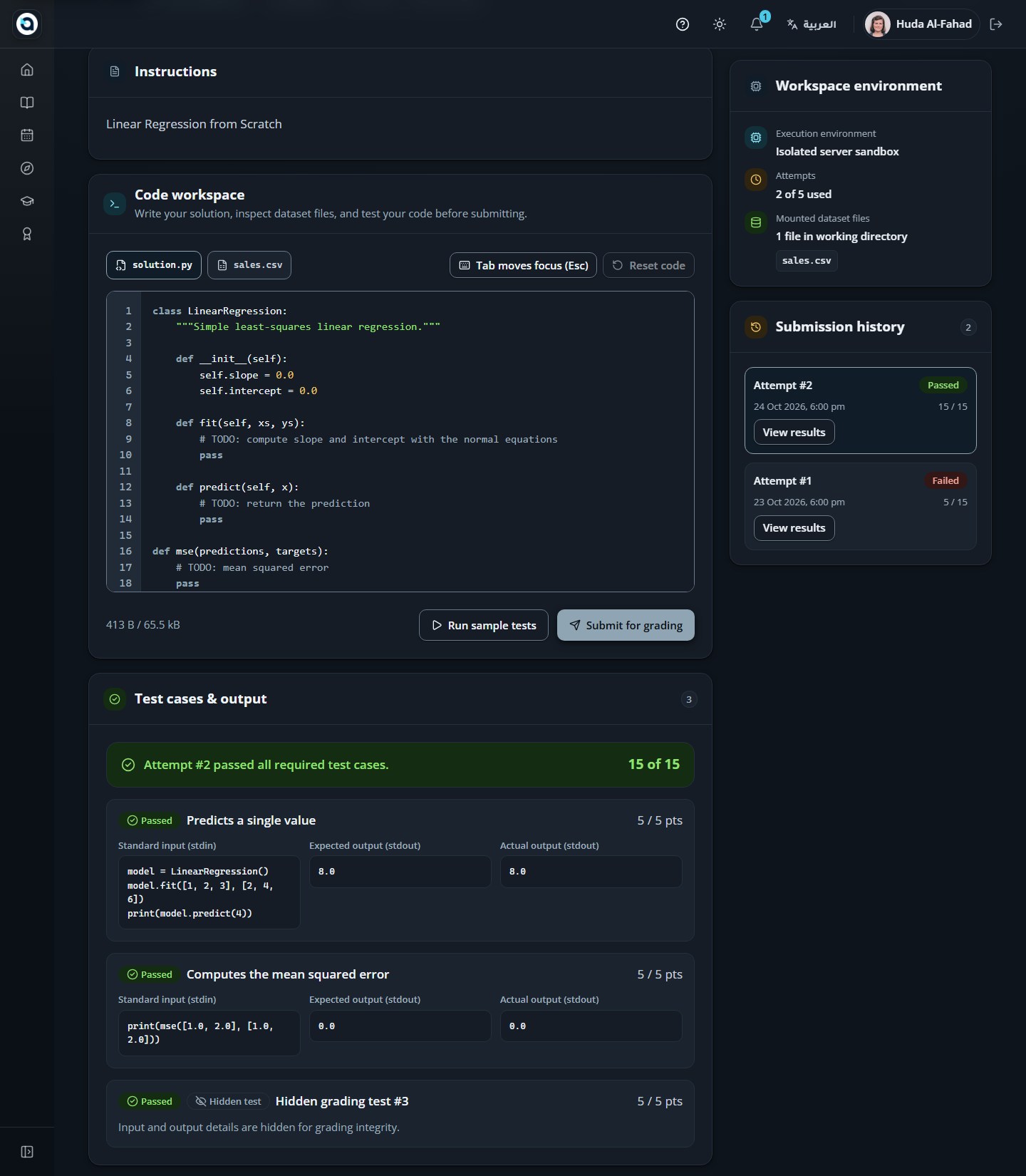
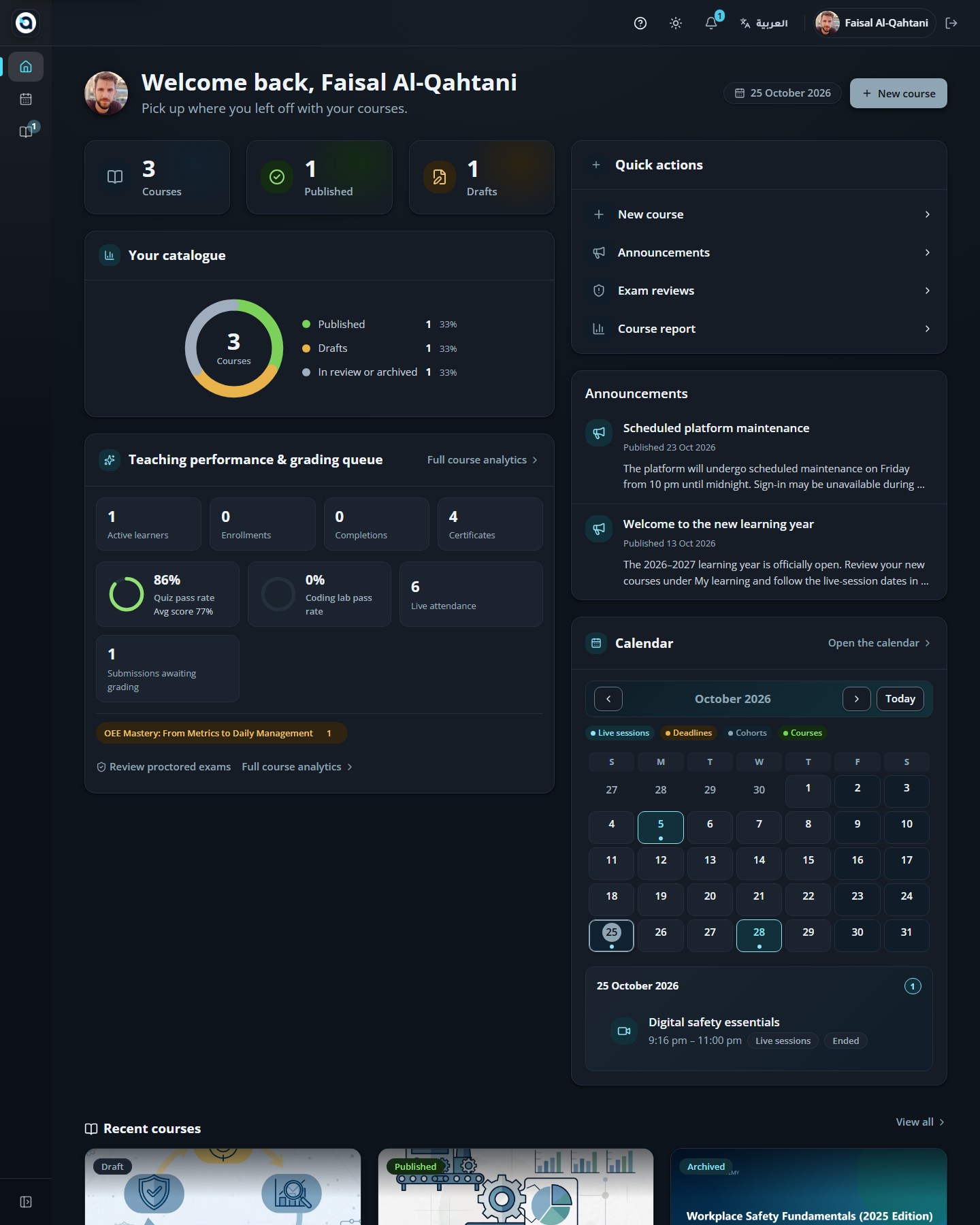
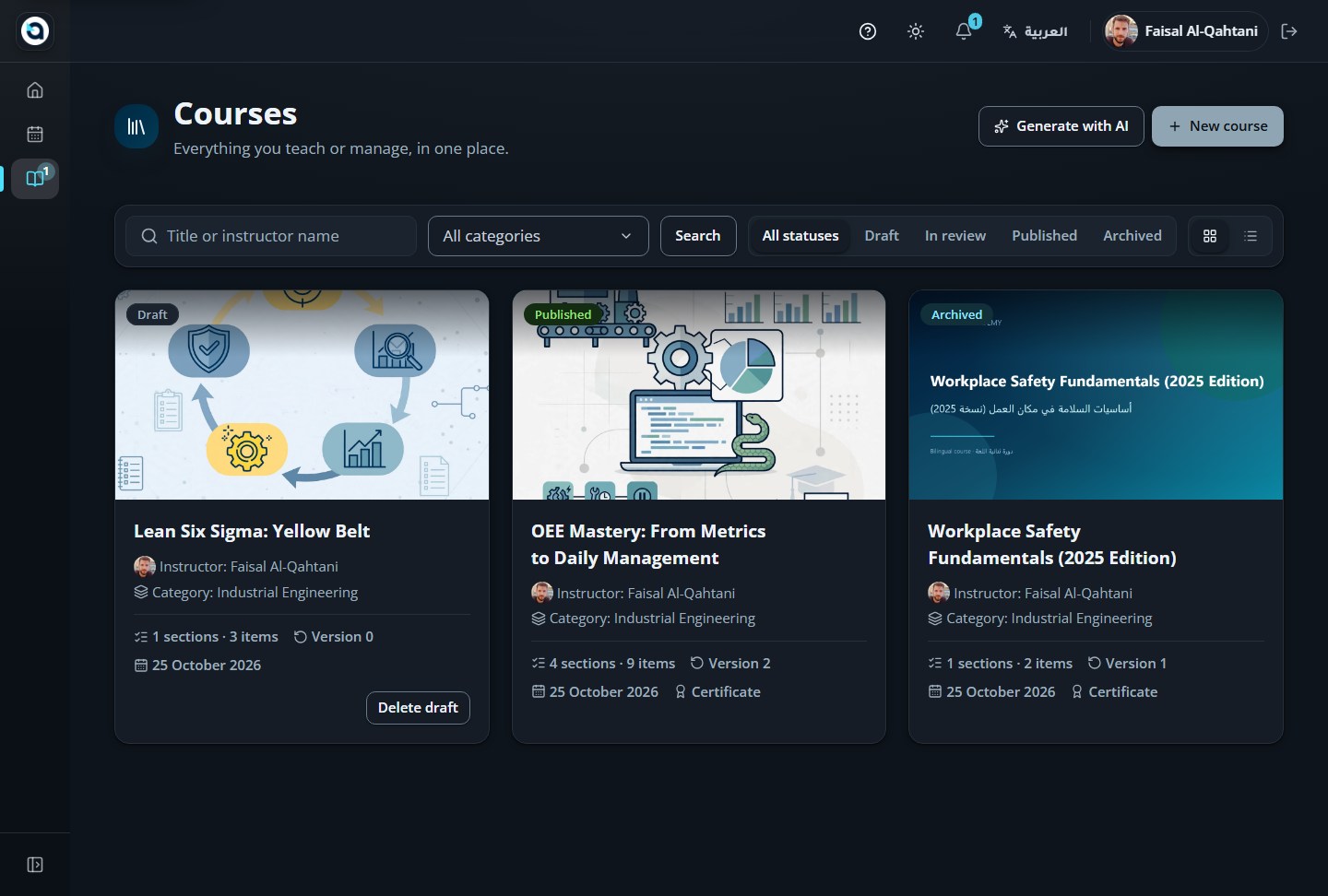
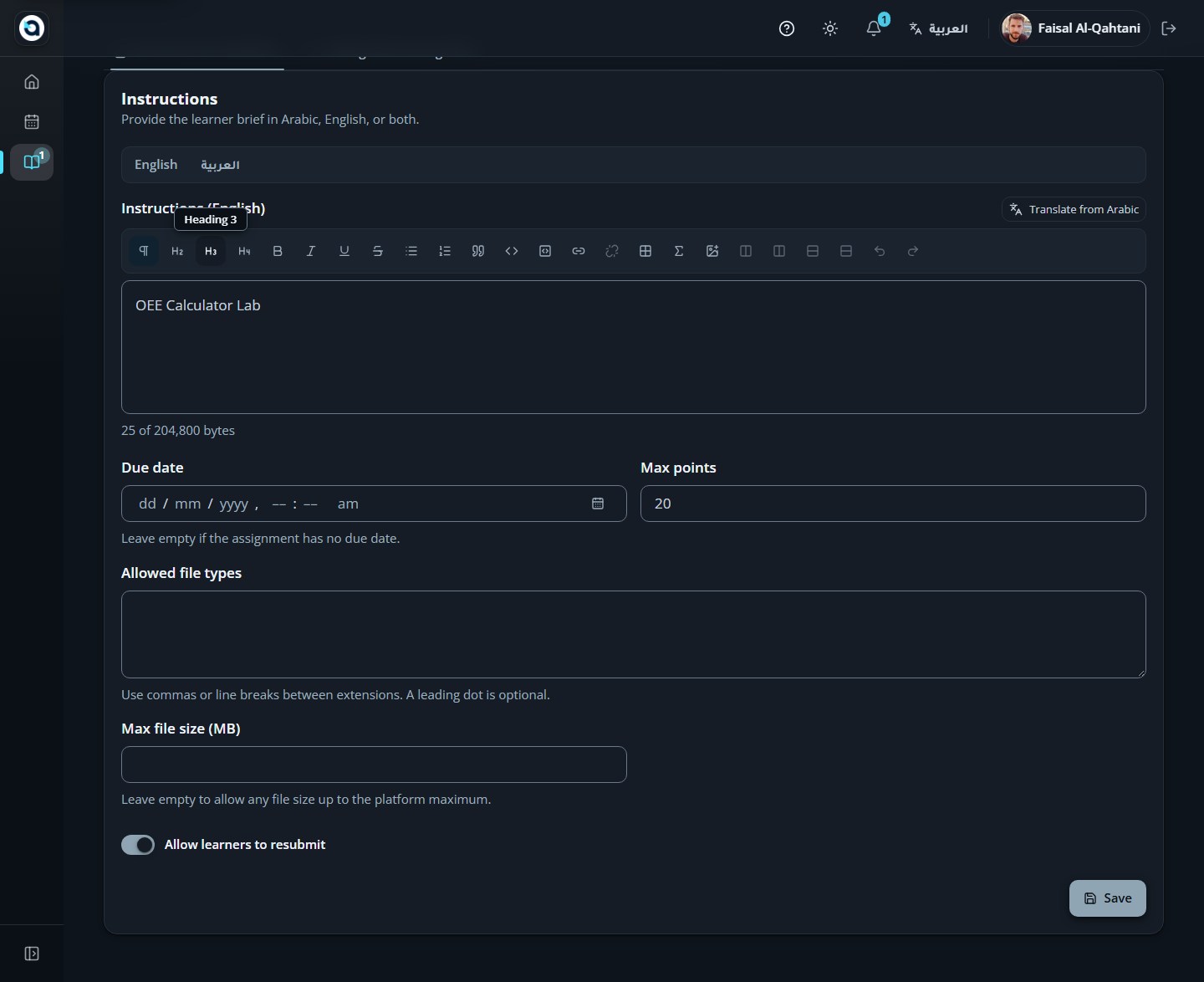
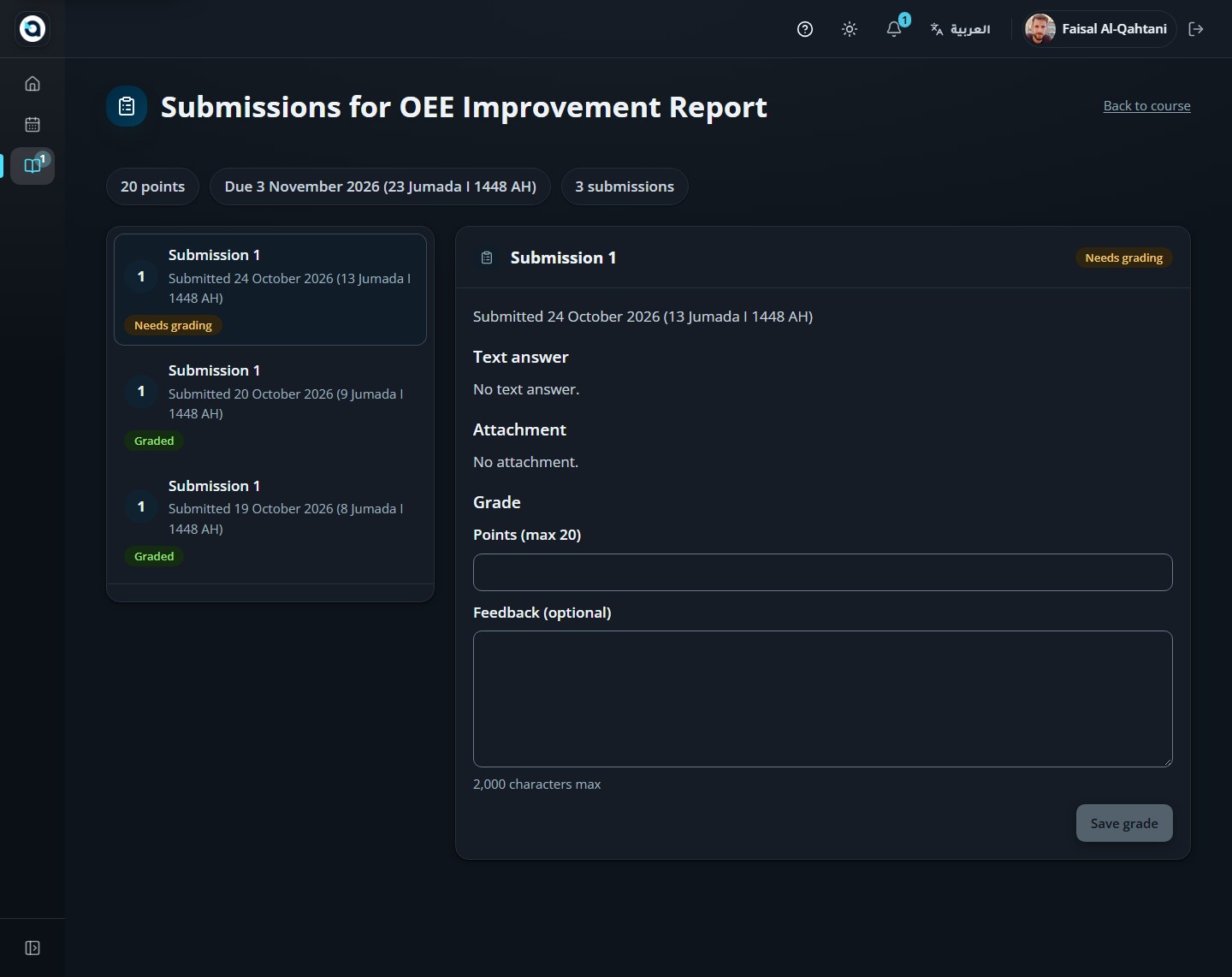
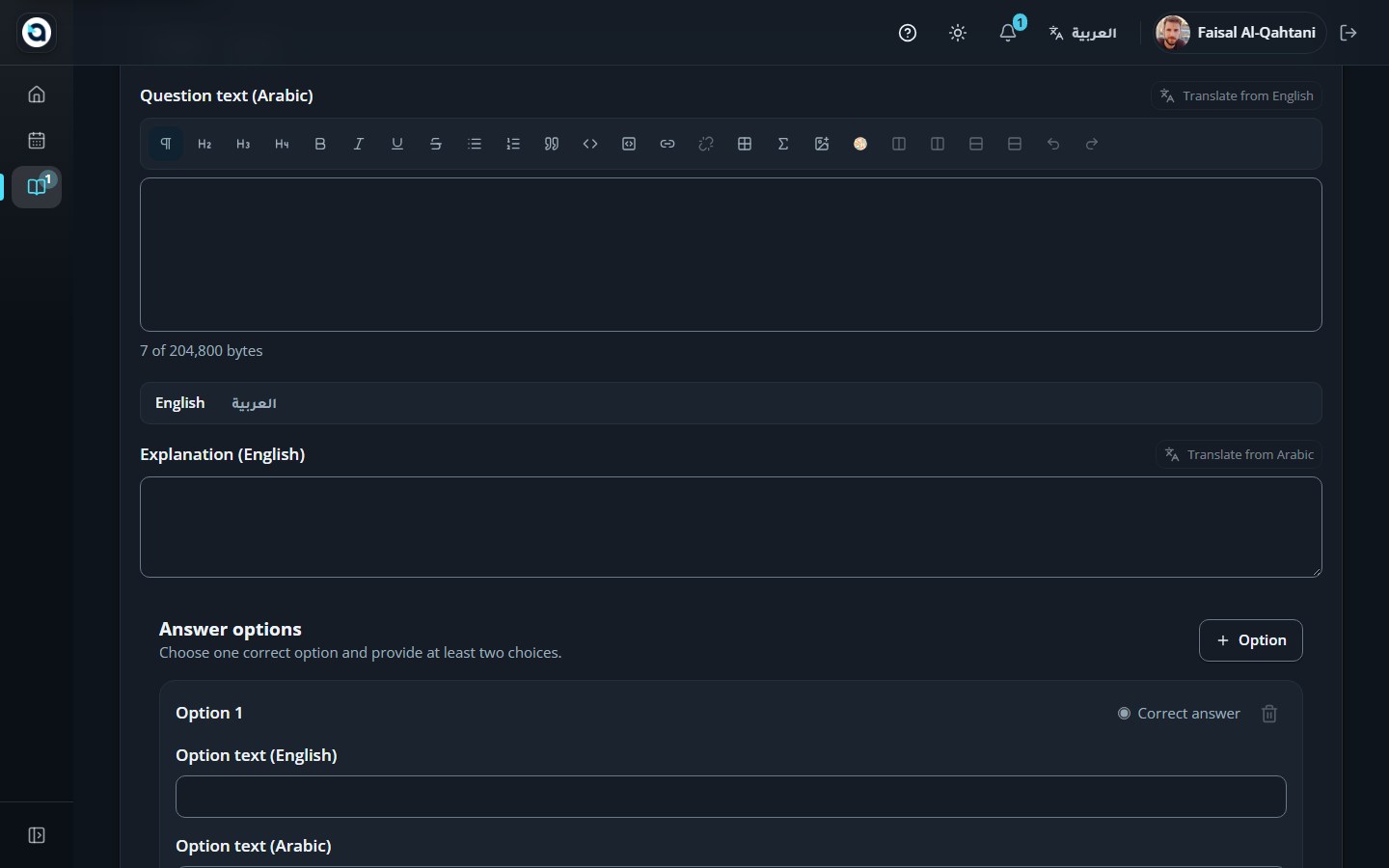
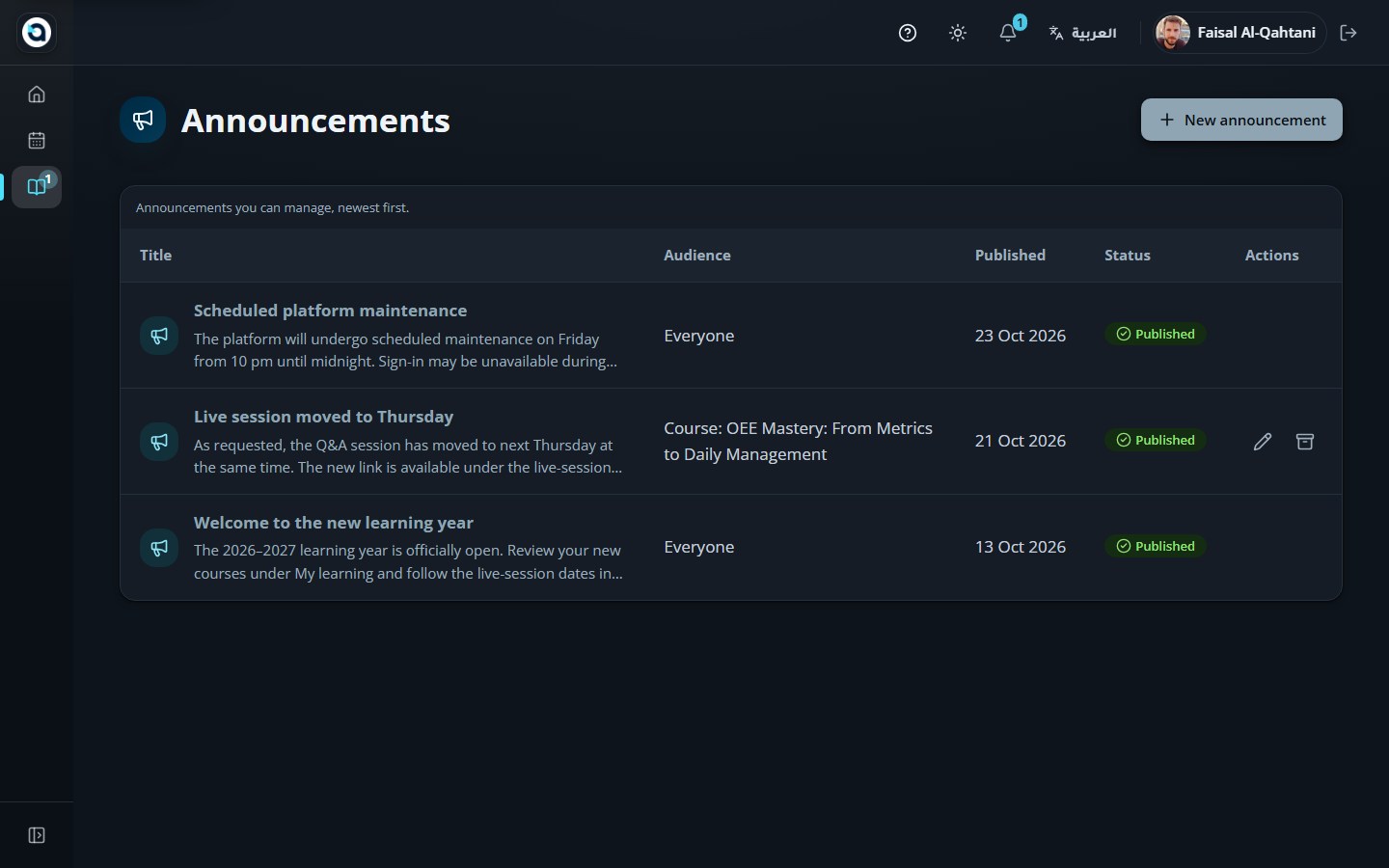
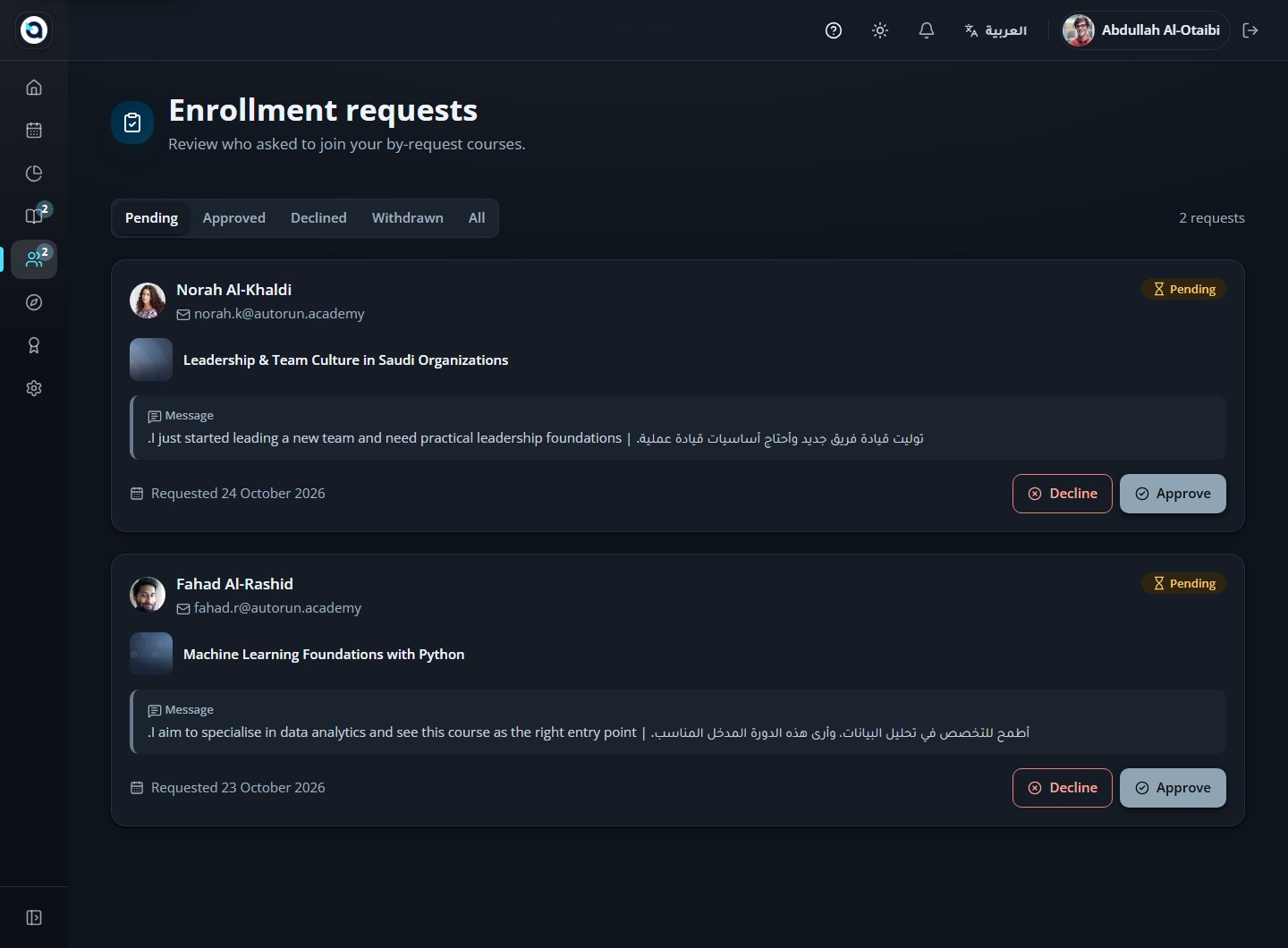
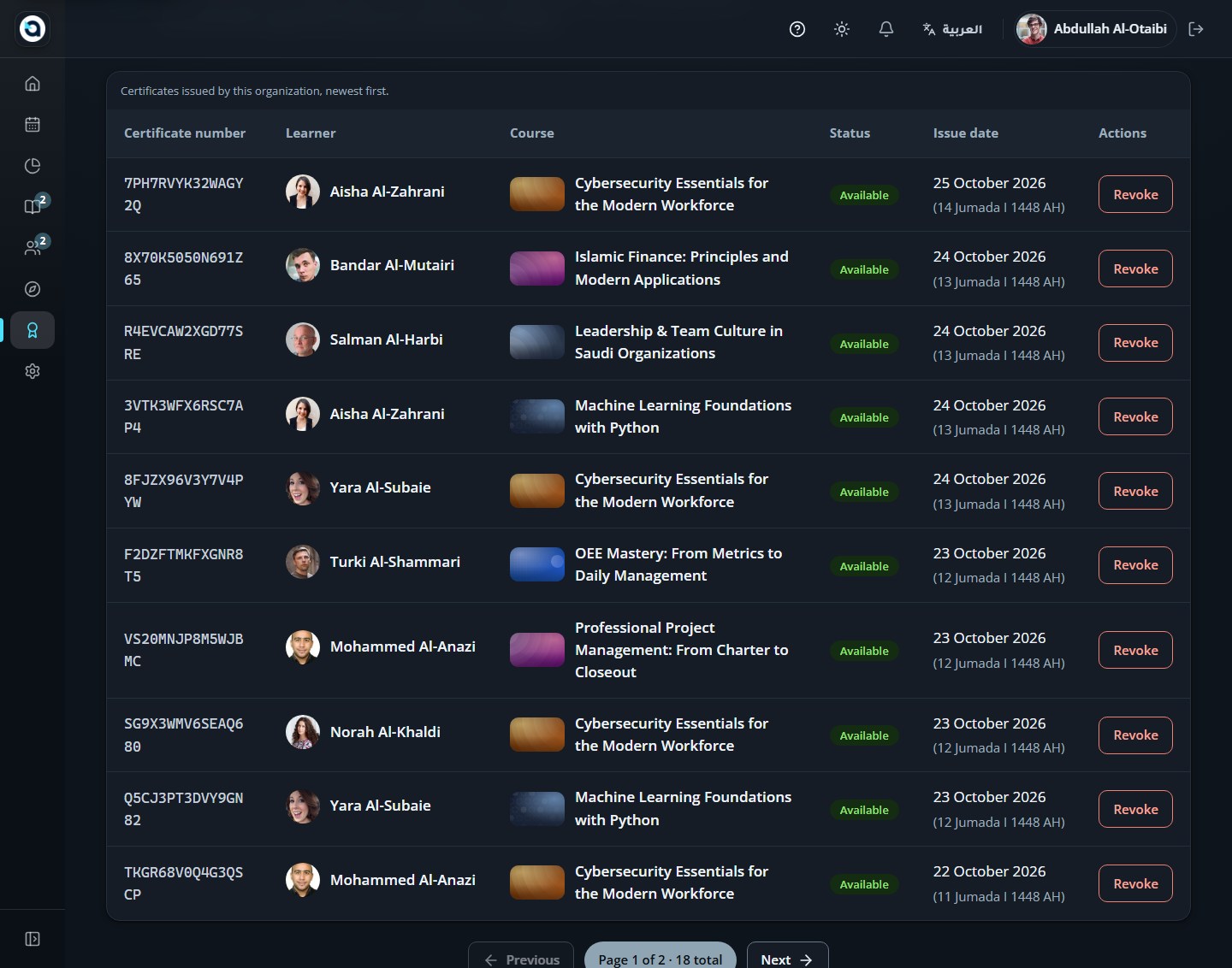
Use dark mode
All GuidesTop bar → Theme toggle (Sun / Moon icon)
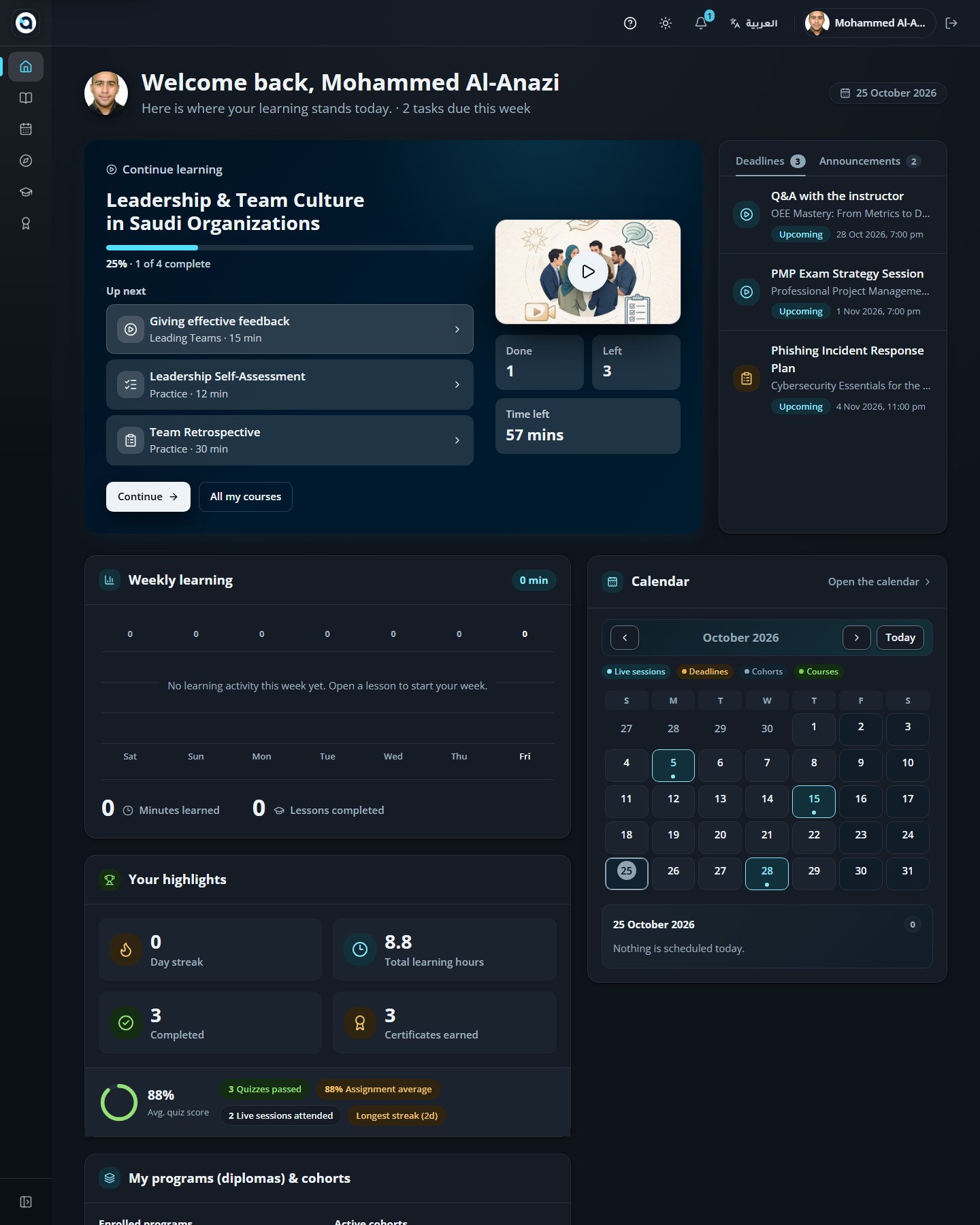
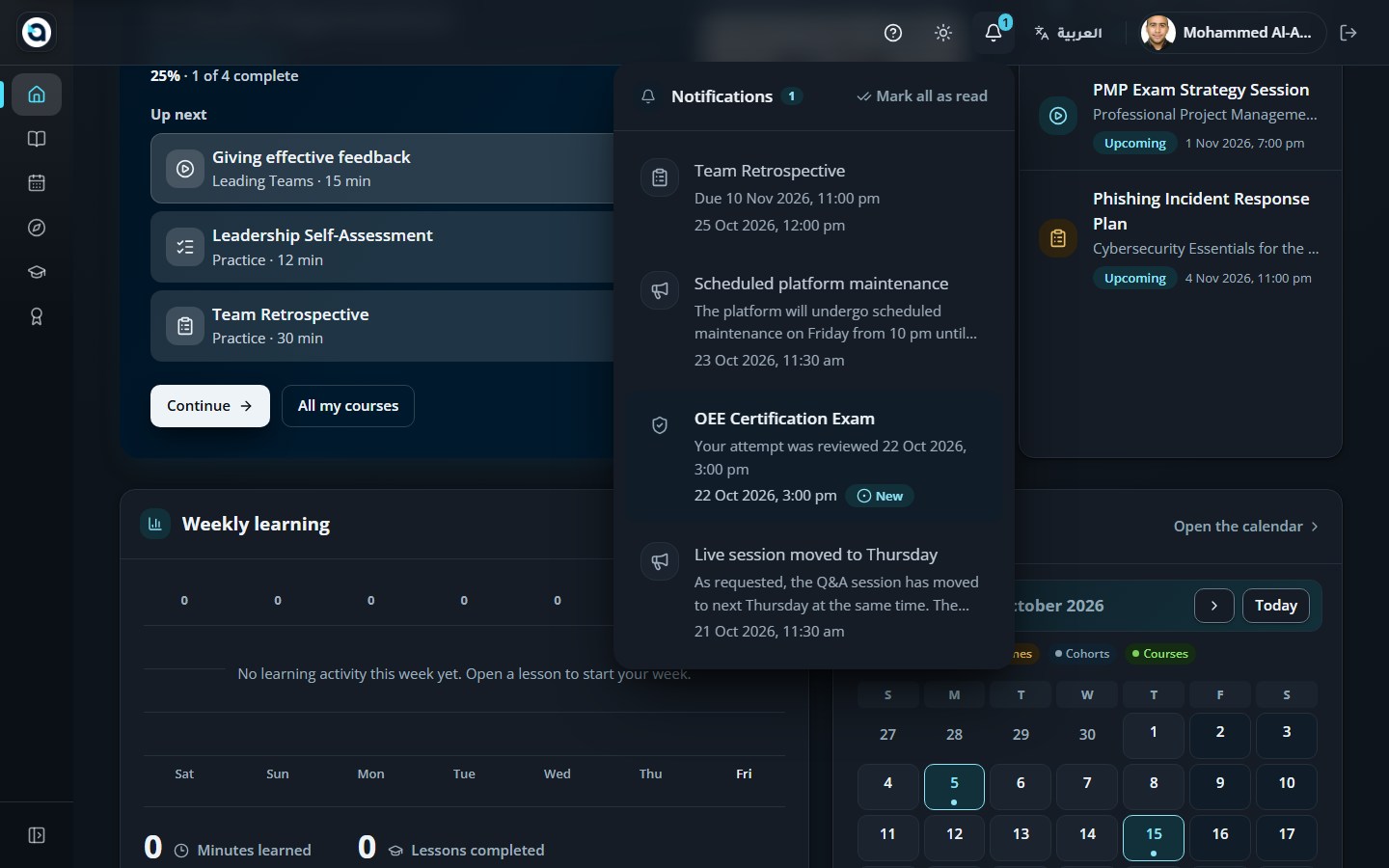
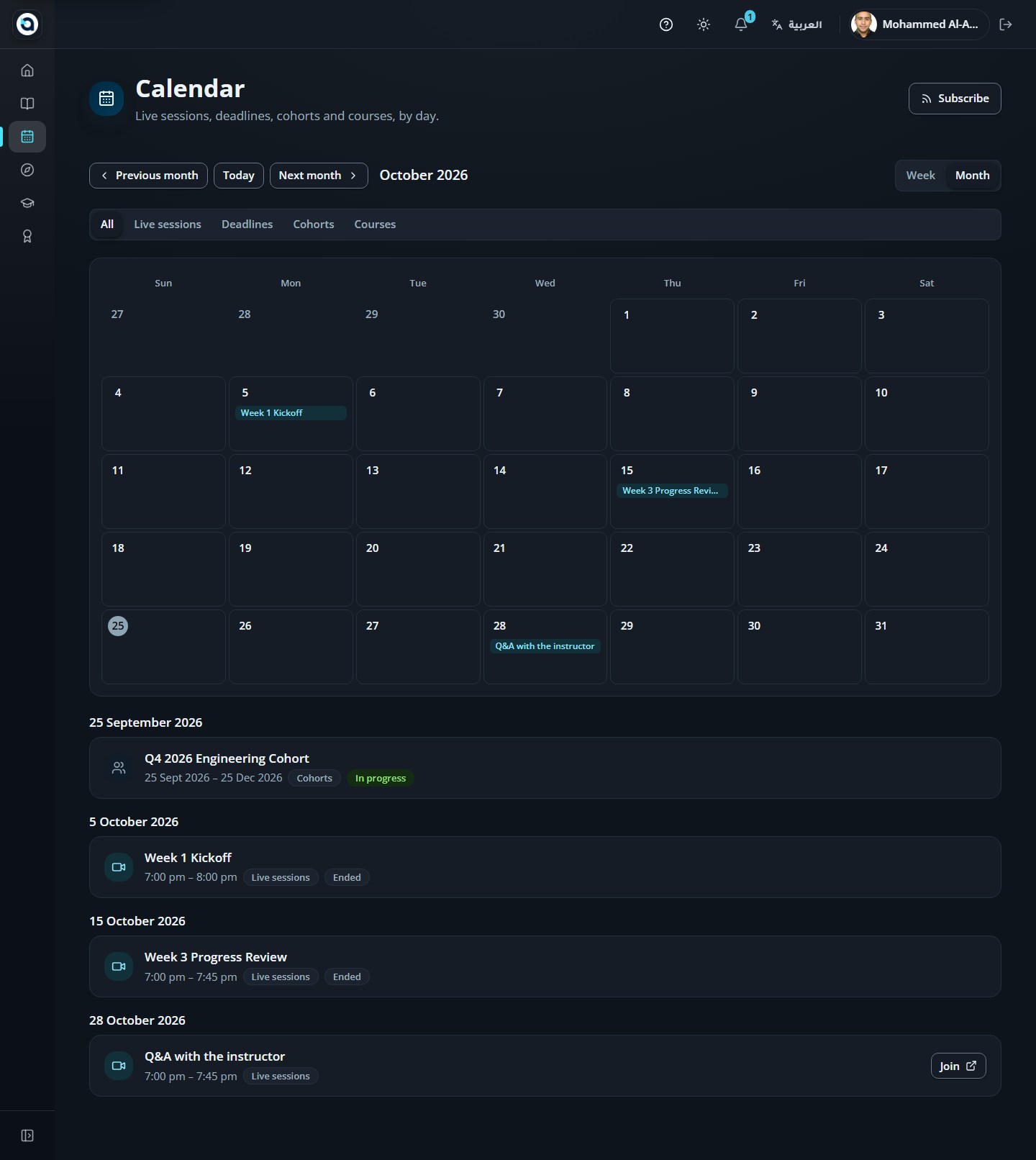
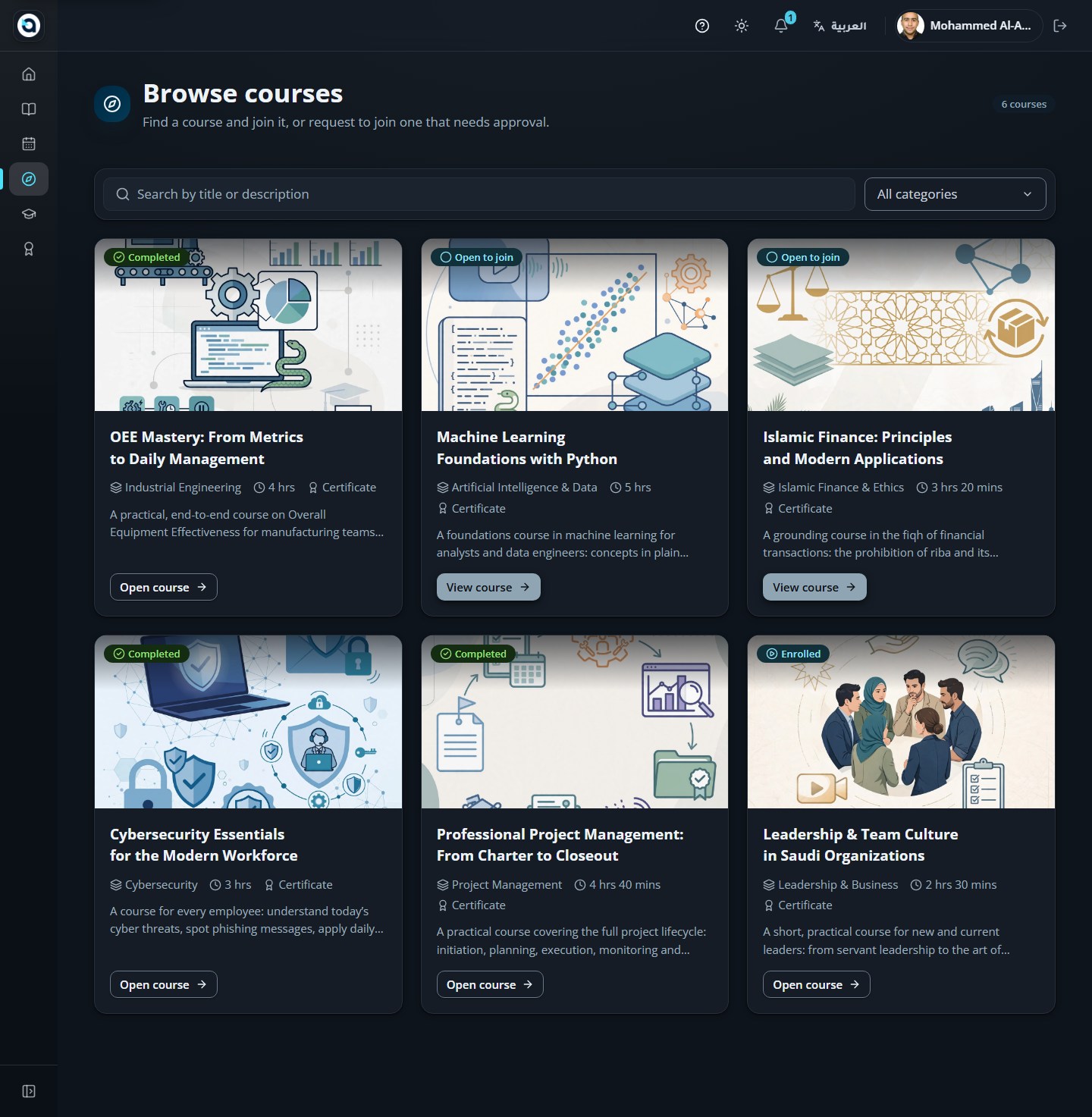
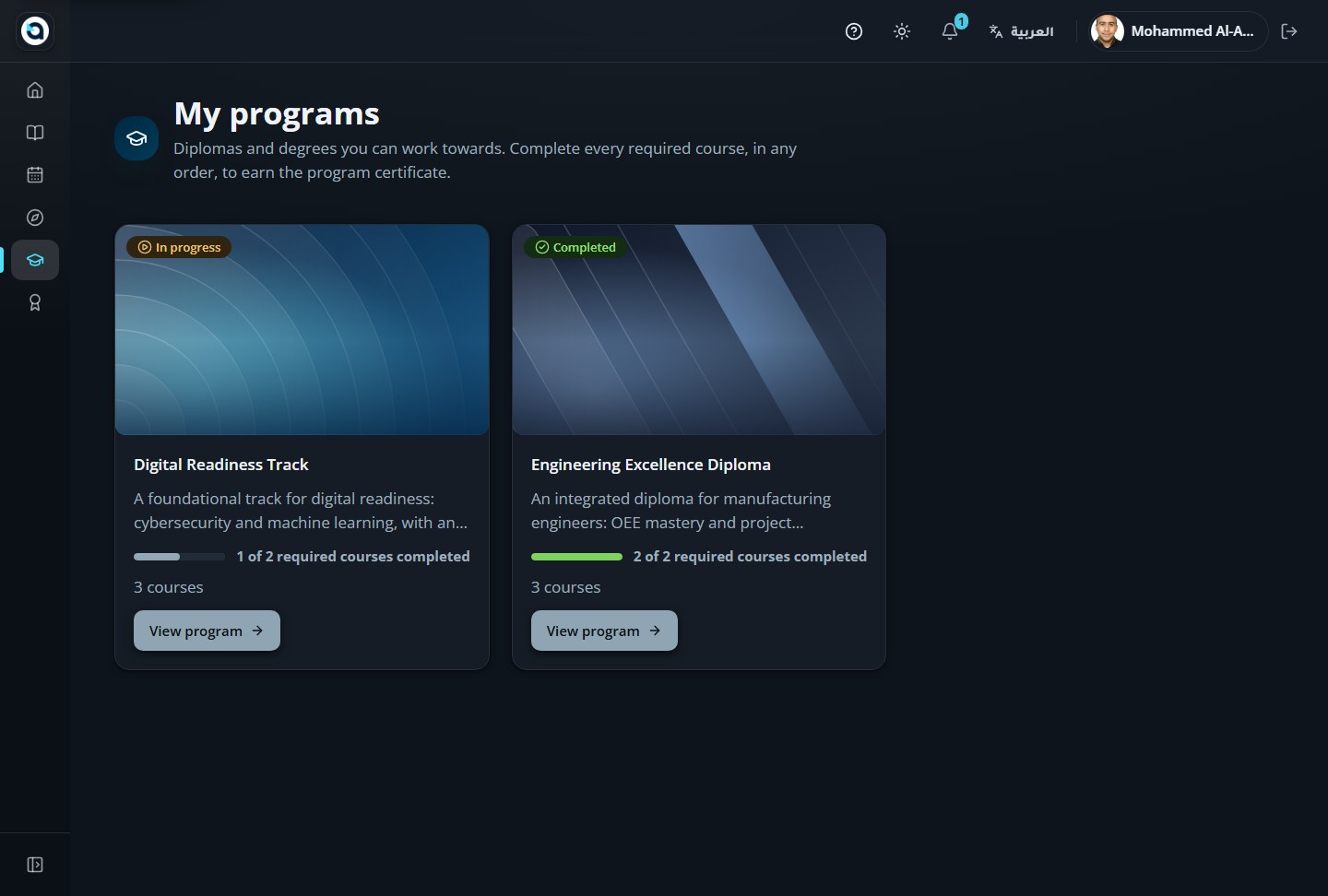
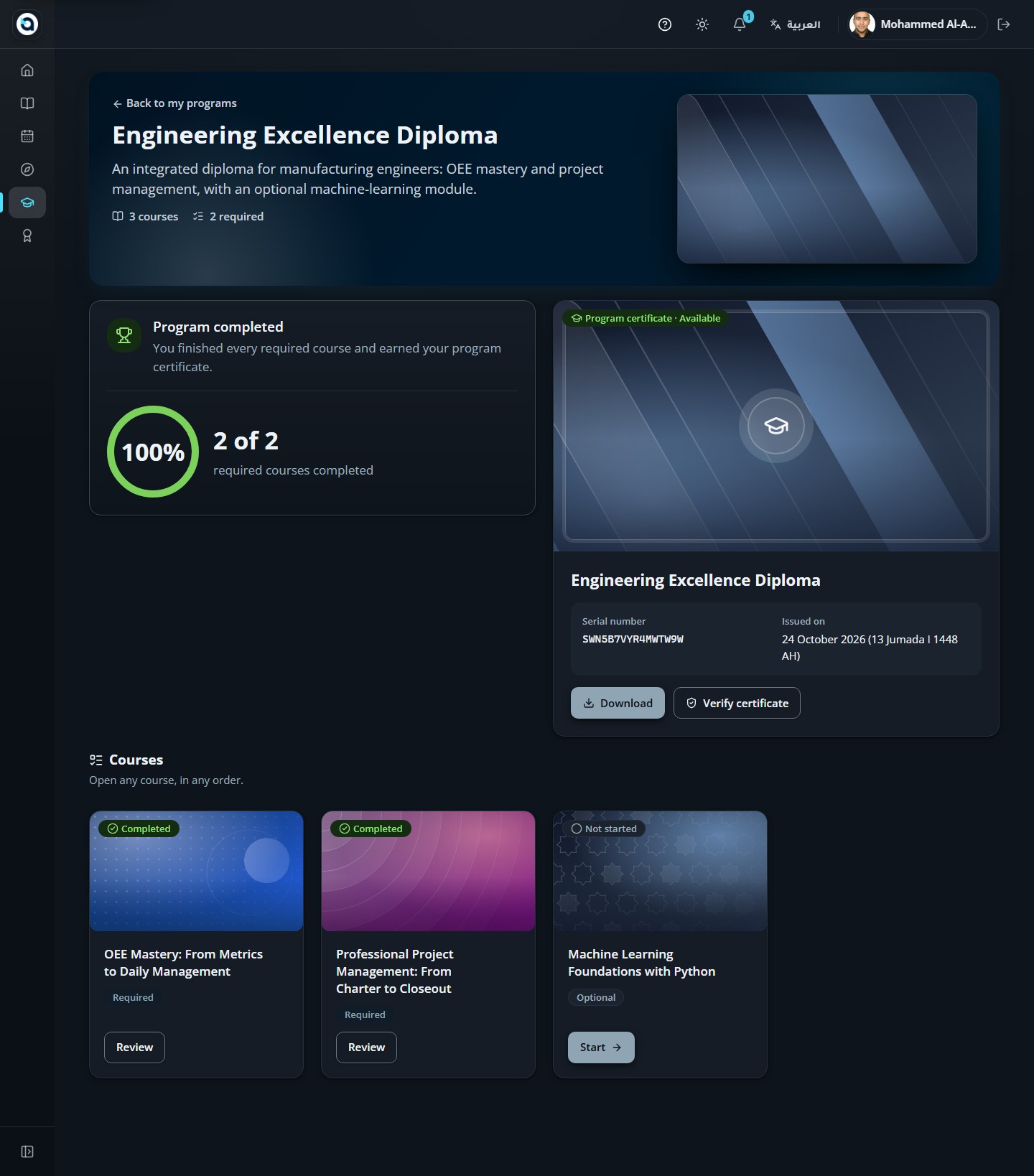
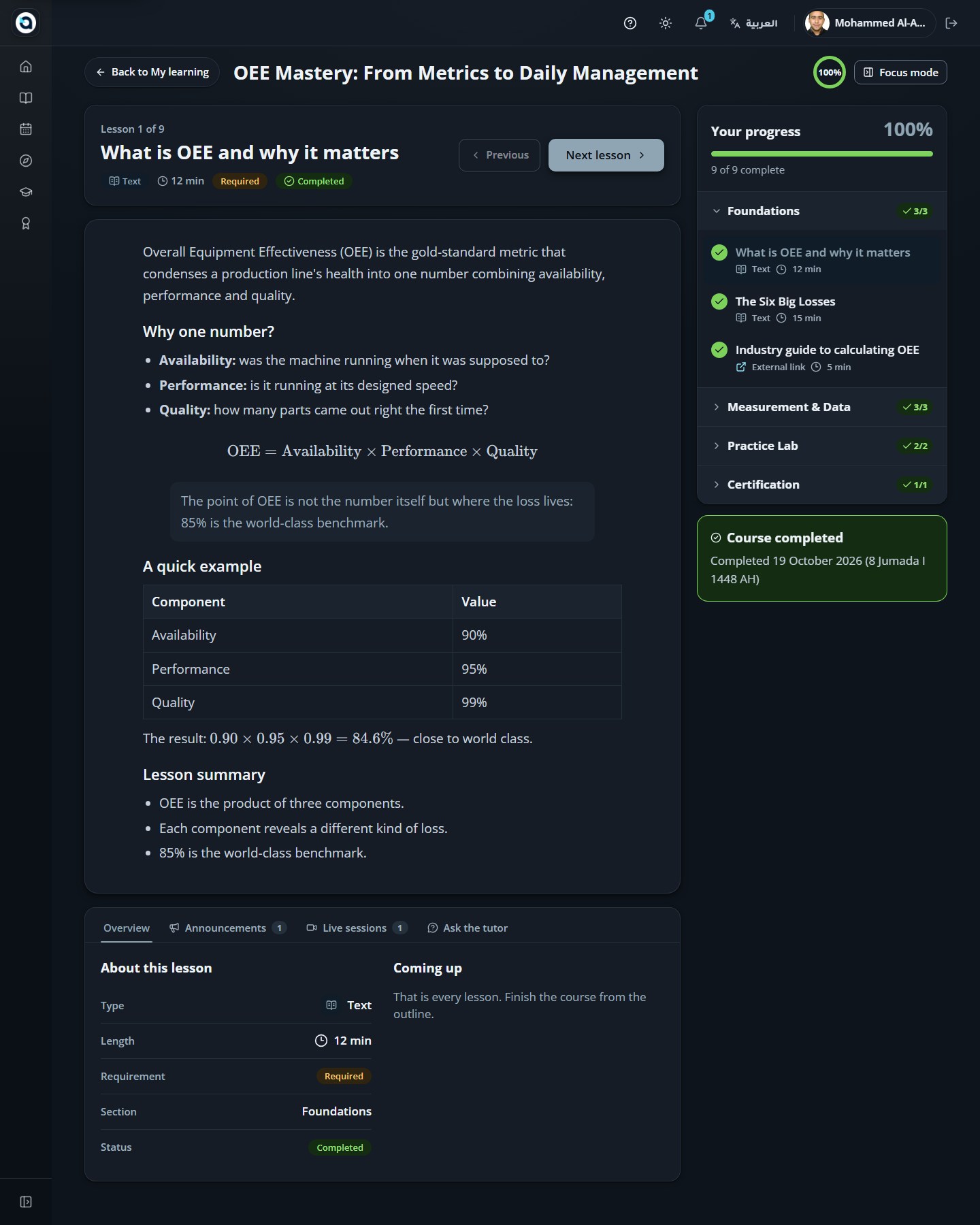
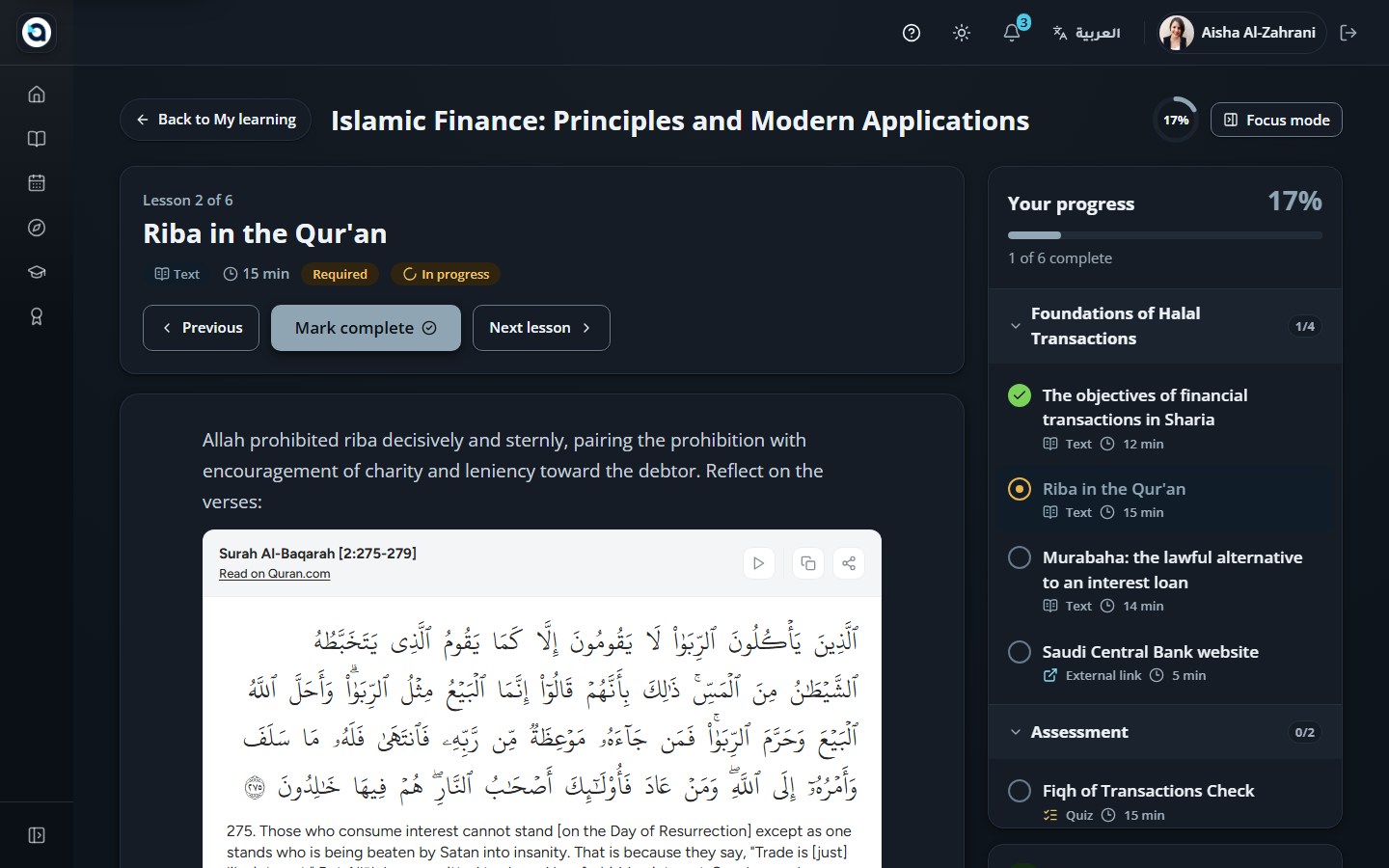
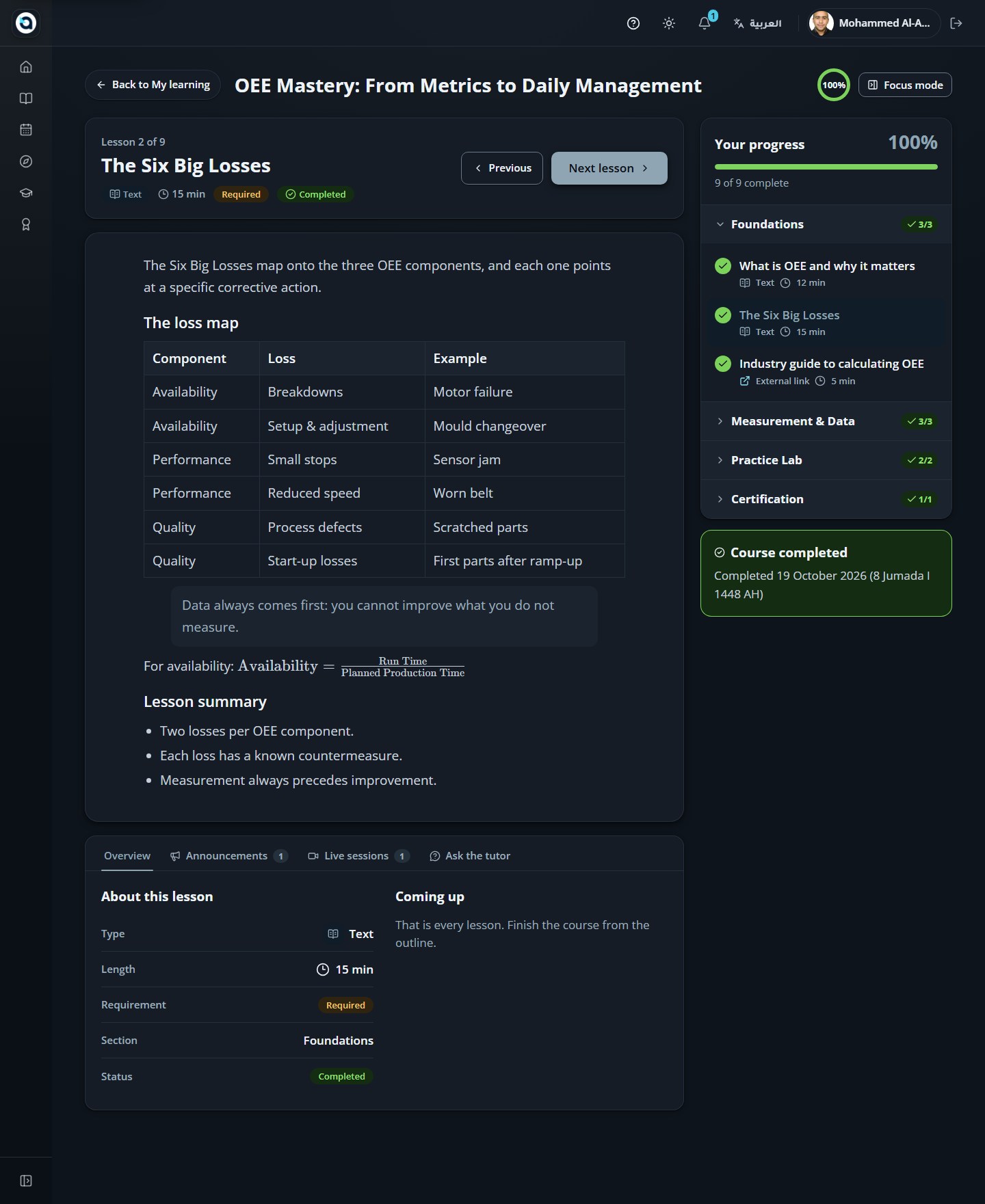
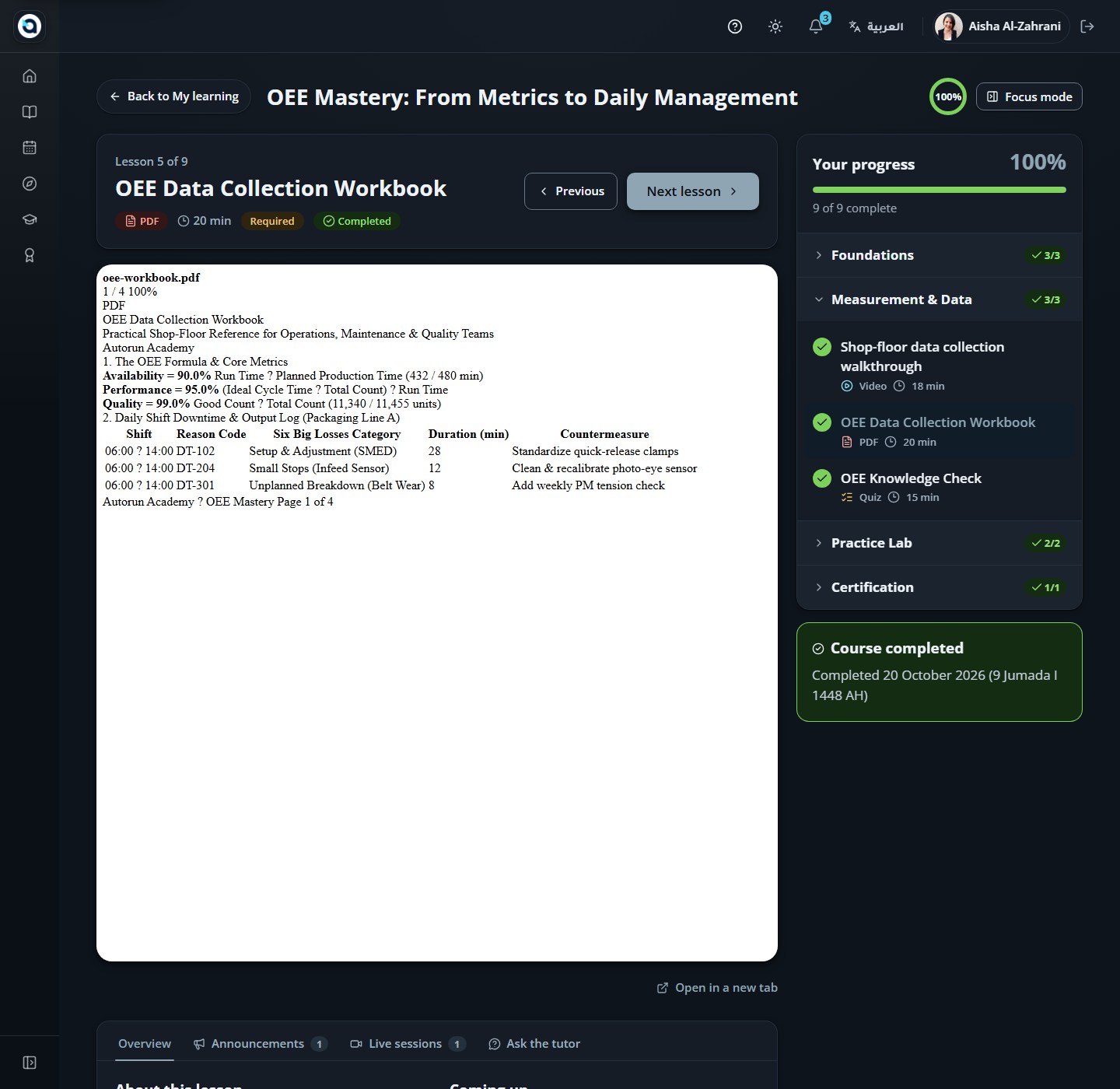
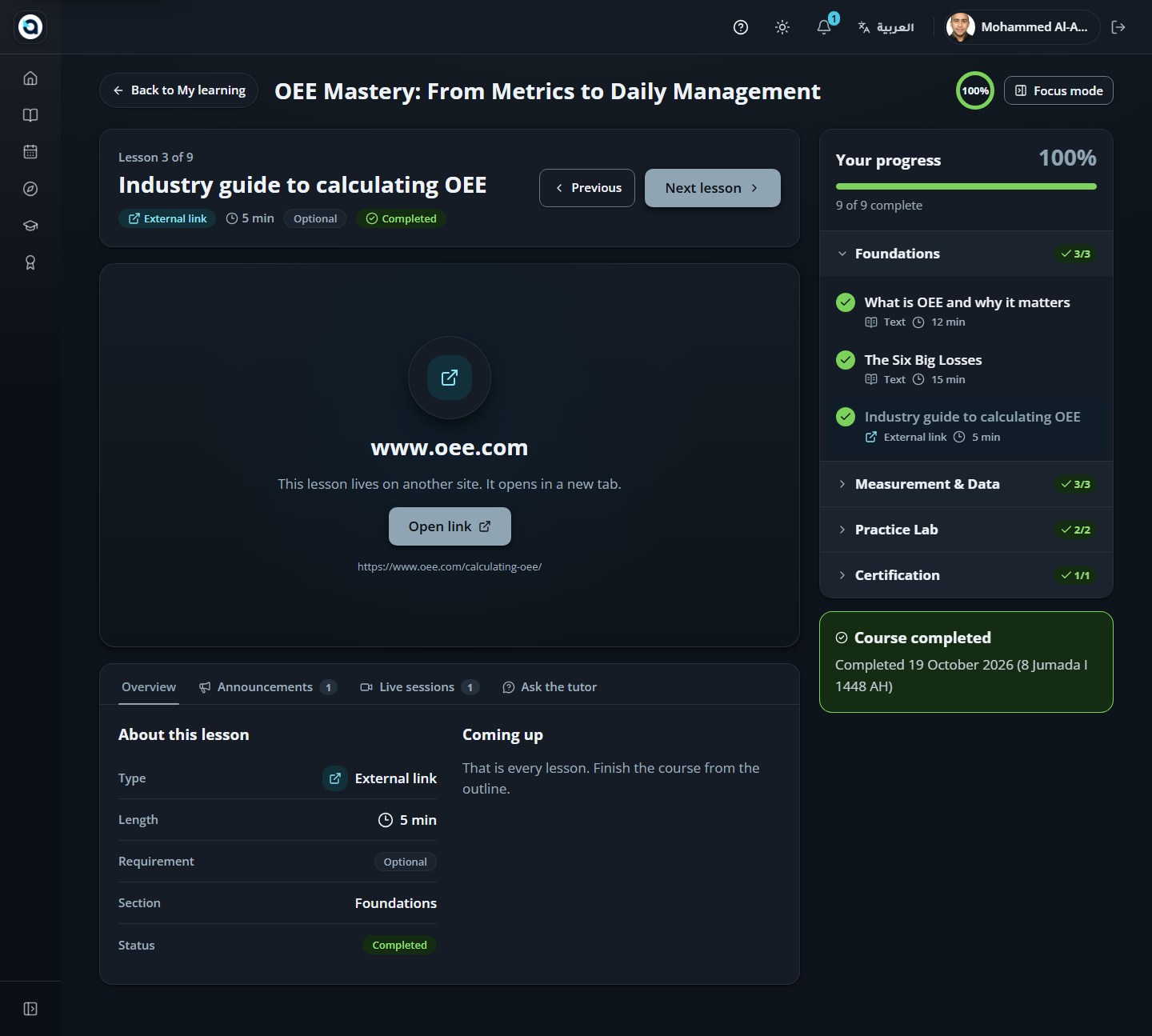
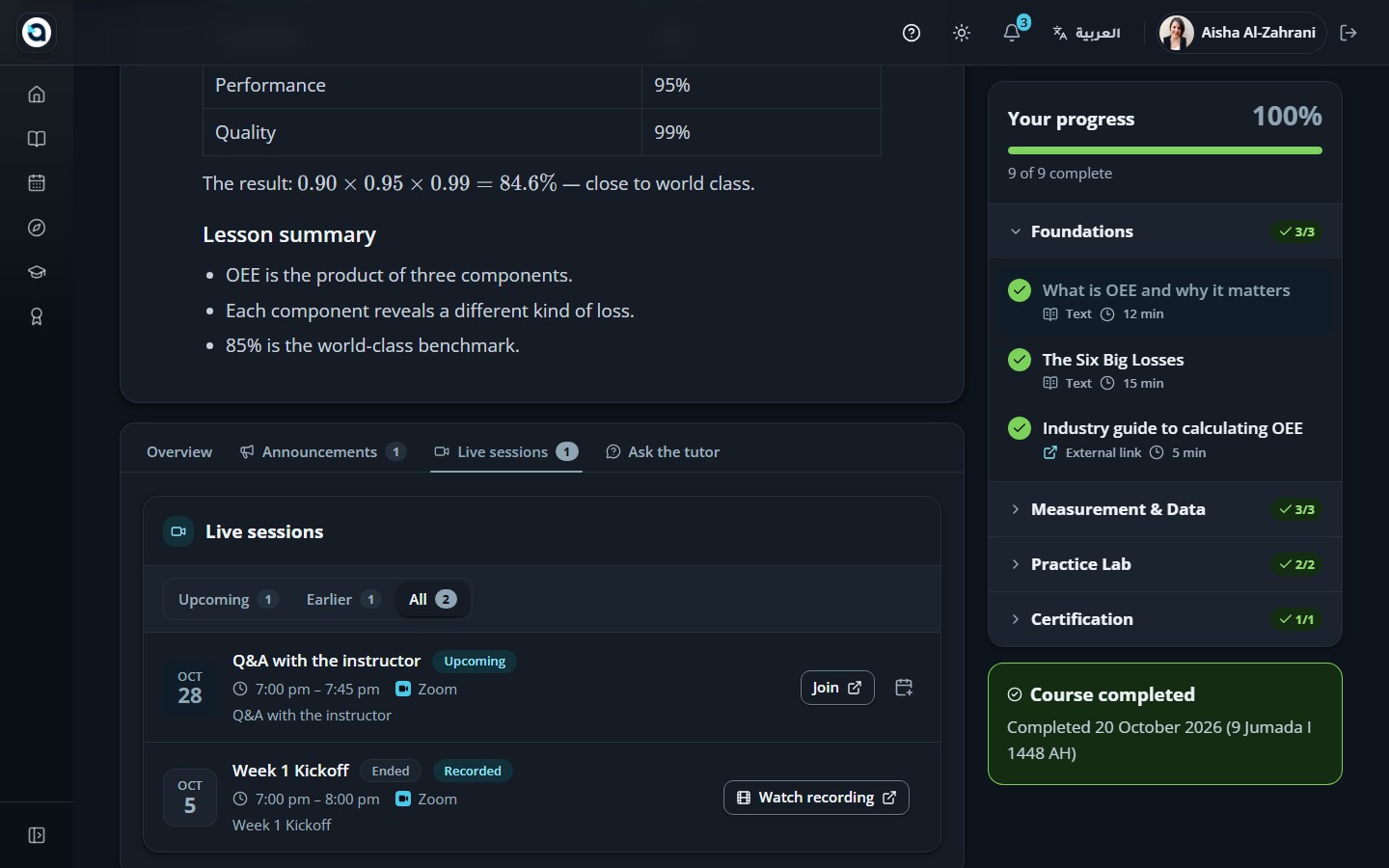
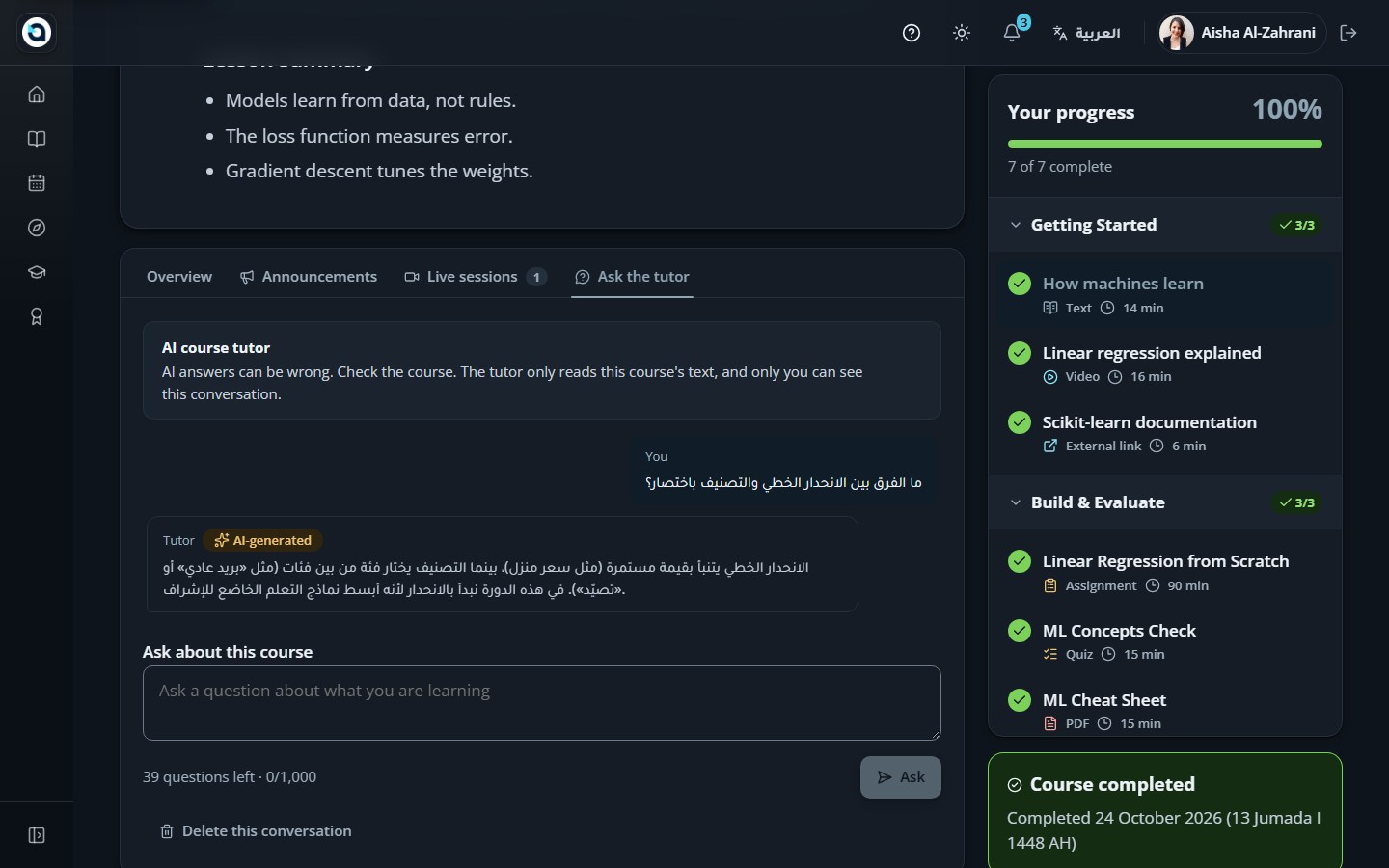
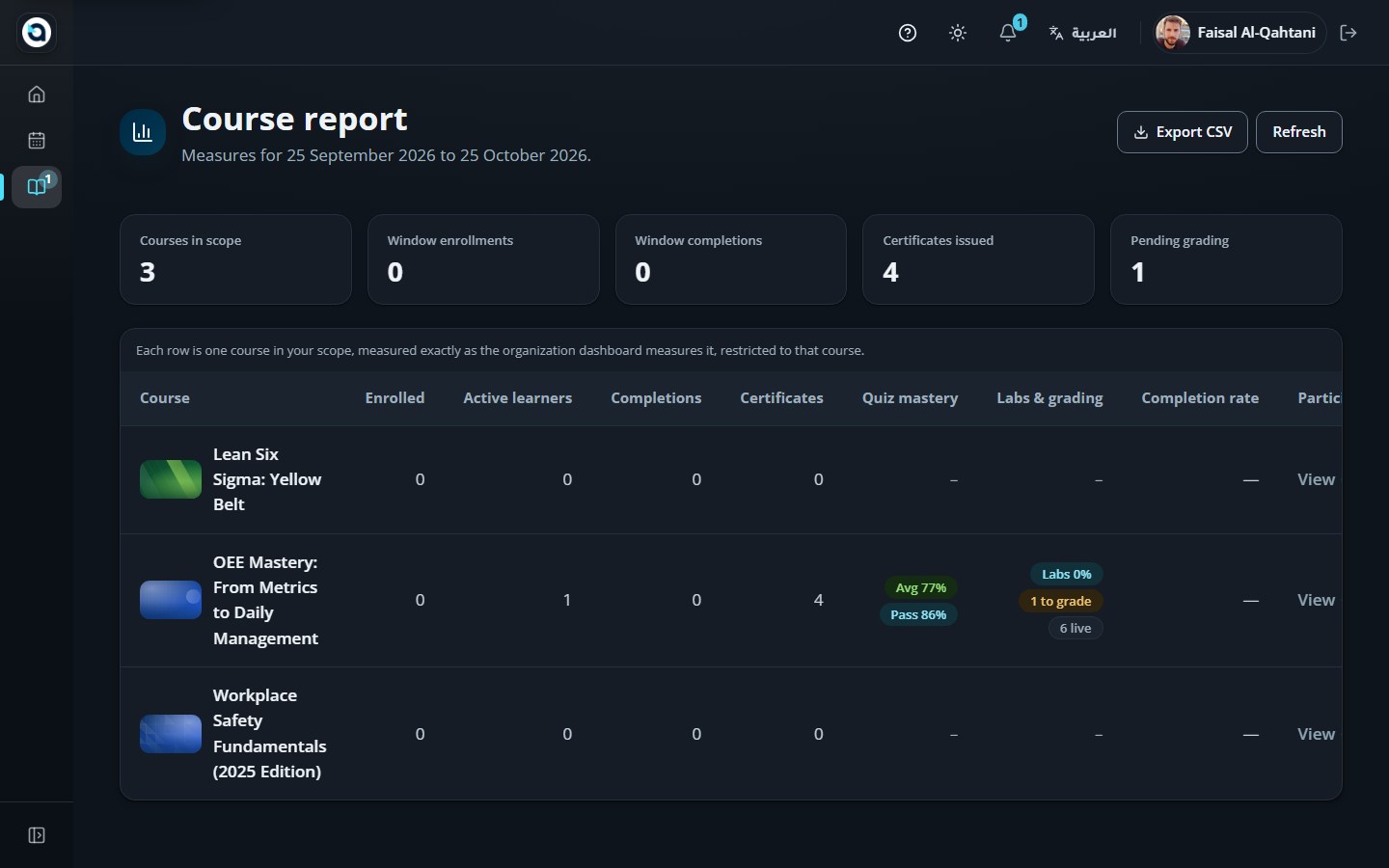
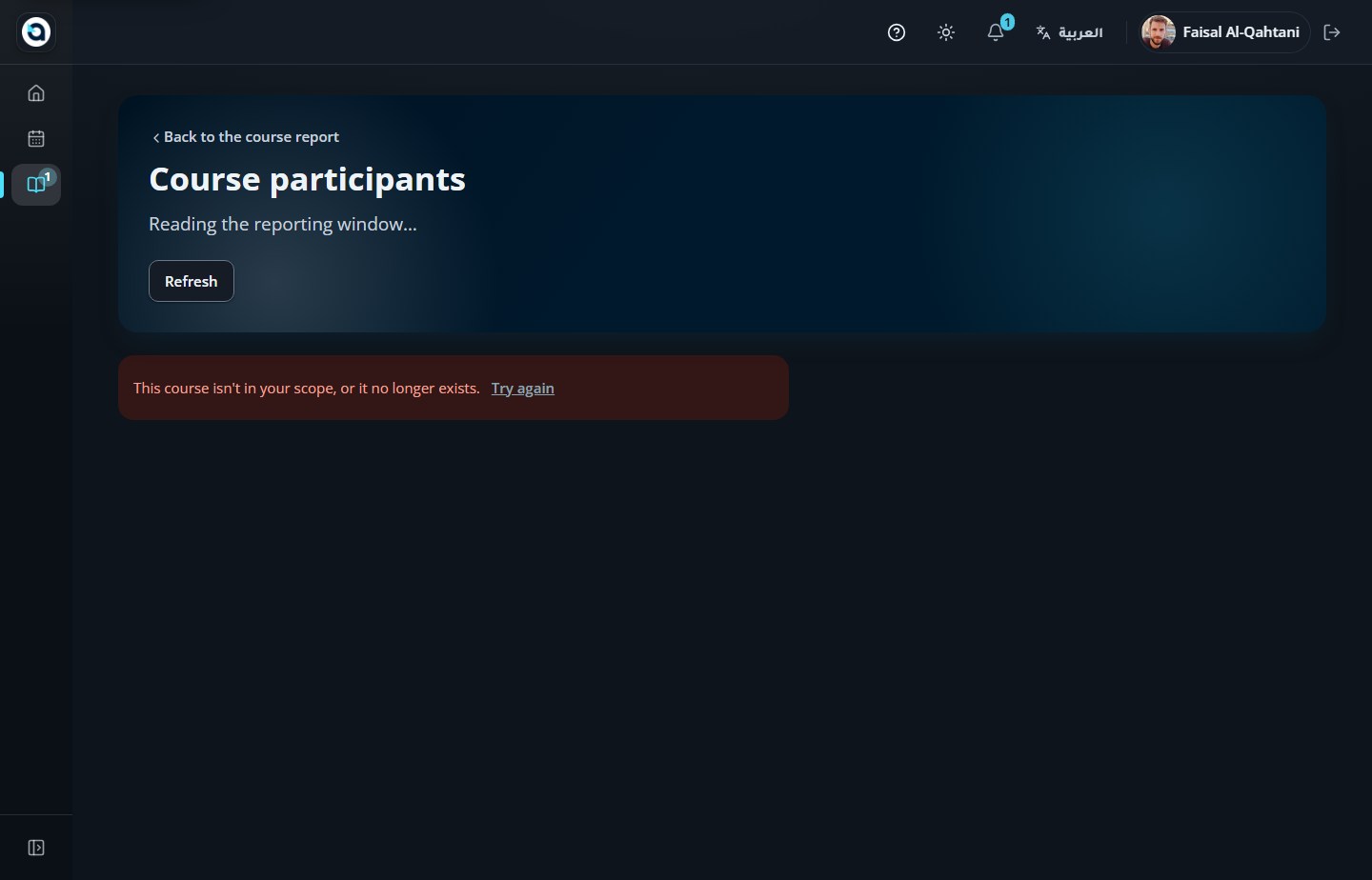
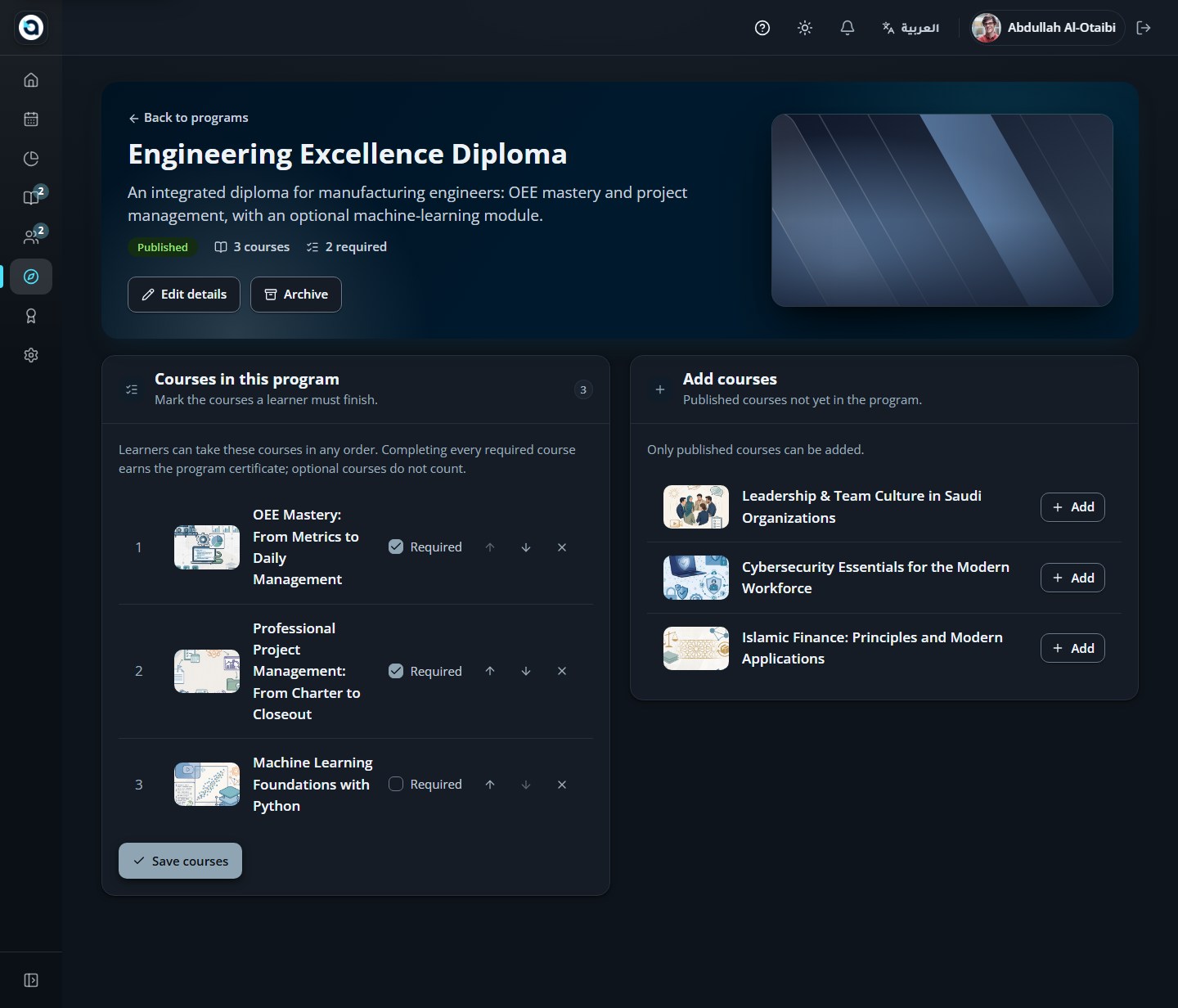
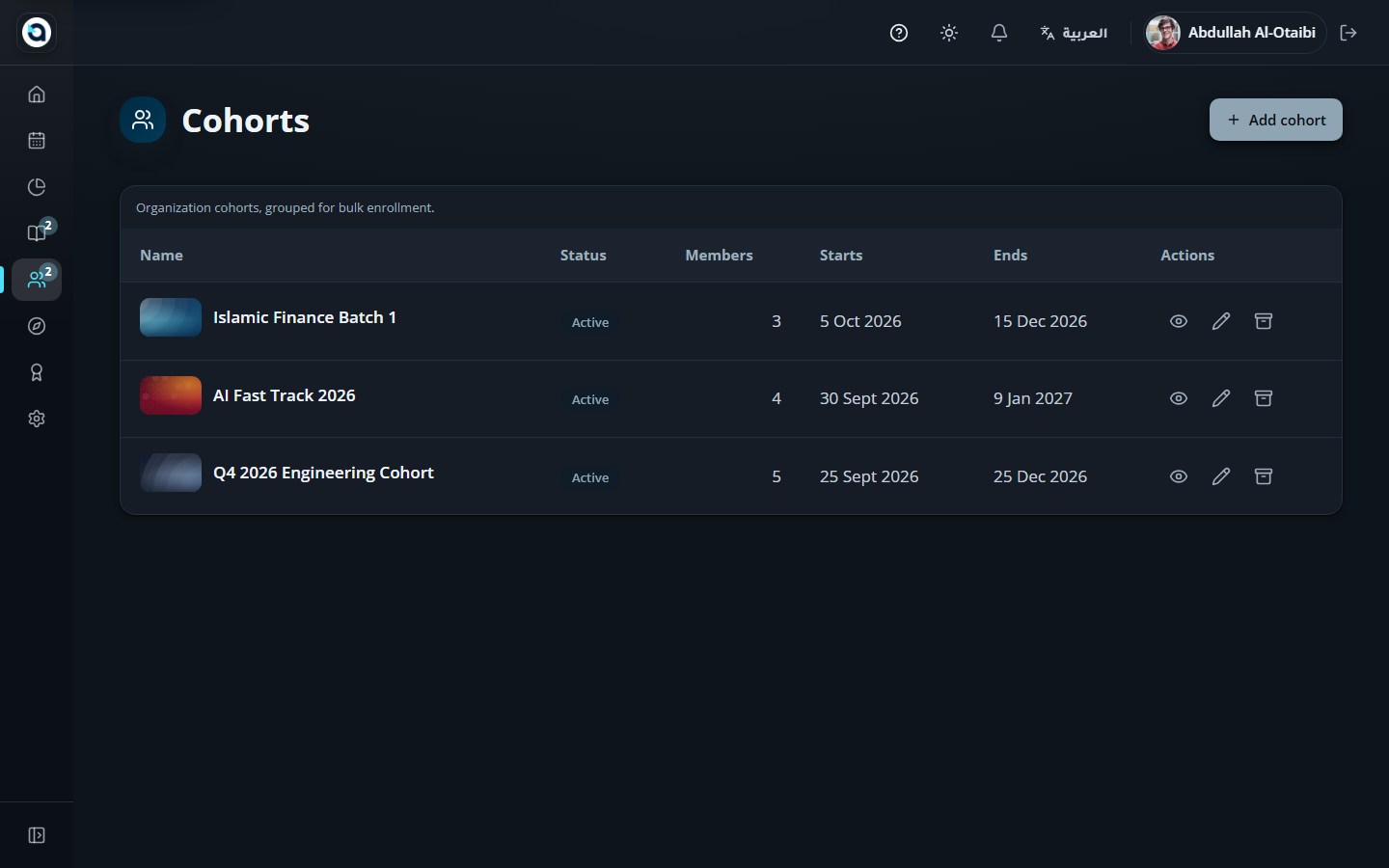
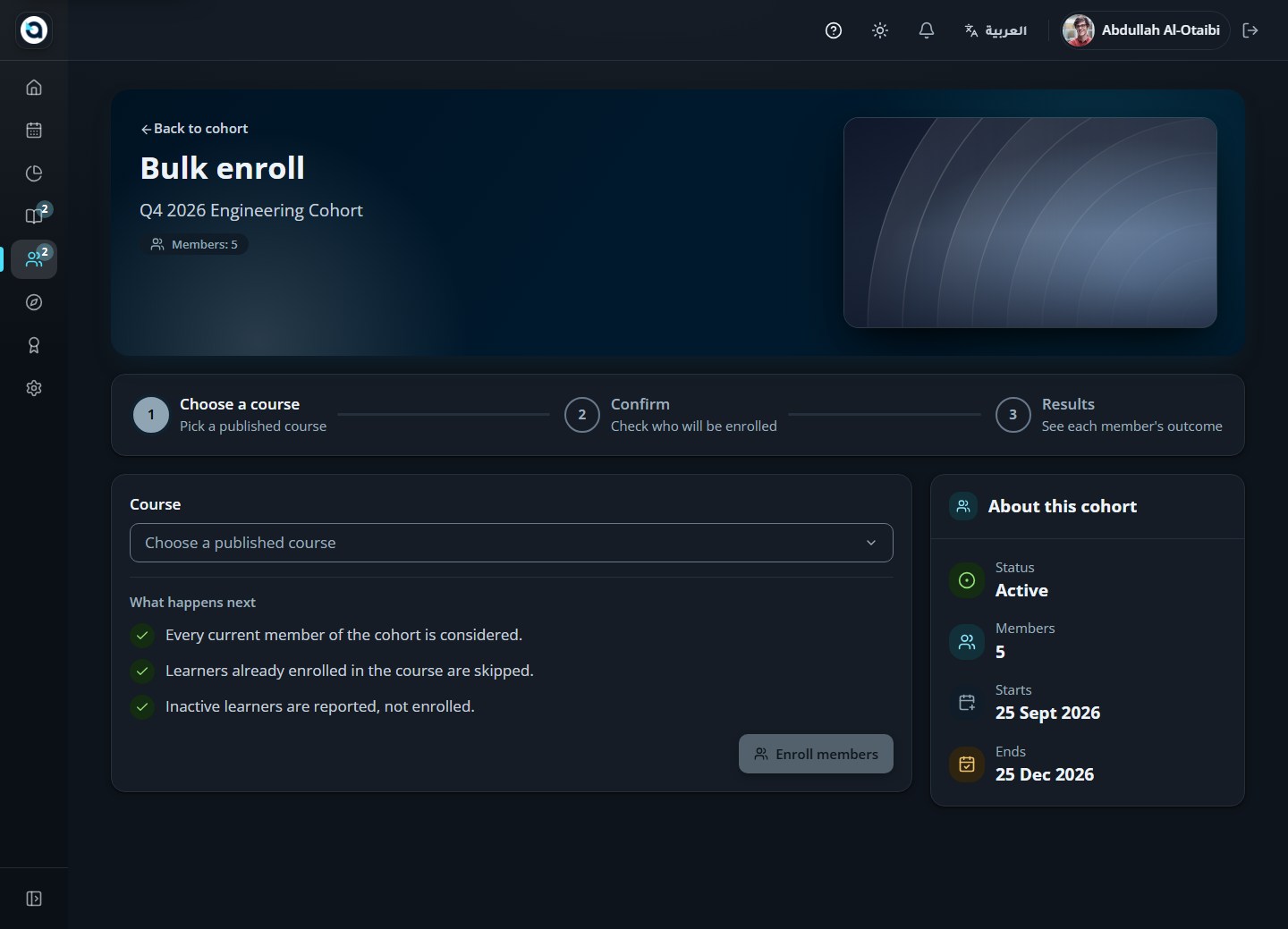
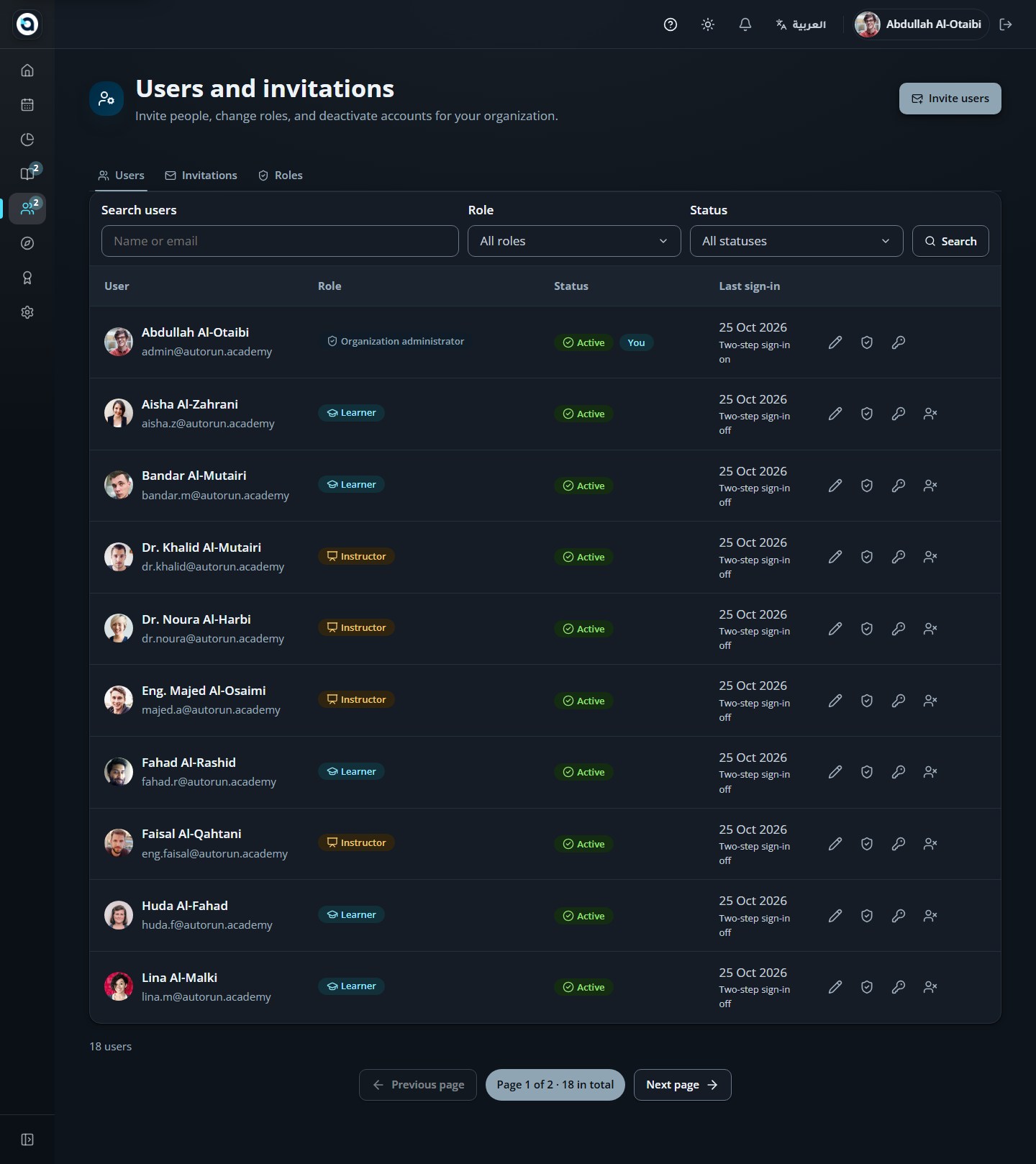
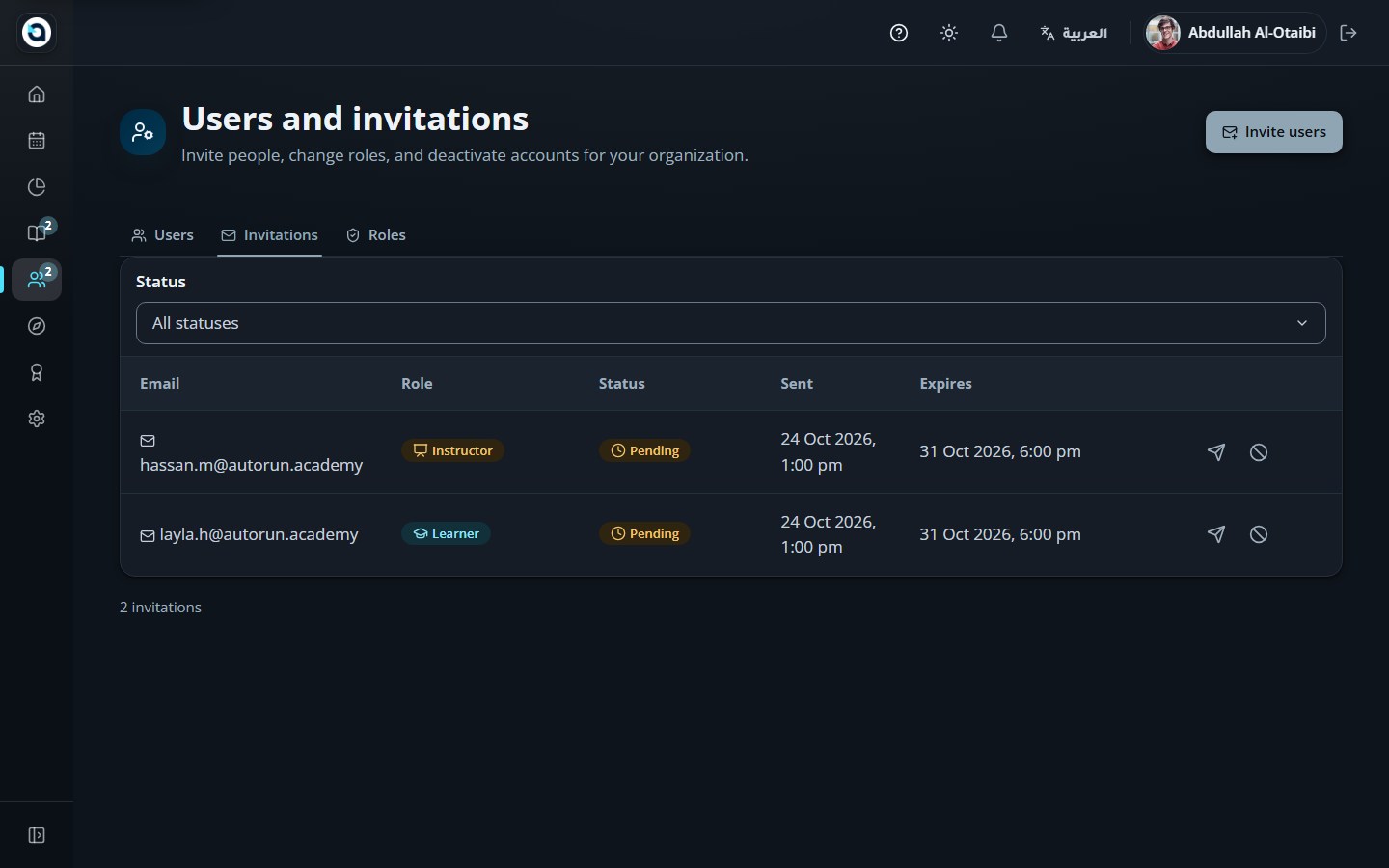
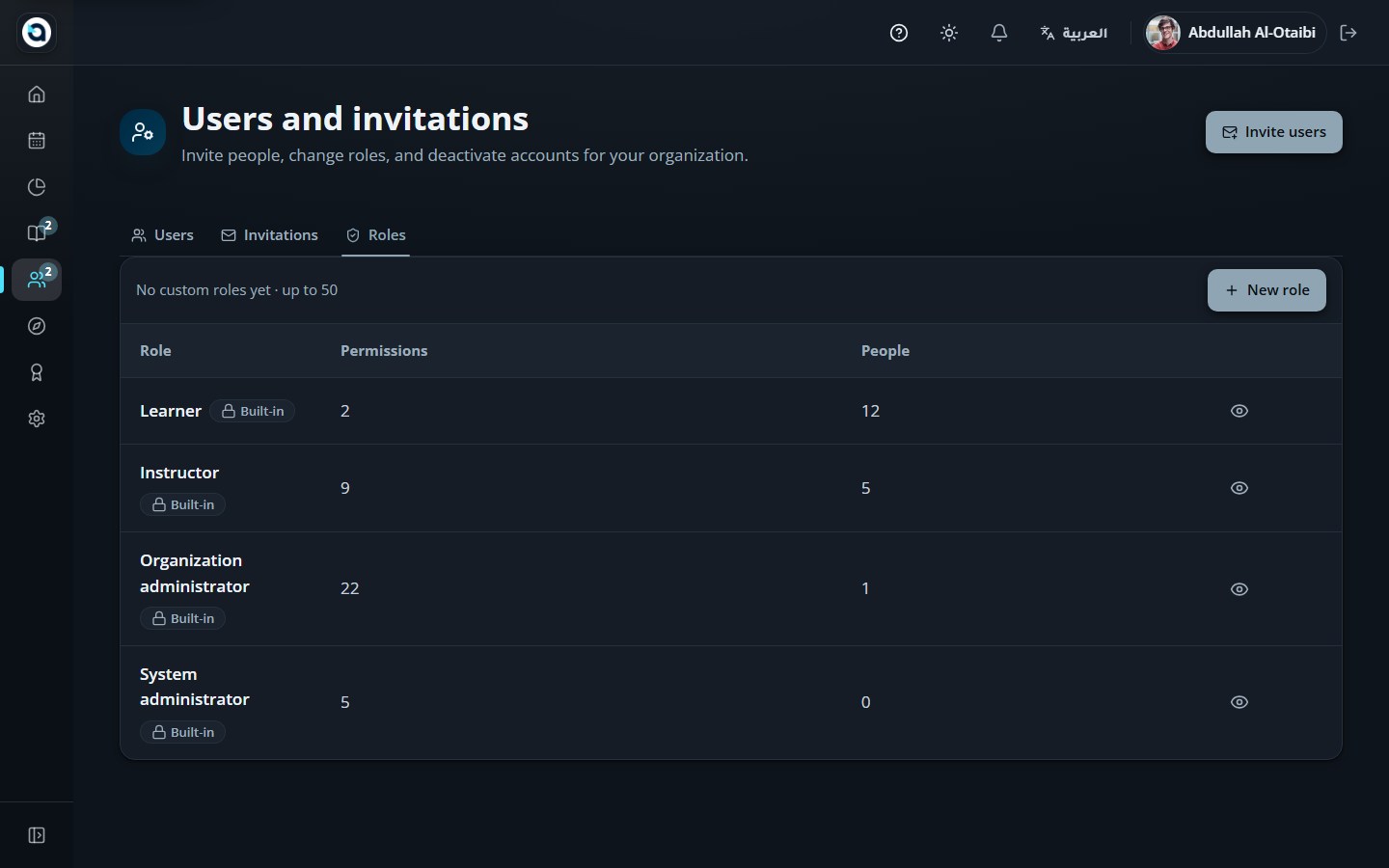
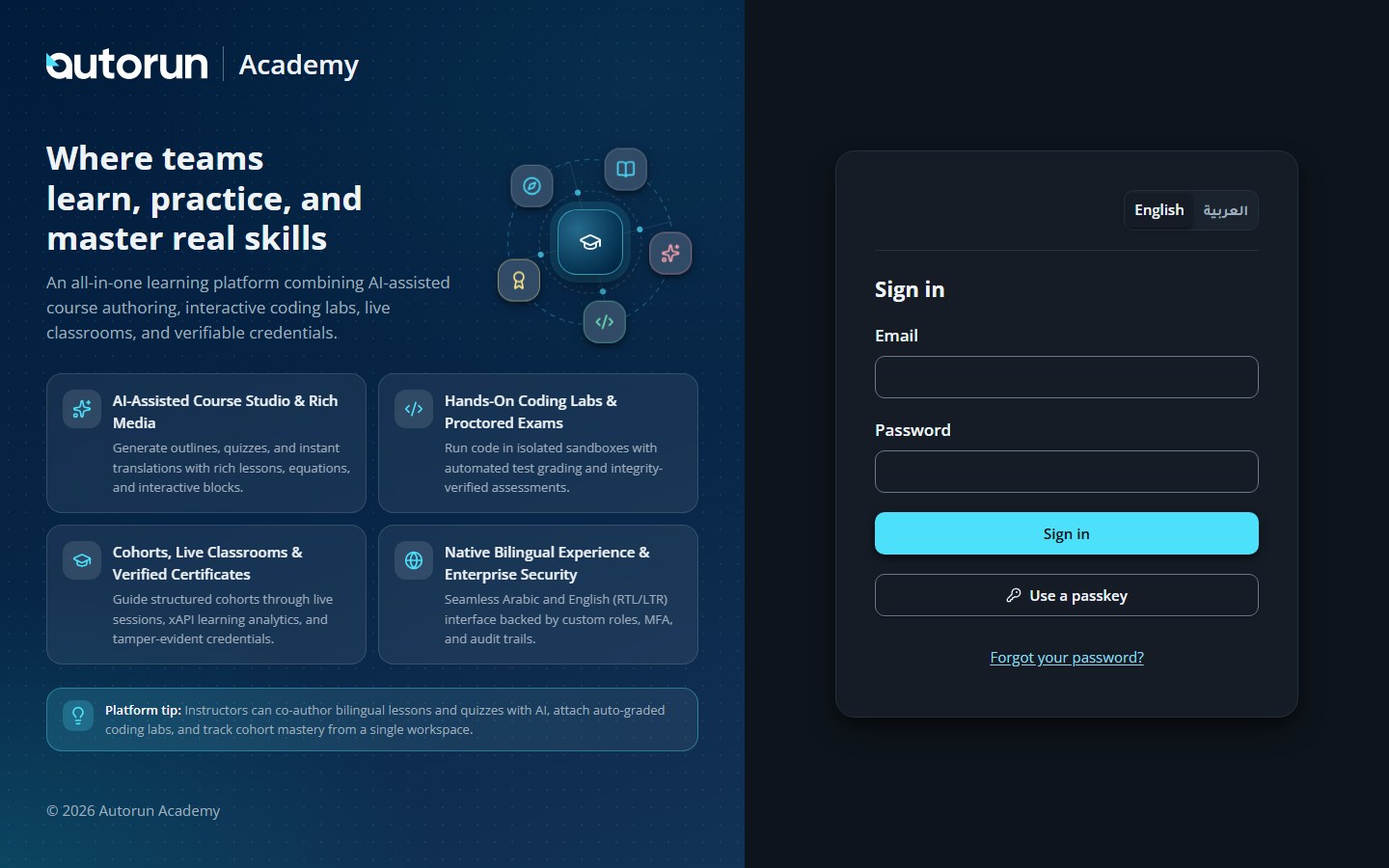
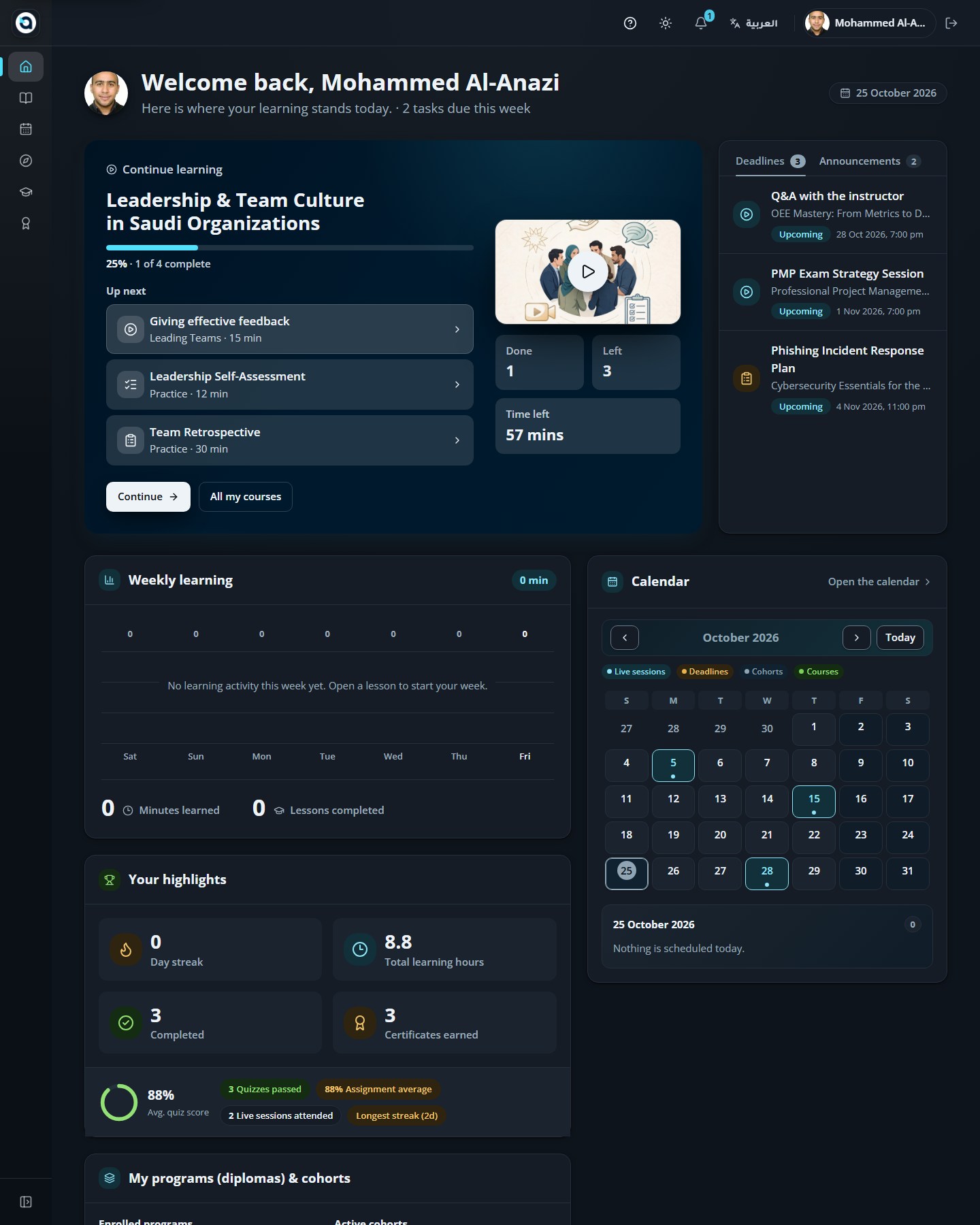
A theme toggle switches the whole platform between light and dark, per browser.
1
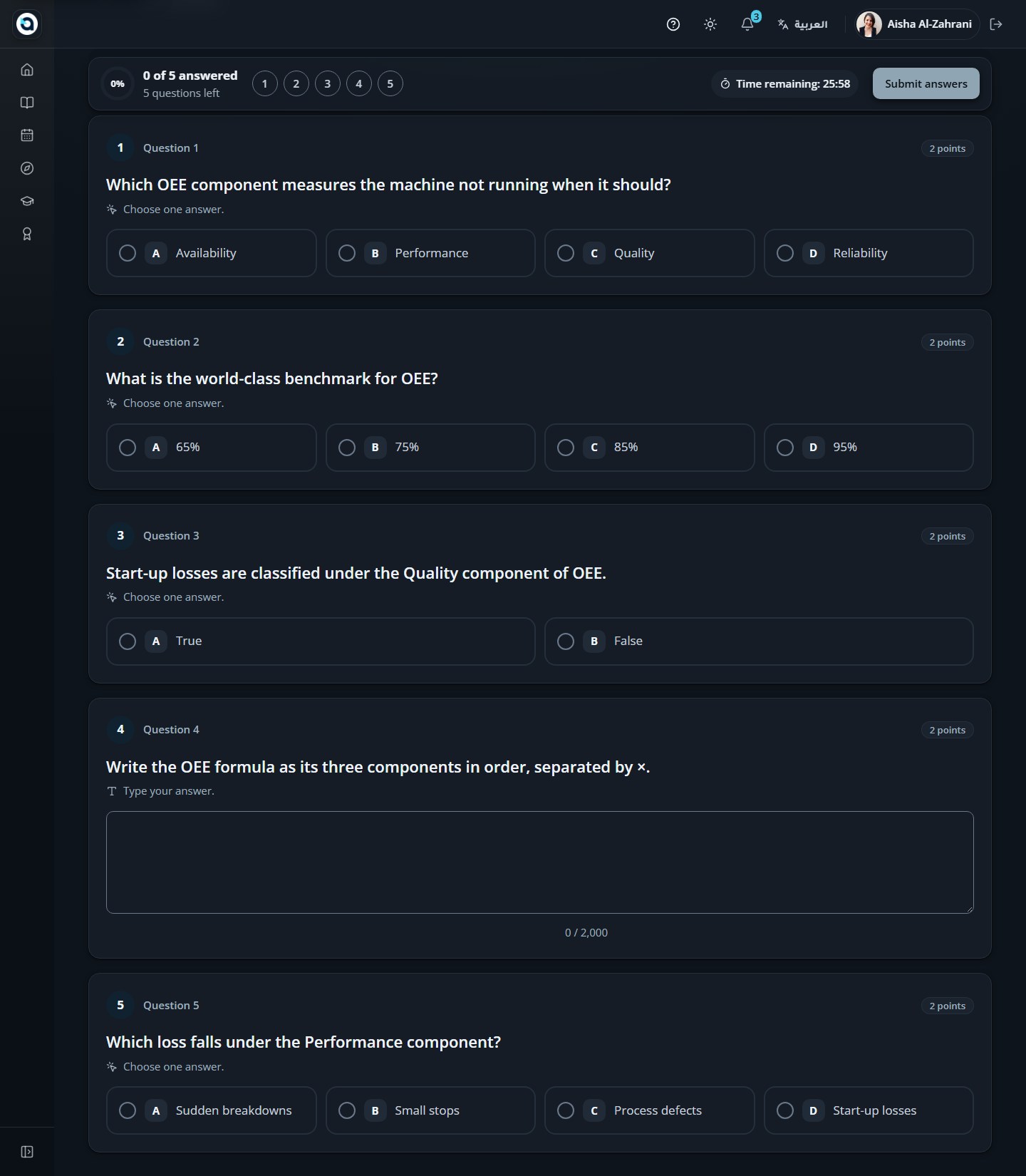
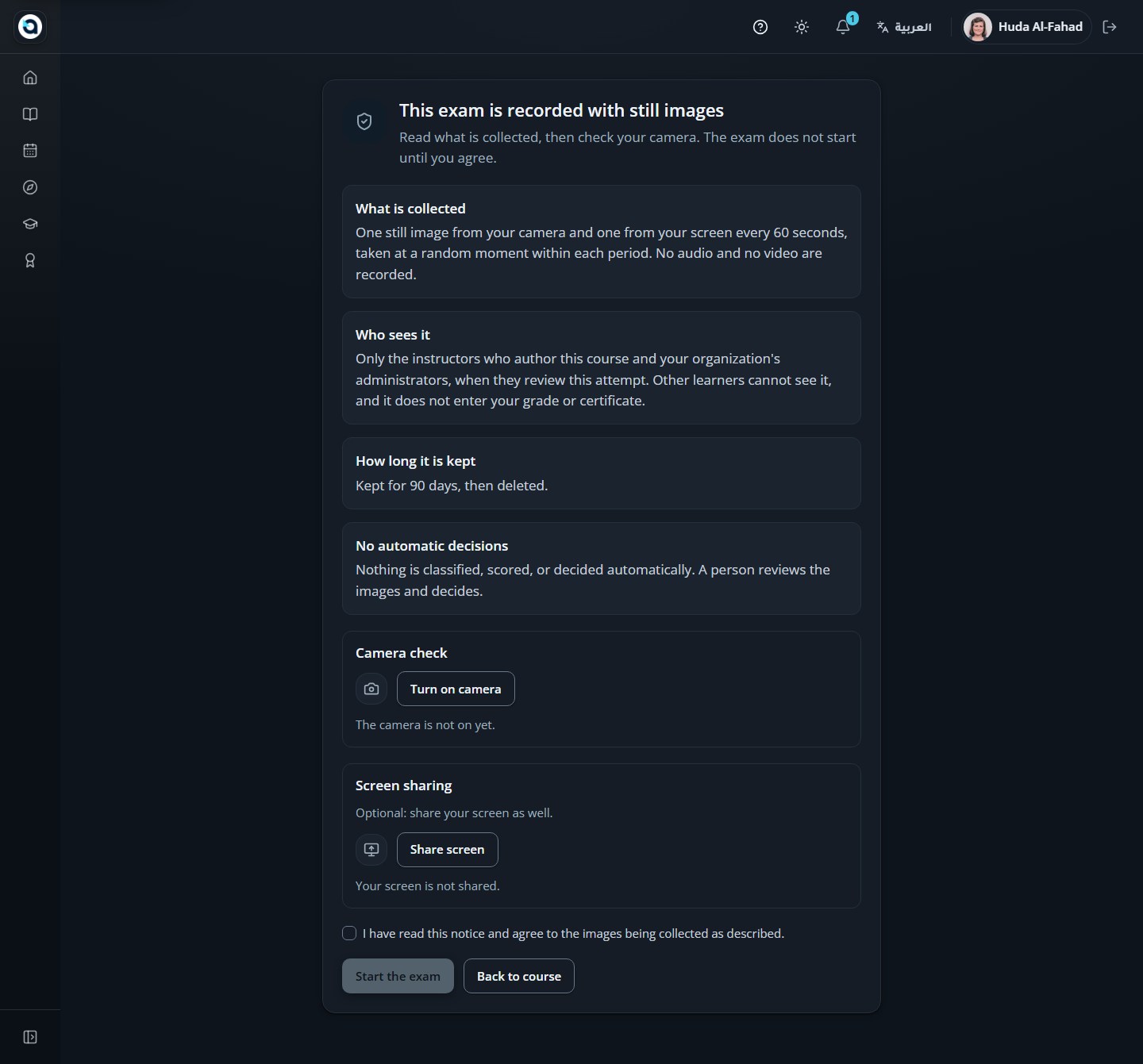
Choose the theme toggle in the top bar (Switch to dark theme / Switch to light theme).
2
Your choice is remembered in this browser on this device.
3
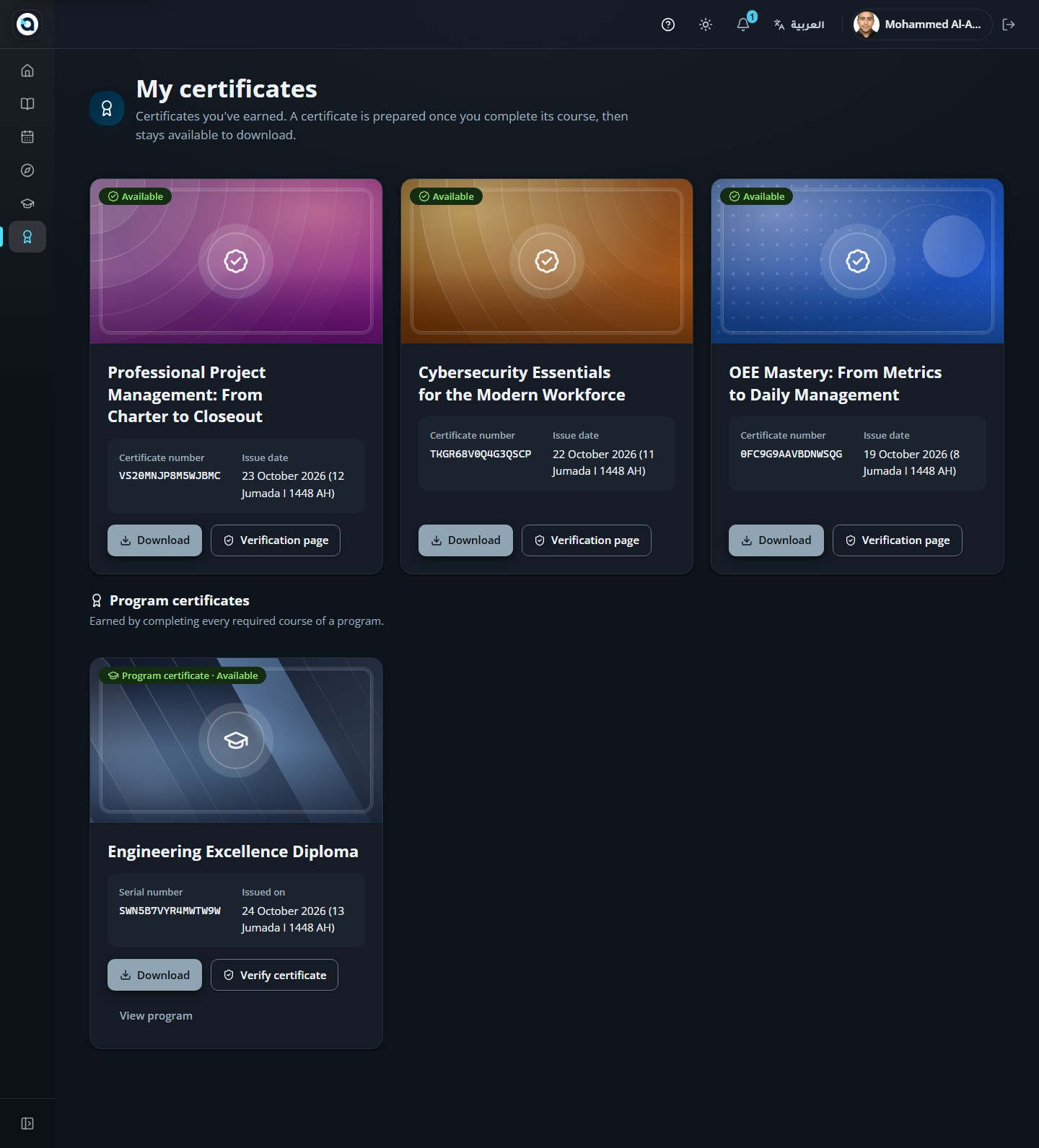
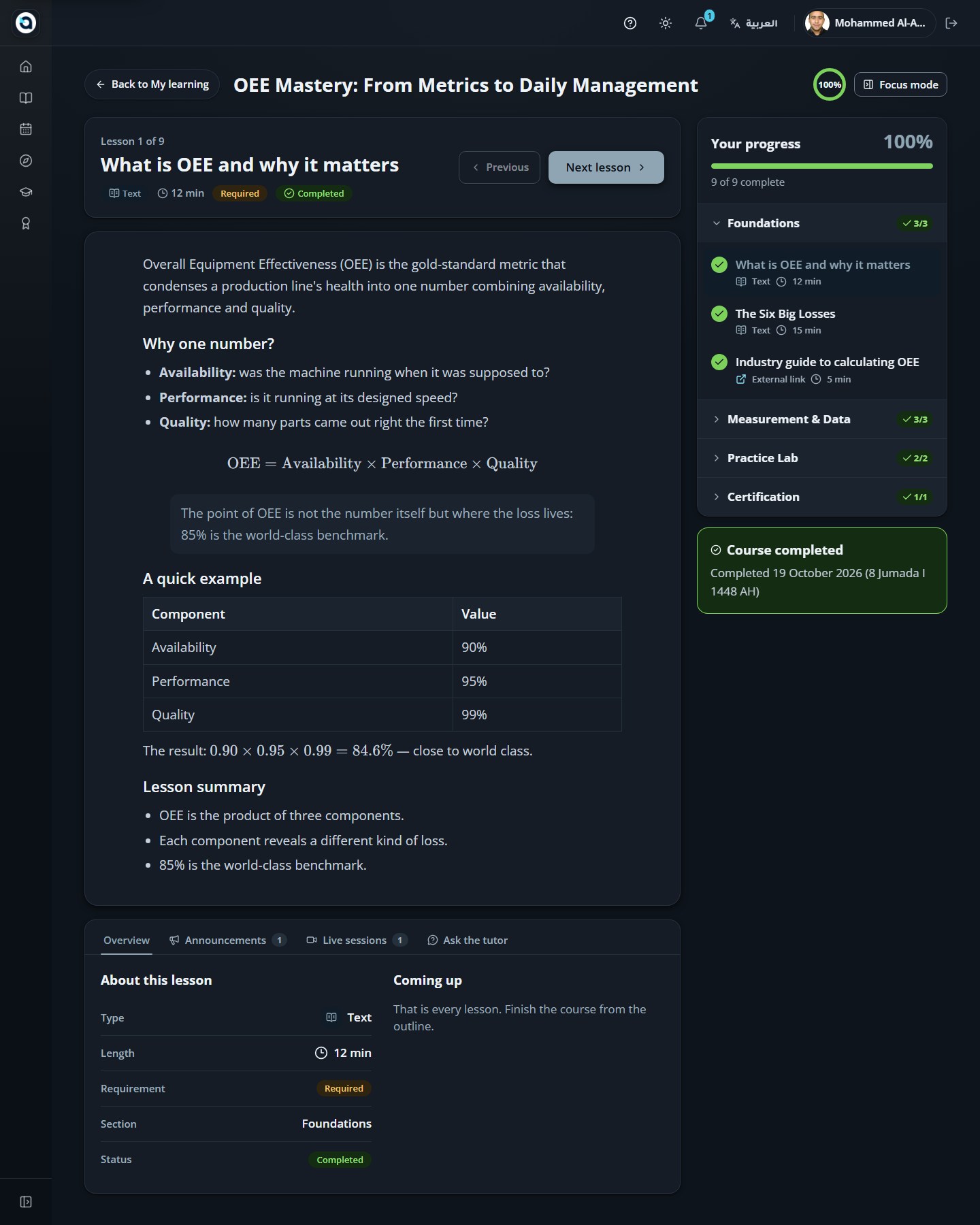
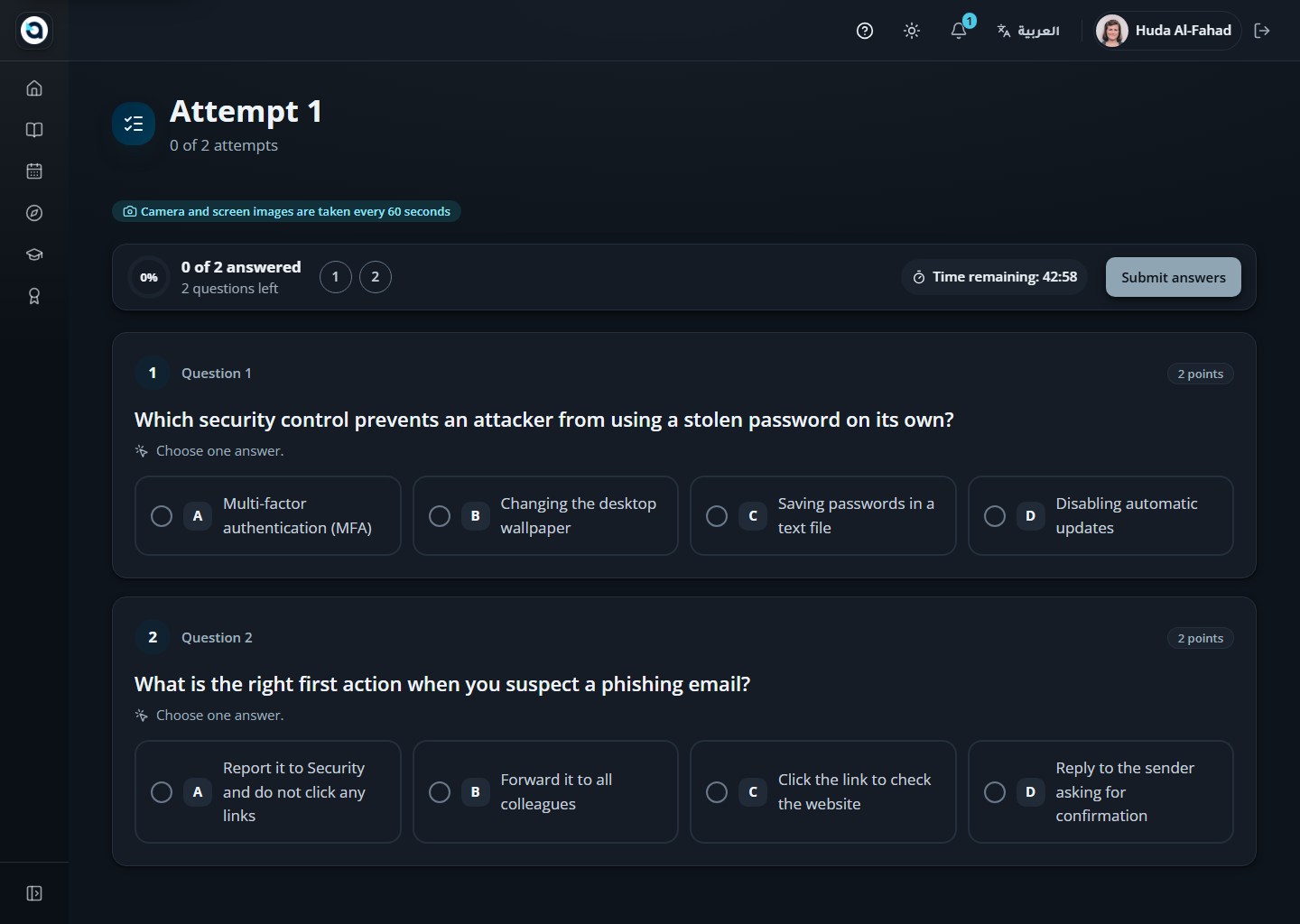
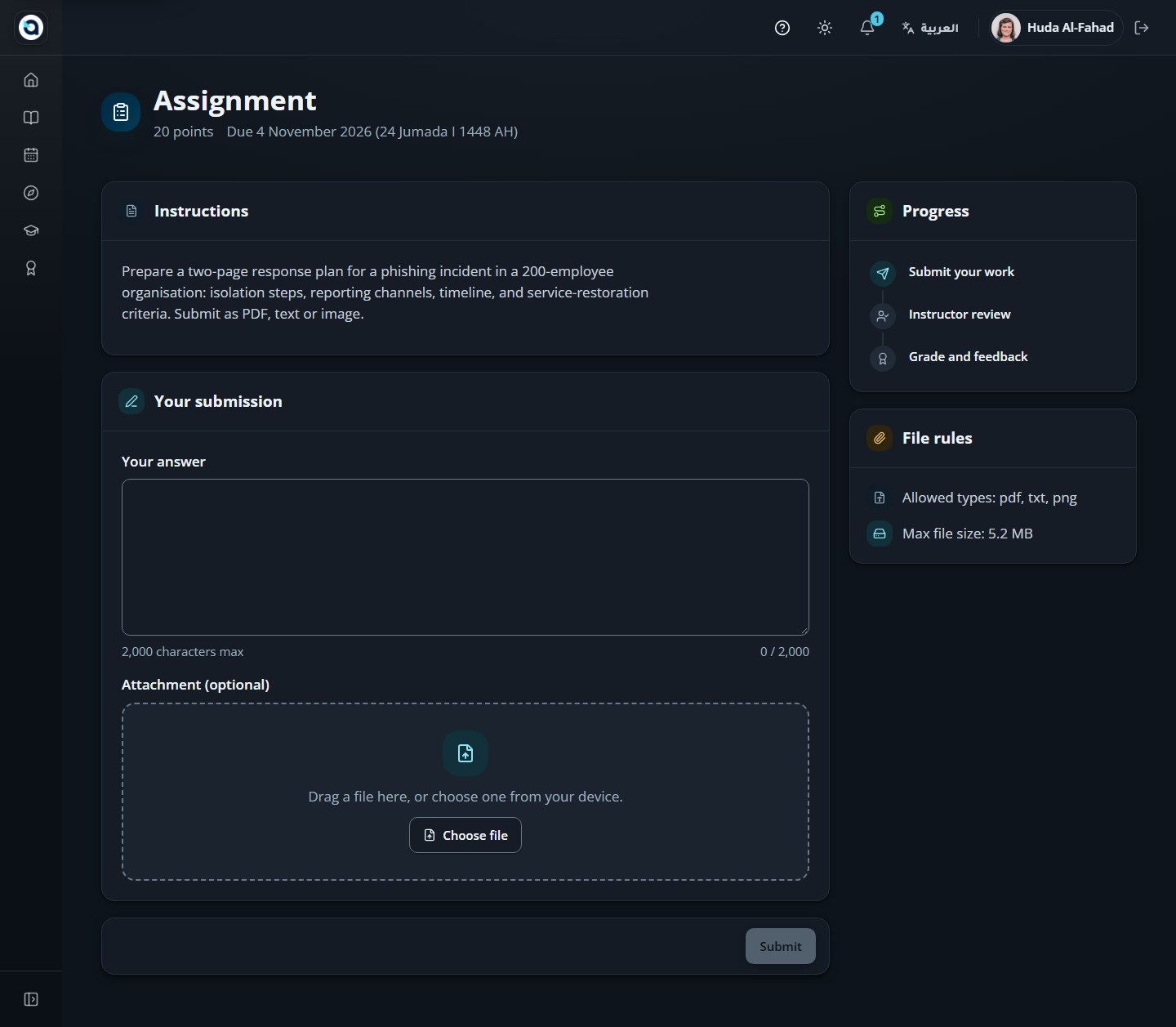
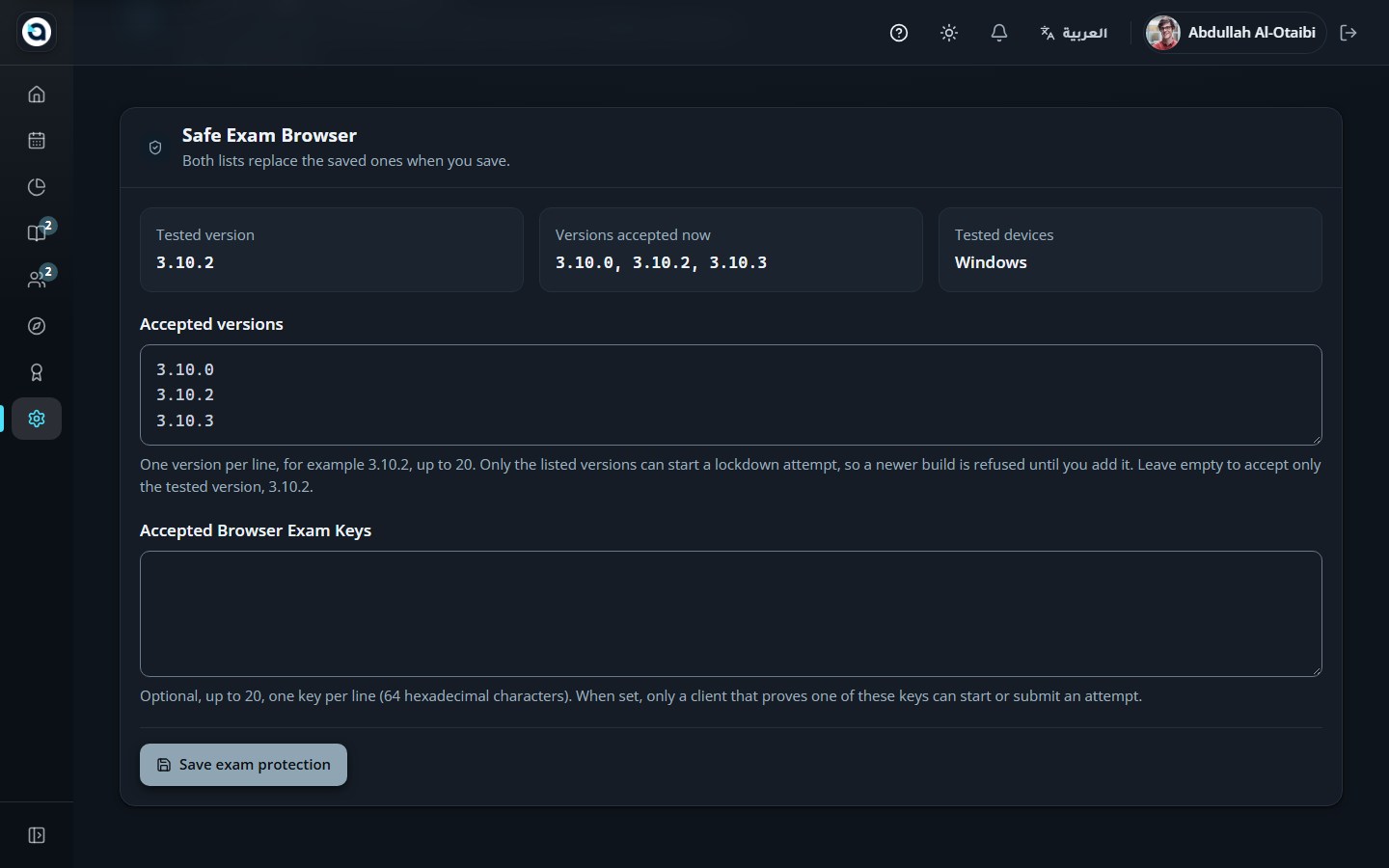
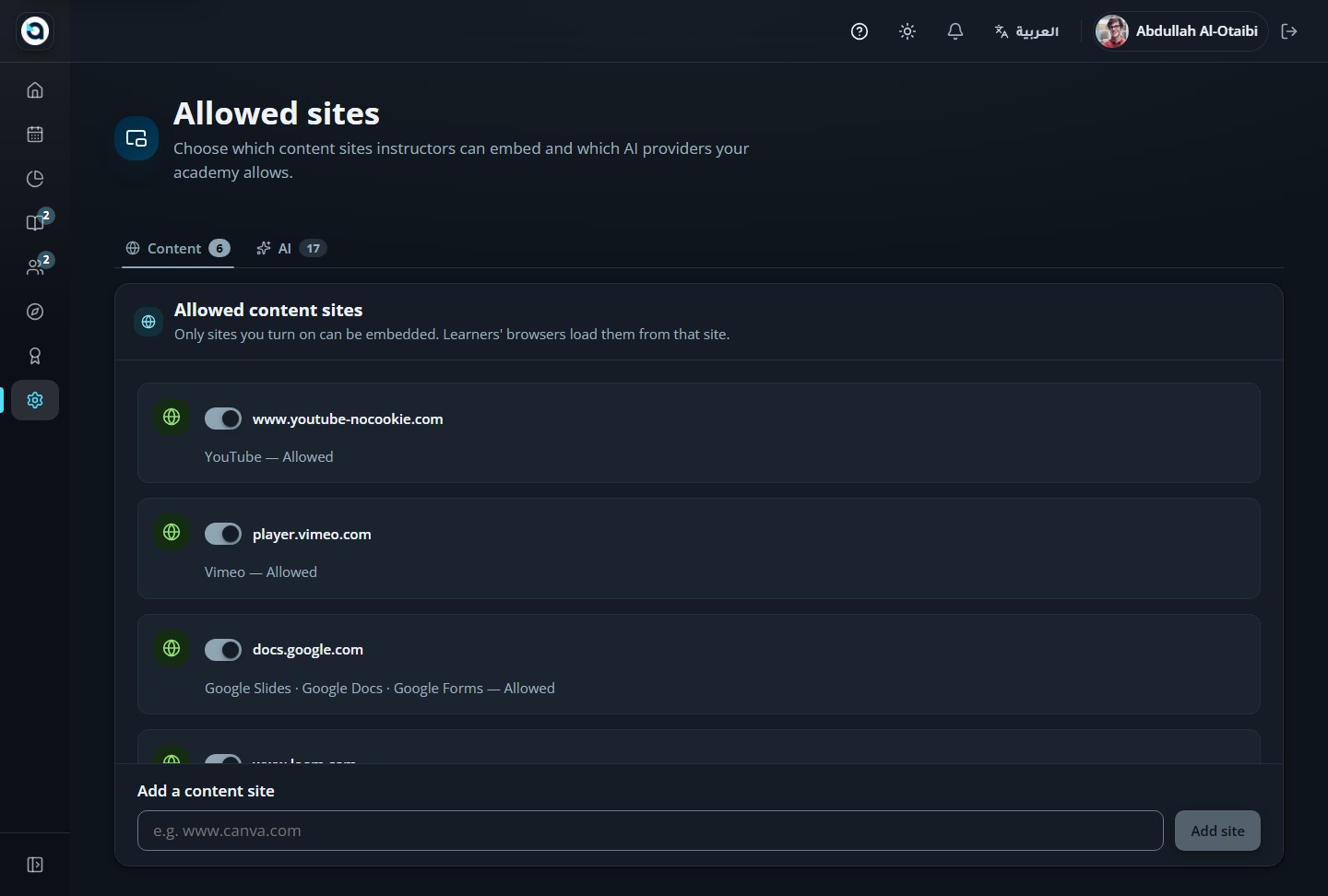
The dark palette keeps the same layout and contrast ratios as light.
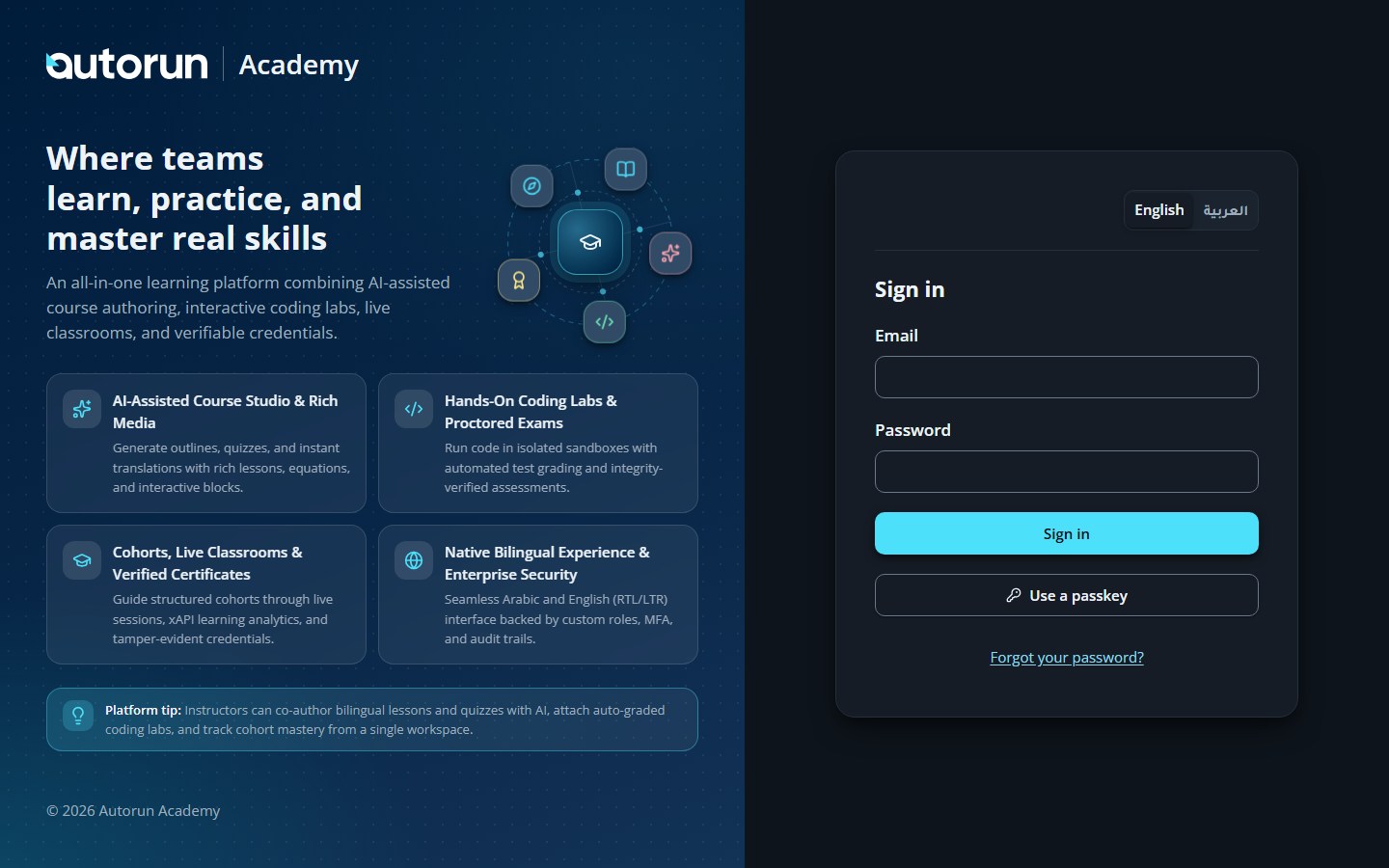
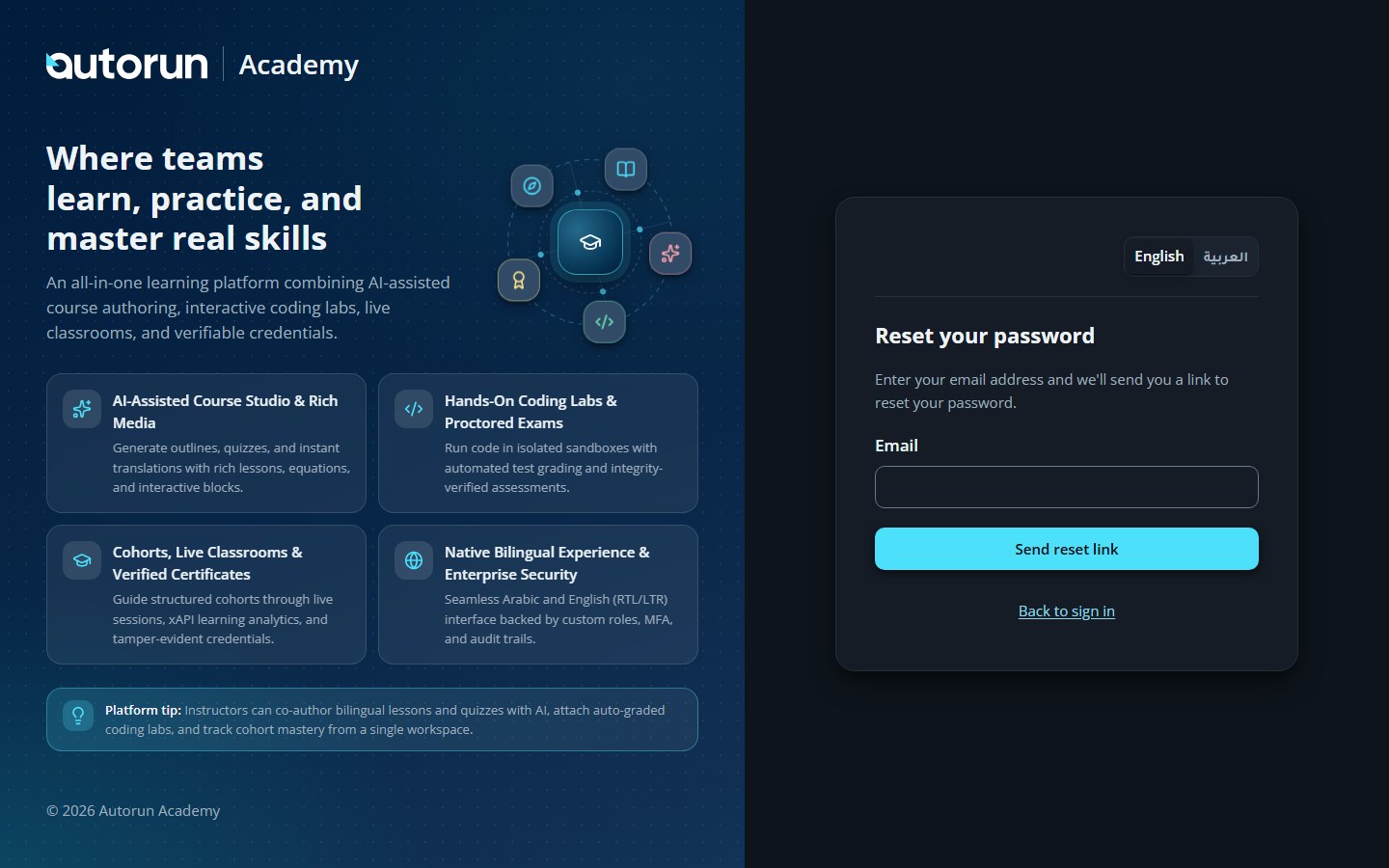
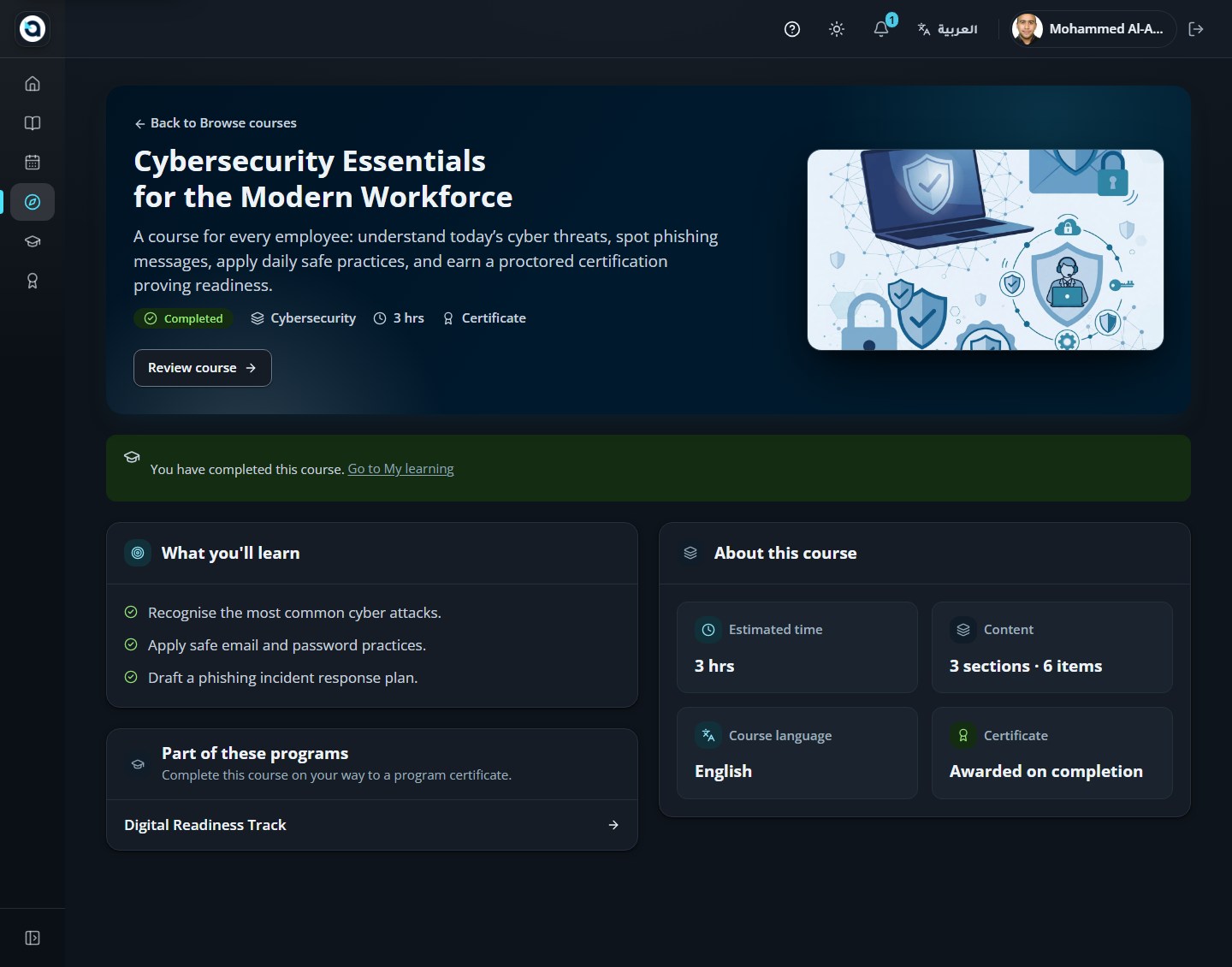
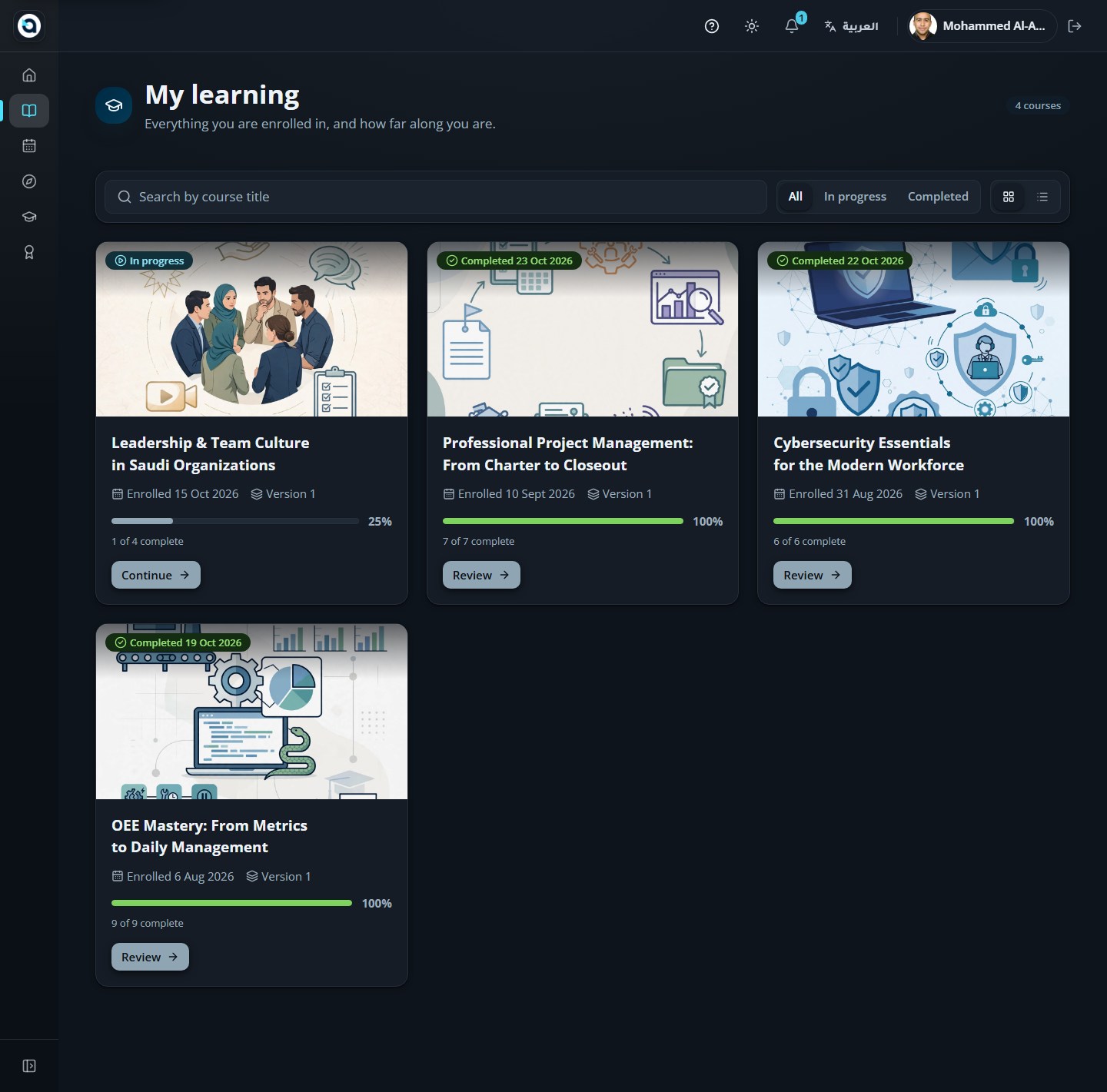
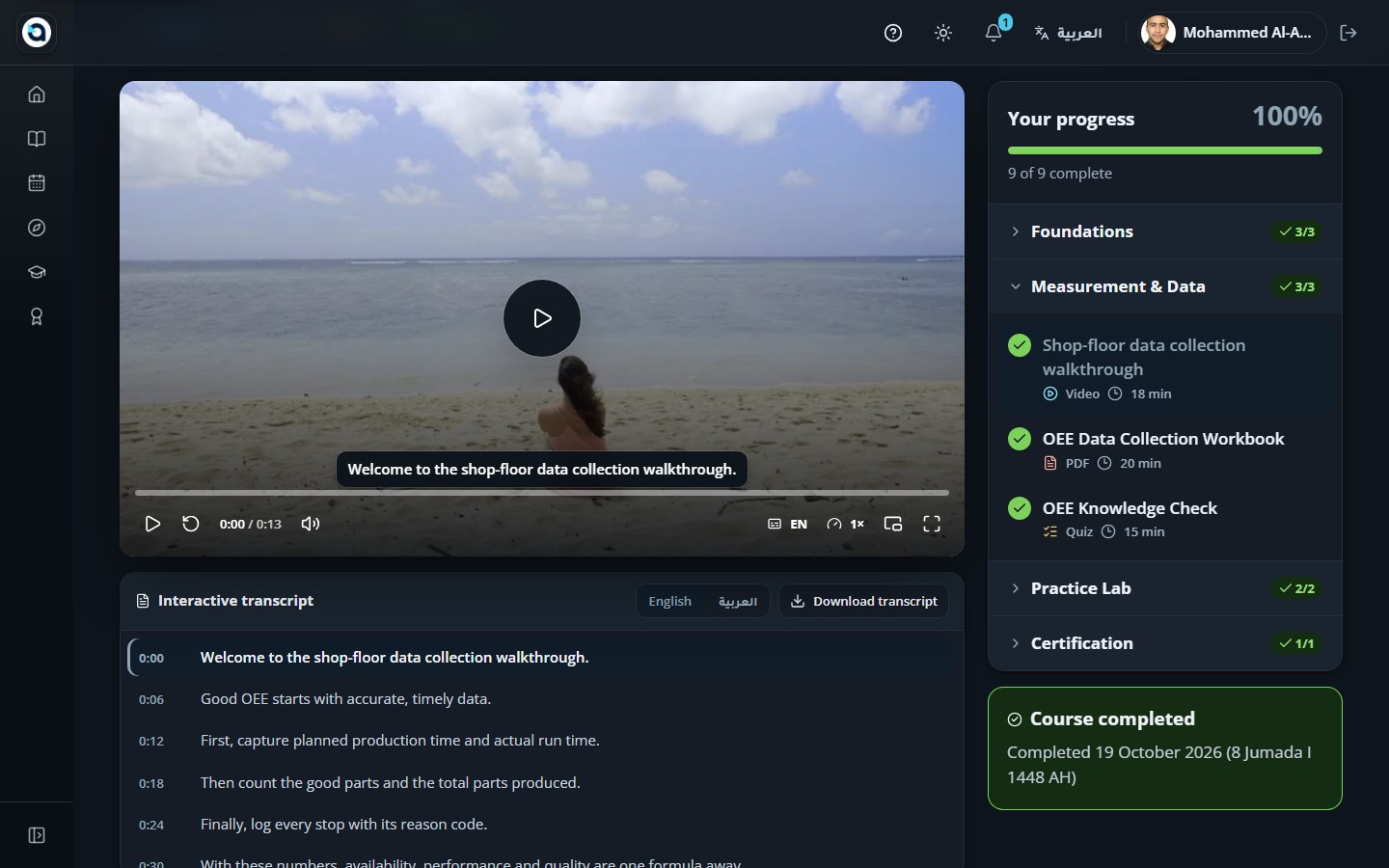
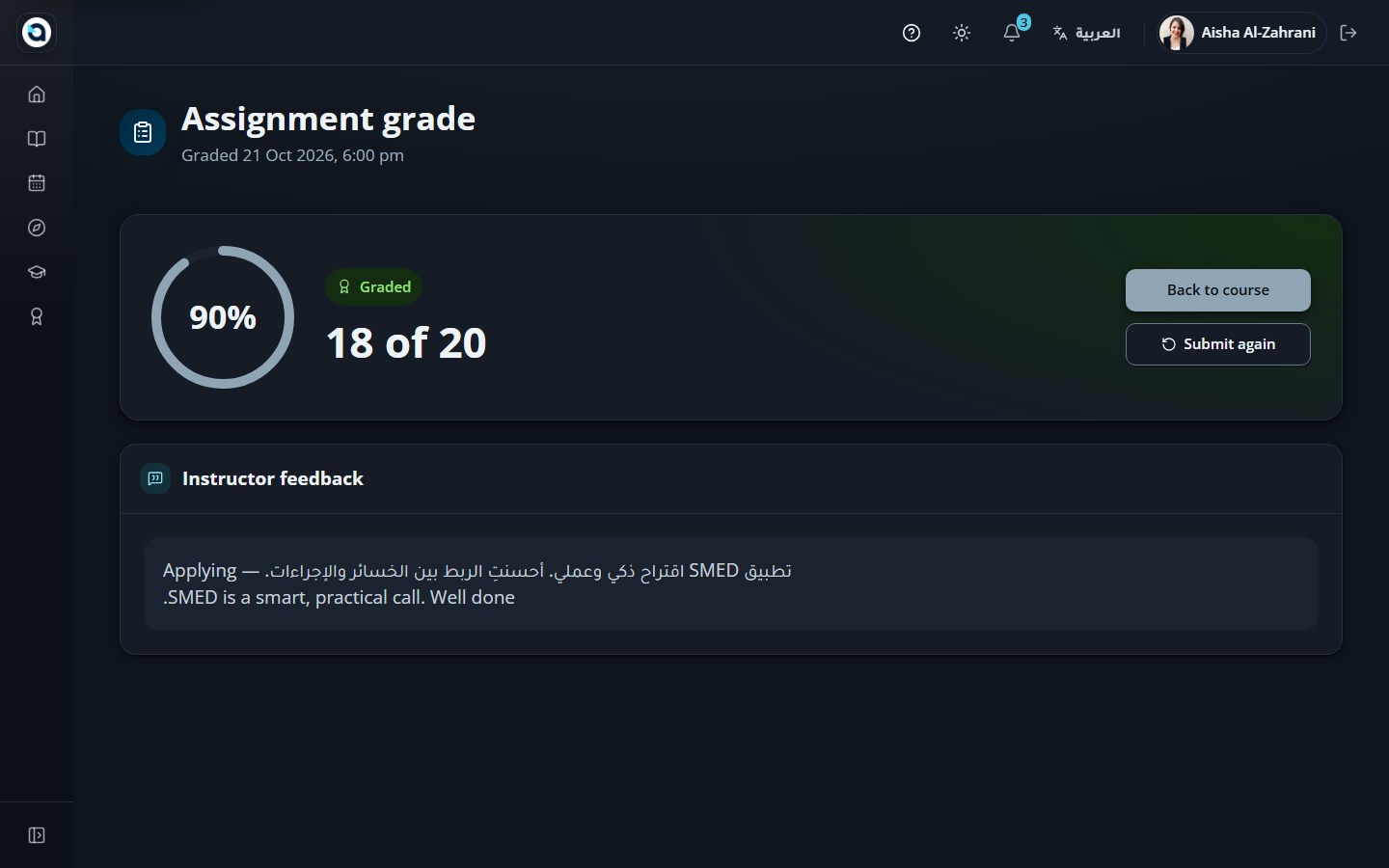
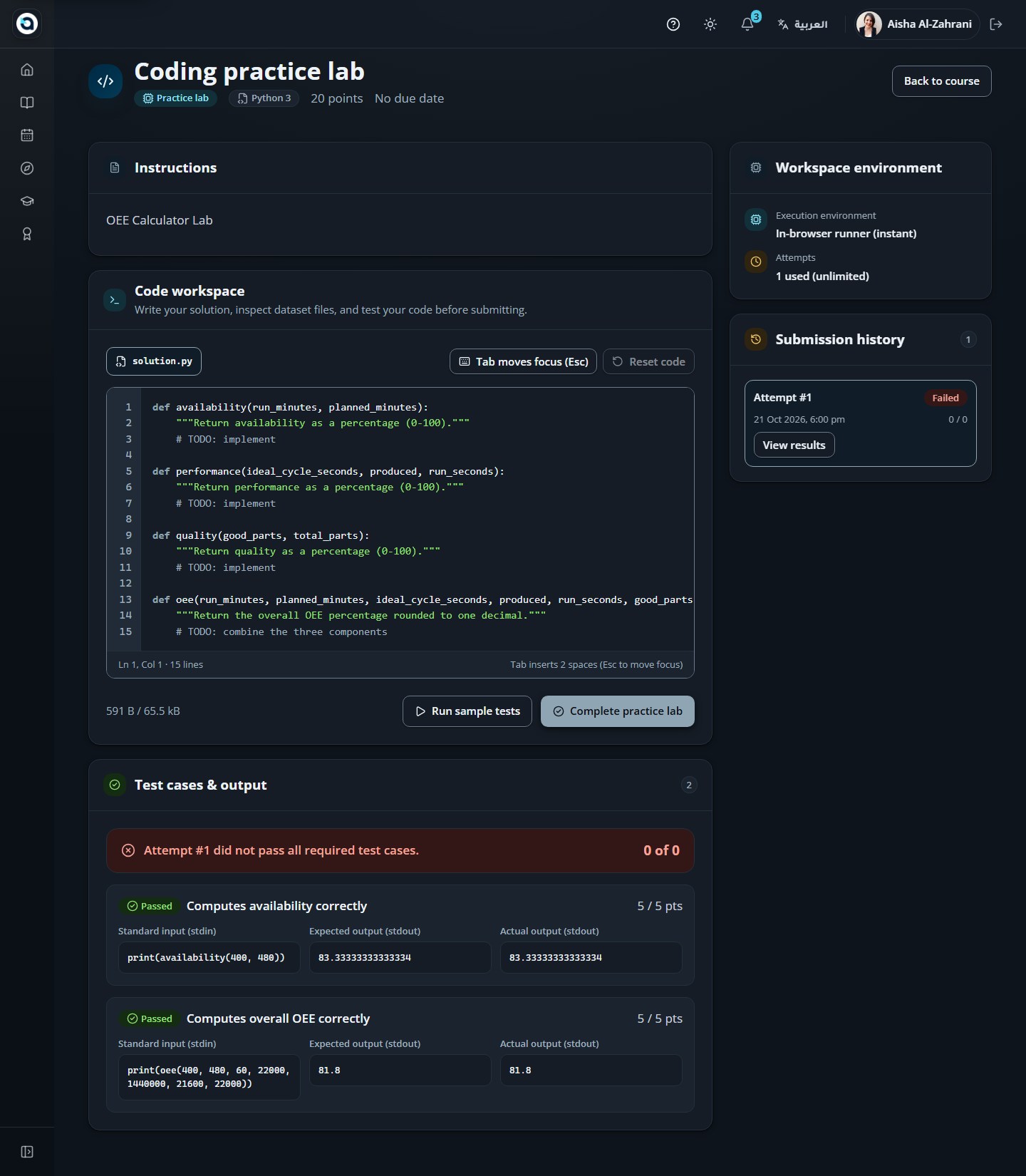
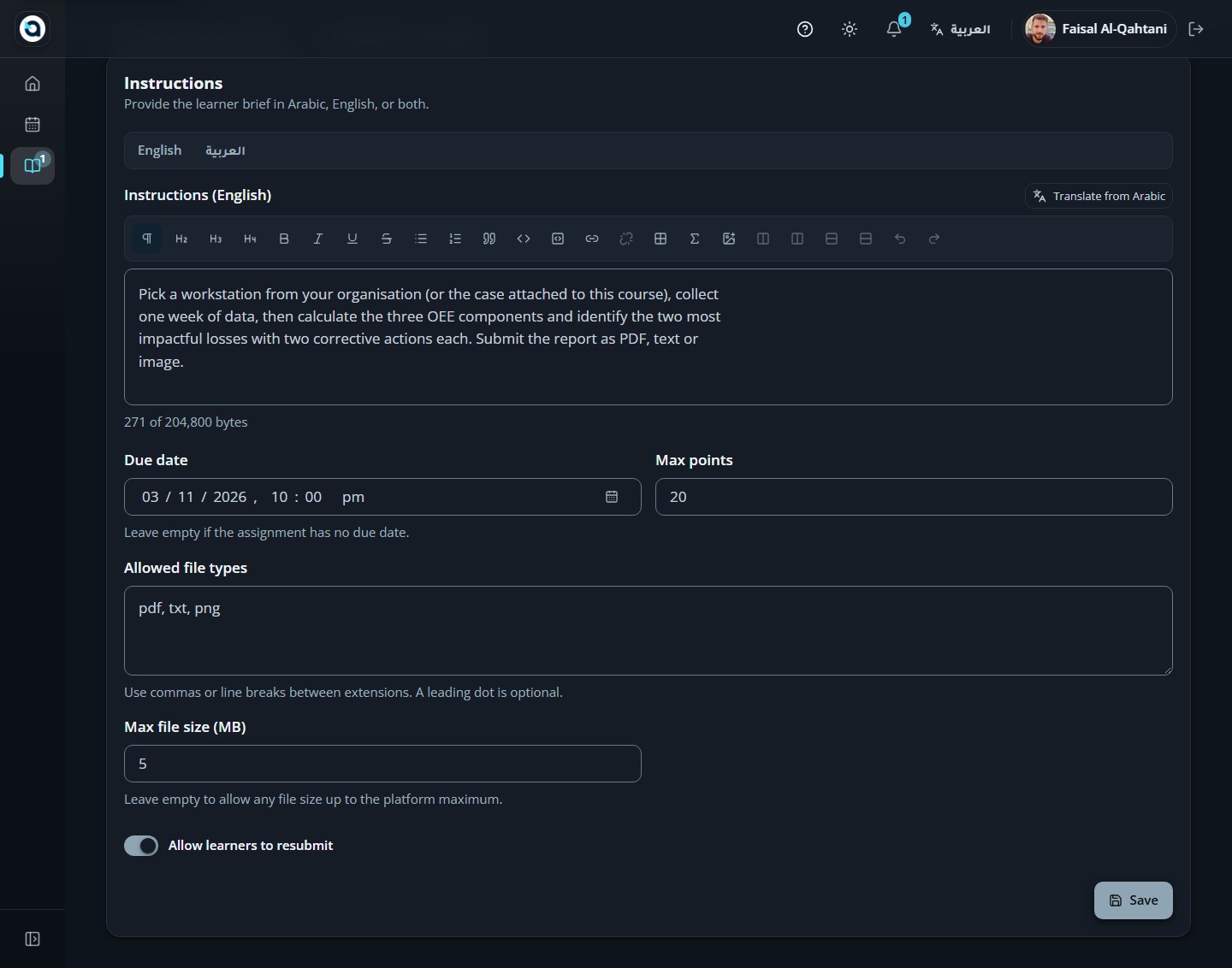
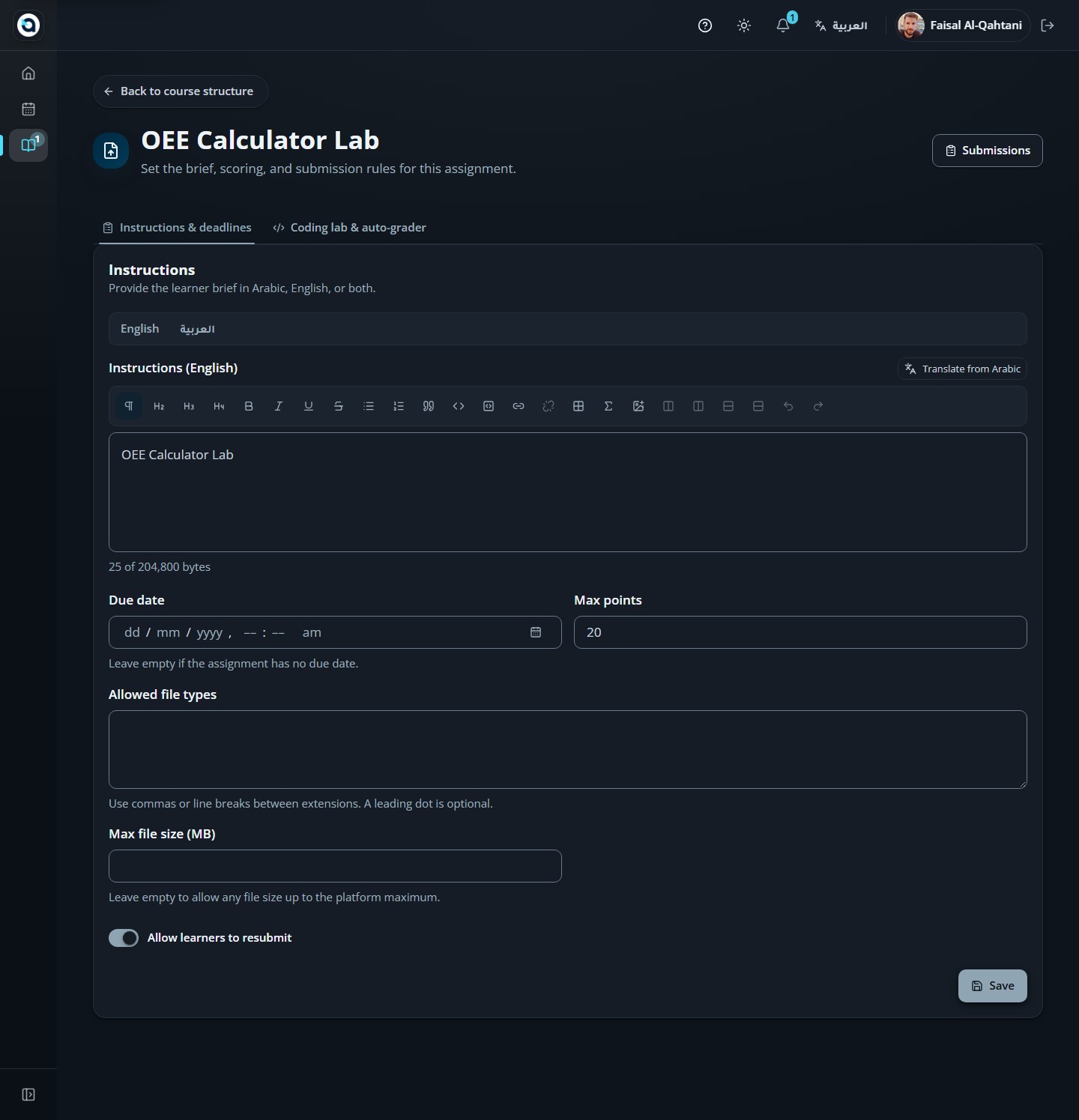
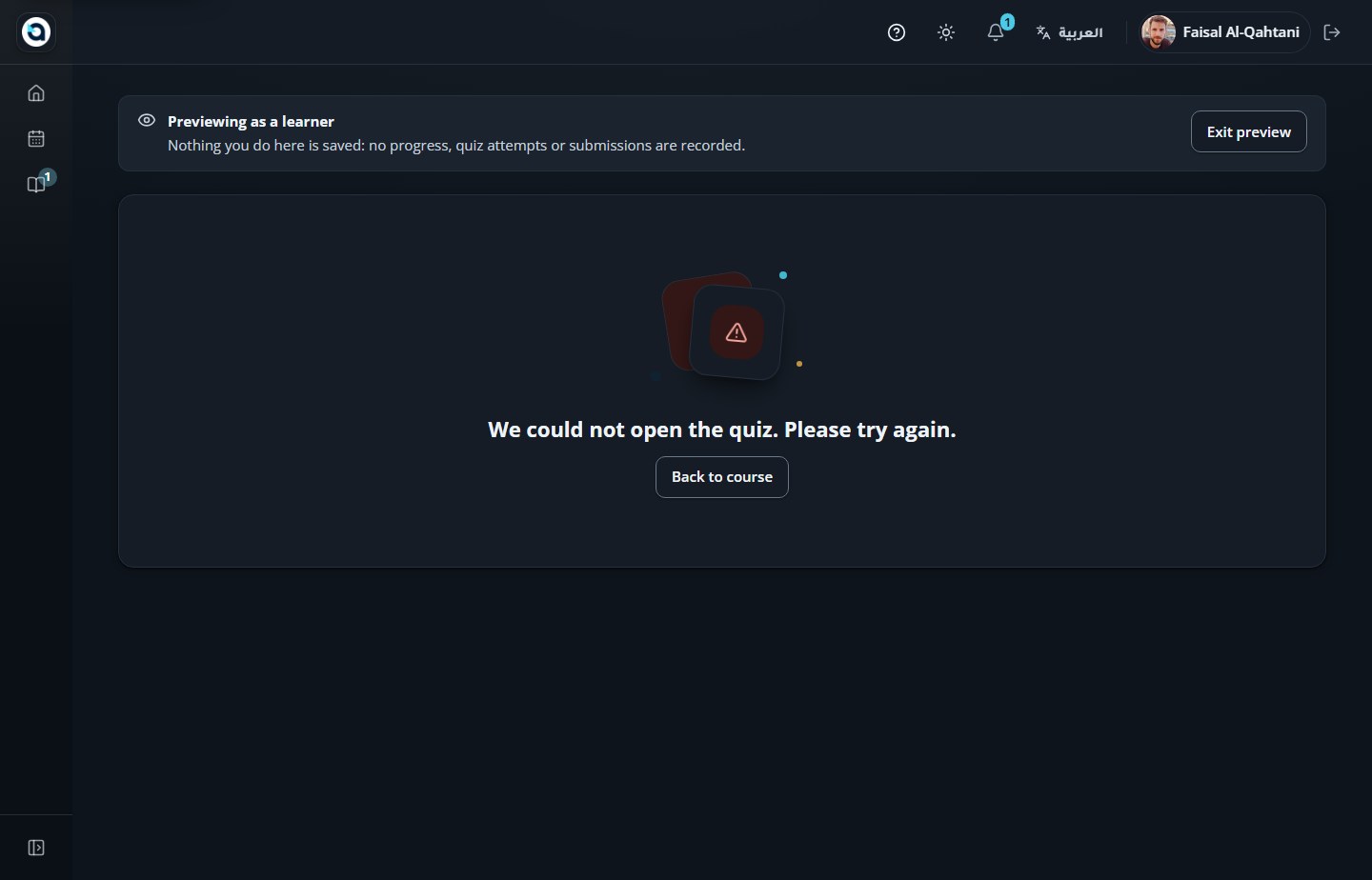
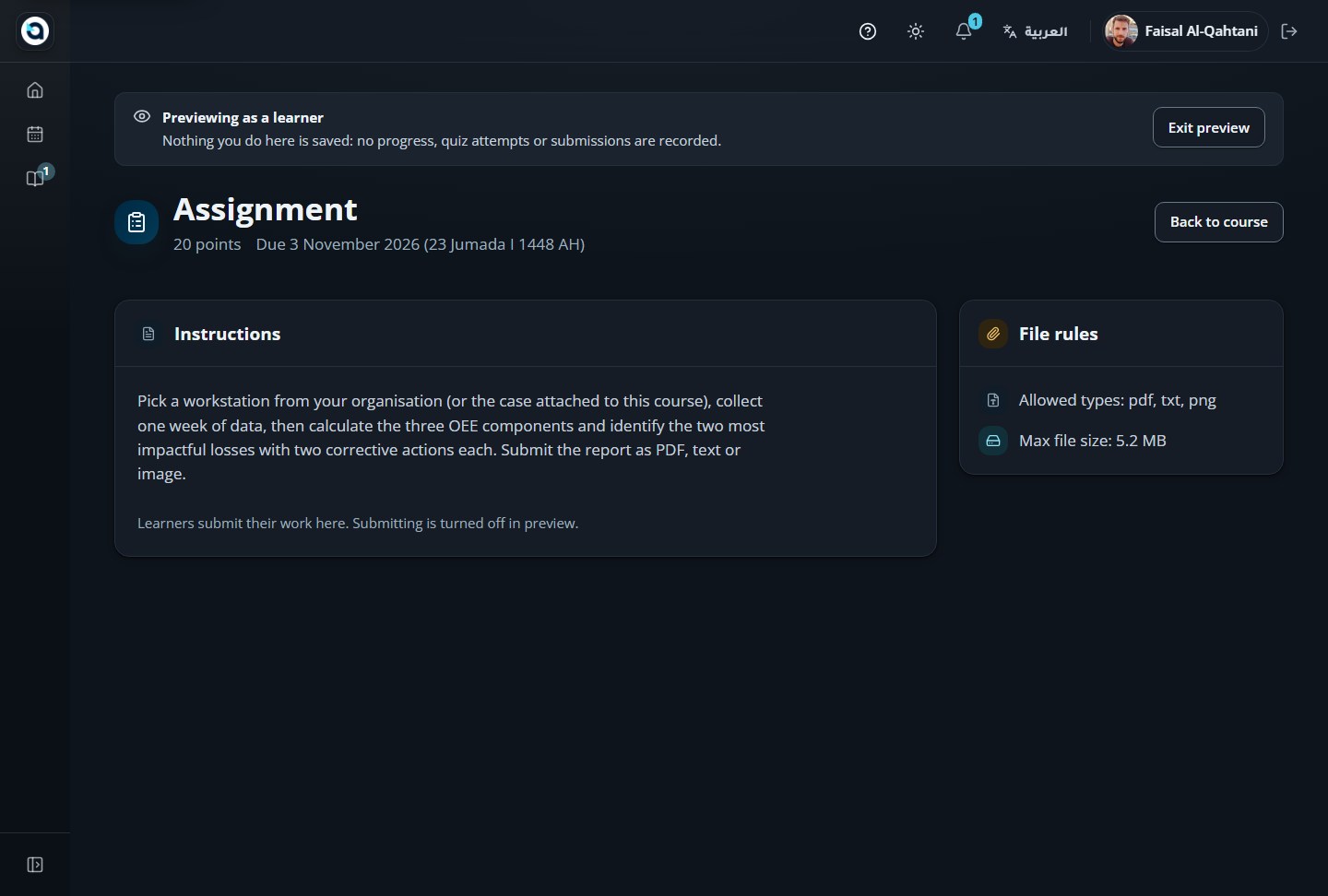
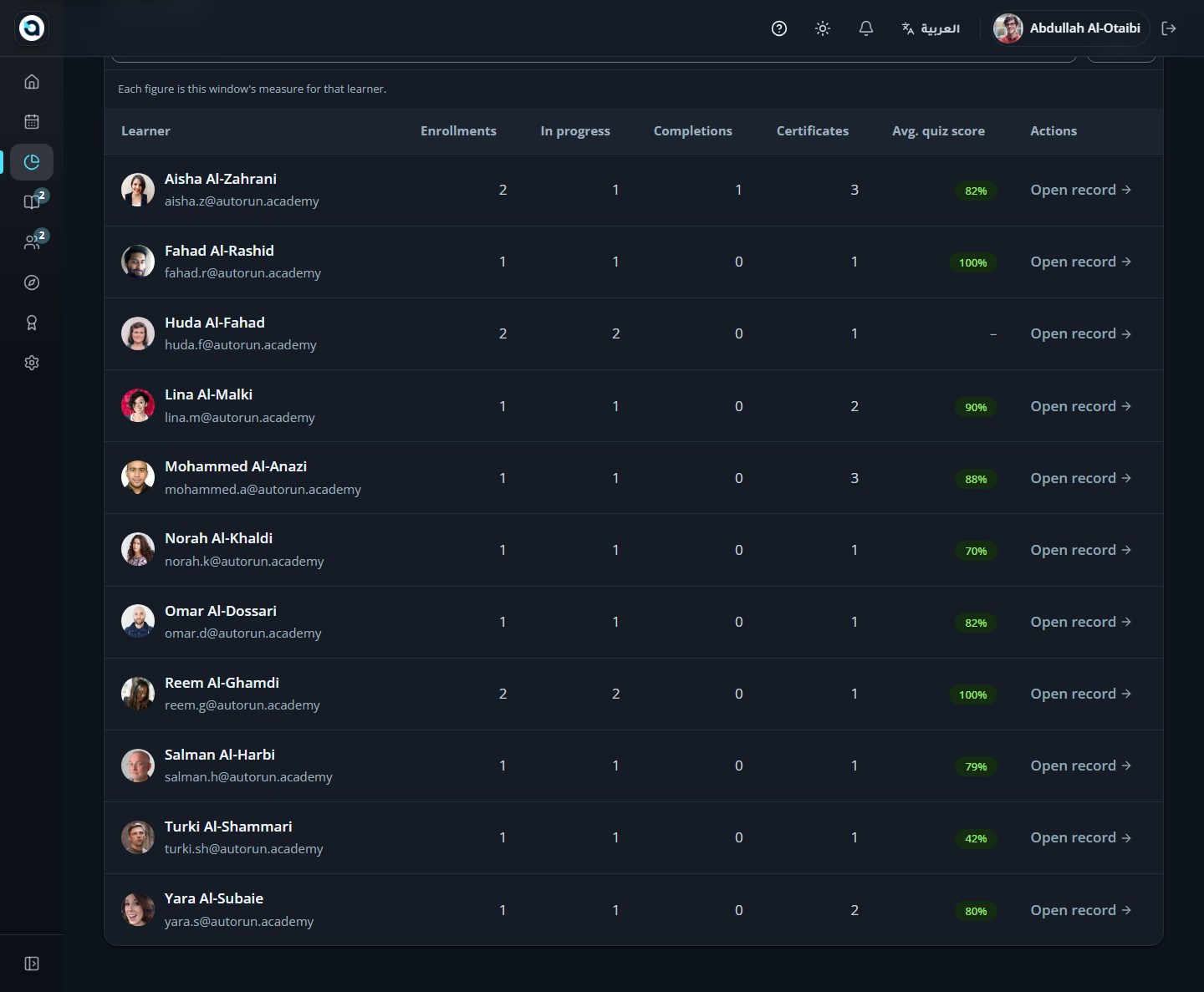
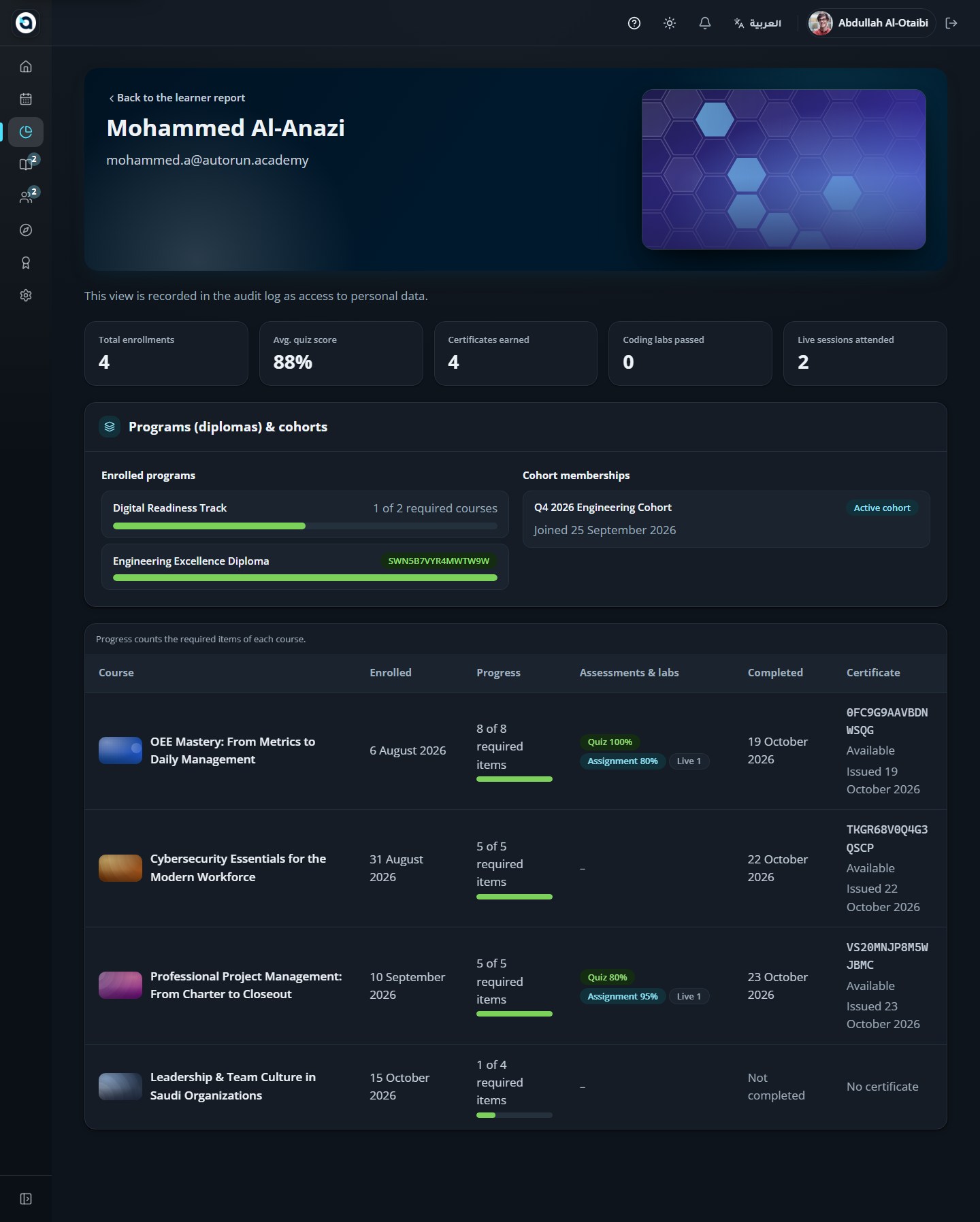
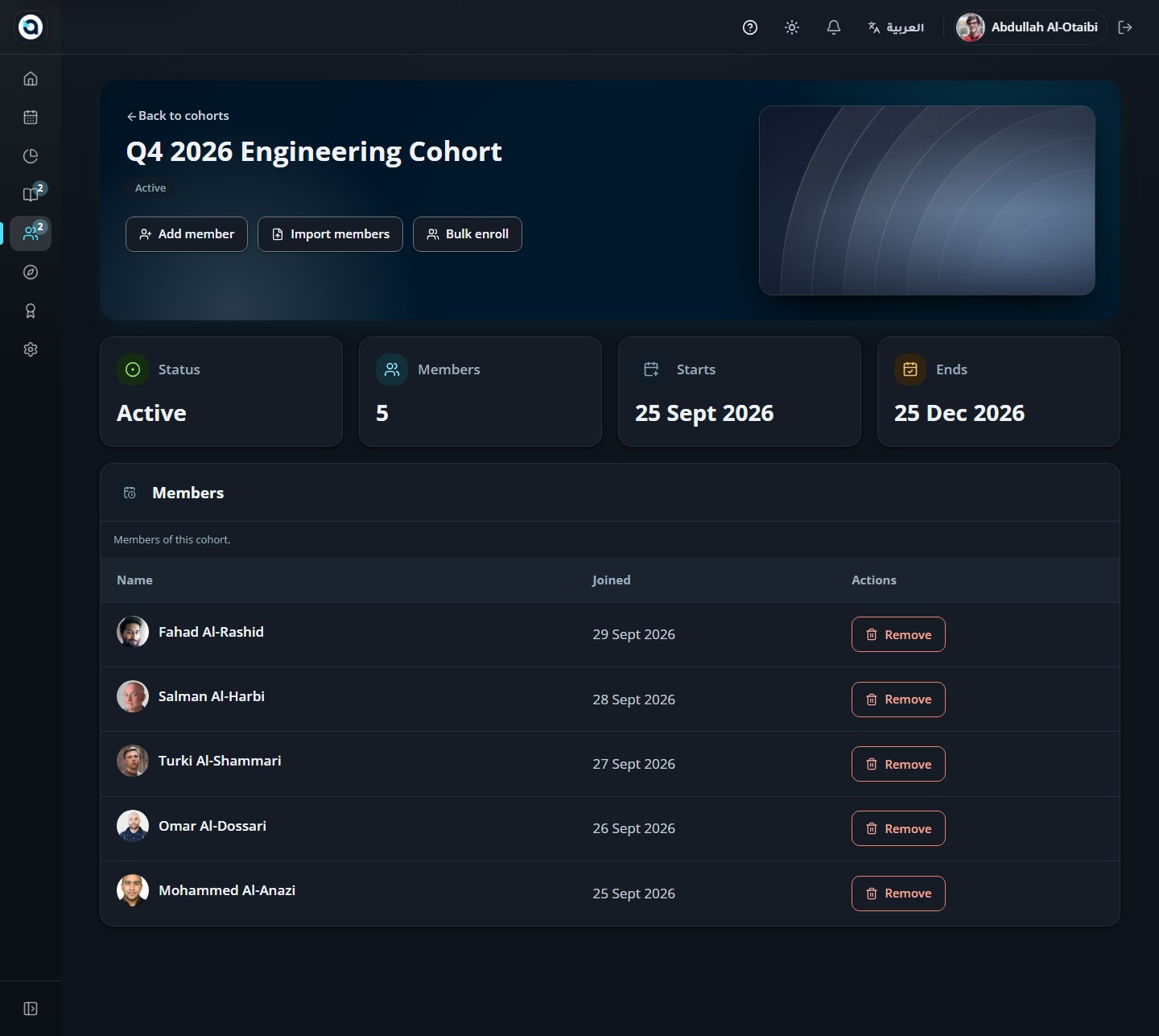
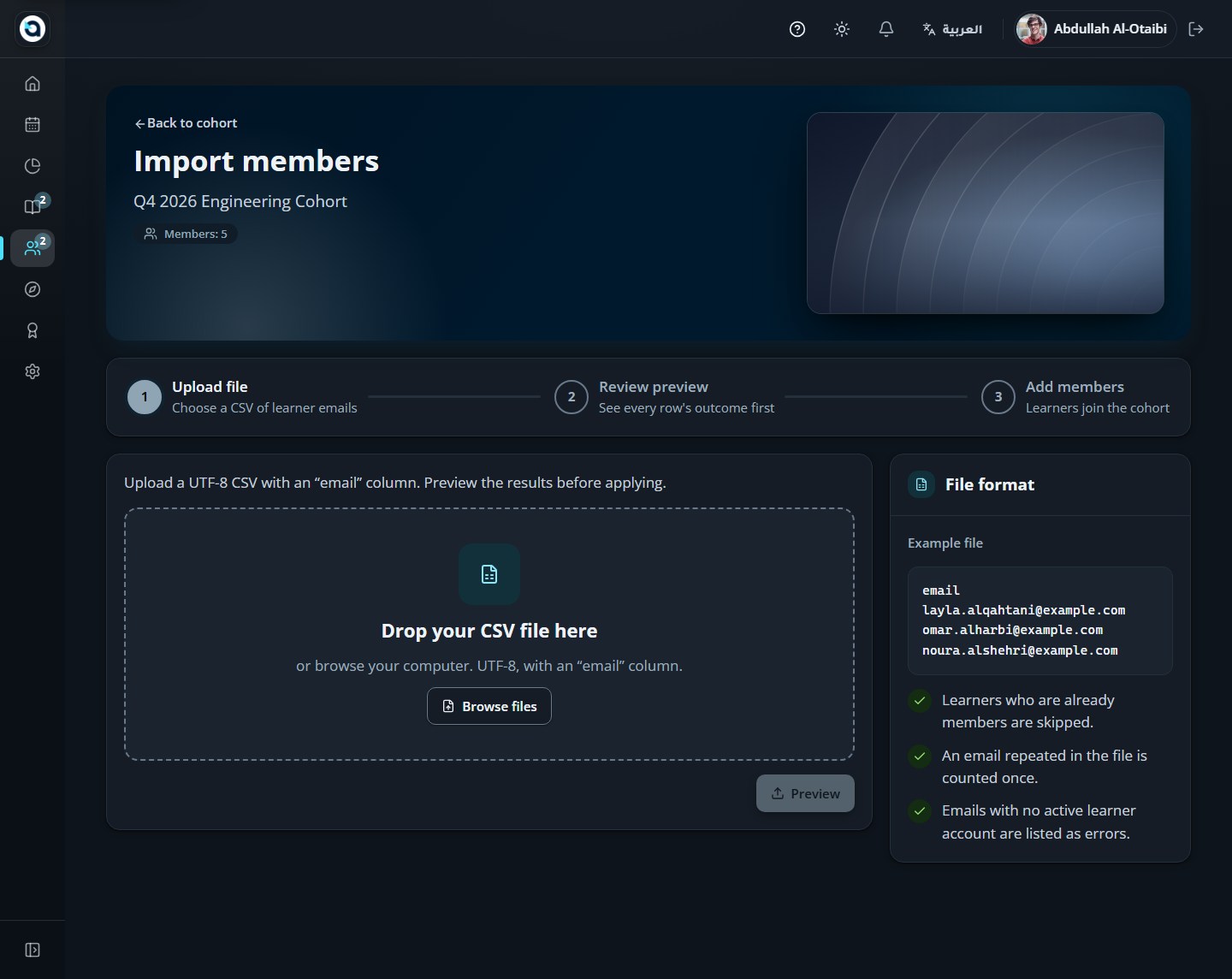
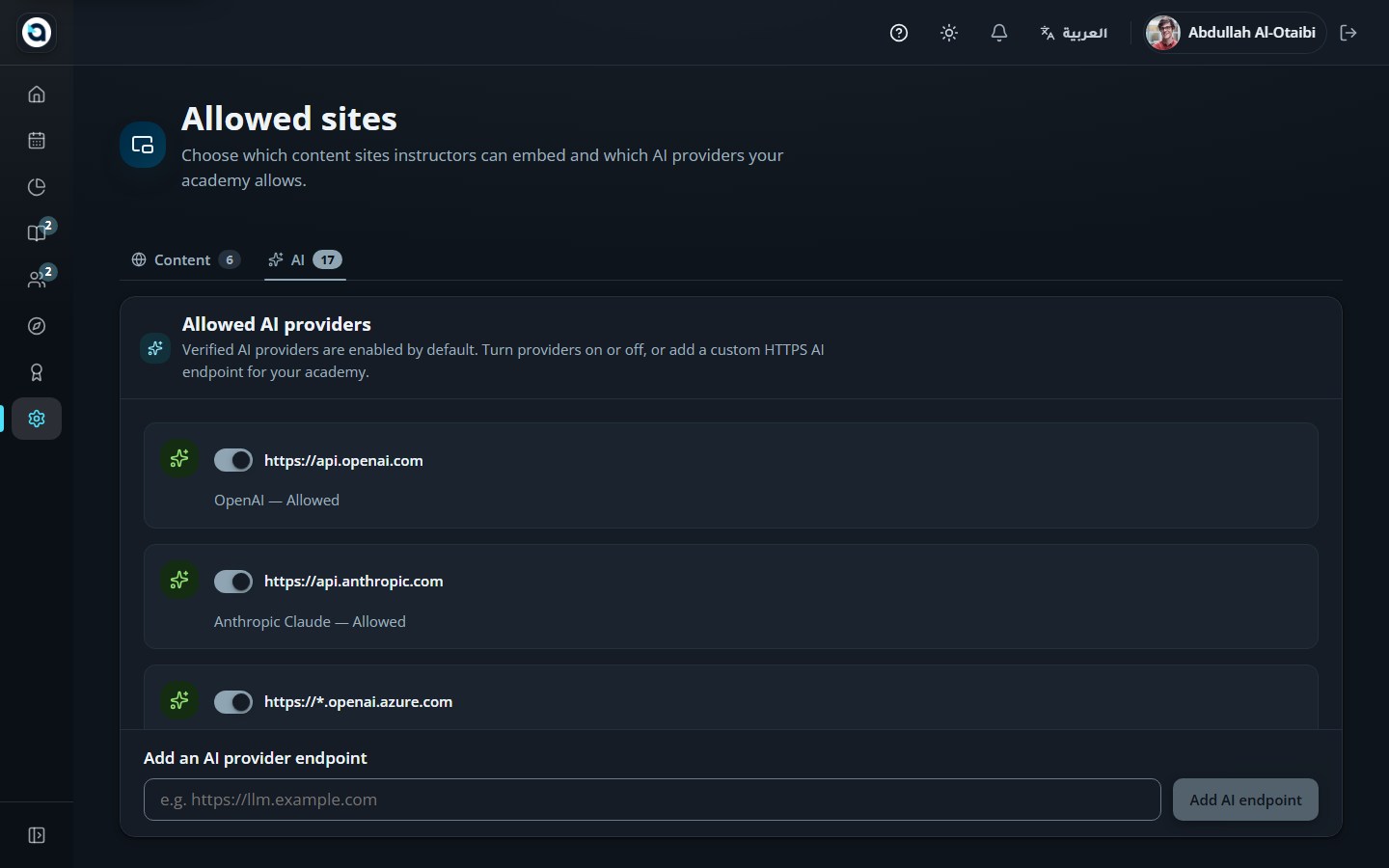
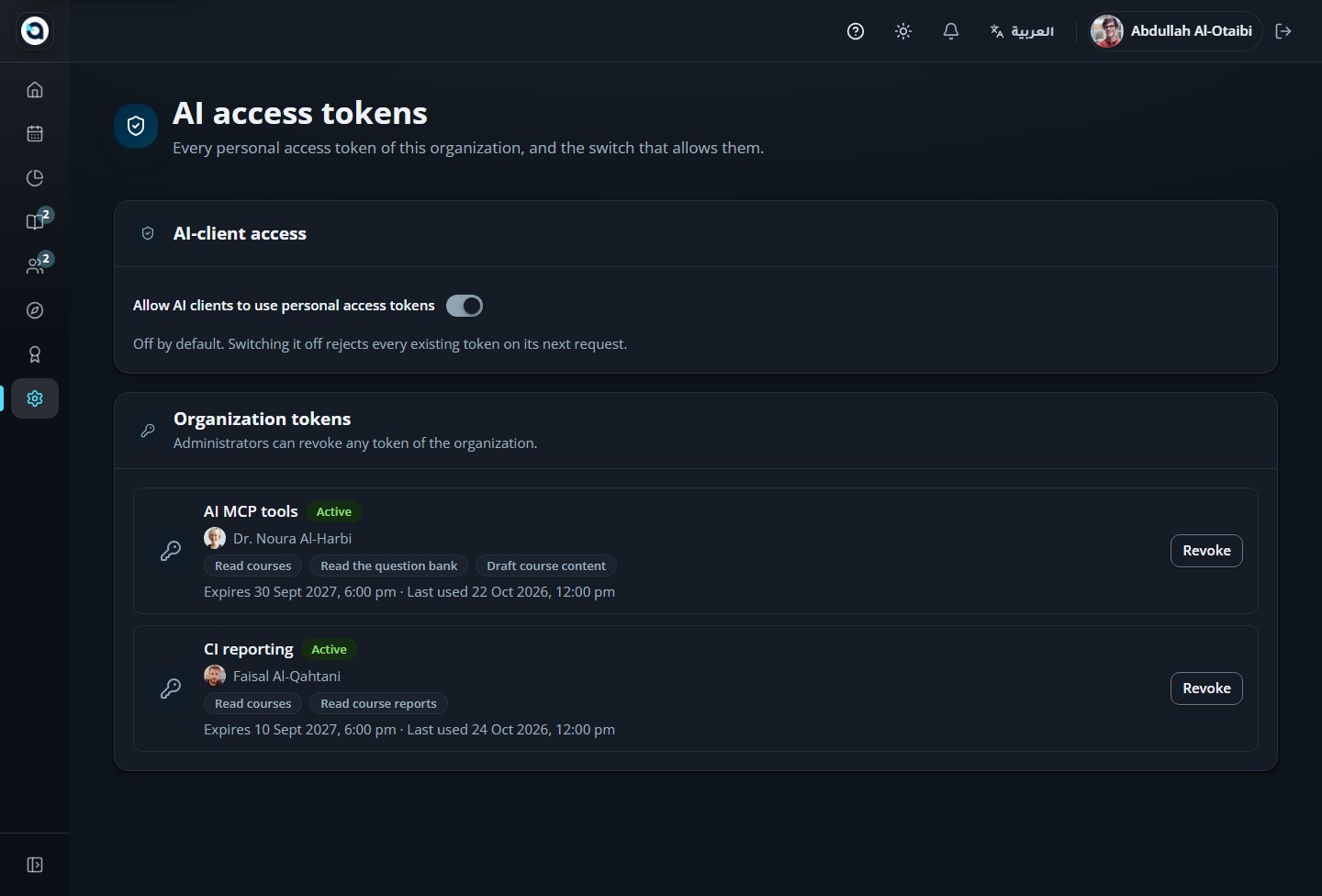
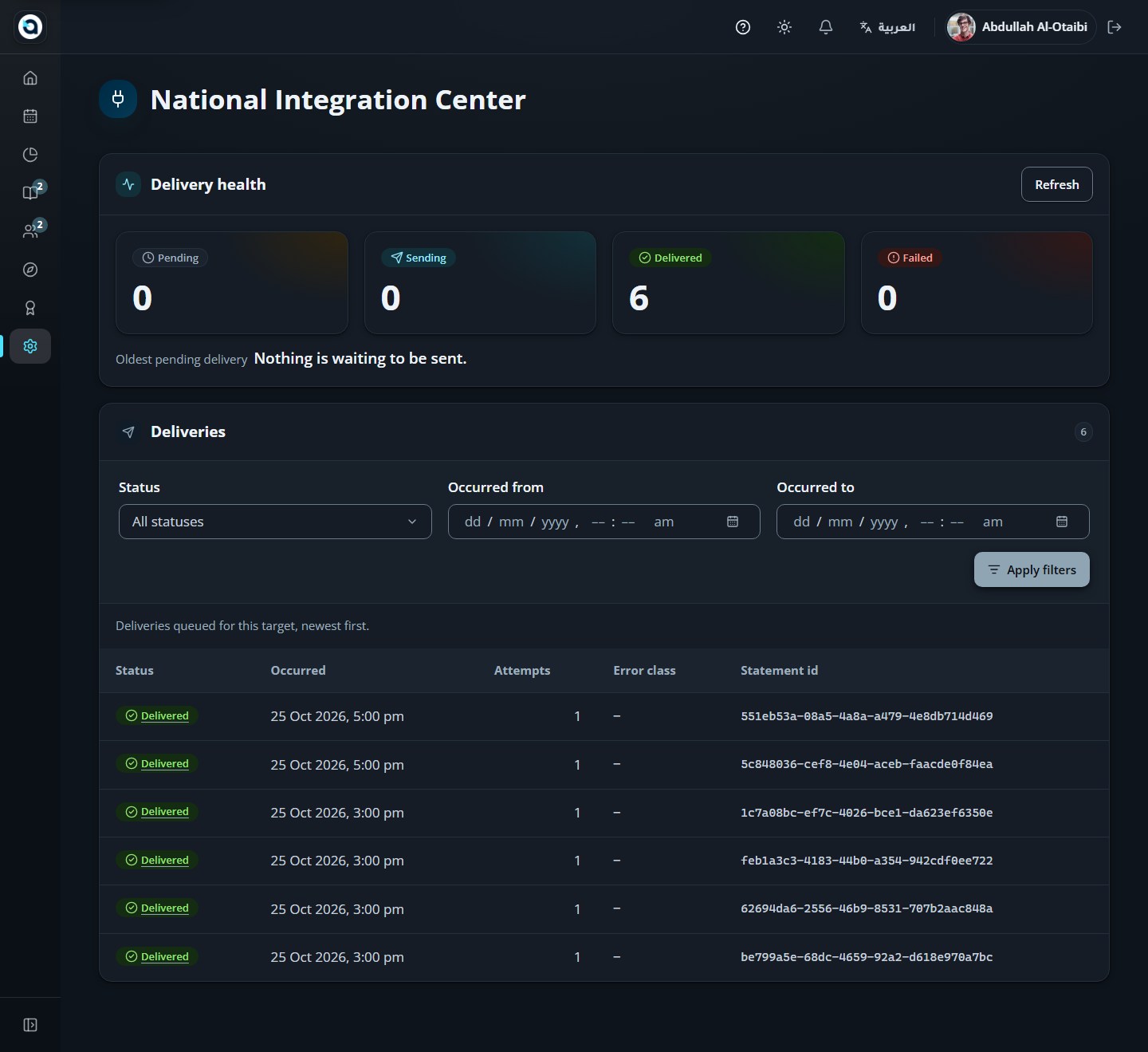
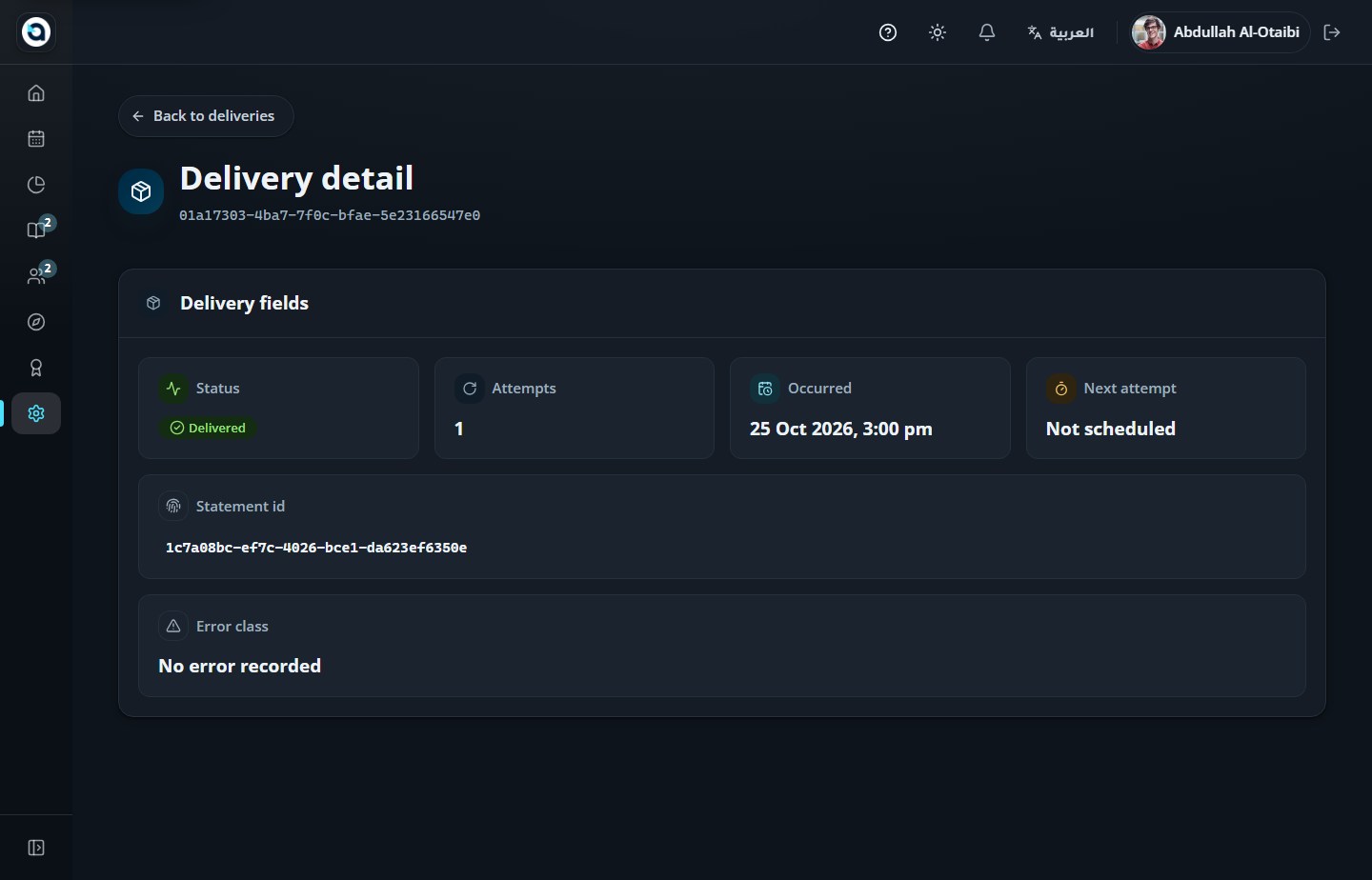
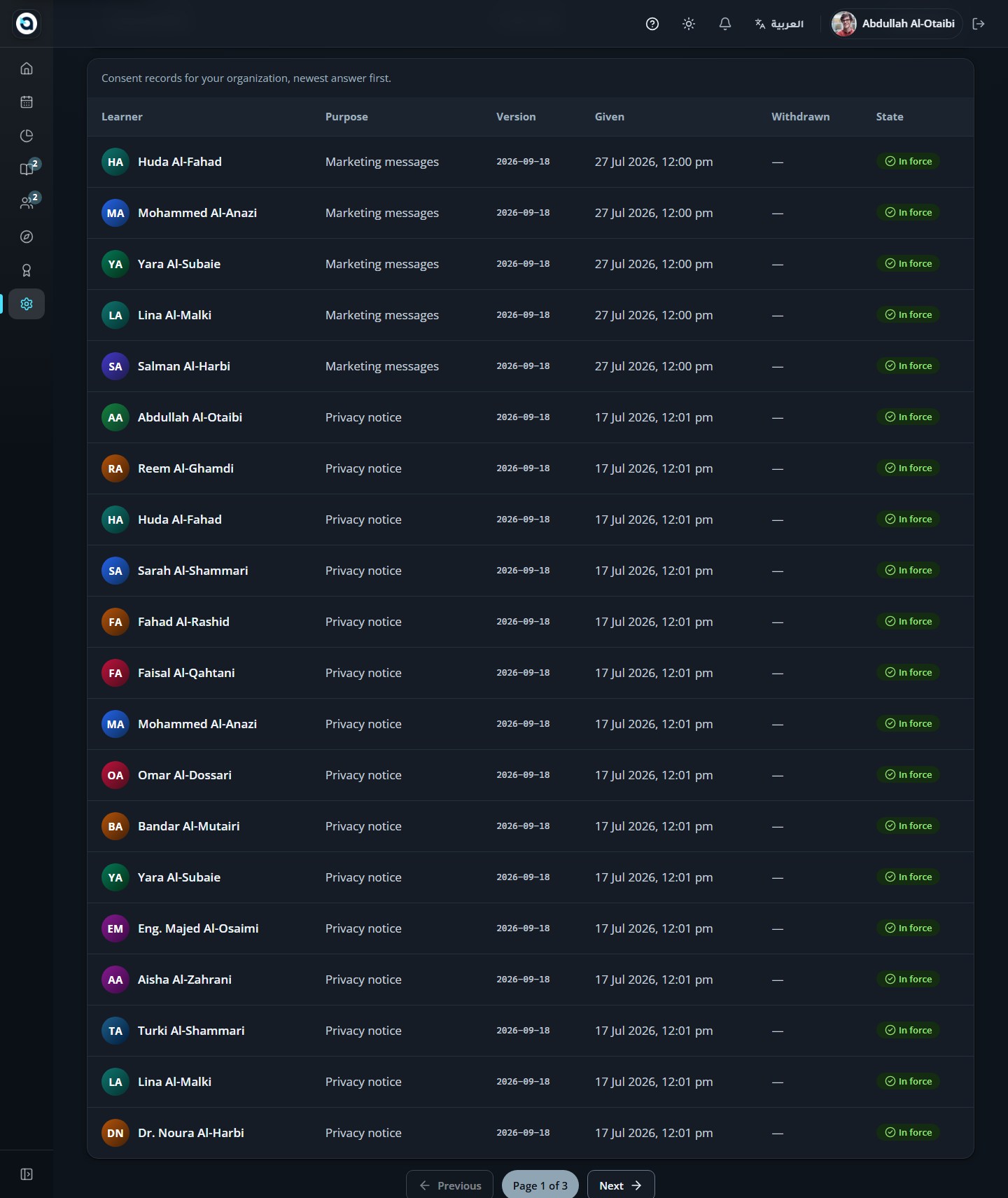
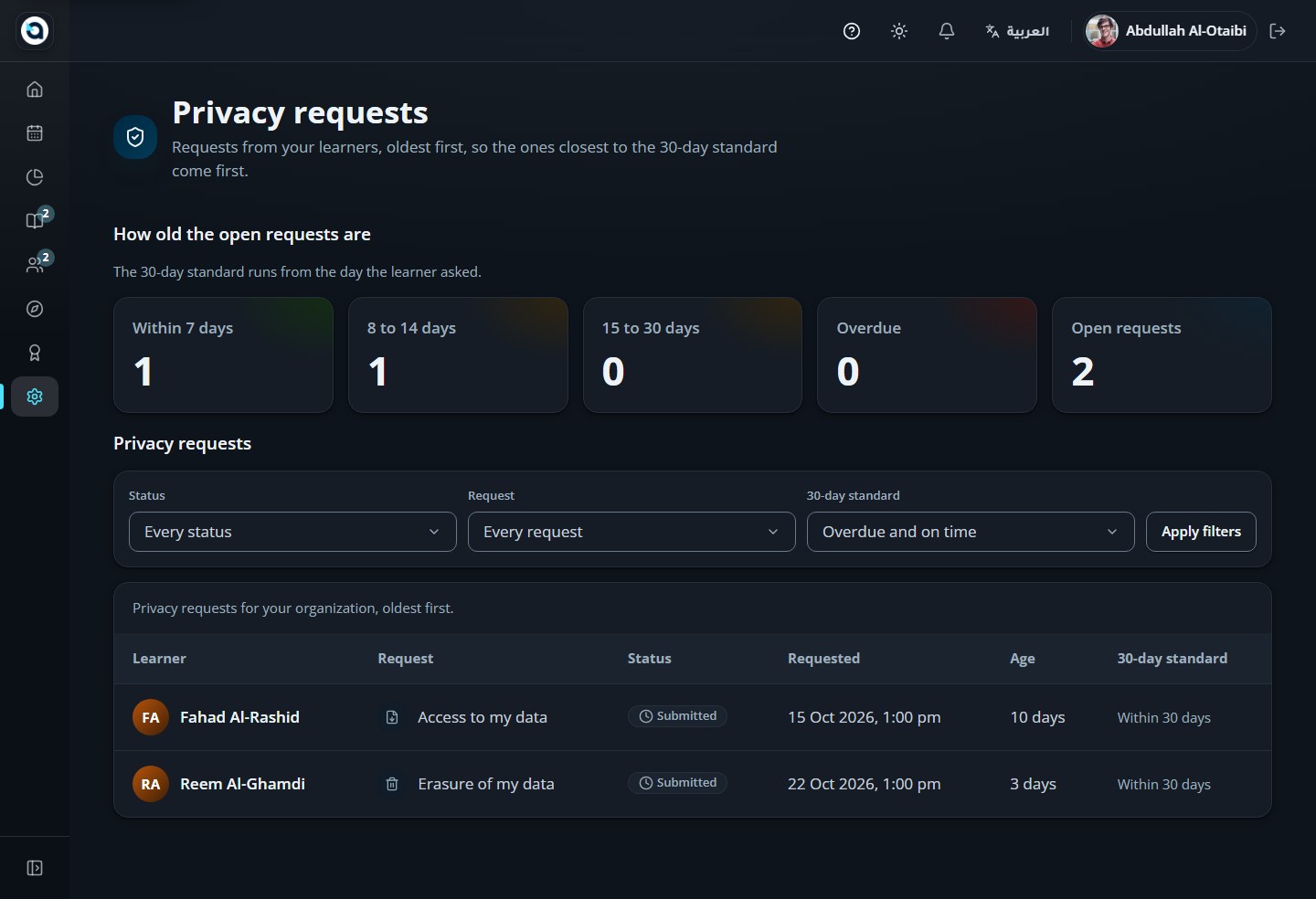
Tip: You can also test Light and Dark mode right inside this User Manual—click the Light / Dark button in the manual header above to switch all screenshots between Light and Dark themes!